
Have you ever felt the need to scale PowerShell or CMD up and down before? Probably not, but some folks have. You see, it is not the kind of task most Windows users would ever think about, but rest assured, it’s possible. Now, there are many reasons someone might feel the need to do this. Maybe a user wants to scale the PowerShell window to fit a certain spot on the screen, or maybe they just prefer a large or small window at their fingertips.
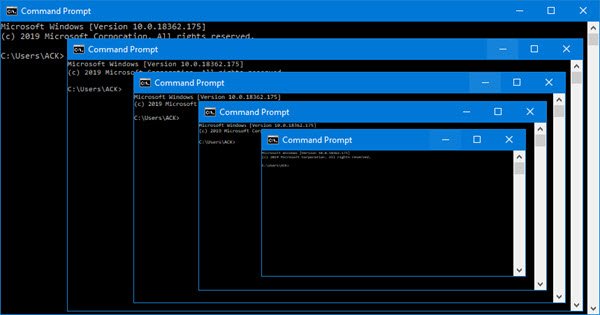
Whatever the case, scaling is possible and super easy. Scaling a PowerShell window takes no effort, so even the biggest novice will have no trouble getting the job done with impressive ease.
How to scale up or down ANY window on Windows computers
This works in any window. For example, if you’re browsing the web and want to zoom in or out on a web page, just do the same thing, and it’ll work just fine. In this post, we’ll use the console window as an example.
1] Launch PowerShell
Launch the PowerShell window before moving forward. To do this, click the search button and type PowerShell (or CMD) in the box. Doing this should bring up Windows PowerShell (or Command Prompt).
Alternatively, you can right-click the Windows button in the bottom-left corner of the screen, then select Windows PowerShell from the list of options. Users can launch the tool normally or with Admin privileges.
2] Scale the window up or down
Now to the easy part, the section you won’t be able to forget. You see, in order to scale the CMD window either up or down, simply hold CTRL on the keyboard and turn the scroll wheel forward or backward. As we’ve stated, it takes nothing, and now you’ve seen it yourself.
Try it out and see for yourself!
