
If your printer is not working on your Windows 11/10 PC after an ink refill, changing the router, a power outage or installing drivers, this post will help you. Here, we will show you some effective fixes to help you resolve the problem.
Why is my printer not working on Windows 11?
There can be many reasons why a printer stops working on a Windows 11 computer. Sometimes a software issue, such as a corrupt printer driver, is responsible for the printer’s problems. In some cases, a hardware issue causes a printer to malfunction.
Fix Printer not working in Windows 11/10
If your HP, Canon, Epson or Zebra Printer is not working on your Windows 11/10 PC after an ink refill, changing the router, a power outage or installing drivers, follow these suggestions:
- Power Cycle your printer
- Check all the connections
- Make sure that the printer is online
- Check if your printer is set as the default printer
- Remove and add your printer
- Run Printer Troubleshooter
- Uninstall and reinstall the printer driver
- Clear Print Spooler
- Update your printer firmware
- Has the issue started occurring after a recent Windows Update?
- Temporarily disable your firewall
- Is your printer showing an error code?
Before you begin, make sure your printer is on and connected to the same WiFi network as your computer (for a wireless printer). We also suggest you check for Windows Updates manually and install the same (if available).
1] Power Cycle your printer
Sometimes printer issues occur due to a minor glitch which can be fixed by power cycling the printer. We suggest you power cycle your printer and see if it helps. To do so, follow the steps provided below:
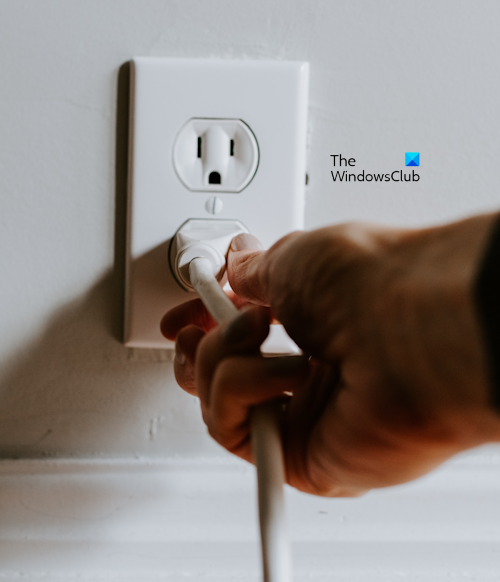
- Turn off your printer.
- Unplug it from the wall socket.
- Wait for 30 to 45 seconds.
- Plug the printer back in.
- Turn on your printer.
Now, see if your printer starts working.
2] Check all the connections
Now, the next step is to check all the printer connections. Check for loose wires. If your printer is wired, make sure the USB cable is properly plugged into your computer’s USB port. Plug your printer into another USB port and see if it helps.
If your printer is wireless, turn it on and ensure it is properly connected to your computer.
Fix: Printer Connection and Printing problems in Windows
3] Make sure that the printer is online
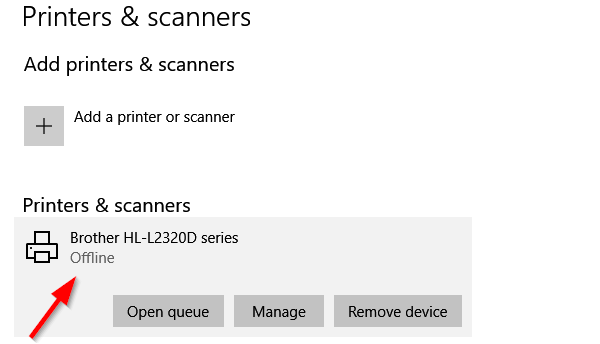
Your printer should be online; otherwise, it will not work. Windows 11/10 shows printer status as online or offline. Hence, you can check your printer’s status. If your printer is offline, change its status to online and it will start working again.
4] Check if your printer is set as the default printer
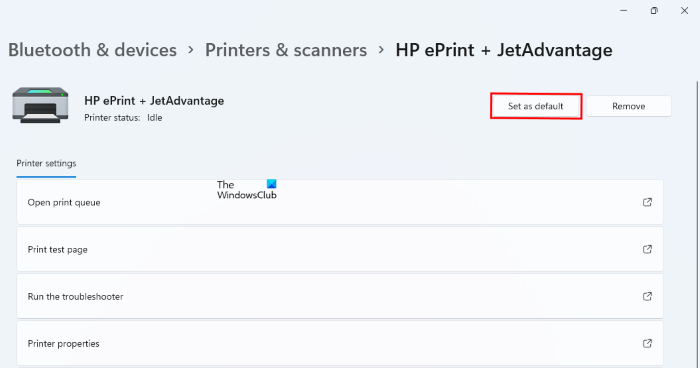
Also, make sure that your printer is set as the default printer. You can check this in Windows 11/10 Settings. Open your system Settings and go to Bluetooth & devices > Printers & scanners to view your default printer. On the same page, you can set your default printer.
5] Remove and add your printer
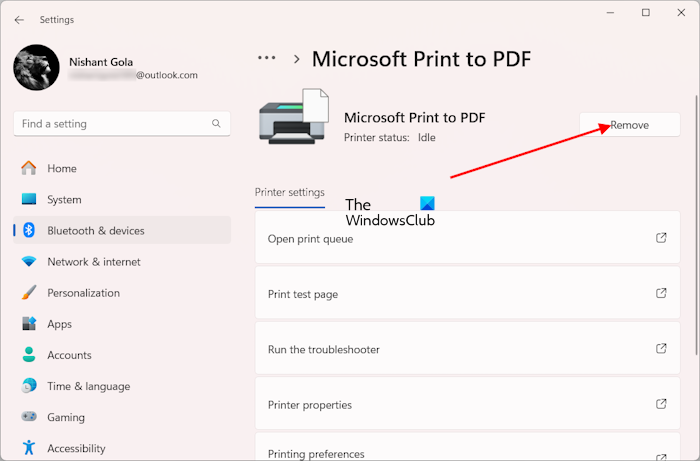
Removing and adding the printer again can also help fix printer problems on Windows 11/10. You can use different methods to remove your printer from your Windows 11/10 computer. After uninstalling or deleting the printer, restart your computer and add the printer again.
6] Run Printer Troubleshooter
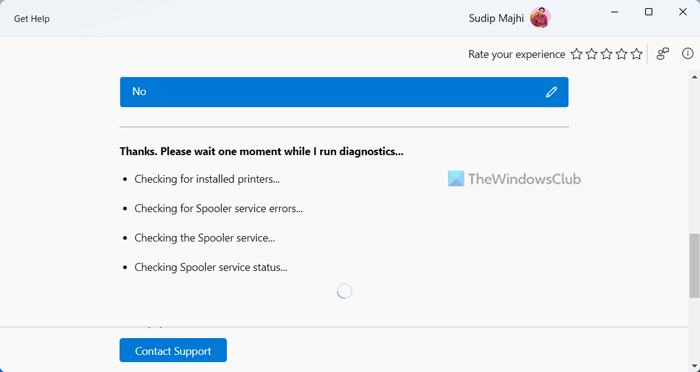
A Printer Troubleshooter helps resolve printer issues on a Windows computer. If your printer is still not working, we recommend you run the Printer Troubleshooter. You can do so via the Get Help app or Windows Settings.
TIP: Use HP Print and Scan Doctor to fix HP Printer problems on Windows PC
7] Uninstall and reinstall the printer driver
A bad or corrupted printer driver can also cause printing problems. We suggest you uninstall your printer driver and reinstall it. You can uninstall the printer driver from the Device Manager. Open the Device Manager and expand the Print queues branch. Now, right-click on your printer driver and select Uninstall device.
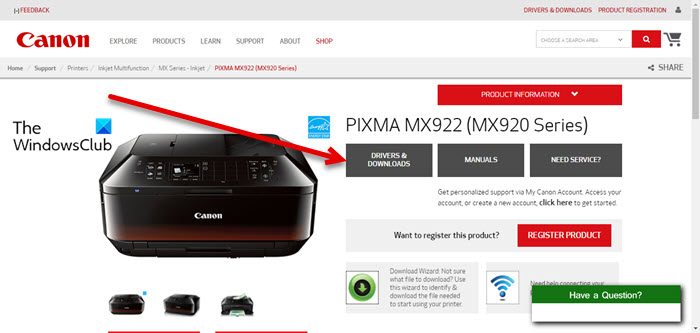
After uninstalling the printer driver, visit the official website of your printer manufacturer and download the latest version of your printer driver. You need to enter your printer model on the website to download the right compatible diver.
8] Clear Print Spooler
Clearing the print spooler files and restarting the Print Spooler service can also help fix many printer issues. The Print Spooler service handles the interaction with the printer. To clear the print spooler, you have to stop the Print Spooler Service. The following steps will guide you on this:
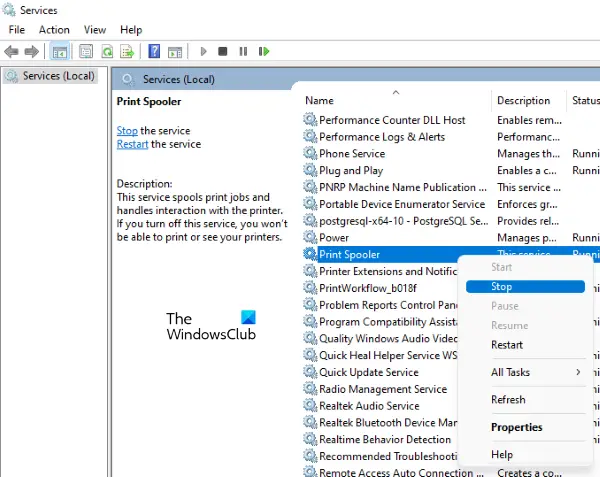
- Open the Services Manager.
- Locate the Print Spooler service. Once you find it, right-click on it and select Stop.
Now, open the File Explorer and go to the following location:
%WINDIR%\system32\spool
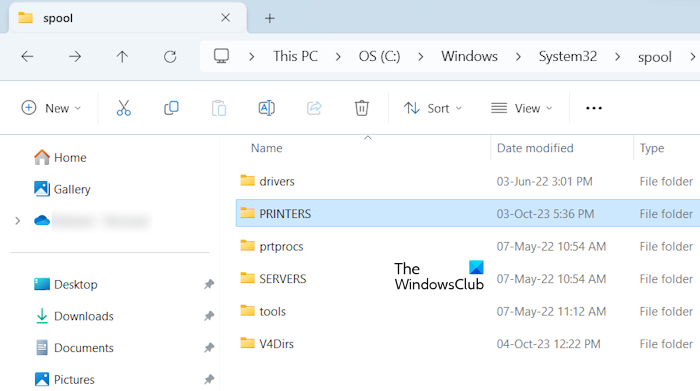
Open the PRINTERS folder and delete all the files inside it. Do not delete the PRINTERS folder. Now, open the Services Manager, right-click on the Print Spooler service, and select Start.
9] Update your printer firmware
Printer issues can also occur due to an outdated printer firmware version. Make sure that your printer firmware is updated to the latest version. Refer to your printer’s user manual to learn how to update your printer’s firmware.
10] Has the issue started occurring after a recent Windows Update?
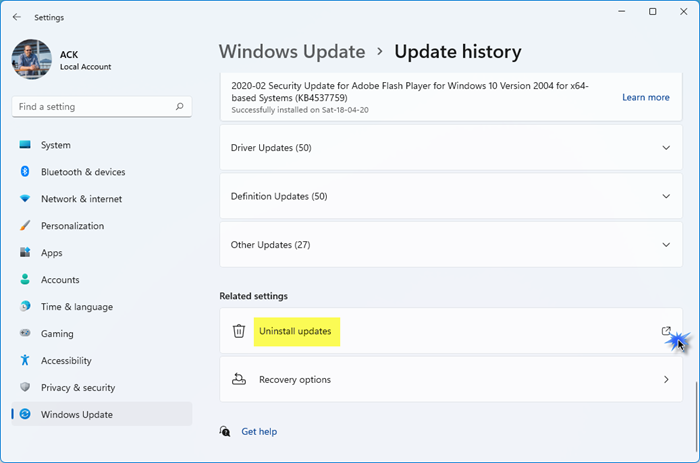
Has the issue started occurring after a recent Windows Update? If yes, you can uninstall that particular Windows Update. Sometimes a Windows Update causes issues. In this case, users can downgrade their systems by uninstalling that particular update.
Read: Poor print quality of Printer while printing on Windows PC
11] Temporarily disable your firewall
Sometimes a firewall blocks network printers, preventing them from connecting to the computer or printing documents. This might be the case with you. To confirm this, temporarily disable your firewall. Now, check whether you can print the document. If this works, you have to allow your printer through the firewall.
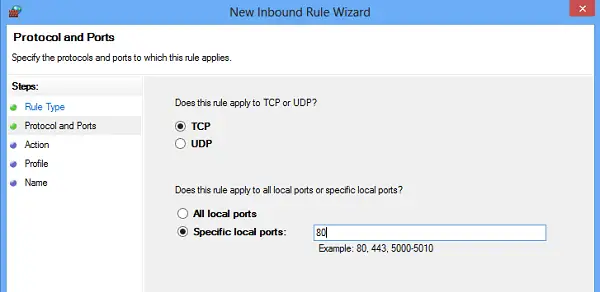
Network printers communicate with a Windows computer via the ports assigned to them. Printers from different brands may have different ports for connecting to a computer. These ports should be allowed through the firewall. If the firewall is blocking any of the required ports, your printer will not work. Open the Microsoft Defender Firewall and allow all the required ports through it.
If you are using a third-party antivirus, you need to contact their support to know how to allow ports through its firewall. If you find any of the required ports blocked by the firewall, you can create a new rule to allow them. To find which ports your printer uses to communicate with the computer, refer to the user manual.
12] Is your printer showing an error code?
Printers also show an error code when an error occurs. If your printer displays an error code or message, you can troubleshoot further based on it.
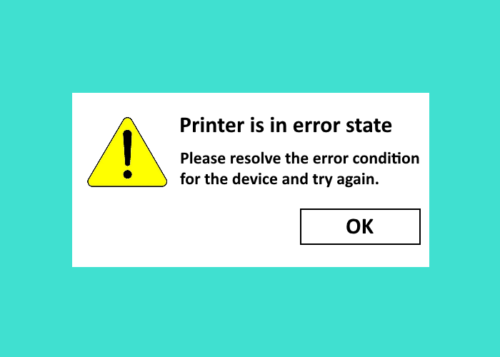
For example, the error message “Printer is in error state” indicates that there is an issue with the printer. Maybe it is running low on ink, its cartridges are inserted incorrectly, the paper is jammed, etc. In addition, there might be an issue with the printer driver. The Epson Printer Error 0x10 occurs when there is an issue with the printer drivers.
Some printer error codes directly indicate a hardware issue with the printer. For example:
- The Epson Printer error code 0xE8 occurs when the paper is jammed, there is an issue with the printhead, the printer is dirty, etc.
- The HP Printer error code 0x00759c98 also indicates a hardware issue, like the problem with ink cartridges, motor, etc.
Read: Printer not working after Windows Update.
Printer not working after Ink refill in Windows PC
If your printer stops working after an ink refill, it’s usually due to cartridge recognition or clogged nozzles.
- Restart both the printer and PC to refresh connections.
- Check that the cartridge is seated properly and the protective tape is removed.
- Run the printer’s built‑in cleaning cycle from Settings > Devices > Printers & scanners.
- Update or reinstall the printer driver in Windows if detection fails.
If issues persist, reset the printer to factory defaults and try again.
Printer not working after changing router in Windows PC
When your printer stops working after changing the router, it usually means the printer lost its network connection or IP address.
- Restart both the printer and router to refresh connections.
- Reconnect the printer to the new Wi‑Fi network using its control panel.
- Update the printer’s IP address in Windows Settings > Devices > Printers & scanners.
- Run the Printer troubleshooter from Settings > System > Troubleshoot.
If issues persist, reinstall the printer driver so Windows detects it correctly.
Printer not working after power outage in Windows PC
A power outage can disrupt printer connections or settings, but you can usually fix it with a few quick steps.
- Restart Printer and PC
- Ensure that the USB cable or Wi-Fi connection is secure
- Update Printer Driver
- Reset Printer Settings.
Printer not working after installing drivers in Windows PC
If your printer is not working after installing drivers, we suggest you uninstall the installed driver or use a system restore point to go back to a good point. You could also run the Windows Printer Troubleshooter to automatically detect and repair issues.
How do I enable my printer on Windows 11?
To enable a printer on your Windows 11 computer, you have to do a few things. Add your printer and set it as the default. Also, make sure that the printer is online. If it is offline, change its status to online. If you are using a wireless printer, make sure that it is on the same network.
Related: Printer not responding in Windows 11
Shared Printer not working in Windows
Different computers access a shared printer on the same network. A shared printer is usually used in enterprise environments. When a shared printer stops working, it can hamper the work. To fix this problem, you can try some steps, such as disabling your firewall and running the Printer Troubleshooter. Also, make sure the computer you are using to access the shared printer is connected to the same network.
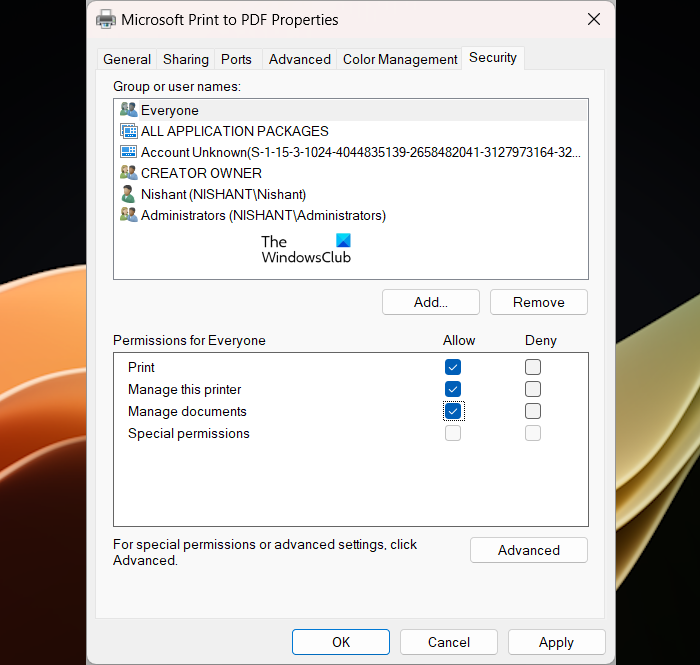
Make sure that the user is allowed to print from the shared printer. Open the Printer properties and select the Security tab. Now, select the user account from the list of user accounts displayed in the list. Allow all or Print permissions for that user. You can also add Everyone as a new user and allow the Print permission to it.
It is also possible that all the users who have access to the shared printer do not have the write permission to the PRINTERS folder. You should check this. Open the File Explorer and go to the following location:
C:\Windows\System32\Spool
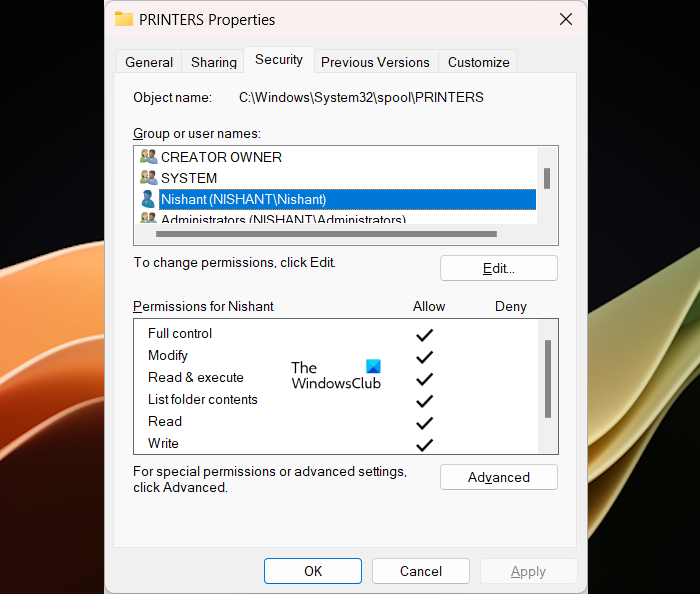
Right-click on the PRINTERS folder and select Properties. Go to the Security tab. Select the user from the list of available usernames and allow Full Control to it.
Network Printer not working in Windows
If your network printer is not working and you have connected it via an Ethernet cable, make sure that the Ethernet cable is not faulty. Also, remove and reinstall your printer drivers. If this issue has started occurring after a recent Windows update, uninstall that update. Moreover, assigning a static IP address to a network printer can also fix issues.
Read next: We can’t find the Printer, Error 1801, The printer name is invalid.
