
Windows Update is known for delivering the latest features and security updates to your computer. However, it doesn’t do any harm to your computer. But sometimes, you might face weird issues. One such issue is the printer not working after the Windows update. The issue might occur because your printer driver files are incompatible with the latest version of Windows. But luckily, fixing the issue is not so complicated. Below, you will find a few solutions to fix the issue, starting with basic troubleshooting.
Fix Printer not working after Windows Update
If your Printer has stopped working after Windows Update, here are some suggestions to help you get the printer back:
- Make sure your printer is connected
- Run Printer Troubleshooter
- Download and Install the latest printer software and driver.
- Uninstall Recent Windows Update
- Reinstall Printer Driver
So let’s go ahead and check the steps out:
1] Make sure your printer is connected
Before you make any fixes, make sure your Printer is connected. Is your Printer powered on? Is the connection to the power socket and computer alright?
You should go through the whole connection again, try reinserting the wires and reboot your computer. Even if that doesn’t fix your issue, you can try power cycling your Printer.
To do so, turn off your printer, unplug it from the power socket, and leave it for a minute or so. After that, power up your Printer and check whether your Windows computer recognizes it.
2] Run Printer Troubleshooter
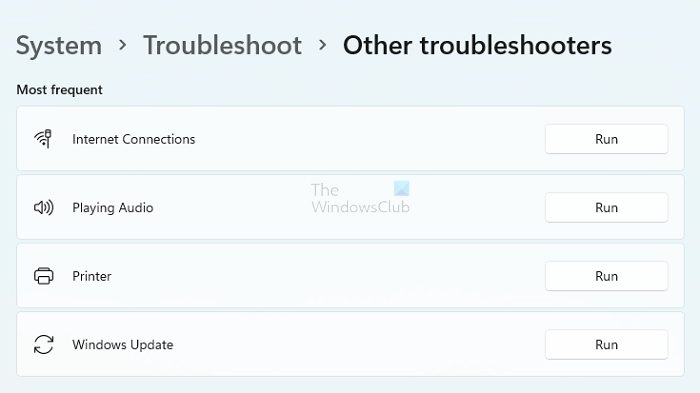
It would be best if you also tried running the printer troubleshooter. The troubleshooter often fixes the issue automatically. Even if it doesn’t fix the issue, it sometimes hints at what the error could be. To run the Printer troubleshooter, follow these steps:
- Press the Windows key + I to launch Settings.
- Navigate to System > Troubleshoot > Other troubleshooters.
- Look for the Printer and click on the Run button next to it.
- Finally, let the troubleshooter run and see if it fixes the issue.
3] Download and install the latest printer software and driver
Since you have updated Windows, your printer driver might not be compatible with the latest version of the OS. Hence, download and install the latest printer software and driver.
You must go to your printer manufacturer’s driver download page to update your printer driver. From there, use your printer model to search for the available driver. For instance, if you have an HP printer, you can go to Bing, search for “HP printer driver download,” then visit HP’s website to find the printer driver.
After that, download the driver, install it on your computer, and see if it fixes the Printer not working after the Windows update.
4] Uninstall the recent Windows Update
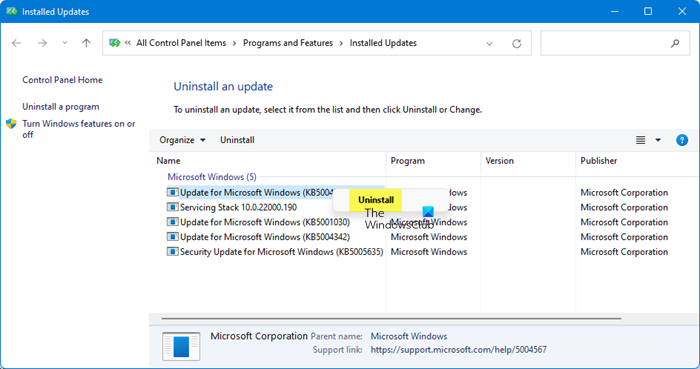
Since the issue occurred after a Windows Update, you can choose to remove the update. However, this works only for minor updates and not significant updates. Follow our detailed guide on how to uninstall Windows updates.
5] Reinstall the Printer
The next thing you can do is remove the Printer from your computer and reinstall it. First, uninstall your printer, then reinstall it. Follow the detailed steps to reinstall the printer in Windows.
Uninstall Printer
- Press Windows + I to launch Settings.
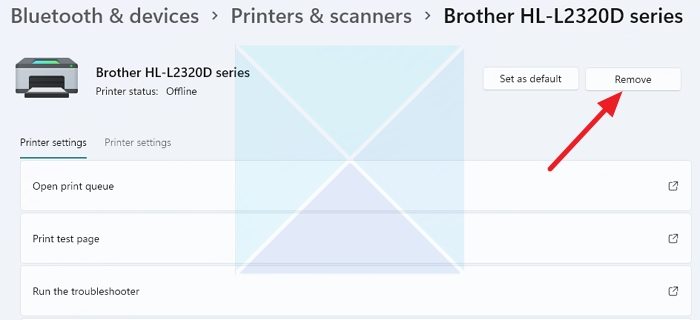
- Navigate to Bluetooth & devices > Printer & scanners.
- Click your printer name, select Remove, and follow the on-screen instructions.
- Once you remove your Printer, go to the Apps section in Windows settings, and remove any printer-related software.
- Reboot your computer and follow the below steps.
Note: Only remove software related to that printer, not all software.
Install Printer
- Download the Printer driver or installation wizard from the manufacturer’s website.
- Run the application and follow all the onscreen steps.
So that was all for the Printer not working after the Windows update. The issue can be fixed by reinstalling your printer driver. If that doesn’t work, try reinstalling the Printer. If you get stuck on anything, feel free to comment below.
This post will help you if your HP, Canon, Epson, Zebra, etc, Printer is not working on your Windows PC after an ink refill, changing the router, a power outage or installing drivers
Read: HP Printer Scanner not working
Why is my computer suddenly not recognizing my printer?
If everything was working before, your printer is connected and online, and you did not update Windows, it’s best to reinstall the printer to get it working again. Some files related to the printer may be corrupted, and installing the printer software can fix them. Always use the OEM software when installing, as it will only install compatible drivers.
Fix: Wireless Printer not responding
How do I restore my printer connection?
Ensure the printer is on, connected to the PC, and not in sleep mode. Most printers get into sleep mode when not used for a long time. If it’s a shared printer, check if you are connected to the same network, and in the case of PC connected printer, ensure the PC is turned on for the discovery to work.
