
In this post, we have created a list of some best free tools to bulk uninstall Programs and Microsoft Store Apps on Windows 11/10 computers. Some of these tools also offer a feature to bulk-uninstall Microsoft Store apps from your computer. Windows 11/10 OS already comes with native or built-in options to uninstall a program, but if you want to uninstall multiple programs at once, then the tools covered in this post will come in handy.
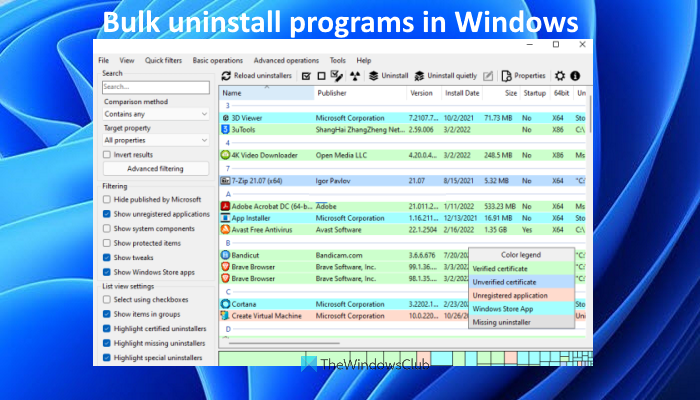
Bulk uninstall Programs and Microsoft Store apps in Windows 11/10
Here is a list of the best tools that let you uninstall Programs and Microsoft Store apps in batch from your Windows 11/10 PC:
- Bulk Crap Uninstaller
- Absolute Uninstaller
- dUninstaller
- Uninstaller
- UninstallView
- IObit Uninstaller.
Let’s have a look at these tools.
Free software to Bulk Uninstall Programs and Microsoft Store Apps
1] Bulk Crap Uninstaller
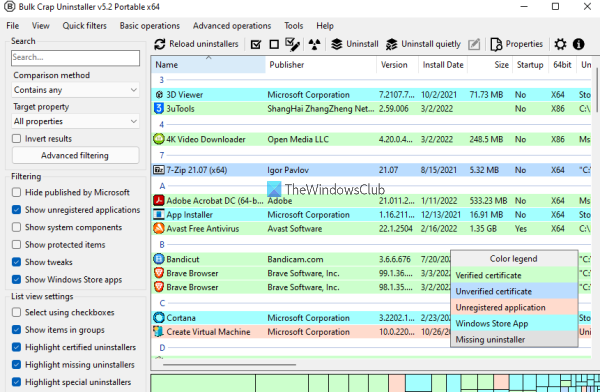
Bulk Crap Uninstaller (or BCUninstaller) is an open-source tool that lets you bulk uninstall Microsoft Store apps as well as third-party programs from your computer. This tool lets you uninstall programs and apps silently as well as with detailed settings. It can also let you search for leftovers (Registry entries and other entries) of programs and apps uninstalled by you and then delete such entries.
There are many other important and interesting features present in this tool. For example, you can use this tool to manage, detect, as well as uninstall:
- Hidden/protected Registry applications
- Missing uninstaller applications
- Steam games
- Oculus games
- Windows Features, etc.
To bulk-uninstall programs and apps using this tool, download the installer or portable version. After opening this tool, complete the wizard process, and the main interface will be in front of you showing all the installed programs and Microsoft Store apps. Now select apps, programs, and other applications that you want to uninstall. Click on the Uninstall button if you want to uninstall items with detailed settings or hit the Uninstall quietly button if you want to uninstall items in the background.
Once the uninstallation process is completed, it will prompt you to search for leftovers of uninstalled items. After that, you can continue to locate any remaining files and delete them from your computer.
2] Absolute Uninstaller
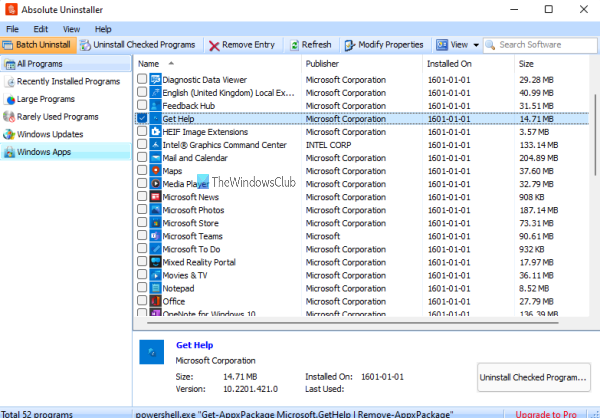
Absolute Uninstaller also comes with the feature to uninstall multiple programs and Microsoft Store apps at once. This tool lets you view the list of programs and apps category-wise. You can access Windows apps, rarely used programs, Windows Updates, large programs, recently installed programs, and all programs separately. Thus, it will be easier for you to find out which programs and apps you want to uninstall.
Once you have installed this tool, launch it, and a list of all programs and apps will appear. For each item, you can view the installation date, publisher name, program name, and item size.
To uninstall programs and apps in bulk:
- Click on the Batch Uninstall button available on the top left part of its interface
- Now the checkboxes will appear before the name of each program and app
- Select the apps and programs that you want to uninstall
- Click on the Uninstall Checked Programs button.
That’s it! Now, complete the uninstallation process, and the selected programs and apps will be removed.
3] dUninstaller
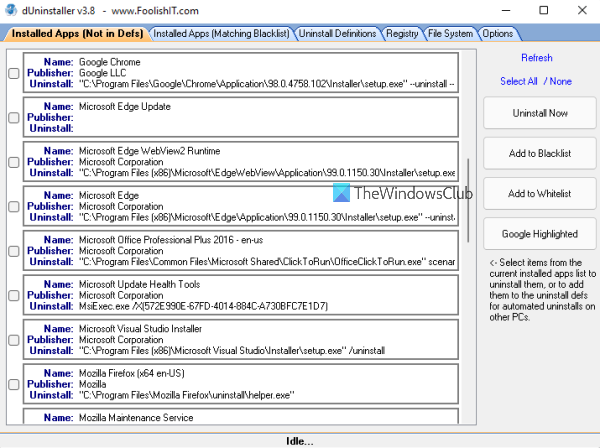
dUninstaller tool is free for personal use and it can be used to bulk uninstall programs only. Microsoft Store apps can’t be removed using this tool. You can also add programs to blacklist on its interface so that you will have only those programs that need to be uninstalled.
In addition to uninstalling the programs, it is also helpful to delete any leftover Registry entries for those programs. But you need to manually paste Registry paths of those entries in the Registry tab present on its interface.
To use this tool, grab it from d7xtech.com. After installation, open the interface, and the list of all programs will be visible. If you want, you can select programs, and then add them to the blacklist. Otherwise, there is no need to do that. Simply select the programs and press the Uninstall Now button present on the right section of its interface. After this, the tool will delete all selected programs one by one.
Also read: How to install or uninstall Microsoft Store apps.
4] Uninstaller
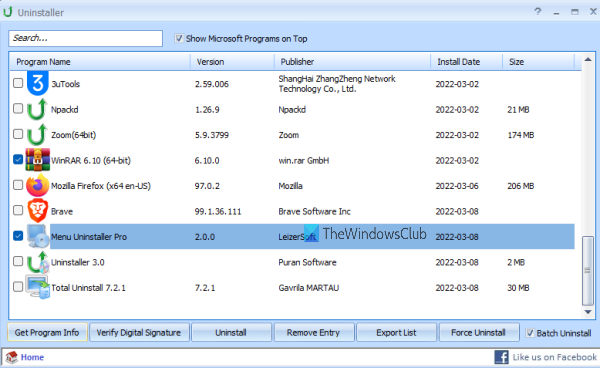
Uninstaller is another free tool for removing multiple programs at once. This tool also includes additional features. You can use it to verify the digital signature of a program, export the list of all programs along with program name, publisher name, program version, install date, and program size as an HTML file, and use the Force Uninstall option if some program is not removing directly or there is some interruption.
To use this tool, download it from puransoftware.com. Install it and launch the tool. Now all the installed programs will visible to you. To bulk uninstall programs:
- Select the checkbox available for the Batch Uninstall option present on the bottom right corner of its interface
- Now the checkboxes will appear just before each program name. Select the checkboxes for programs that you want to uninstall
- Click on the Uninstall button present on the bottom middle section
- A small confirmation box will appear to remove the selected program. Press the Yes button
- After uninstalling the program, you will be prompted to scan for leftovers (Registry entries, BAT files, temporary files, etc.). You can continue with that process to delete the leftovers
- After this, it will begin uninstalling the second program you selected.
This process will continue until all the selected programs are removed from your computer. This way, it helps you bulk-uninstall programs.
5] UninstallView
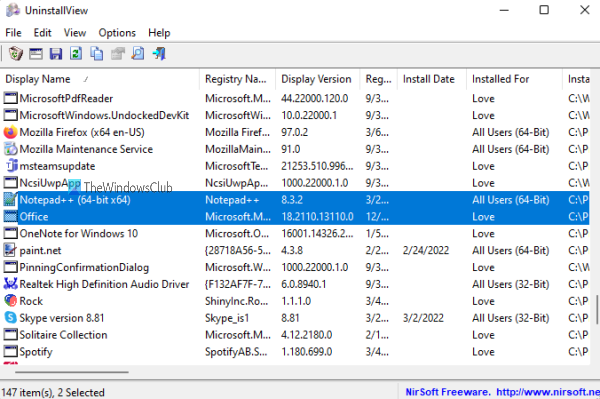
UninstallView is one of the best tools on this list. It shows the list of installed programs with detailed information. You will be able to see program name, Registry name, Registry time, display version, install date, program installed for the current user or all users, install location, publisher name, install folder creation time, install folder owner, install folder modified time, publisher name, uninstall string, change install string, quiet uninstall string, comments, program URL, and more.
Apart from showing this detailed information, you can also save all that information as TXT, HTML, JSON, CSV file, etc. The feature to uninstall Microsoft Store apps using PowerShell is also present. You don’t have to enter the command for uninstalling a Microsoft Store app. It automatically opens PowerShell with the uninstallation command for the selected app. You just have to type Y and press the Enter key to uninstall that app.
To uninstall multiple programs or applications:
- Open its interface and it will load the list of all applications on its interface
- Now Click on the Options menu
- Select Allow Uninstall Of Multiple Items option present in Options menu
- Now select programs that you want to uninstall
- Click on the File menu
- Select Quietly Uninstall Selected Software option in File menu
- A confirmation box will pop-up
- Press the Yes button in that box.
After that, the uninstallation process for selected programs will start and complete.
6] IObit Uninstaller
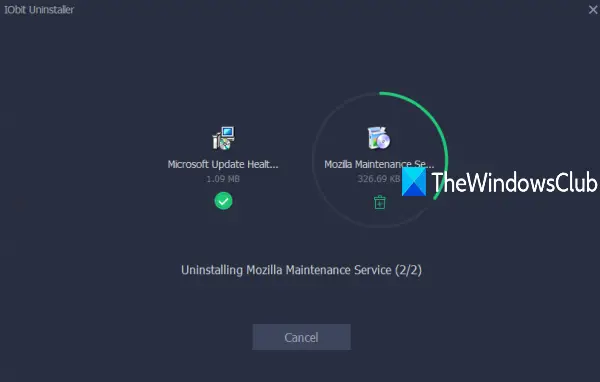
The free version of IObit Uninstaller is good enough to batch remove installed software/applications as well as Microsoft Store apps from your Windows PC. The best part is that you can also use it to uninstall pre-installed and system apps in just a few mouse clicks. The list of features is pretty good
That’s it! Hope you find these tools helpful.
Also read: Best Free Uninstaller Software for Windows 11
How do I uninstall multiple programs at once in Windows?
Windows provides options to uninstall programs using the Settings app, Registry Editor, Control Panel, Command Prompt, etc., but only one program can be uninstalled at a time. If you want to uninstall multiple programs at once on Windows 11/10 computer, then you need to use third-party tools. Thankfully, there are many good free tools available online that let you bulk-uninstall programs on a Windows 11/10 computer. We have also listed these tools in the post above. Some of these tools also let you uninstall multiple Microsoft Store apps at once.
Now read: Install multiple Programs at once using free Bulk Software Installer
How do I mass delete programs from my computer?
If you want to mass-delete programs from your Windows 11/10 computer, you can use free tools available online. Such tools silently uninstall programs. That means user interaction is not needed. The uninstall process runs in the background silently. You can use the list of tools listed above in this post to mass-delete programs from your computer.
Read next:
