
This post will show you how you can install multiple programs at once on a Windows 11/10 computer. You can bulk install programs using these free tools. This will come in handy when you have reset your PC or freshly installed Windows. It will also save a lot of your precious time. You don’t have to manually download tools and install them one by one.
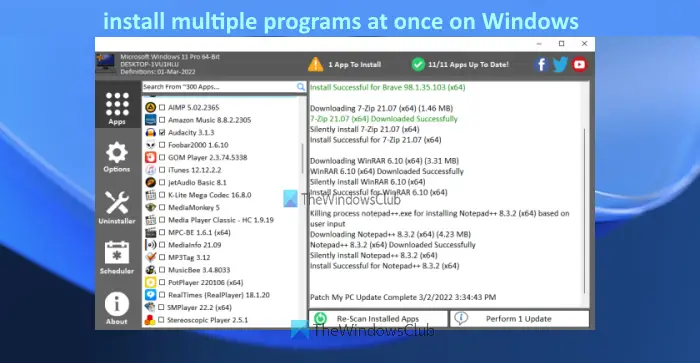
There are some very good and free tools that let you bulk install programs on your Windows 11/10 computer. We have created a list of such tools in this post. These tools install the programs with their latest versions. Some of these tools also provide the ability to update outdated programs or applications on your computer.
Install multiple programs at once in Windows 11/10
Here is a list of free tools covered in this post to install multiple programs at once on a Windows 11/10 computer. You can bulk install programs using these free tools:
- Winget
- Ninite
- Patch My PC Updater
- RuckZuck
- Npackd.
Let’s check all these tools one by one.
Bulk install programs on Windows PC
1] Winget
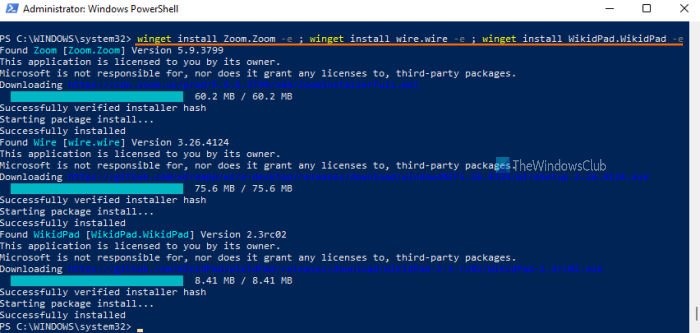
Winget (also known as Windows Package Manager or winget.exe) is a command-line tool by Microsoft that comes with many interesting features. It lets you bulk update all installed programs, uninstalls the given package, show information about a particular application, etc. The command to install multiple programs at once is also supported in this tool. Hundreds of programs are supported by this tool for installation.
Once you have downloaded this tool, you can use it with elevated PowerShell, Windows Terminal, Command Prompt, or some other Windows Console application.
Let’s check the steps to batch install programs on your Windows 11/10 computer using Windows PowerShell. You can use any other Windows Console application as per your requirement.
- Type powershell in the Search box
- Right-click on the Windows PowerShell option that appears in the search result
- Click on the Run as administrator option. This will launch elevated Windows PowerShell
- Now execute the command to get the list of all the programs supported by this tool in alphabetical order. The command is:
winget search | sort
- The list of all supported programs will be visible with the program name, program ID, program version, etc. You need the program ID for each program you want to install. So, let’s say you have to install 3 programs, then the command would be:
winget install programid -e ; winget install programid -e ; winget install programid -e
- Here’s another example to install multiple programs at once. Let’s say you want to install Zoom, Dropbox, and CCleaner, so your command would be:
winget install Zoom.Zoom -e ; winget install Dropbox.Dropbox -e ; winget install Piriform.Ccleaner -e
This is how you can bulk install programs using Winget.
TIP: Winstall is a GUI for Windows Package Manager that makes it easier to bulk install programs.
2] Ninite
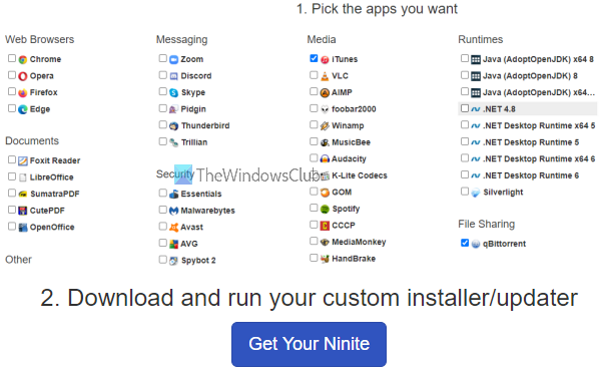
Ninite is free software that comes with a limited but useful set of tools that you can install on your computer at once. This tool includes web browsers, compression tools (such as 7-Zip), media tools, developer tools, image tools, and more. You can select which applications you want on your computer, then generate a custom executable to silently install all selected programs in the background.
Here are the steps to use this tool:
- Open the homepage of this tool. The list of all the available applications will be visible
- Select the checkbox for the applications that you want to install on your computer
- Scroll down its homepage
- Click on the Get Your Ninite button. It will download a custom EXE file on your computer
- Run the EXE file that you downloaded.
Now sit back and relax. The tool will start the setup, download the programs you selected, and install them one by one.
Also read: How to run Batch Files silently in the background on Windows.
3] Patch My PC Updater
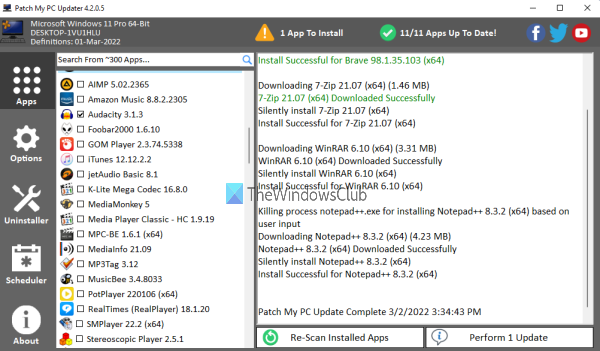
Patch My PC Updater is another tool that lets you install more than 300 applications at once. It provides a list of programs in different sections. You can expand multimedia, browsers, file archivers, utilities, media tools, and other sections to see the available programs. Another interesting feature of this tool is that it shows outdated programs in red, uninstalled programs in black and updated programs in green. This will help you easily identify programs that you need to install and update.
To use this tool for installing multiple programs at once, follow these steps:
- Download and install this tool
- Open its interface
- Use the left part of its interface to access the available sections and the list of programs present in those sections
- Select the programs that you want to install
- Click on the Perform button available on the bottom right part of its interface.
That’s it! The tool will automatically download and install those programs silently.
4] RuckZuck
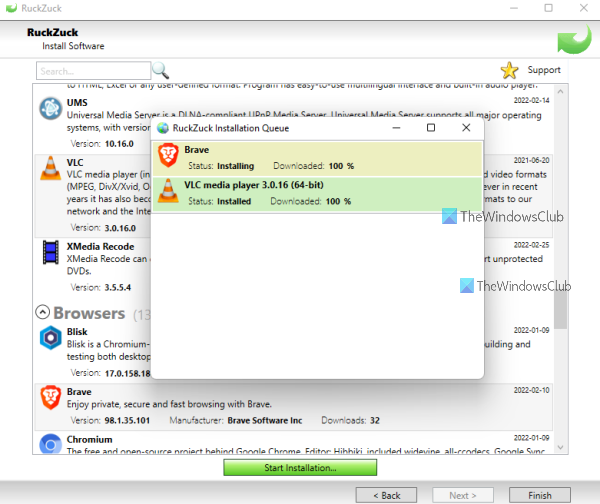
RuckZuck software lets you install 600+ applications/programs. There are different categories like audio, compression, games, imaging, office, security, education, etc., that you can expand to find programs for installation. You can also search for a program if you know the name of that program.
Here is how you can use this tool:
- Download the tool and install it
- Launch its interface
- You will see the available categories. Expand categories and select programs that you want to install
- Press the Start Installation button.
That’s it! A box will pop up. In that box, you will see the download and installation process of all your selected programs.
5] Npackd
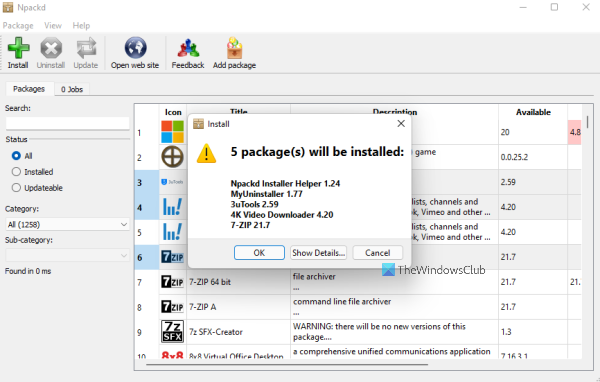
Npackd is a powerful tool that lets you install 1200+ programs silently from its interface. All the programs are organized into different categories, such as communications, development, education, finance, text, music, photo and video. This tool also lets you update the outdated applications installed on your computer.
The list of all programs, with each program’s name, description, license, availability, and installation information, is visible on the interface.
Let’s see how you can use this tool to install multiple programs in one shot:
- Grab this tool from npackd.appspot.com
- Run the download file and complete the installation
- Open the software interface
- You will see the list of all programs on its interface. If you want, you can also select installed or updateable programs using the left section
- Select the programs of your choice
- Click on the Install button present on the top left part of its interface. A small box will pop-up showing you the list of programs that will be installed
- Press the OK button in that box.
One by one, it will download and install all the selected packages in the background. You can also track the progress by accessing the Jobs tab present on its interface.
Hope you find these tools helpful.
Now read: Free software to Bulk Uninstall Programs and Microsoft Store Apps
Can I install multiple programs at once?
The answer is a Yes. You can install multiple programs at once on a Windows 11/10 computer. By default, Windows doesn’t provide any tools or features to install multiple programs together. But there exist some free third-party tools that let you install multiple programs silently. Such tools provide a list of programs that you can install. You just need to select the programs you want, then begin the process. After that, the download and installation are completed by the tool silently in the background.
Some of these tools also include the ability to update outdated applications already installed on your computer. We have created a list of such tools above in this post. You can go through the list and use the one that best fits your needs.
How do I batch install apps?
If you want to batch install Microsoft Store apps on a Windows 11/10 computer, then you can use a free tool named Winstall. It is a GUI version of a command-line tool named Windows Package Manager (WINGET or winget.exe). You can download the installation package of this tool, open its interface, and select the apps that you want to install.
Read next: How to launch multiple programs with one shortcut.
