
A lot of Epson users are unable to print as the Printer shows Error 0x10 on the computer. This error code comes out of the blue and the victims have no clue why this is happening. In this article, we will discuss this in detail.
What does Epson error code 0x10 mean?
Error Code 0x10 in Epson Printer usually means that there is something wrong with your hardware. However, more often than not, this doesn’t mean that your hardware has malfunctioned; it’s just that there can be some glitch or debris that needs a little cleaning. But we can’t say that it has nothing to do with the software, there can be some glitches, some corruption, or some bugs that could have triggered this issue, and like always, any software-related issue can be fixed easily. With software, we mean the drivers, that are installed when your printer connects. There can be some issues with its installation. But, it can also be a bug or a glitch.
Epson Printer Error 0x10 on Windows computer
If your Epson Printer is showing Error 0x10 on your Windows 11/10 computer, then check the following solutions to resolve your issue.
- Restart your Printer
- Clean your Printer
- Run Printer Troubleshoot
- Reinstall Printer Driver
- Update Printer Driver
Let us talk about them in detail.
1] Restart your Printer
We are going to start with the most basic solution that you may have tried. However, this time, try the steps below to complete the task effectively.
- Unplug the Printer from your computer.
- Turn off the Printer and then remove it from the power source.
- Wait for a minute and then, reconnect the Printer.
- Finally, turn your device on and see if it is printing.
Hopefully, this will resolve the issue for you. If the issue persists, check the next solution.
2] Clean your Printer
Error 0x10 can be caused by debris that can stop the scanner from functioning. This debris can be anything from a piece of paper to pebbles. So, open the components and check if anything is stuck and causing the issue. Use a clean cloth to wipe down all the components of your Printer, especially the scanner area. Finally, reassemble the device and try printing something. Hopefully, the issue will be resolved.
3] Run Printer Troubleshooter
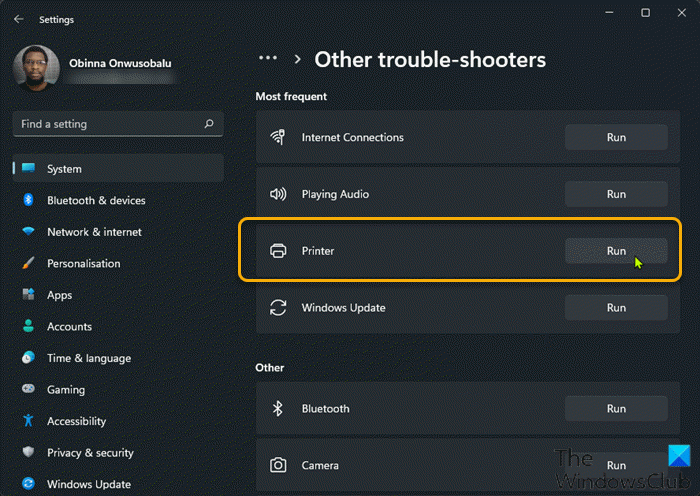
Printer Troubleshooter is a Windows utility that can detect and fix problems with your device. To deploy the troubleshooter, follow the given steps.
Windows 11
- Open Settings from the Start Menu.
- Click System > Troubleshoot > Other troubleshooters.
- Look for the Printer troubleshooter, and click on the Run button.
Windows 10
- Open Settings.
- Go to Update & Security > Additional troubleshooter.
- Click Printer > Run the troubleshooter.
Hopefully, this will resolve the issue for you.
Also Read: How to run Troubleshooter in Windows from the command line
4] Reinstall Printer Driver
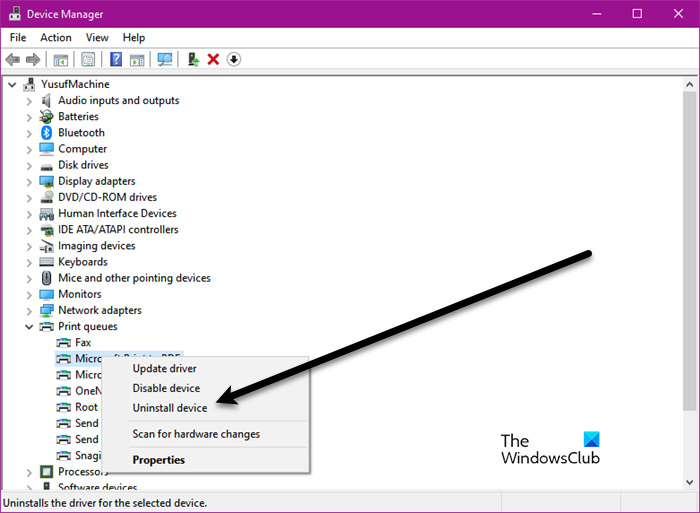
Your Printer Driver can get corrupted and because of this, you can see the issue in question. To resolve the issue, we will reinstall the driver in Device Manager. Follow the steps below to reinstall the Printer Driver on Windows 11/10.
- Disconnect your Printer from the system.
- Open Device Manager.
- Expand Printer Queues.
- Right-click the printer driver and select Uninstall device.
- Restart your computer and plug in the Printer.
Your computer will automatically detect a new device and install the Printer’s driver. This driver is fresh and is not corrupted. So, go ahead and try printing, hopefully, your issue will be resolved.
5] Update Printer Driver
If reinstalling the driver is to no avail, try updating it. This will resolve the issue if there is a bug. There are many ways to update the drivers. So, pick the best one for you and install the latest version of your driver; hopefully, it will resolve. The following are some methods for updating printer drivers.
- Update your computer to update the drivers.
- Use free driver update software.
- Update your Printer Driver from the Device Manager.
- Go to the manufacturer’s website and install the latest version of the driver.
Hopefully, this will resolve the issue for you.
How do I fix error code 0xF1 on Epson printer?
Error code 0xF1 on Epson printers indicates a jammed part or head. It is possible that a piece of plastic is broken and has gotten stuck in another part, such as the feed gears, the printhead, etc. Other causes of this error are jammed paper, dirty cartridges, etc. To fix this error, check for a paper jam. If the paper is not jammed, check the feed gears or the printheads to see if they are jammed. This process requires you to open your printer. Hence, it is better to take help from a technician.
Also Read:
- Fix Canon Printer Error E05 on Windows PC
- How to fix Error 0x97 on Epson printers.
