
If you have ever struggled with printer drivers crashing or failing to install, you are going to like what Microsoft is doing with Windows 11. Microsoft has decided to move away from legacy third-party printer drivers and introduce a more modern printing system called Windows Ready Print. In this post, we will see how to enable or disable Windows Ready Print in Windows 11.
What is Windows Ready Print?
Windows Ready Print is Microsoft’s new print system that simplifies how we print. Instead of needing different drivers for each printer, Windows uses the Internet Printing Protocol (IPP) when supported. This is important because traditional printer drivers often cause issues such as error messages and delays. By using a standard driver that works with many printers, Windows Ready Print aims to make printing more reliable.
How to enable or disable Windows Ready Printin Windows 11
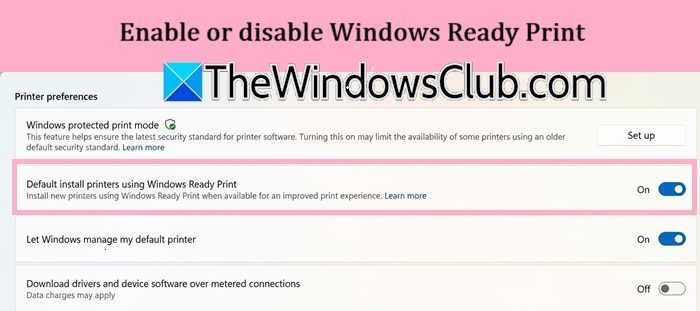
To enable or disable Windows Ready Print in Windows 11, follow the steps below.
- Press Windows + I on your keyboard to open Settings.
- On the left side, click Bluetooth & devices.
- On the right side, click Printers & scanners.
- Once you are on that page, scroll down until you see a section called Printer preferences.
- In that section, you will find a toggle labeled “Default install printers using Windows Ready Print.”
- You need to toggle Windows Ready Print on or off to enable or disable it.
That’s how you enable or disable Windows Ready Print on Windows 11.
If your Windows 11 device is managed by a company or school, this toggle might be grayed out. That usually means your organization has used Group Policy to enforce a specific setting. In that case, you would need to contact your system administrator to change the behavior.
NOTE: Microsoft announced this change in May 2026, with plans to phase out third-party drivers. Right now, the feature is available for Windows Insiders, but a future update will soon bring it to all Windows 11 users.
Read: How to Enable or Disable Printing in Microsoft Edge in Windows 11
How do I disable Windows Print Mode?
To turn off Windows Protected Print Mode in Windows 11, open Settings and go to Bluetooth & devices, then Printers & scanners. Scroll down to Printer Preferences, look for “Windows protected print mode,” and set it to Turn Off. You might need to uninstall your printer afterward and reinstall the manufacturer’s full software package to regain advanced features such as scanning and custom paper sizes.
Read: List Printers using the same printer driver, separately.
How do I turn off Print to PDF in Windows 11?
To remove the Microsoft Print to PDF virtual printer, open an elevated Command Prompt or PowerShell. Type printui.exe /dl /n “Microsoft Print to PDF” and press Enter. Alternatively, go to Control Panel > Devices and Printers, right-click the Microsoft Print to PDF icon, and choose Remove device. This option won’t be listed in print dialogs after removal.
