
When sharing an Outlook Calendar and you see an error message that says “This calendar can’t be shared with one or more of the people you added,” here is what you can do to troubleshoot the problem. From permission to incorrect policy setting, anything could be responsible for this problem. Here, we have discussed all the possible reasons so you can resolve this issue on Windows 11.
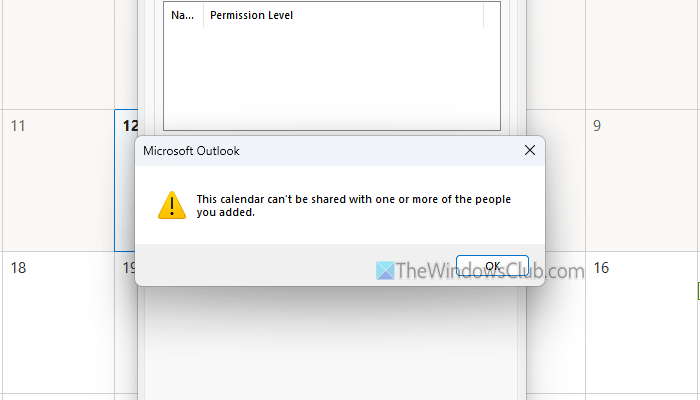
This calendar can’t be shared with one or more of the people you added
To fix the This calendar can’t be shared with one or more of the people you added error in Outlook, follow these solutions:
- Use Microsoft account only
- Ensure the calendar type
- Create a new calendar
- Repair Outlook
- Publish calendar before sharing
- Verify recipient account status
- Enable external sharing
To learn more about these solutions, continue reading.
1] Use Microsoft account only
As of now, Outlook Calendar doesn’t support server-side sharing. In other words, if you want to share a calendar with a Google or Gmail account holder, you might find the aforementioned error. That is why it is suggested to use a Microsoft account only while sharing a calendar. It could be a @outlook.com or @hotmail.com email account. Even if you have a custom email ID with your personal domain that was set up via Outlook, you can use it too.
2] Ensure the calendar type
Earlier, it was possible to save a calendar on your computer for local access. Although things have changed, this problem might still arise if you work with a calendar saved in your local storage.
The next thing is that you might have selected a different owner when creating the calendar, and that owner has removed it. In that case, the calendar type or status was changed when the owner changed ownership. For your information, there is nothing you can do to fix this particular situation other than ask for ownership.
Read: Outlook shared calendar disappeared after restart
3] Create a new calendar
At times, this problem might occur when there are some glitches in Outlook Calendar or the calendar is corrupt. It is highly likely to happen when your computer is attacked by malware or adware. If the internal files are corrupt, the calendar will be corrupt too. That is why it is suggested to create a new calendar if the old one is gone.
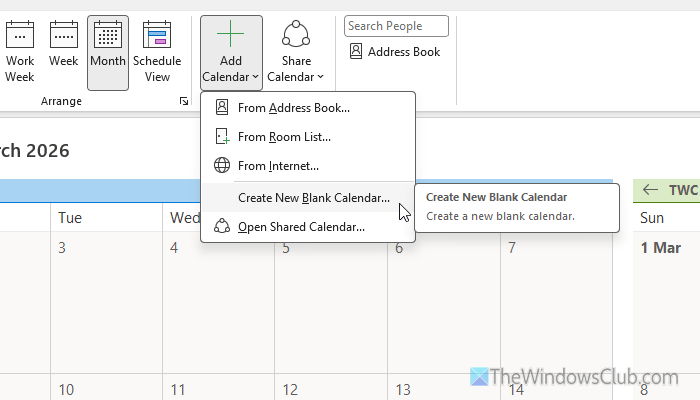
To create a new calendar in Outlook, open Outlook on your computer first. Then, switch to the Calendar section on your left-hand side. Next, make sure that you are in the Home tab. If so, click on Add Calendar option and choose the Create New Blank Calendar option.
Following that, select Calendar from the list, enter the name of your calendar, and click the OK button. Then, you can add all the contacts as per your wish.
However, if you want to create a calendar with a few specific predefined contacts, it is suggested to choose the From Address Book option after clicking the Add Calendar menu.
For your information, you can add a calendar from the internet as well. For that, you must opt for the From Internet option.
Read: How to share your Outlook Calendar with others
4] Repair Outlook
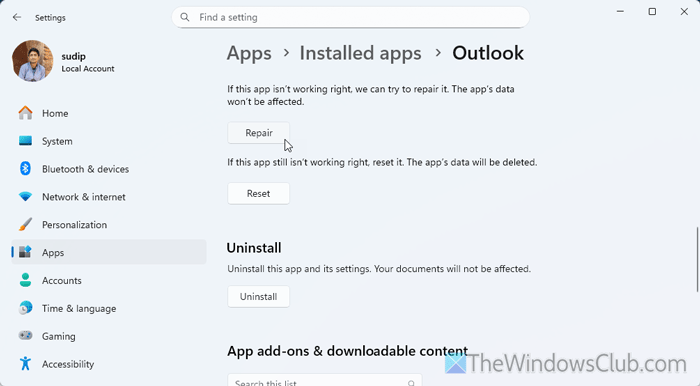
At times, this problem may occur when the Outlook installation is corrupted. If so, you can resolve this problem by repairing it. To repair the Outlook installation in Windows 11, follow these steps:
First, press Win+I to open the Windows Settings panel. Then, go to Apps > Installed apps. Find Outlook and click on the three-dotted icon.
Select Advanced options and click on the Repair button.
It takes a few moments to complete the process. However, if it doesn’t work, use the Reset option. In that case, you will have to set things up from scratch.
Read: Repair corrupt Outlook PST, OST files with Inbox Repair Tool, etc.
5] Publish calendar before sharing
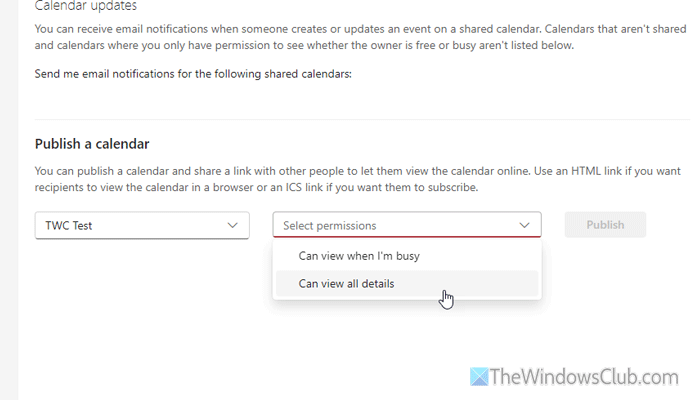
Although it is not mandatory to publish a calendar before sharing, you can try this method to temporarily fix the issue. If you publish a calendar, you will be able to share it with anybody.
However, you can customize the visibility as per your requirements. For example, you can choose an option between Can view when I’m busy and Can view all details.
To go through this process, open the Outlook Web version and go to Settings > Calendar > Shared calendars.
Next, choose a calendar that you want to publish, select a privacy option, and click on the Publish button.
Then, you can copy the calendar link and share it with anybody.
Read: How to add Shared Mailbox in Outlook
6] Verify recipient account status
If your recipient uses a School or Work account, it is recommended to check the status of that account. At times, the administrator blocks the account for different reasons. If that happens, you cannot share anything with that recipient.
7] Enable external sharing
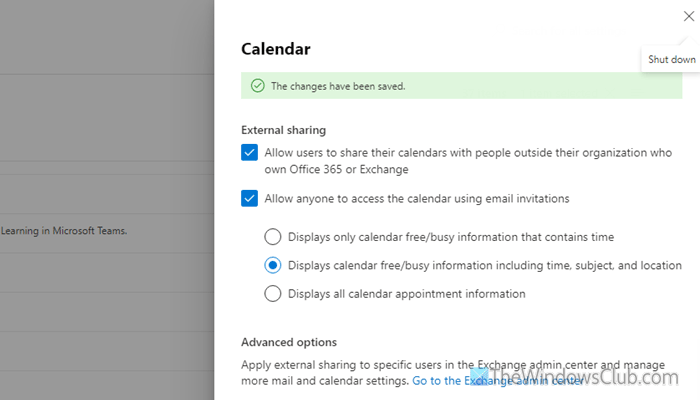
If you use a School or Work account, there is a high chance that the external sharing facility is disabled by the administrator. If you manage your organization, you can go through these steps to enable external sharing.
First, open the Microsoft 365 Admin Center and go to Settings > Org settings > Calendar. Tick the Let your users share their calendars with people outside of your organization who have Office 365 or Exchange checkbox first. Then, tick the Allow anyone to access calendars with an email invitation checkbox and click the Save button.
Read: You don’t have permission to share your calendar with User or Group in Microsoft 365
Why is Outlook not allowing me to share my calendar?
The main reasons Outlook blocks you from sharing your calendar are that your recipient account is inactive or that you are sharing your calendar with someone outside your organization. Also, if you try to share your calendar with someone who does not have a Microsoft account, you will not be able to do so.
Is there a limit to how many shared calendars you can have in Outlook?
No, there is no limit on the number of shared calendars you can have in Outlook. Theoretically, you can create, share, and be part of an unlimited number of calendars. Nonetheless, you can open thirty calendars at most at the same time.
Read: Cannot add calendar to Outlook.
