
If your company uses Google Workspace but you prefer working in Microsoft Outlook, you don’t necessarily have to choose between the two. You can add your Google Workspace Gmail account to Outlook and use Outlook to read and send your work emails. If you also want your Google Calendar to appear in Outlook, you can subscribe to it separately. In this post, we will see how to connect Google Workspace to Outlook.
How to connect Google Workspace to Outlook
To connect Google Workspace to Outlook, follow one of the methods below.
- Add Google Workspace Gmail to Outlook
- Connect Google Calendar and Contacts to Outlook
- Use Google Workspace Sync for Microsoft Outlook
Let us discuss them in detail.
1] Add Google Workspace Gmail to Outlook
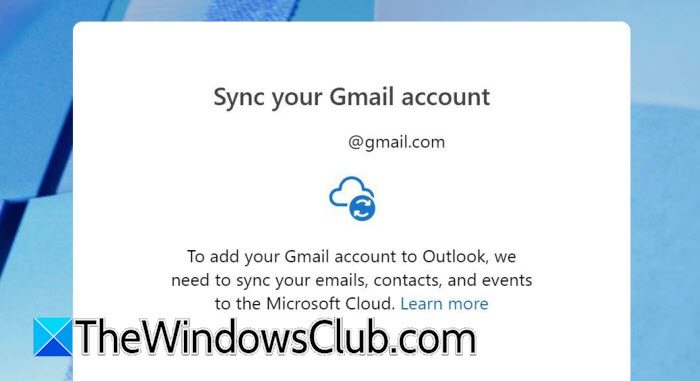
The easiest way to connect Google Workspace to Outlook is to add your Workspace Gmail account directly to Outlook. Modern versions of Outlook can usually detect the required Gmail settings automatically, so you do not need to manually enter IMAP or SMTP server details. Follow the steps below to do the same.
- Open Outlook on your computer.
- Select File and then choose Add Account.
- Enter your Google Workspace email address.
- Select Connect.
- A Google sign-in window should appear.
- Enter your Google Workspace password and complete any required two-step verification.
- Review the permissions requested by Outlook.
- Select Allow to give Outlook access to your Google account.
- Wait for Outlook to complete the account setup.
- Select Done when the setup is complete.
Your Google Workspace Gmail account should now appear in Outlook. You can use Outlook to read, send, and organize your Gmail messages.
2] Connect Google Calendar and Contacts to Outlook
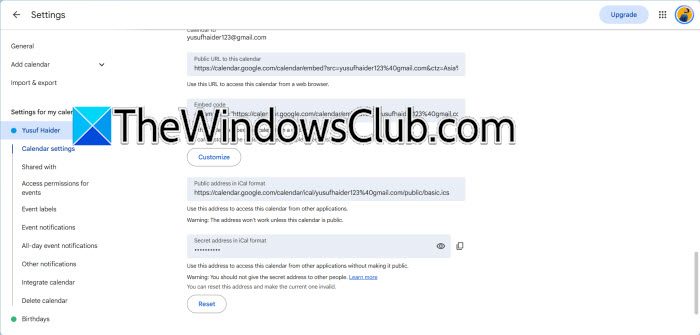
Adding your Google Workspace email to Outlook doesn’t mean that your Google Calendar will automatically appear there. To see your Google Calendar in Outlook, subscribe to it using its iCal address. This is useful if you mainly want to view your Google Calendar alongside your Outlook calendars. Keep in mind that this is a calendar subscription, not full two-way synchronization. Microsoft notes that subscribed calendars can receive updates, but updates may take some time to appear.
- Open Google Calendar in your browser.
- On the left side, find My calendars.
- Find the calendar you want to add to Outlook.
- Hover over the calendar name and select the three-dot menu (⋮).
- Select Settings and sharing.
- Scroll down to Integrate calendar.
- Find Secret address in iCal format and select Copy to clipboard.
- Open Outlook and go to Calendar.
- Select Add calendar.
- Choose Subscribe from web, paste the iCal address, and select Import.
The Google Calendar should then appear in Outlook. Keep in mind that an internet calendar subscription is generally intended for viewing rather than full two-way editing.
3] Use Google Workspace Sync for Microsoft Outlook
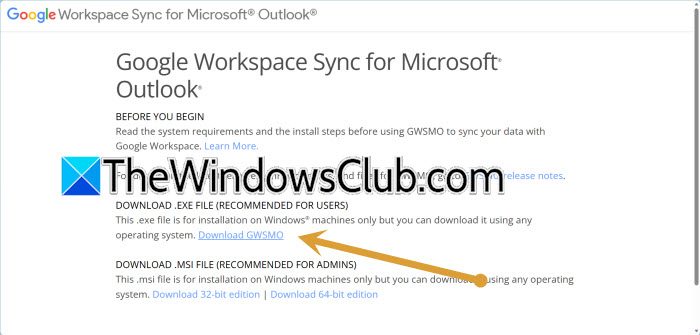
For organizations that want to connect Google Workspace with Outlook, Google Workspace Sync for Microsoft Outlook (GWSMO) is a helpful tool. GWSMO lets users sync their Google Workspace data with Outlook. This means you can access your Gmail, Google Calendar, contacts, and other Google Workspace information in Outlook while keeping everything up to date with your Google account.
- Download and install Google Workspace Sync for Microsoft Outlook.
- Start the installation and follow the on-screen instructions.
- When prompted, enter your Google Workspace email address.
- Sign in to your Google account.
- Complete any required verification steps.
- Allow GWSMO to access your Google Workspace account.
- Choose the Google Workspace data you want to synchronize.
- Let the synchronization process complete.
- Open Microsoft Outlook.
- Check that your Google Workspace account and synchronized information are available.
GWSMO is particularly useful for organizations that have moved from Microsoft Exchange or Outlook to Google Workspace but still want employees to use the Outlook desktop application.
Read: How to connect Slack with Outlook Calendar
Can I use Google Workspace and Outlook at the same time?
You can use Google Workspace and Outlook at the same time. For example, you can access Gmail and Google Workspace in your browser while also adding your work account to Outlook. You can subscribe to your Google Calendar in Outlook to see those events next to your Outlook calendars. If your organization uses GWSMO, Outlook can sync with supported Google Workspace data through its service.
Read: How to migrate from Google Workspace to Microsoft 365
How can I sync Google Workspace with Outlook?
You can sync Google Workspace with Outlook by adding your Google Workspace account directly to Outlook. For email, open Outlook, select Add Account, enter your Google Workspace email address, and complete the Google sign-in process. If you also want to access your Google Calendar, you can subscribe to it from Outlook using its iCal address. For broader synchronization of supported Google Workspace data, you can use Google Workspace Sync for Microsoft Outlook (GWSMO).
Also Read: Add Google Workspace (G Suite) Email Account to Outlook.
