
If you encountered an issue where the Outlook shared calendar disappears after a restart, don’t feel like you are alone. This is a known issue affecting many users, particularly in desktop versions of Outlook, despite calendars remaining accessible via web clients. This problem typically stems from synchronization glitches, permission conflicts, or Outlook-specific settings interfering with calendar persistence. In this post, we’ll discuss this issue and explore ways to resolve it.
Why is my Outlook calendar disappearing after restart?
The issue often occurs due to Outlook’s “Shared Calendar Improvements” feature, which uses REST protocols instead of traditional MAPI synchronization. When enabled, this feature can cause compatibility problems, especially in hybrid Exchange environments, leading to calendars failing to save after a restart. Additionally, corrupted local data files or incorrect caching settings may prevent Outlook from retaining shared calendar configurations.
Fix Outlook shared calendar disappeared after restart
If the Outlook shared calendar disappears after a restart, follow the solutions mentioned below.
- Disable Shared Calendar Improvements
- Re-add the Calendar Manually
- Rebuild Outlook Data Files
- Check Calendar permissions
- Create a new Outlook Profile
Let us talk about them in detail.
1] Disable Shared Calendar Improvements
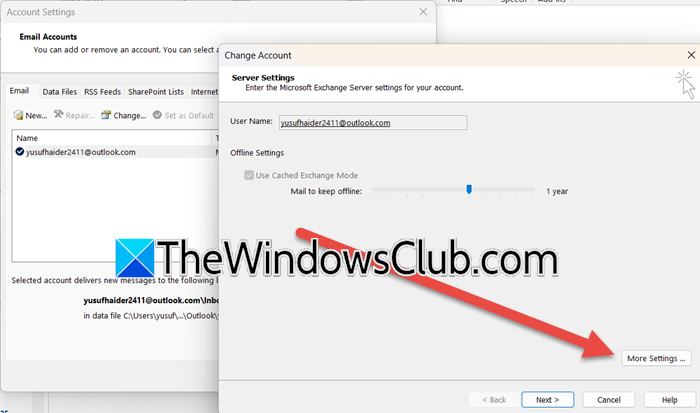
Disabling the Shared Calendar Improvements feature reverts Outlook from using the potentially problematic REST-based synchronization, which can cause calendars to disappear, back to the older, more stable MAPI protocol. This often resolves sync conflicts and permission errors that prevent the shared calendar from loading correctly after a restart. To do the same, you need to follow the steps mentioned below.
Outlook Desktop/MS Outlook/Outlook (Classic)
- First of all, go to File > Account Settings > Account Settings.
- Now, select your email account and click on Change.
- You need to click on More Settings…
- Then, go to the Advanced tab and uncheck the box for Turn on shared calendar improvements.
- Click on OK > Next > Finish.
This setting is not available in Outlook for Web or Outlook New, or the simplified “One-Click” account setup. The option is exclusive to the desktop application with a traditional Exchange or Microsoft 365 account configuration.
Restart Outlook and check if the issue is resolved.
2] Re-add the Calendar Manually
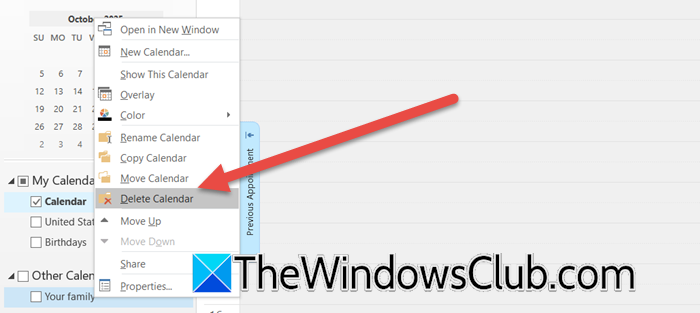
We will manually remove and re-add the Calendar to force a fresh synchronization, which clears any corrupted local cache or outdated permission data associated with the calendar. This process re-establishes a clean connection to the shared calendar on the server, and hopefully, resolves the issue for you. To re-add the calendar manually, follow the steps below.
MS Outlook
- Look for the missing shared calendar under Other Calendars, right-click on it, and click on Delete Calendar.
- Now, close Outlook and wait for a few seconds.
- Then, go to Home > Add Calendar> Open Shared Calendar.
- Type the calendar owner’s name or email address and click OK.
Outlook New or Outlook Web
- Right-click on the calendar under Shared calendars and click on Remove.
- Now, reboot Outlook.
- Then, click on Add calendar button in the left sidebar and select Shared calendar, search for the person, and click on Add.
Finally, check if the issue persists.
3] Rebuild Outlook Data files
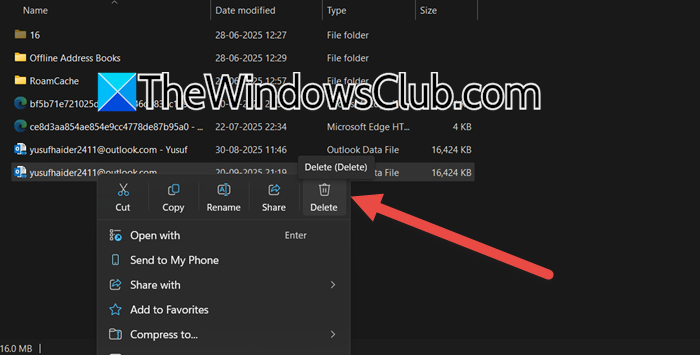
Deleting the local data file (OST/PST) forces Outlook to download a fresh, uncorrupted copy of your mailbox data from the server. This eliminates any synchronization errors or corrupted calendar entries that were preventing the shared calendar from displaying correctly. To rebuild Outlook Data files, you can follow the steps mentioned below.
- Open Outlook, go to File > Account Settings > Account Settings.
- Then, go to the Data Files tab, choose your account, and click on Open File Location.
- Now, close Outlook (from the Task Manager if possible).
- You then have to back up the files from this folder (copy to desktop), then delete the original OST/PST file.
- Restart Outlook.
It will automatically generate a new data file and sync your mail and calendars.
4] Check Calendar permissions
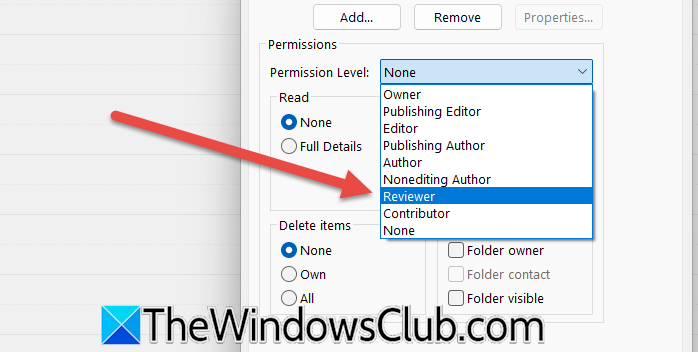
Next, we need to verify the Calendar permissions, as a missing or insufficient permission level can prevent Outlook from synchronizing and displaying the shared calendar, particularly after a restart when it attempts to re-establish the connection.
The owner of the calendar needs to right-click on it and select Properties. Navigate to the Permissions tab, select the user, and ensure their permission level is at least Reviewer. This way, the selected user can at least view the shared calendar.
Read: Outlook Calendar Check troubleshooter will fix Calendar issues
5] Create a new Outlook Profile
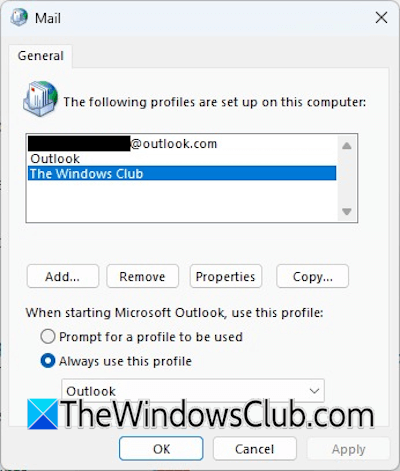
A corrupted Outlook profile can contain damaged settings or identity data that disrupts synchronization, particularly for shared elements like calendars. Creating a new profile provides a clean slate, forcing Outlook to reestablish all connections and download fresh, uncorrupted data from the server. So, go ahead and create a fresh Outlook profile and check if the issue persists.
Hopefully, with the help of these solutions, your issue will be resolved.
Read: Stop Outlook from automatically adding Calendar events from emails
How do I get my shared calendar back in Outlook?
To recover your shared calendar, first try disabling “Shared Calendar Improvements” in your account’s Advanced settings and then restarting Outlook. If that fails, remove the calendar entirely, restart the application, and re-add it manually via Open Shared Calendar to force a fresh sync. Finally, ensure the calendar owner has granted you at least Reviewer permissions, as insufficient access will prevent it from appearing.
Also Read: Calendar appointments not showing in Outlook 365.
