
The Arrow keys play an important role in Outlook. Many users rely on these keys to quickly review emails, browse folders in the Folder Pane, navigate dates and appointments in the Calendar, and reposition the cursor while composing or editing messages. When the arrow keys stop working, it can significantly affect productivity and make everyday tasks more difficult. In this post, we will show you how to fix the Arrow keys if they are not working in Outlook on your Windows 11/10 PC.
Arrow keys not working in Outlook
If the arrow keys are not working in Outlook on your Windows 11/10 PC, use these solutions:
- Restore keyboard focus to the correct Outlook pane
- Start Outlook in Safe Mode and disable add-ins
- Create a new Outlook profile
- Update Outlook or switch between New Outlook and Classic Outlook
- Repair Microsoft Office
Before troubleshooting Outlook, verify that the arrow keys work correctly in other applications, such as Notepad or Microsoft Word.
If the arrow keys do not work anywhere, the issue may be related to your keyboard, keyboard driver, or a hardware setting such as Fn Lock. If they work normally in other applications, the problem is likely specific to Outlook.
Now, let us see the solutions in detail.
1] Restore keyboard focus to the correct Outlook pane
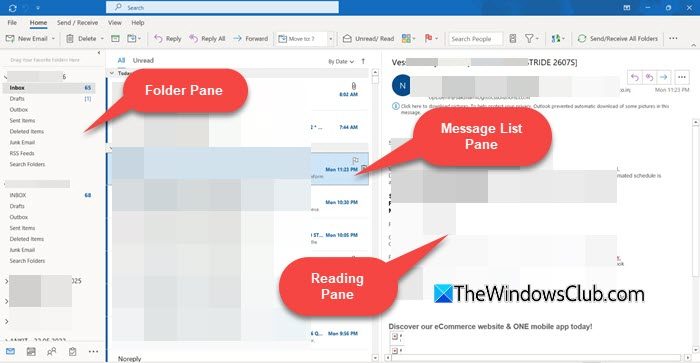
Outlook consists of multiple panes and sections, such as the Folder Pane (Inbox, Sent Items, Drafts, etc.), Message List (the list of emails), Reading Pane (where the selected email is displayed), etc. If keyboard focus shifts to a different pane, the arrow keys may stop navigating emails or performing the expected action.
Click directly inside the area where you want to use the arrow keys and then check if they work.
There is also a chance that the cursor is currently in the Search box. In that case, Outlook may not use the arrow keys to navigate emails or folders. Press Esc to exit Search mode and restore focus to the main Outlook window, then test the arrow keys again.
2] Start Outlook in Safe Mode and disable add-ins
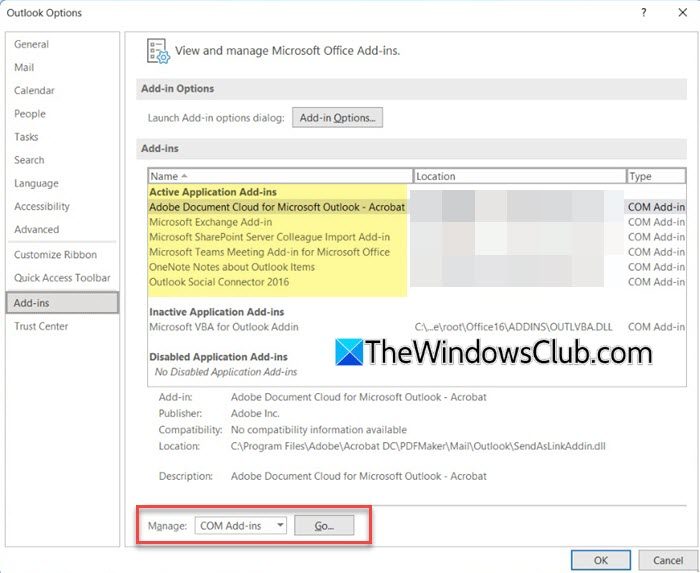
Outlook add-ins can sometimes interfere with keyboard input and prevent the arrow keys from working correctly. Starting Outlook in Safe Mode launches the app without loading any COM add-ins, helping you determine whether a faulty add-in is causing the problem.
Press Win + R to open the Run dialog box. Type outlook.exe /safe and press Enter.
Once Outlook opens in Safe Mode, test the arrow keys. If they work normally, one of the installed add-ins is likely causing the issue.
Next, open Outlook normally and go to File > Options > Add-ins. Select COM Add-ins from the Manage drop-down menu and click Go. Clear all checkboxes to disable the add-ins and click OK.
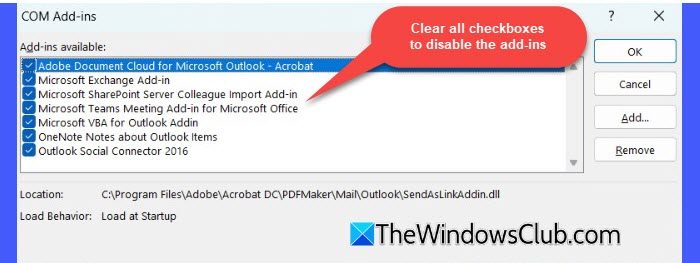
Restart Outlook, and then re-enable the add-ins one at a time, testing the arrow keys after each change, until you identify the add-in causing the problem.
3] Create a new Outlook profile
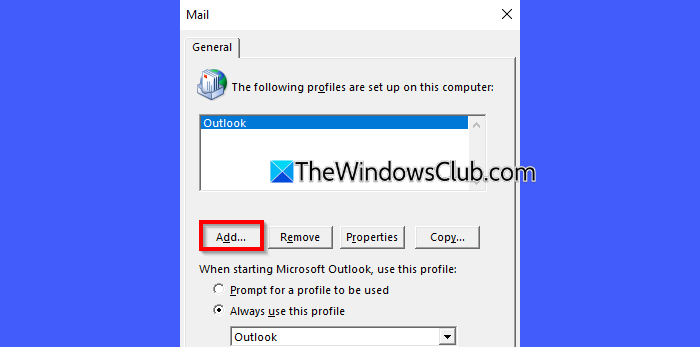
A corrupted profile can sometimes affect Outlook’s navigation and keyboard behavior. Create a new Outlook profile and then launch Outlook using that profile. If the arrow keys work correctly, the original profile was likely corrupted.
Note: Creating a new Outlook profile does not delete your email data. For Microsoft 365, Exchange, Outlook.com, and IMAP accounts, your mailbox data is stored on the server and will sync automatically after you add the account to the new profile. However, you may need to reconfigure certain Outlook settings, signatures, and rules. If you use a POP account, ensure that any local PST files are backed up before proceeding.
4] Update Outlook or switch between New Outlook and Classic Outlook
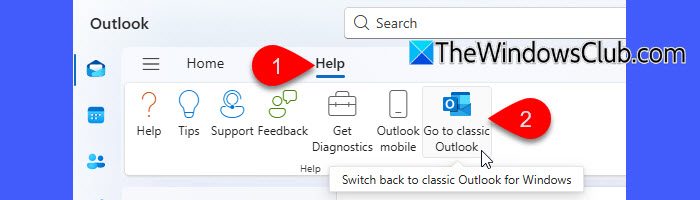
If the arrow keys stopped working after an Outlook update, the issue may be caused by a bug in the current Outlook build. Check for newer updates regularly and install them when available. Microsoft may release a fix in a subsequent update.
You can also switch between New Outlook and Classic Outlook and then test the arrow keys. If they work in one version but not the other, the issue is likely specific to that Outlook experience.
5] Repair Microsoft Office
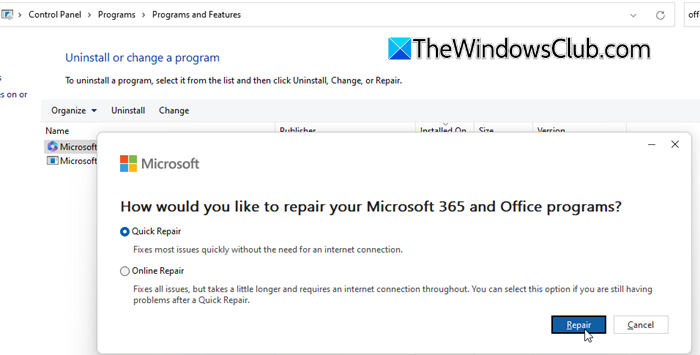
If the issue persists, repairing your Microsoft Office installation may help.
Open Settings (Win + I) and go to Apps > Installed apps. Locate Microsoft 365 or Microsoft Office. Click the three-dot menu next to it and select Modify.
Alternatively, open Control Panel > Programs and Features, select Microsoft 365 or Microsoft Office, and click Change on the top toolbar. This will open the Office repair options.
First, run a Quick Repair and check if the issue is resolved. If not, perform an Online Repair.
Once the repair process is complete, restart your computer and test the arrow keys in Outlook again.
Arrow keys not working in Outlook Calendar
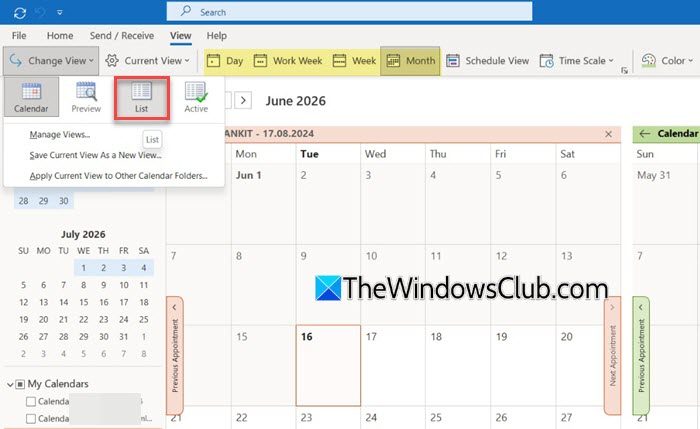
If the arrow keys are not working only in Outlook Calendar, the issue may be related to the current Calendar view. Switching to a different view and then switching back helps restore normal keyboard navigation.
Go to the View tab and select Change View > List. Once the Calendar switches to List view, return to your preferred view, such as Day, Work Week, Week, or Month, and then test the arrow keys again.
You can also use the keyboard shortcuts Ctrl + Alt + 1, Ctrl + Alt + 2, or Ctrl + Alt + 3 to switch between Calendar views and refresh the Calendar interface.
Ctrl + Left/Right Arrow keys not working in Outlook
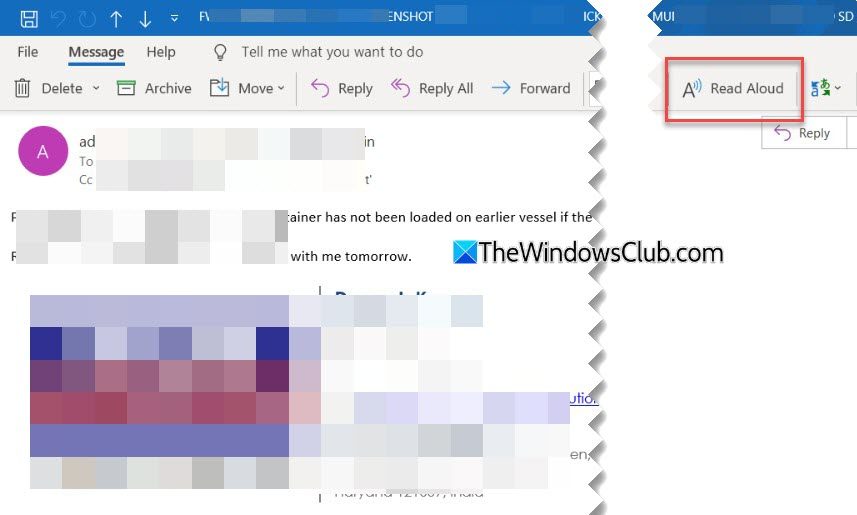
If the Ctrl + Left Arrow and Ctrl + Right Arrow shortcuts are not working while composing an email, the Read Aloud feature may be interfering with keyboard navigation. Several users reported that disabling Read Aloud restored normal cursor movement in the Outlook editor.
To check this, open the email editor and go to the Review tab. Click Read Aloud to turn the feature off. Alternatively, press Ctrl + Alt + Space to toggle Read Aloud. If a Read Aloud control panel appears in the upper-right corner of the message window, close it and then test the keyboard shortcuts again.
I hope this helps.
Read: Arrows keys not working in Excel.
How to use arrows in Outlook email?
You can use the Up and Down Arrow keys to move between emails in the message list, and the Left and Right Arrow keys to navigate folders or move the cursor while composing an email. You can also use Ctrl + Arrow keys to move the cursor word by word when editing a message.
How do I get my arrow back in Outlook?
If by “arrow” you mean the mouse pointer, try selecting an email in the message list or switching to another application and then back to Outlook. This can sometimes restore a missing cursor. However, if you are referring to the arrow keys on your keyboard, follow the troubleshooting steps outlined in this guide to restore keyboard navigation in Outlook.
Read Next: Keyboard Arrow keys are stuck on Windows.
