
If you are unable to send email to groups in Outlook, here is what you can do to troubleshoot the issue in Windows 11. Whether you have five, ten, or fifty people on your list, you can use these solutions to fix the problem.
What are you unable to send email to groups in Outlook?
If you are unable to send email to groups in Outlook, these are the reasons:
- The list contains invalid email addresses.
- Your list exceeds the maximum limit.
- The import was interrupted and the list is broken.
- The PST/OST file is corrupt or damaged by malware.
Unable to send email to groups in Outlook
If you are unable to send email to groups in Outlook, follow these solutions:
- Re-import the list
- Verify each contact
- Check the group size or limit
- Add to Safe Recipients list
- Repair OST/PST file
- Disable security add-ins
- Disable Work Offline mode
- Temporarily disable VPN and proxy
- Check attachment size
To know more about these solutions, continue reading.
1] Re-import the list
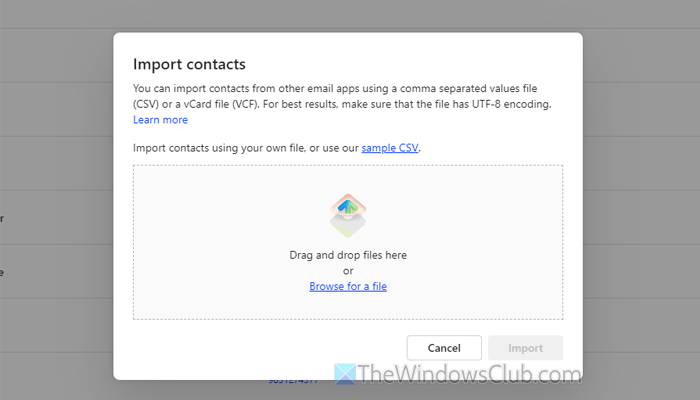
If your existing list has issues, it is recommended to re-import it once to verify it. If you use the new version of Outlook, go to the People section and click on the Import button. Then, click on the Browse for a file option and select the file you want to import. Finally, click the Import button.
However, if you use the older version of Outlook, go to File > Open & Export > Import/Export.
Choose how you want to import the file or the source of the file. If you have a .vcf file, choose the VCARD file option. However, if you want to import from another program or any other file, choose the Import from another program or file option.
After that, select the file and complete the import.
2] Verify each contact
At times, your list may contain several spelling mistakes along with invalid email addresses. If so, the list won’t work – no matter what you do. That is why it is suggested to verify the list manually after importing.
3] Check the group size or limit
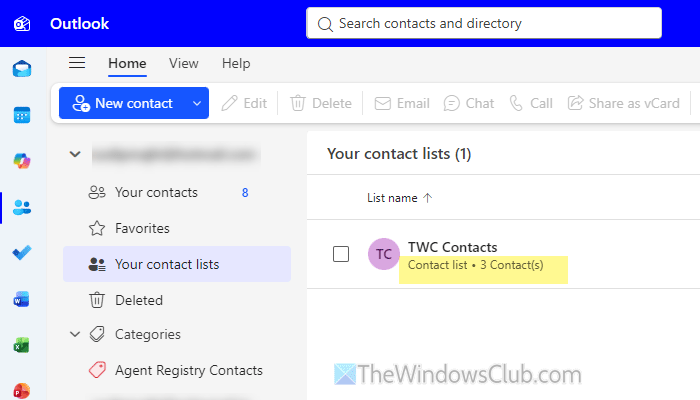
If you use Outlook.com, you must know there is a daily limit of 500 recipients. Even if you have a paid subscription (Microsoft 365), this limit exists for you too. Therefore, if you have already selected that number of recipients, you won’t be able to send a group email through Outlook.
In other words, you have two options – wait for the next day or split the contact group and send partial emails.
Read: How to import Gmail Contacts into Outlook
4] Add to Safe Recipients list
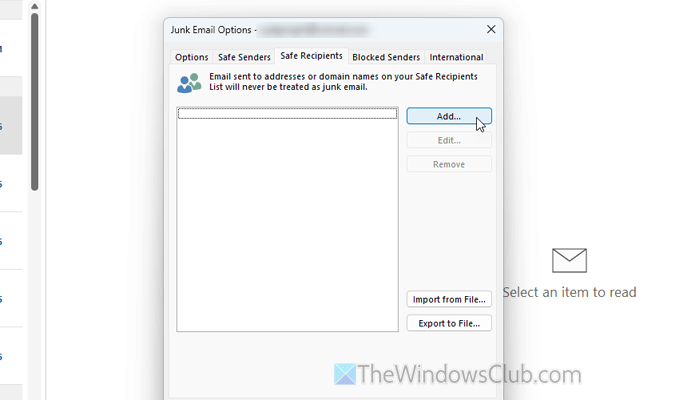
If someone’s email address is blacklisted, there is a chance of getting this problem. That is why you can add the recipient to the Safe Recipients list.
For that, open the Outlook app and go to Block > Junk E-mail Options.
Then, go to the Safe Recipients tab and click the Add button. Next, enter the email address and click the OK button to save the change.
After that, go to the Options tab and make sure that one of these options is selected:
- No Automatic Filtering
- Safe Lists Only
If not, select any of these two options and click the OK button.
Read: How to add someone to Safe Senders List in Outlook
5] Repair OST/PST file
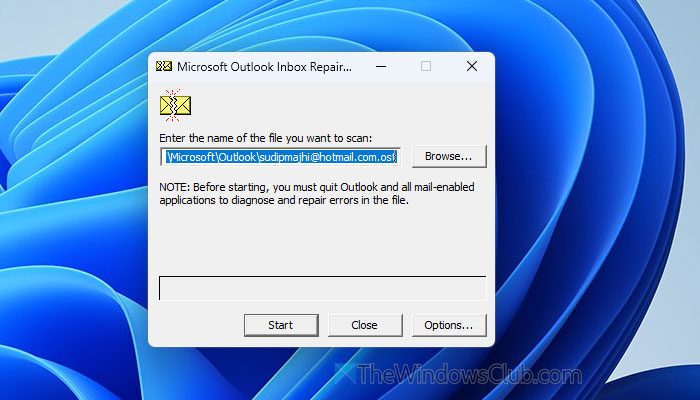
To repair the PST and OST data files of Outlook, SCANPST.EXE is one of the best options. Navigate to the following path and double-click on the file to open it on your computer.
C:\Program Files\Microsoft Office\root\Office16
Click the Browse button, choose the data file of Outlook and click the Start button.
For your information, this tool can repair your contact lists, too. However, if SCANPST.EXE fails to repair the PST/OST file, you can go through this guide to complete the repair process.
6] Disable security add-ins
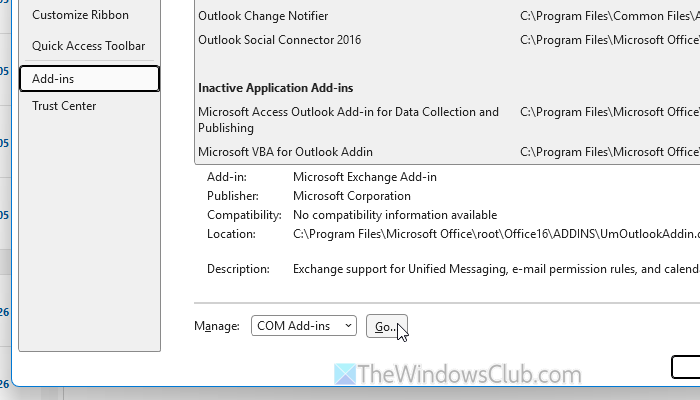
If you have recently installed any security add-in, it is time to disable it temporarily and check whether it resolves the issue or not. To disable such an add-in, open the Outlook Options wizard and go to the Add-ins tab. Next, click the Go button and select the add-in you recently installed. Remove the tick and click the OK button.
7] Disable Work Offline mode
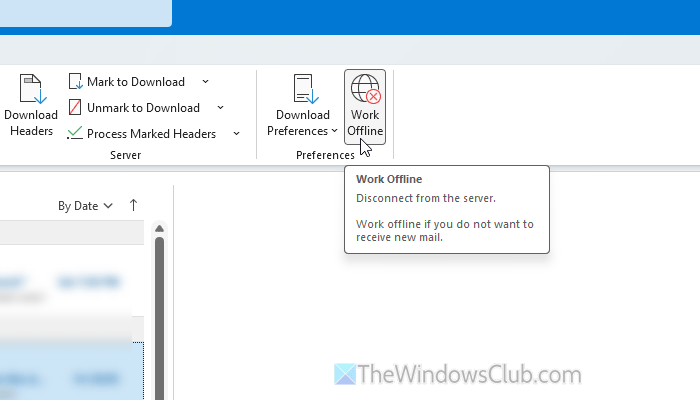
If the Work Offline mode is enabled, you won’t be able to send an email to anybody. Therefore, it is suggested to check whether you have turned it on or not.
For that, go to the Send/Receive tab in Outlook and find the Work Offline option. If it is enabled, click on it to disable.
Read: Outlook stuck in offline mode
8] Temporarily disable VPN and proxy
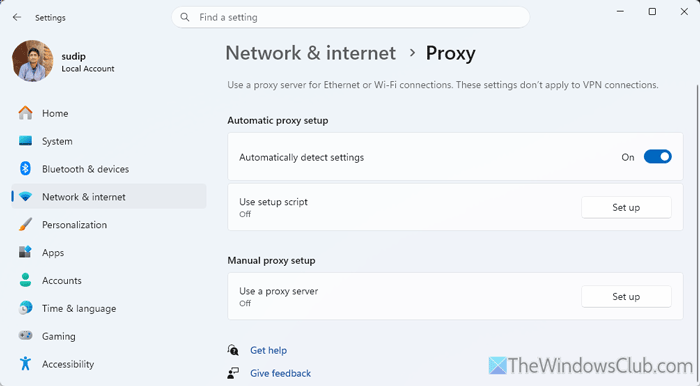
This problem could also arise from a network issue. If you do not use a VPN or proxy, you can check the ping test status. For that, open the Command Prompt and enter this command: ping 8.8.8.8 -t.
However, if you use a VPN or proxy, it is suggested to disable them temporarily. To disable proxy in Windows 11, open the Windows Settings panel and go to Network & internet > Proxy. Check the Manual proxy setup section. If anything is enabled, disable it and toggle the Automatically detect settings button to turn it ON.
9] Check attachment size
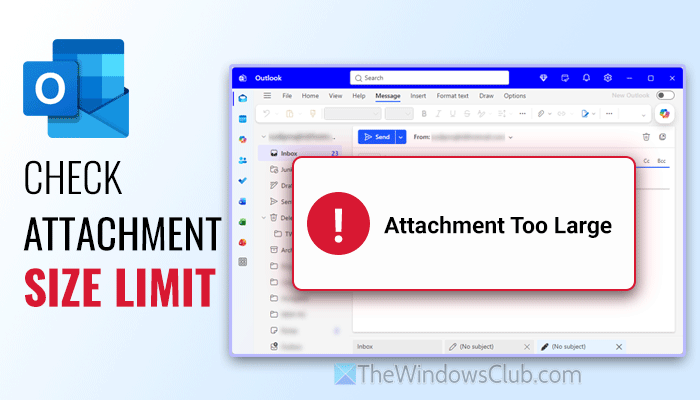
Outlook has an attachment size limit of 10MB and 20MB. If you use Outlook.com, it is 20 MB; if you use Microsoft Exchange Accounts, it is 10 MB. Also, if you use Microsoft 365, you will encounter a 150 MB limit.
Having said that, if you cross this limit, you won’t be able to send an email, no matter whether it is a group email or an individual email.
Pro tip: If you want to bypass this limit, upload the file to OneDrive and share the download link via email.
Read: How to group emails in Outlook
Why are my group emails not sending in Outlook?
If your list exceeds the maximum limit or the attachment size limit, you may encounter this error. Also, if the group list is corrupt, you will find the same problem in Outlook.
Can I send an email to a group in Outlook?
Yes, you can certainly send an email to a group in Outlook. To do that, you must first create a group of contacts. Then, you can choose the group while sending an email.
