
Sometimes when a user signs into Outlook in a web browser, it keeps redirecting him to another account. This usually happens if you have signed into Outlook with multiple Microsoft accounts in the same web browser, causing the browser to use a saved session or cached credentials. This article lists some effective fixes you can try if Outlook keeps signing you in to the wrong account.
Outlook keeps signing into the wrong account
Use the following fixes if Outlook keeps signing you into the wrong account:
- Clear cache and cookies
- Sign out of everywhere
- Reset your browser
- Modify Outlook profile settings
- Remove the credentials from the Credential Manager
- Remove other Outlook accounts
All these fixes are provided below in detail.
1] Clear cache and cookies
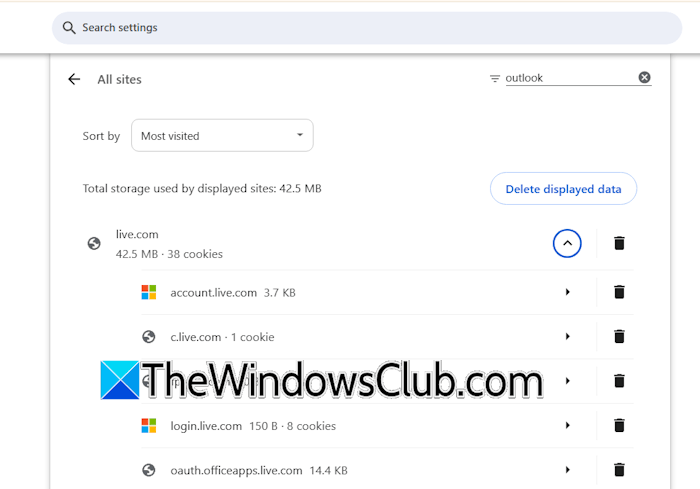
Since the major cause of this issue is the saved browser session or cached credentials, clearing cache and cookies can help. Press the Ctrl + Shift + Delete keys. The clear browsing data popup will appear. Now, delete cache and cookies. If you do not want to delete all cache and cookies, you can clear them only for outlook.com.
2] Sign out of everywhere
If the issue persists, you can try signing out of your account from all devices. Since you cannot sign into your Outlook account on your default web browser, you can use another browser or your mobile device. Launch another browser on your PC or mobile phone and visit microsoft.com.
Follow these steps:
- Click Sign in.
- Enter your Outlook account credentials and sign in.
- Once you sign in to your Microsoft account, select Security from the left pane, and click Manage how I sign in under the Account Security tab.
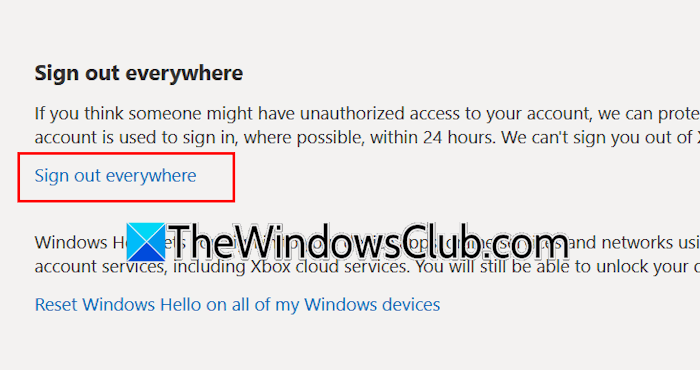
- Scroll down and click Sign out of everywhere.
- Click Sign out to confirm.
Now, you should be able to sign into your Outlook account on the previous web browser.
3] Reset your browser
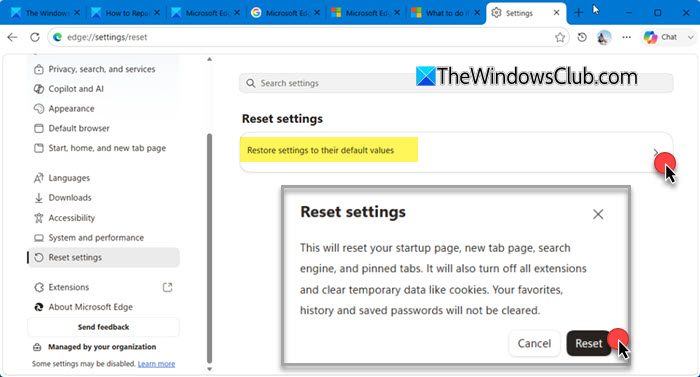
If the issue persists, you can reset your browser. This action will reset your startup page, new tab page, and restore all browser settings to the default. Before proceeding, make sure to sign into the browser to save all your browsing data, including bookmarks and extensions, to the cloud.
4] Modify Outlook profile settings
If the issue occurs with Microsoft Outlook, another Outlook profile might be set as the default. Check this and change this setting. The following steps will guide you on this:
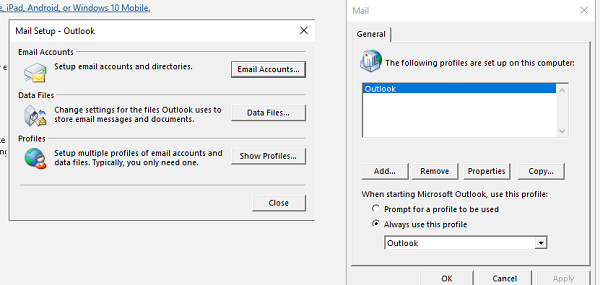
- Launch the Control Panel.
- Type mail in the Control Panel search bar and click Mail (Microsoft Outlook) (32-bit) from the search results.
- A new pop-up window will appear. Click Show profiles.
- You will see all the Outlook profiles on the next screen. Now, select the “Prompt for a profile to be used” option.
- Click Apply and click OK to save changes.
Now, Outlook will show you all profiles every time you launch it so that you can select the correct profile for the required Outlook account. Alternatively, you can also select the Outlook profile associated with the account you want to use as the default. For this, you need to select the “Always use this profile” option and then select the required Outlook profile from the drop-down. After that, Outlook will open the default profile every time you launch it.
5] Remove the credentials from the Credential Manager
If the issue persists, removing the Outlook credentials from the Credential Manager can help. Follow these steps:
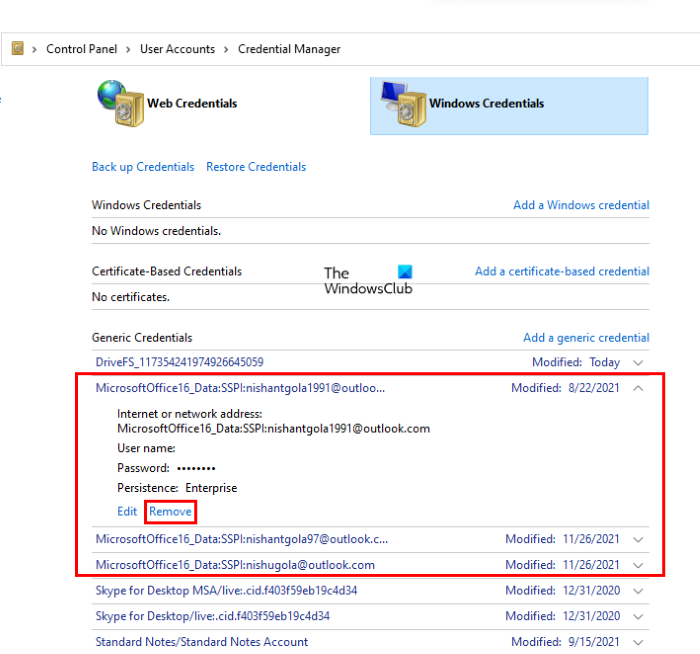
- Close Microsoft Outlook completely.
- Launch Credential Manager.
- When the Credential Manager appears, select Windows Credentials.
- Expand all Microsoft Office tabs and click Remove.
- Close Credential Manager and restart your system.
- Launch Outlook. You may have to set up your Outlook account again.
6] Remove other Outlook accounts
You can also remove other Outlook accounts that you do not use. Follow the steps provided below:
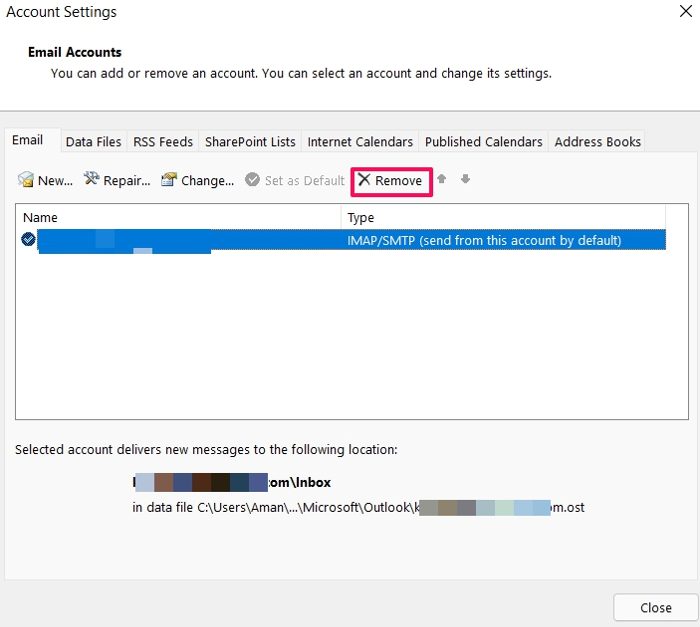
- Launch the Control Panel.
- Search for mail and click Mail (Microsoft Outlook) (32-bit) from the search results.
- Click Email Accounts.
- Under the Email tab, select the account that you do not use.
- Click Remove.
Repeat the above steps to remove all the Outlook accounts you do not use.
That’s it. I hope this helps.
How do I log in to Outlook with a different account?
To log in to Outlook with a different account, use that account’s credentials. If you want to add another account to Microsoft Outlook, open Microsoft Outlook and navigate to File > Info > Add Account. To add a new account to the New Outlook app, open it and click Add account.
Why does Outlook go to the wrong account?
The most common cause of this issue is the browser cookies that store your logged-in session for your Microsoft account. To fix this problem, you can try clearing cache and cookies, or you can use another web browser.
Read next: Outlook stuck in sign in loop.
