
If Outlook is stuck in offline mode or shows a message called ‘Working offline‘ on the user interface, here is how you can get rid of this problem. Whether you use a Work, School, or regular account, this problem may appear while using @outlook.com, @gmail.com, or any other email service.

Primary reasons why Outlook may be stck in the offline mode:
- The Offline mode setting is turned on.
- The OST or Offline Storage Table file is corrupted.
- Your internet connection is not working fluently.
- The Outlook profile is corrupted.
Outlook stuck in offline mode
If Outlook is stuck in offline mode, follow these solutions:
- Disable Work Offline feature
- Check Microsoft Service Health Status
- Check your internet connection
- Ensure your Work/School account is active
- Create a new profile
- Repair PST file
To learn more about these solutions, continue reading.
1] Disable Work Offline feature
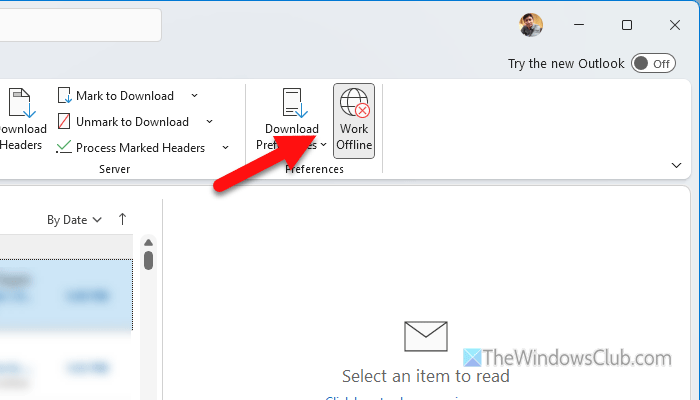
It is the first thing you need to check, since this feature is responsible for putting the app into offline mode. If you keep this feature ON, you cannot expect Outlook to connect to the internet. To disable the Work Offline feature, follow these steps:
- Open Outlook on your computer and go to the Send/Receive
- Click on the Work Offline button ONLY IF it is enabled.
Unfortunately, this feature is not available in the new Outlook. In that case, you can switch to classic Outlook and try checking this feature.
Read: How to work offline in Outlook
2] Check Microsoft Service Health Status
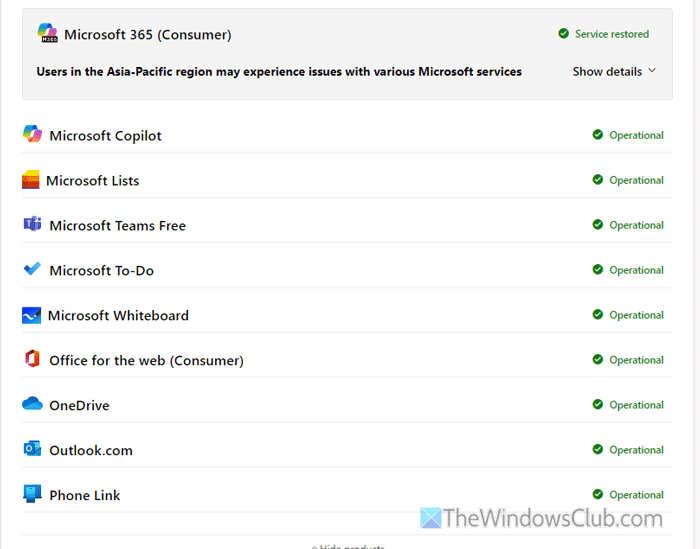
At times, this problem occurs when the service is down on Microsoft’s end. In such situations, you cannot do anything except wait for the problem to resolve automatically. That is why it is wise to check whether the problem lies with your computer.
You can head to this article to check whether Microsoft services are up or down.
Read: Free online website monitors to check website status
3] Check your internet connection
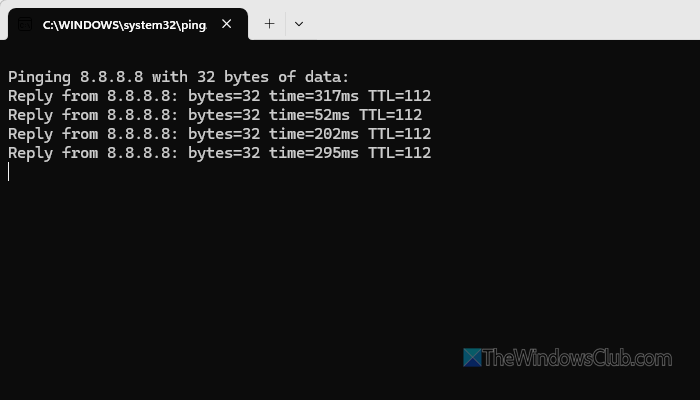
There are countless reasons why your internet is not working – whether you use Ethernet, Wi-Fi, mobile hotspot, USB tethering, or anything else. The first thing you can do is check the ping status.
For that, press Win+R to open the Run prompt. Then, type ping 8.8.8.8 -t and hit the Enter button.
If it shows results with a positive response time, your internet connection is probably fine. Otherwise, you must fix your internet connection.
- No Internet after setting Static IP on Windows 11
- No Internet after resetting the router
- No Internet Connectivity, but shows as Connected to the Web
4] Ensure your Work/School account is active
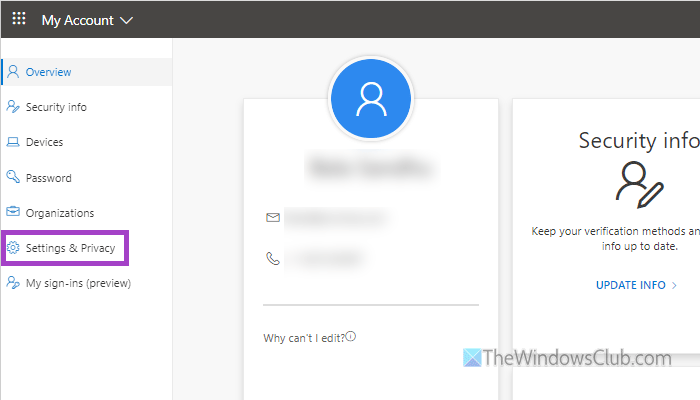
Work and School accounts can be activated and deactivated through the Admin Center, and your system administrator has this permission at all times. If you face this problem with a Work or School account, it is recommended that you check with your administrator.
5] Create a new profile
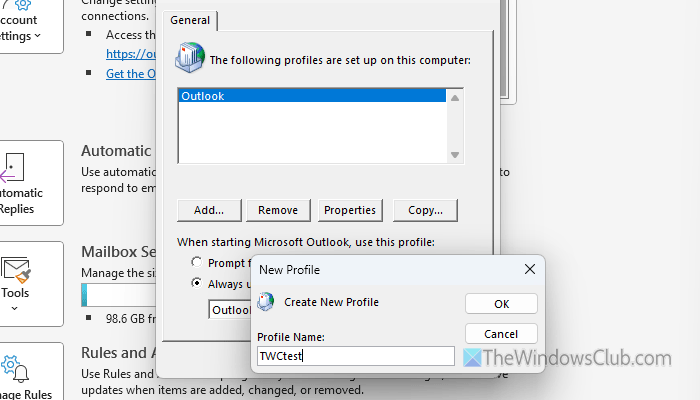
To create a new profile in Outlook, follow these instructions:
First, go to File and click on the Account Settings > Manage Profiles.
Then, click on the Show Profiles button. It displays all the profiles you have added so far. As you want to create a new one, click on the Add button and enter the name of your profile.
After that, enter your name, the email address that you want to add to Outlook, and enter the password. In case you want to set things up manually, click on the Manual setup or additional server types option and enter the details as per the requirements.
Once you are done with adding the profile, select the new profile name, and select the Always use this profile option. Then, check the Outlook. If everything is fine, open the same Manage Profiles window, select the old profile, and remove it.
Read: How to create, delete and use Profiles on Outlook
6] Repair PST file
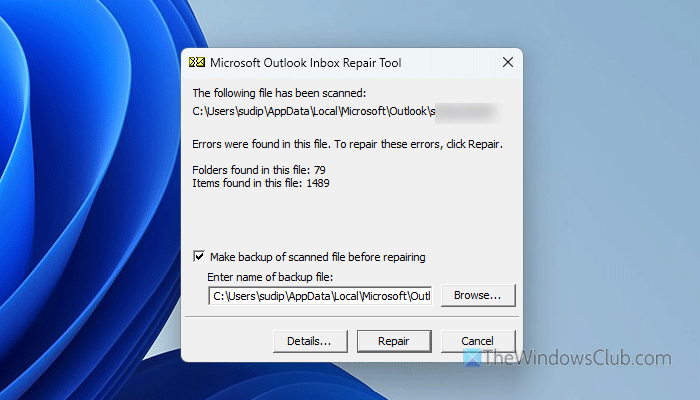
If there are issues with the PST or OST file, you might encounter the same problem. In such a situation, use the SCANPST.EXE, which is an in-built tool to repair Outlook Data Files.
To use it, open the File Explorer and navigate to the following path as per the version of Office:
- Microsoft 365, Outlook 2024/21: C:\Program Files\Microsoft Office\root\Office16
- Outlook 2019: C:\Program Files (x86)\Microsoft Office\root\Office16
- Outlook 2016: C:\Program Files (x86)\Microsoft Office\root\Office16
Double-click on the SCANPST.EXE file and click the Start button.
Once it finishes the process, click the Repair button and wait for a few moments.
Once done, close all the windows and open Outlook to check.
Read: Repair corrupt Outlook PST, OST files with Inbox Repair Tool, etc.
How do I fix Outlook stuck in offline mode?
To fix Outlook stuck in offline mode, you need to open Outlook and go to the Send/Receive tab. Head to the Preferences section, and click on the Work Offline button to turn it OFF.
How to keep Outlook in online mode?
To keep Outlook in online mode, ensure you haven’t enabled Work Offline in Outlook settings. Secondly, you must have an uninterrupted internet connection. Thirdly, check with your system administrator if you use a Work or School account.
Read: How to change how much email to keep offline in Outlook
