
If you are unable to create a new contact group in Outlook, this article will be helpful. Whether you use MS Outlook or the new Outlook app, you can use these solutions to fix it on Windows 11.
Why are you unable to create new contact group in Outlook?
If you are unable to create a new contact group in Outlook, these could be the reasons:
- You haven’t updated your Outlook version for a long time.
- You are using an IMAP or POP account.
- Your system administrator has blocked you from creating a contact group or list.
- The old cache is causing issues.
- You have a corrupt Outlook data file.
Unable to create new contact group in Outlook
If you are unable to create a new contact group in the classic Micosoft Outlook software or the new Outlook app, follow these instructions:
- Switch to MS Outlook if you are using the Outlook app
- Update Outlook
- Use Outlook instead of Gmail or other IMAP accounts
- Ensure you have synchronized contacts
- Create new Outlook profile
- Clear Outlook cache
- Remove account restrictions
To learn more about these solutions, continue reading.
1] Switch to MS Outlook if you are using the Outlook app
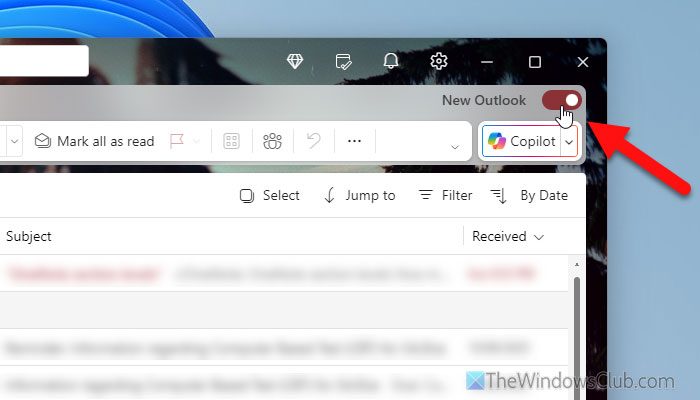
If you use the desktop version of Outlook, you are already familiar with two terms – New Outlook app and Classic MS Outlook. The newly launched version of the regular Outlook app is called New Outlook. The problem with this version is that it is still under development and lacks several features available in the Classic Outlook app.
That is why it is suggested to switch to MS Outlook if you use the Outlook app. For that, open the Outlook app and toggle the button visible in the top-right corner:
Next, click the Continue button to make the switch.
2] Update Outlook
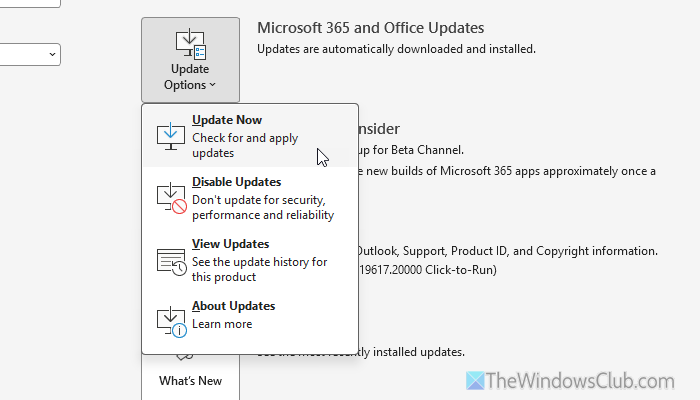
To update MS Outlook, follow these steps:
- Open the Outlook app on your computer.
- Go to File > Office Account.
- Click on Update Options > Update Now.
It takes a few minutes to find, download, and install the update.
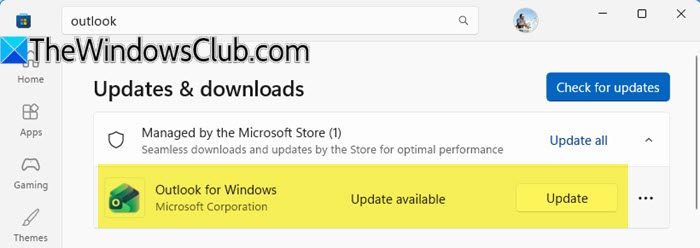
To update the new Outlook app, open the Microsoft Store and choose to update the Outlook for Windows app.
3] Use Outlook instead of Gmail or other IMAP accounts
If you use Gmail or any other IMAP/POP account in Outlook, you might not be able to create a contact group. If you use a School or Work account, you will face the same problem as well. The only solution is to switch to @outlook.com or another Microsoft email service.
In case you do not know how to create an Outlook email account, you can go through this detailed guide.
4] Ensure you have synchronized contacts
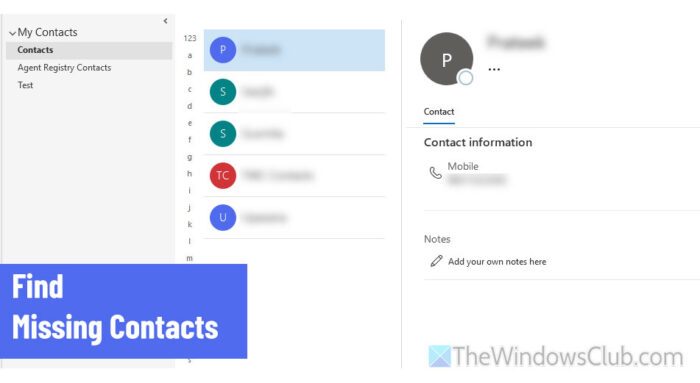
Sometimes, you might not be able to find the contact you created in the Web version or Outlook. This is because the contact is not yet synchronized. As a result, you won’t be able to add that contact to the list.
Therefore, before creating a contact list, ensure that all your contacts are synchronized. If not, wait for a few moments.
Read: New Outlook app not syncing in Windows 11
5] Create new Outlook profile
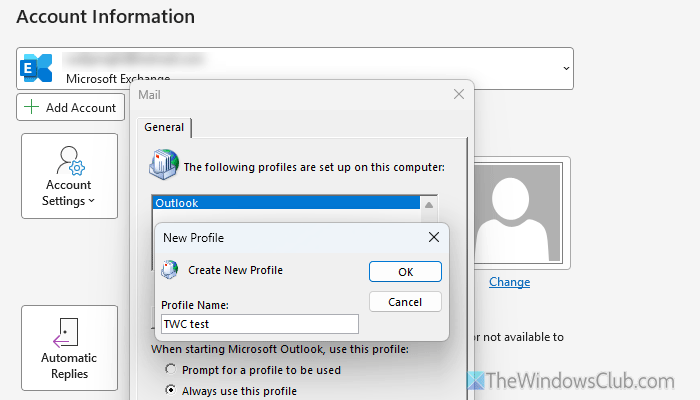
To create a new Outlook profile, follow these steps:
- Open MS Outlook and go to File > Open & Export.
- Click on the Account Settings > Manage Profiles.
- Click on the Show Profiles option.
- Click the Add button.
- Enter a profile name.
- Enter your email account name, address, and password.
- Click the Next button.
Then, select the newly created profile, choose the Prompt for a profile to be used option, and click the Apply button.
6] Clear Outlook cache
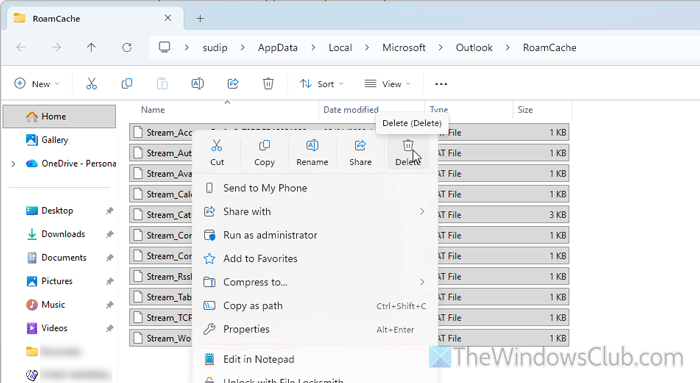
To clear MS Outlook cache, follow these steps:
- Press Win+R to open the Run prompt.
- Enter this path: %localappdata%\Microsoft\Outlook\RoamCache
- Click the OK button.
- Select all files and remove them.
- Restart the Outlook app.
7] Remove account restrictions
If you use a School or Work account, you may encounter this issue when creating a contact group or list. It happens because your administrator or organization has restricted your access. In that case, you can ask your administrator to lift the restriction to create the list. However, if it doesn’t happen, there is nothing you can do.
Read: You can’t sign in here with a personal account, Use your work or school account instead
How to enable contact groups in Outlook?
To enable contact groups in Outlook, switch to the People section and click on the New Contact Group option. Then, enter the group name. Next, click on the Add Members > select the contact source. Finally, click on the Save & Close option.
Why is Outlook Groups not working?
The main reason why Outlook contact groups are not working is that they are not synchronized, or the data file is corrupt. Additionally, if you use IMAP/POP, a School, or Work account, you might encounter the same issue.
Read: How to add Contacts in the Address Book of Outlook.
