
If you want the latest updates for your version of Microsoft Outlook or Outlook 365, whether on the desktop or mobile app, you may need to do it manually. This isn’t always the case, but when it is, you need to know how to do it without relying on your device to automatically start the update. Also, when you update Microsoft Outlook, you won’t have to log in or re-download content because everything will stay the same. Even with a major update, your emails should still be available unless something goes wrong.
In this post, we will show you how to manually update Outlook on Windows 11 PC, Mac, Android, iPhone, and iPad. Microsoft has made updating the desktop version of Outlook very simple. For the Android and iOS versions, the update method isn’t handled by Microsoft; it’s handled by the operating system provider.
How to update Outlook on Windows 11 PC
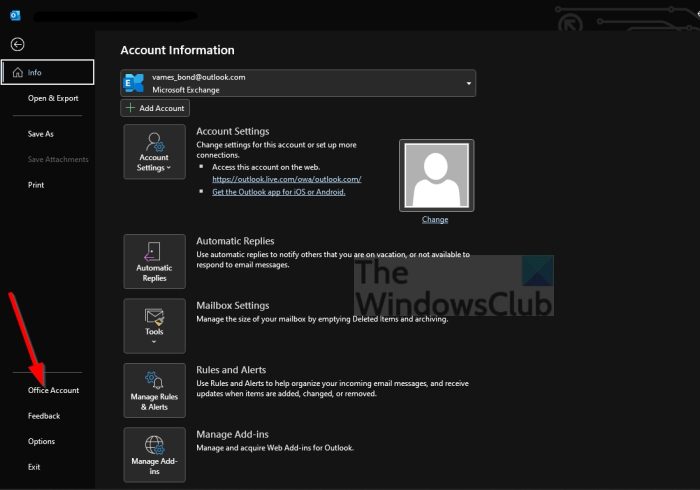
Updating the desktop version of Microsoft Outlook or Outlook 365 is simple.
- First, open the Outlook app by clicking the shortcut on your computer.
- After the app starts, click File.
- From there, select Office Account to move forward.
- Look for a section that reads, Office Updates, located to the right.
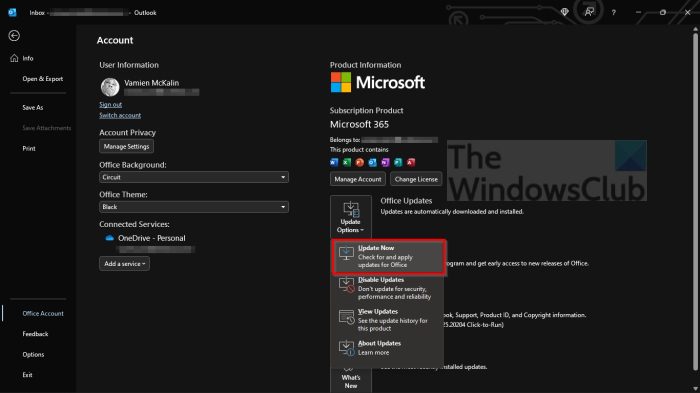
- Click on it, then select Update Now.
Wait while Outlook searches for updates. If any are available, the program will download them automatically. You may have to restart your computer to fully install the new updates.
How to update Outlook on Mac
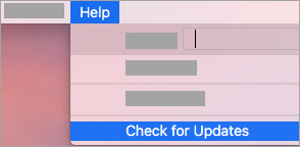
Updating Microsoft Outlook on a Mac is simple. All you have to do is, open MS Outlook then navigate to Help > Check for Updates.
Alternatively, you can visit the official Mac App Store from your Dock or Finder. From the left side menu, select Updates > Update All.
How to update Outlook on Android Phone
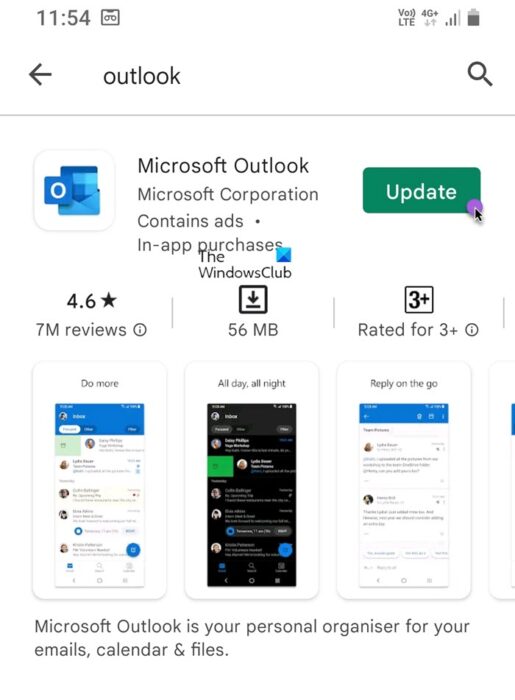
If you use the Outlook for Android app, updating is different from the Windows version because the operating systems differ. We’ll explain how to do this the easy way.
- Launch the Google Play Store on your device.
- Next, tap the search box.
- Type Outlook in the box, then tap Search.
- Select the Microsoft Outlook option from the search results.
- From the Outlook page, if you see the Update button, then select it right away.
If you don’t see an Update button, it means no updates are available for the Outlook app right now. The Google Play Store may have already updated the app automatically.
How to update Outlook iPhone
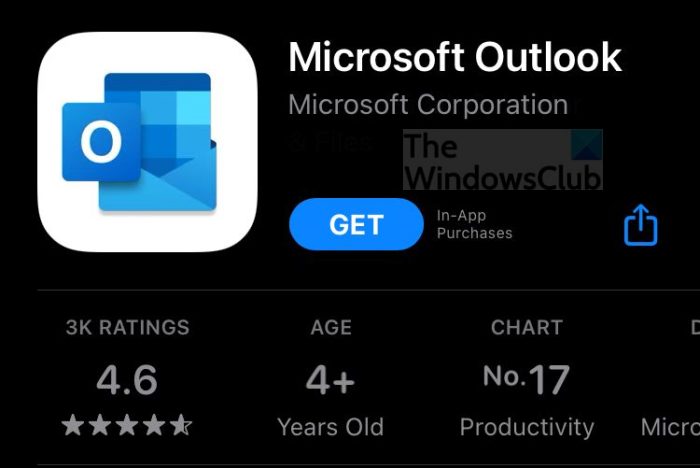
Updating Outlook on iOS devices such as an iPhone or iPad works differently, as expected.
- Open the App Store directly from your device.
- At the bottom of the App Store, select the Updates button promptly.
- On the Updates page, find the Microsoft Outlook app in the list.
- Tap the Update button next to the app name to start the update.
If you don’t see the Outlook app in the list, the App Store may have updated it automatically, or no updates may be available right now.
How to update the new Outlook app on Windows 11?
The Microsoft Store automatically updates all your installed apps. However, if you want to manually update the new Outlook app on Windows 11, open the Microsoft Store and go to the Library section on the left sidebar. Next, click on Get updates at the top, and the Microsoft Store will automatically check for available updates for all your installed apps. If Outlook is listed, press Update and wait for the installation to complete.
Read: Sent Items Folder missing or not found in Outlook; How to get it back?
How do I know if I have the latest version of Outlook?
To get this done, you must open the Microsoft Outlook app, and from there, click on the Help menu then waste no time by selecting About Microsoft Office Outlook. You should now see the version number of your email tool.
Why is my Outlook email not updating?
Sometimes Outlook may not update as it should, usually because of a poor internet connection or other factors. You can circumvent this issue by manually updating your emails. To do this, simply click on the Send/Receive tab.
Do I need to update my Outlook?
For the most part, you don’t need to manually update Outlook because Microsoft regularly releases updates, and they are usually installed automatically. However, sometimes automatic updates fail, and you will need to update manually.
How do I fix Outlook not updating?
- First, go to File > Account Settings > Account Settings.
- Select the Office 365 account, and from there, click on Change.
- From the Offline Settings area, uncheck Use Cached Exchange Mode.
- Finally, close Outlook, then restart the app and check to see if things are back to normal.
That should get things moving in the right direction, hopefully.
