
Some users have complained that they can’t forward emails in Outlook. The problem occurs for both sender and receiver in MS Outlook and the new Outlook app. For senders, email forwarding isn’t working in Outlook for the selected address, and for recipients, they can’t forward received emails because the Forward option is greyed out or disabled. If you’re facing this issue as well, the fixes in this post will help.
Why is Outlook not allowing me to forward emails?
Outlook won’t allow you to forward emails if the sender has restricted you from forwarding emails with the Do Not Forward permission. In other cases, if automatic email forwarding is not enabled, an inbox rule is set incorrectly, or your admin has restricted your user account, you won’t be able to forward emails in Outlook.
Can’t forward emails in Outlook
If you can’t forward emails in Outlook, use these solutions:
- Check if the email is Encrypted and disabled forwarding
- Turn off the Do Not Forward permission
- Enable automatic forwarding in Outlook
- Check your Outlook Inbox rules
- Manage email forwarding in the Microsoft 365 admin center.
Let’s check these solutions.
1] Check if the email is Encrypted and disabled forwarding
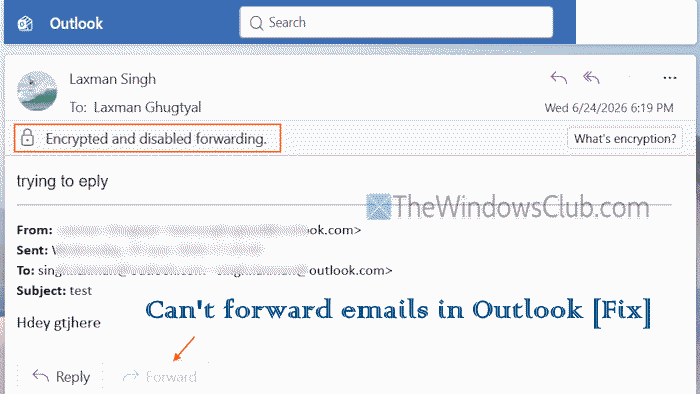
If an email is set to Do Not Forward by the sender, this will prevent email forwarding in Outlook. You will see a lock icon with Encrypted and disabled forwarding text in the email, as highlighted in the image above. That means, email can’t be forwarded, printed, or reported. You will also see that the Forward button is greyed out and the Forward icon is also disabled. In this case, you can ask the sender to send the email again without permission (if applicable).
2] Turn off the Do Not Forward permission
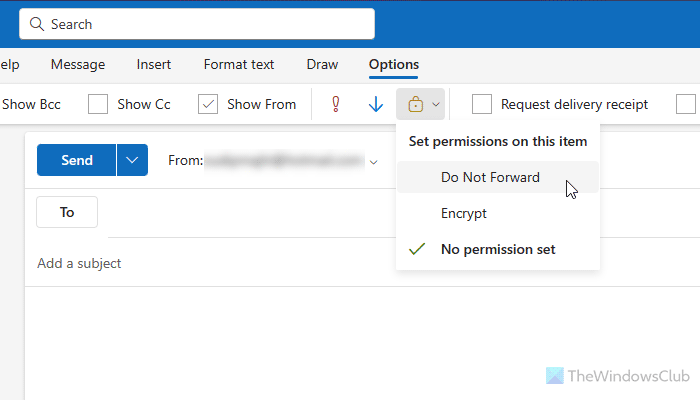
If you accidentally set the Do Not Forward permission or want to remove this permission. Then, turn off the Do Not Forward permission while sending emails. For this:
- Open the Outlook app or Outlook.com
- Create a new email message
- Access the Message menu
- Click on the Encrypt icon in the Tags category
- Uncheck the Do Not Forward option. It will automatically turn to No permission set
- Send your email, and the recipient will be able to forward it.
This option works only if you have already configured email forwarding in your Outlook account. Otherwise, you won’t see the Do Not Forward permission, and you need to configure it first.
3] Enable automatic email forwarding in Outlook
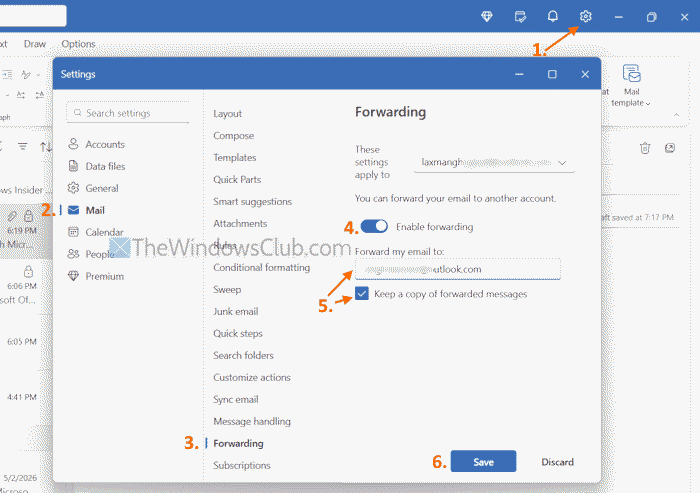
If automatic email forwarding is not configured or turned off in Outlook, this could be the reason that you can’t forward email in Outlook. In this case, you have to enable automatic email forwarding in Outlook. Here are the steps:
- Open the Outlook app or Outlook.com
- Click on the gear icon or Settings icon in the top-right corner
- Select Mail > Forwarding
- Select an email address or account from the drop-down menu for which you want to enable this setting
- Turn on the Enable forwarding button
- Enter another email address where you want to forward emails
- Tick mark Keep a copy of forwarded messages option
- Press the Save button
- Close the Settings window.
Similarly, you can enable automatic forwarding in MS Outlook (by creating a rule using the Rules wizard).
4] Check your Outlook Inbox rules
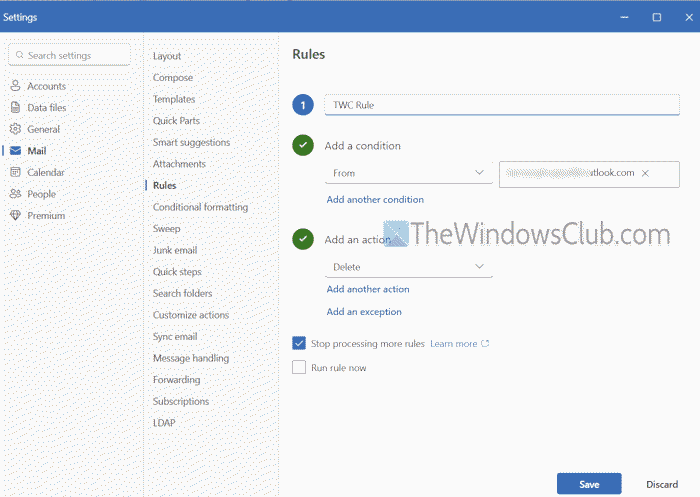
You should carefully check your Outlook rules created for incoming email messages. If a rule is misconfigured or is set to an action, say move emails from a sender to deleted items, archive, mark as junk, etc., this can cause an email forwarding problem in Outlook. So, check your Outlook Inbox rules and correct them. You can also delete or turn off rules (if needed). Here are the steps to perform this action in the Outlook app:
- Click on the Settings icon in the Outlook app
- Go to Mail > Rules
- Click the More actions (…) icon for a rule
- Select the Edit rule option
- Check conditions, actions, and exceptions for that rule carefully and take the necessary action
- Repeat this process for other inbox rules.
In MS Outlook, go to File > Manage Rules & Alerts. Select a rule > Change Rule > Edit Rule Settings.
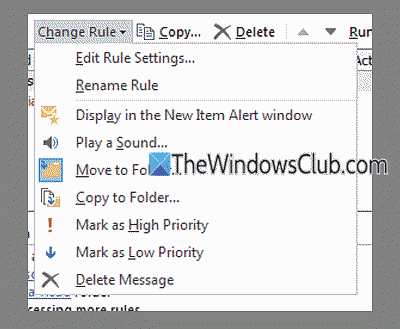
Check all the settings and save them.
Read: How to stop Emails going to the Archive in Outlook
5] Manage email forwarding in the Microsoft 365 admin center
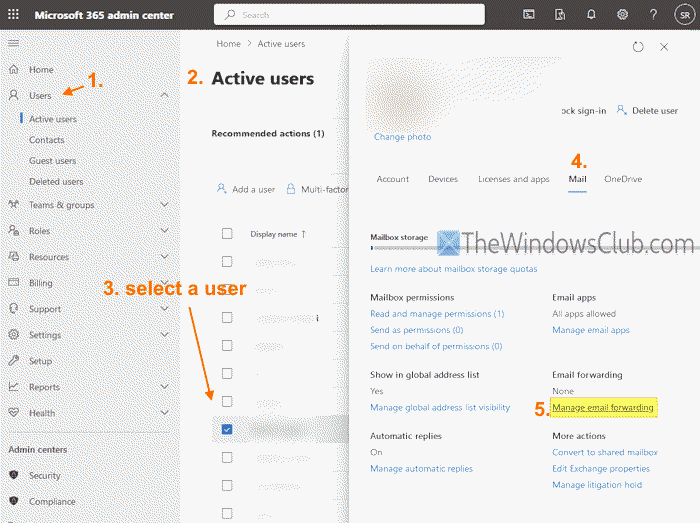
If you are using an Outlook account of your organization, you can ask your admin to configure or manage email forwarding. An admin can also set up email forwarding inside or outside of an organization. To do this:
- Log in to the Microsoft 365 admin center (login.microsoftonline.com/)
- Select Users > Active users
- Select a user from the list
- Click on the Mail category
- Select the Manage email forwarding option
- Tick the Forward all emails sent to this mailbox option
- Enter the forwarding email address
- Tick the Keep a copy of forwarded email in this mailbox
- Press the Save changes button.
Do note that the user license should not be removed, or the user account whose emails are being forwarded should not be deleted. Otherwise, email forwarding won’t work or stop.
That’s all. Hope this helps.
Now read: Your organization does not allow external forwarding in Microsoft 365
How to check if email forwarding is working in Outlook?
Access your Outlook Settings and go to the Forwarding section. If the Enable forwarding toggle is on and the forwarding email is correct, it should work fine. If there’s a problem, check your inbox rules to make sure no rule is set to interrupt or stop email forwarding.
Read next: Outlook emails disappeared or missing.
