
A sudden disappearance of emails is a frustrating problem. It can also create panic for some users if the missing emails contain crucial information. This article shows you what to do if the Outlook emails have disappeared or are missing from your Inbox or other folders.

Outlook emails disappeared or missing
Use the following suggestions if your Outlook emails have disappeared or are missing:
- Check the Junk or Deleted Items folders
- Check Outlook Rules
- Check the issue in Outlook.com
- View the Archive folder
- Recover the deleted emails
- Clear Offline items
- Rename the Outlook Data File
- Check the Automatic email forwarding setting
- Use a third-party tool
Let’s start.
1] Check the Junk or Deleted Items folder
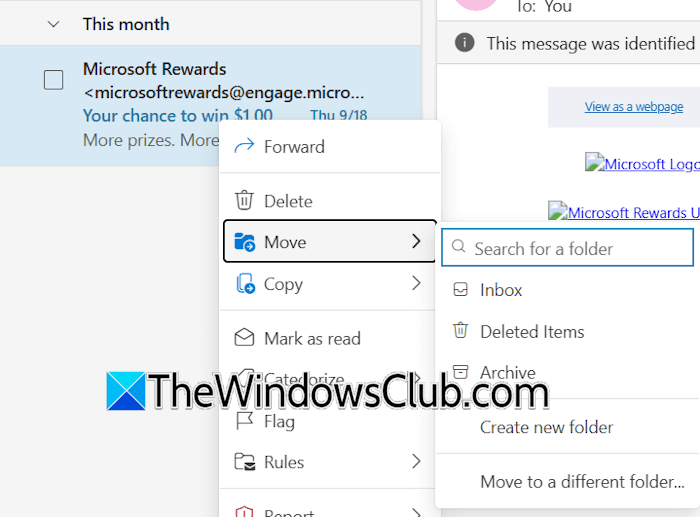
Your Outlook emails might be moved to the Junk folder. Check this. If you find your emails there, move them to the Inbox. Right-click on the email and select Move to > Inbox.
You might have accidentally deleted your important email(s). Outlook does not permanently delete emails. All the deleted emails are moved to the Deleted Items folder. Right-click on the deleted email(s) and select Restore.
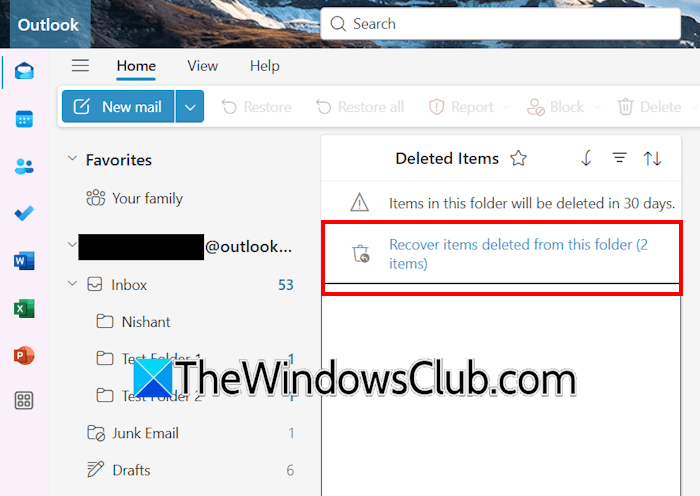
If you do not find emails in the Deleted Items folder, click the Recover items deleted from this folder link. You may find the permanently deleted emails there. Now, right-click on the email and select Restore.
2] Check Outlook Rules
You may have established certain rules for your emails. Check this by following these instructions:
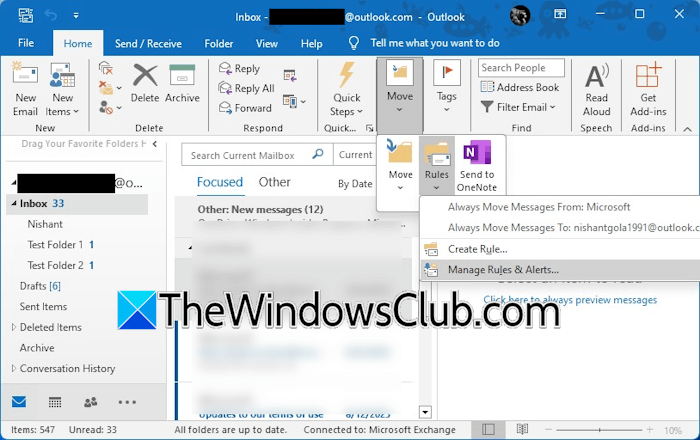
- Open Outlook Classic.
- Under the Home tab, click Rules > Manage Rules & Alerts. You will find this option under the Move group.
- Now, manage the rules for your email addresses.
The above steps are for the Outlook Classic. If you use the New Outlook app or Outlook for the Web, follow these instructions:
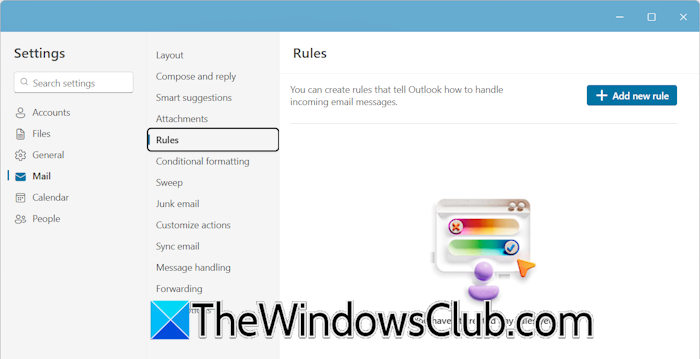
- Open the New Outlook app or log in to Outlook.com in your web browser.
- Select the View tab and then click View settings.
- Select Mail > Rules.
- Now, manage your Outlook rules.
4] View the Archive folder
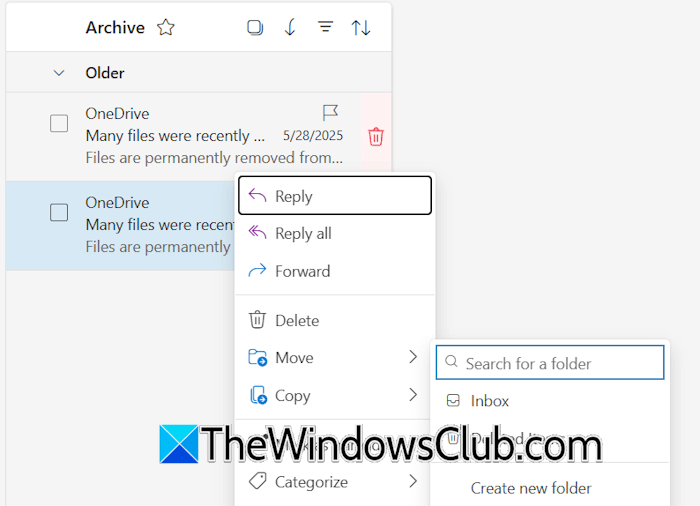
Check the Archive folder. You might have accidentally moved your emails to the Archive folder. If you see your emails in the Archive folder, right-click on them one by one and select Move > Inbox. If you want to move the emails to another folder, select that folder.
5] Recover the deleted emails
Outlook has a feature that allows you to recover deleted emails. This is a hidden folder in Outlook Classic where deleted items are stored for a specified period before being permanently deleted. Check this and recover your emails if you find them there.
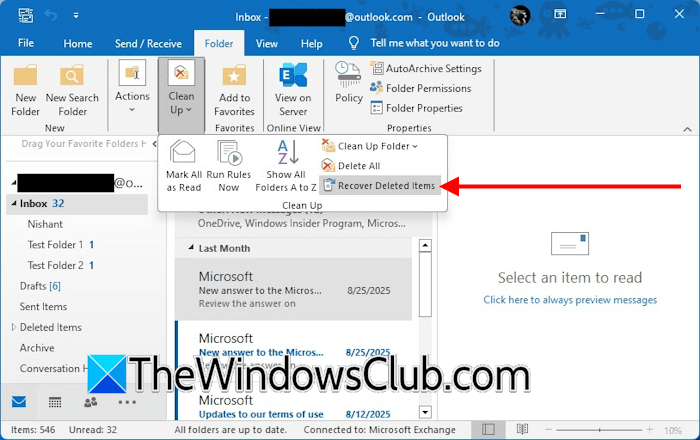
Follow these steps:
- Open Outlook Classic.
- Select the Folder tab.
- Click the Recover Deleted Items option. You will find it under the Clean Up group.
This feature is available only in Outlook Classic and is not available in the New Outlook app and Outlook.com.
6] Clear Offline items
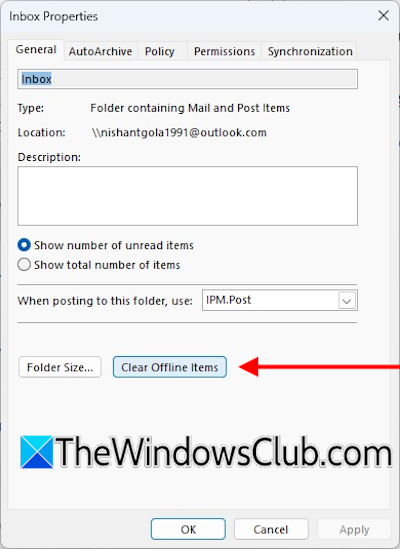
If the issue persists, you can try clearing offline items. This option is available only in Outlook Classic. It deletes the local cache for the specific folder you select. To Clear Offline Items in Outlook Classic, follow these steps:
Before proceeding, I recommend you
- Open Outlook Classic.
- Right-click on the affected folder and select Properties.
- Click Clear Offline Items.
After performing the above steps, all emails from the selected folder will be temporarily removed. Please wait for a moment, as Outlook will download all the emails from the server. If this does not work, try closing and reopening Outlook.
7] Rename the Outlook Data File
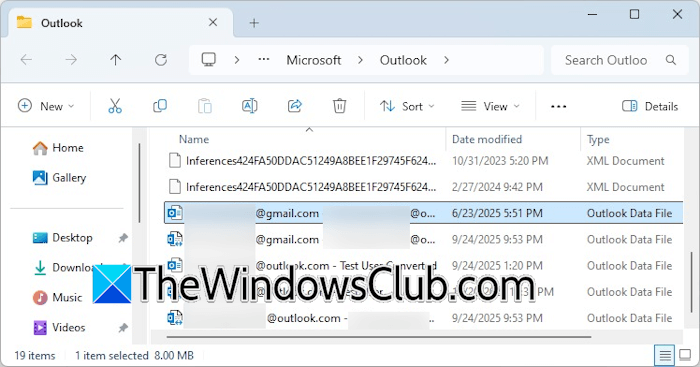
The corrupt Outlook Data File can also cause this problem. I suggest you rename the Outlook Data File and see if it helps.
Follow the steps provided below:
- Open Outlook Classic.
- Go to File > Info.
- Click Account Settings > Account Settings.
- Go to the Data Files tab, select your account, and click Open File Location. This will open the Outlook Data File for the selected account in File Explorer.
- Close Outlook Classic.
- Rename the Outlook Data File.
Open Outlook Classic. It will start downloading data from the server. This may bring back the missing emails in Outlook.
8] Check the Automatic email forwarding setting
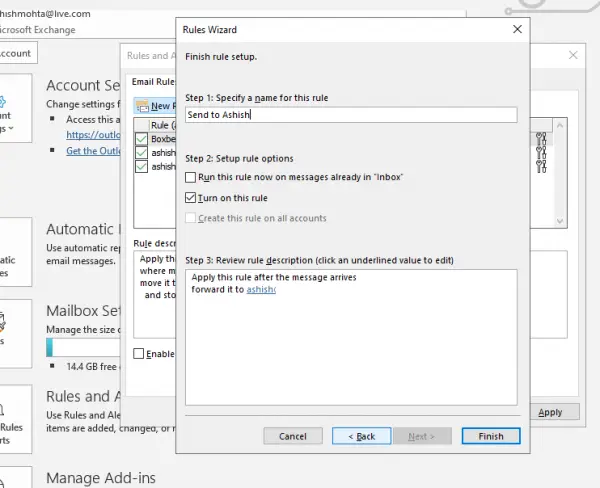
You might have activated the Automatic Email Forwarding setting in Outlook. Configuring this feature forwards emails from a specific email address to the target email address. Check if you have set the Automatic Email Forwarding for some specific email addresses. If yes, delete that rule.
If you use Outlook.com or the New Outlook app, check the Automatic Email Forwarding by following these instructions:
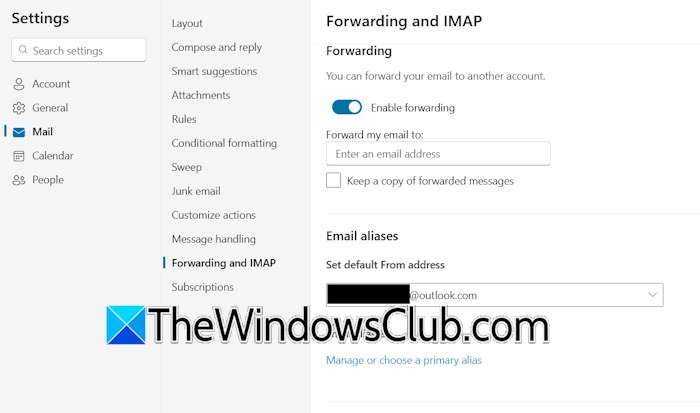
- Open the New Outlook app or log in to Outlook.com.
- Go to View > View Settings.
- Select Mail and then click Forwarding and IMAP.
If Email Forwarding is enabled, disable it or delete the Email Forwarding rule for a particular email.
9] Use a third-party tool
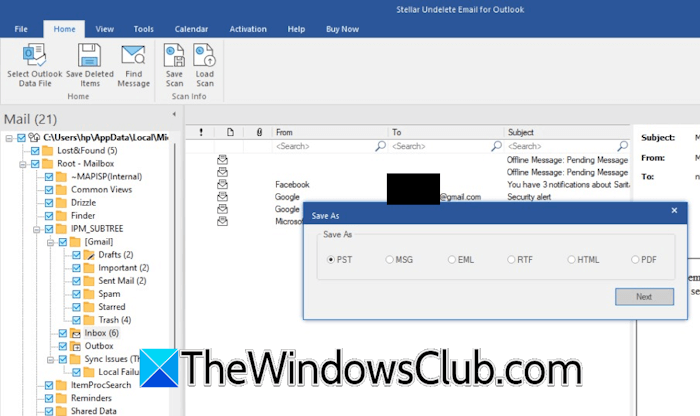
If your emails are still missing from Outlook Classic or the New Outlook app, you can use a third-party tool to recover your deleted emails. Stellar Toolkit for Outlook is one of the best Outlook recovery and repair tools. This tool allows you to save the recovered emails in multiple formats, including PST, HTML, RTF, PDF, etc.
Bonus tip
The sudden disappearance of some emails from Outlook indicates unauthorized access to your account. Your Microsoft account might have been compromised. Immediately view your sign-in activity.
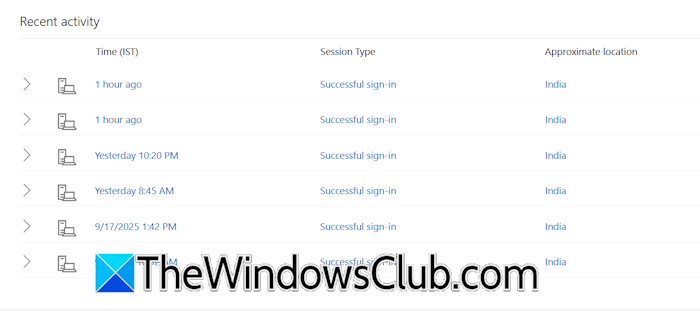
Follow these steps:
- Open your web browser and visit account.microsoft.com.
- Sign in to your Microsoft account.
- Select Security from the left side.
- Expand the Account tab on the right side.
- Click the View my sign-in activity link.
You will see all your account activities. Expand each tab to view other details of sign-in activity, such as IP address, device, or platform etc.
If you find any suspicious activity in your account, change your account password immediately.
That’s it. I hope this helps.
Why are my emails disappearing from my Outlook?
There can be many reasons why emails are disappearing from your Outlook. One possible cause is the accidental deletion of the emails by you. Sometimes, emails are sent to the Junk folder. Check this and move emails to your Inbox from there. Your account might have been compromised. Immediately change your account password.
How do I get back emails that have disappeared?
To get back emails that have disappeared, check the Deleted Items folder in Outlook. If your emails are there, restore them. Sometimes, emails land in the Junk folder instead of the Inbox. Check this and move emails to the Inbox. You can use third-party email recovery software to get back the missing emails.
Read next: Please retry with a different device use a VPN.
