
If you cannot sign into your Outlook or Microsoft account and see the “Please retry with a different device” error, the solutions provided in this article will help you. This error usually occurs due to IP address conflicts, or sometimes, it can be due to a server outage.
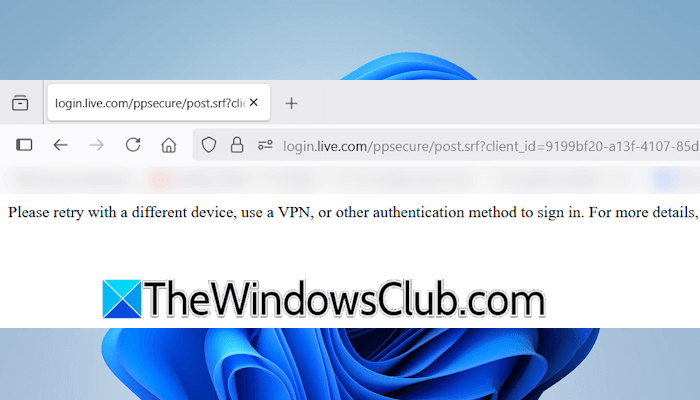
The complete error message is:
Please retry with a different device, use a VPN, or other authentication to sign in.
Please retry with a different device use a VPN
Use the following fixes for the “Please retry with a different device, use a VPN, or other authentication method to sign in” error while logging into Outlook or a Microsoft account.
- Check Outlook service status
- Use a VPN or other authentication method
- Power cycle your WiFi router
- Use another network connection
- Use another web browser
- Reset your network
All these fixes are explained below in detail.
1] Check Outlook service status

Check the service status of Outlook. If there is a service outage, you have to wait for sometime, as the problem is not from your end. To check Outlook service status, visit portal.office.com/servicestatus/.
2] Use a VPN or other authentication method
If you read the error message, it mentions using a VPN connection or other authentication methods to sign in. Microsoft displays other methods to sign in only if you have added them to your Microsoft account. If you have not added any other way to sign in to your Microsoft account, you will not see the “Other ways to sign in” option.
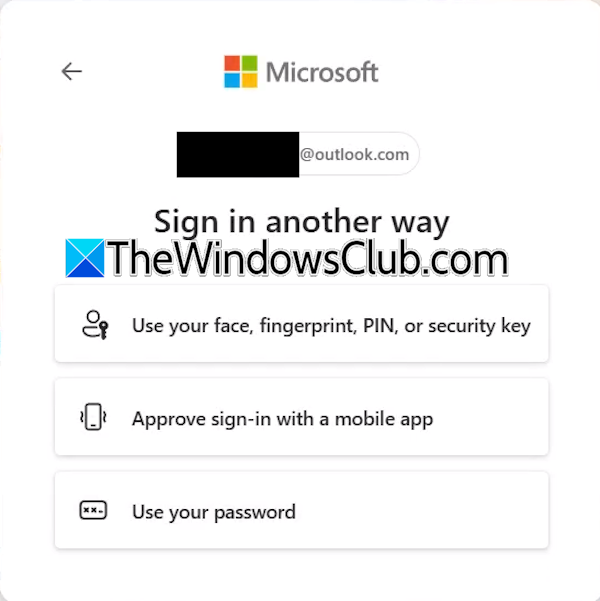
To use other available authentication methods to sign in, follow the following steps:
- Enter your email ID and click Next.
- Click Other ways to sign in.
- Now, select another method to sign in to your Microsoft account.
If you have not added another way to sign in, you can use a VPN. Download and install any free VPN, such as ProtonVPN. Now, launch it and click Connect. After that, you should be able to sign in to your Outlook or Microsoft account.
If you do not want to install VPN software, you can install a free VPN extension on your web browser.
3] Power cycle your WiFi router
If the problem persists, power cycle your WiFi router. Follow these instructions:

- Turn off your WiFi router.
- Unplug its adapter from the wall socket.
- Wait for a few minutes.
- Plug the adapter back into the wall socket.
- Turn on your router.
Now, connect your system to your WiFi and see if you can log in to your account.
4] Use another network connection
Switching to another network connection changes your IP address. Since the error message mentions that using a VPN can fix this error, you can try switching to another network connection. This will do the same job as connecting to the VPN.

If another network connection is not available to you, you can use your mobile data and connect your system to it through the mobile hotspot. Now, sign in to your Microsoft account. If this works, you can add other ways to sign in to your Microsoft account.
5] Use another web browser
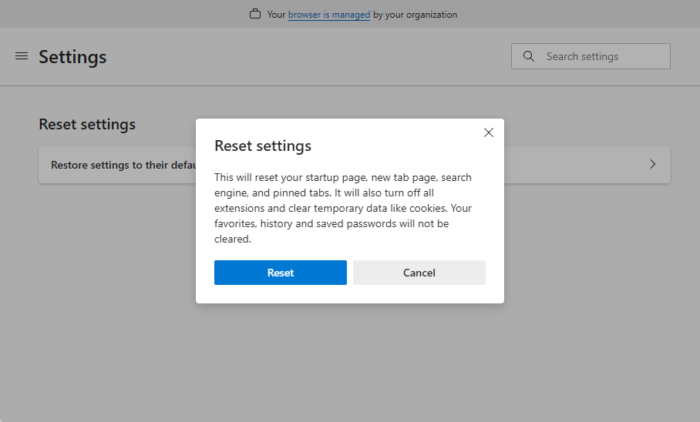
The error might be associated with a particular web browser. To check this, use another web browser and see if you can log in to your Microsoft account. If this works, you can reset your favorite web browser.
6] Reset your network
If none of the above solutions worked, the last resort is to reset your network. This step will remove then reinstall your network adapters and set all the networking components to their default values. This process will take 5 minutes. Your system will restart automatically after 5 minutes. Therefore, before proceeding, save all your pending work.
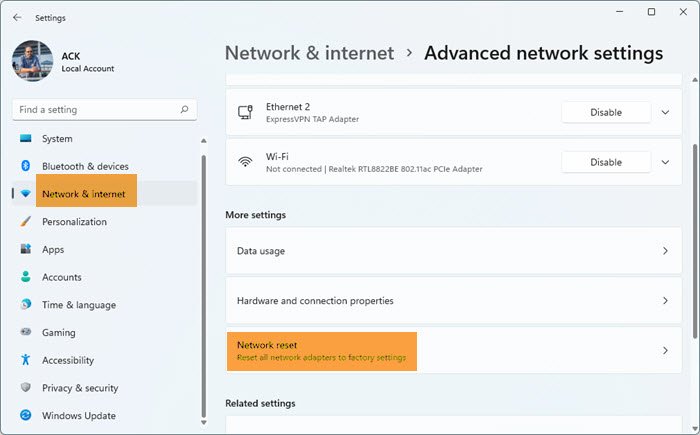
After your computer restarts, you will be disconnected from your WiFi. Now, connect to your network manually.
That’s it. I hope this helps.
Why is my VPN blocking my email?
A VPN can sometimes interfere with sending and receiving emails in an email client. This usually happens due to several reasons, such as suspicious activity detection. A VPN changes your IP address. These are shared IP addresses. If a particular email client blacklists the IP address, your emails will be blocked. In such cases, you need to contact your VPN support. Another reason is your location mismatch.
Do you need a VPN for email?
You generally do not need a VPN for email. If you use a good antivirus, you are safe. You can use a VPN for email in certain situations, such as when connected to public WiFi, because a VPN encrypts your internet traffic. However, using it may also cause some issues, such as email blocking due to a blacklisted IP address. For corporate emails, it depends on your organization’s policy whether they require a VPN.
Read next: This file cannot be previewed because of an error with the Word previewer.
