
Some users reported that Outlook keeps sending their emails to the Archive folder. This is a serious issue because if important emails keep moving to the Archive folder, they can go unnoticed, leading to delayed responses and communication gaps. This article shows how to stop emails from going to the archive in Outlook.
How to stop Emails from going to the Archive in Outlook
Use the following fixes to stop emails from going to the archive in Outlook:
- Check Outlook rules
- Check Auto-archive settings
- Disable add-ins
- Check mobile app swipe actions
- Check sweep rules
- Disable keyboard shortcuts
- Repair or reinstall Office
All these fixes are explained in detail below.
1] Check Outlook rules
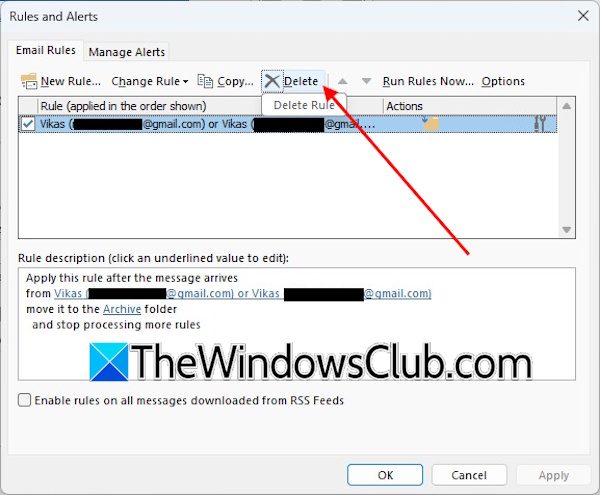
You might have set archive rules for your email messages in Outlook. If so, clear those rules to fix this issue. For this, navigate to File > Manage Rules & Alerts. You will see all the rules there. If you find an archive rule, delete it.
2] Check Auto-archive settings
If you do not find any rules for archiving emails, the next step is to check the auto-archive settings. Follow these steps:
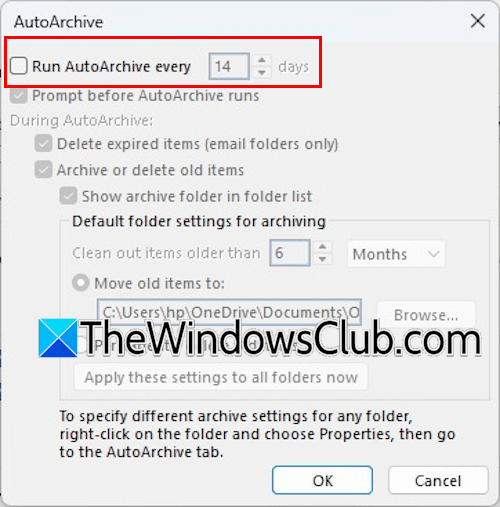
- In Outlook, navigate to File > Options > Advanced.
- Under the AutoArchive section, click AutoArchive Settings.
- Uncheck the “Run AutoArchive every Y days” checkbox.
- Click OK to save changes.
Relaunch Outlook and check if the email messages are going to the archive folder. If the issue persists, check the folder-specific archive settings.
If AutoArchive is disabled globally, email messages can still be moved to the archive folder. This usually happens when the archive settings are configured for a specific folder. Follow these steps:
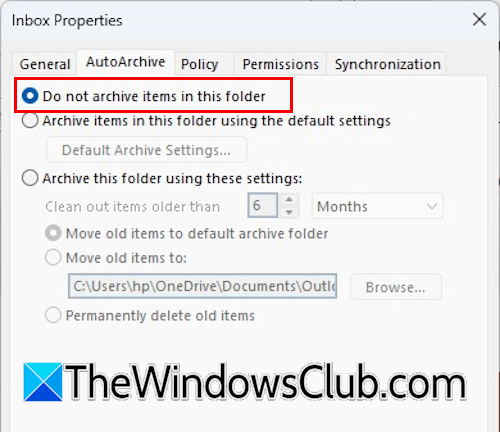
- In Outlook, right-click on the affected folder, say Inbox.
- Select Properties.
- Select the AutoArchive tab.
- Now, select the “Do not archive items in this folder” option.
- Click Apply and then click OK.
3] Disable add-ins
A third-party add-in might be causing this problem. To confirm this, disable all add-ins installed on Outlook. Follow these steps:
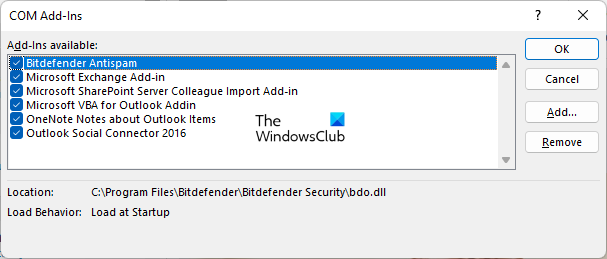
- In Outlook, go to File > Options.
- Select Add-ins from the left side.
- Select Com Add-ins in the drop-down on the right pane and click GO.
- A new window will appear showing all the installed add-ins. Uncheck all the checkboxes and click OK. This step will disable all the add-ins.
- Now, restart Outlook and see if the issue persists.
If the issue disappears after disabling all add-ins, then one of them is causing the problem. Now, the next step is to find the problematic add-in. To do this, enable any one add-in and check whether email messages are being sent to the archive folder. When the issue reappears, the add-in you have just enabled is the culprit. Now, you can remove that add-in and look for its alternative.
4] Check mobile app swipe actions
If you use the Outlook mobile app, you might be accidentally moving your email messages to the Archive folder without noticing. Outlook and Gmail mobile apps have a default swipe setting that sends the swiped emails to the archive folder. You can configure it in the Outlook mobile app settings.
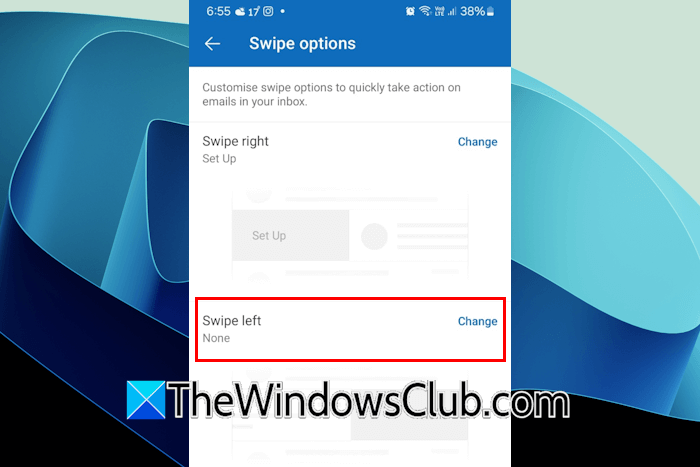
Follow these steps:
- Open the Outlook app on your mobile phone.
- Tap your profile icon in the top-left corner.
- Now, tap on the Settings icon.
- Tap Mail > Swipe Options.
- You will see that the Swipe left action is configured to Archive.
- Tap Change and select another option. If you do not want any action for the left swipe, you can select None.
Now, check if the issue persists.
5] Check sweep rules
If the issue persists even after configuring the swipe actions in the Outlook mobile app, check the sweep rules. Sweep is a great feature to keep your inbox organized and is available in Outlook on the Web.
Use the following instructions to view the Sweep rules in Outlook on the Web:
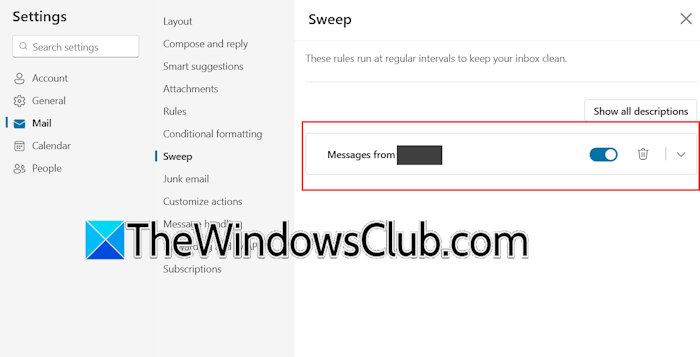
- Log in to Outlook on the web in a web browser. Or you can open the New Outlook app for Windows.
- Click Settings > Mail > Sweep.
- Now, you can turn off or delete the Sweep rule.
6] Disable keyboard shortcuts
The New Outlook app and Outlook OWA have keyboard shortcuts that remain enabled by default. The keyboard shortcut to move an email to the archive folder is the E key in the Outlook OWA and the Backspace key in the New Outlook app. Pressing this key by mistake archives the opened email message. This can be the case with you.
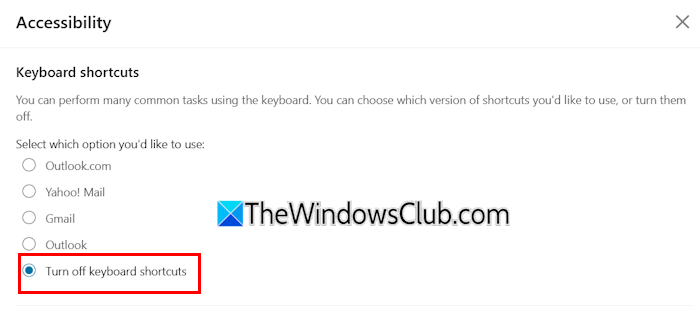
Disable the keyboard shortcuts in both Outlook OWA and the New Outlook app separately. Follow these steps:
- In the New Outlook app or Outlook OWA, open Settings.
- Select General > Accessibility.
- Select Turn off keyboard shortcuts.
- Click Save.
7] Repair or reinstall Office

If the problem persists, you can repair or reinstall Outlook. First, run an Online Repair. If it does not work, reinstall Office.
That’s it. I hope this helps.
Why are my messages going straight to the archive?
If your messages are going straight to the archive, a rule might have been set in the email client. Check this in the email client settings. If you do not find any rule, this might be happening due to a keyboard shortcut.
Can I unarchive an email in Outlook?
Yes, you can easily unarchive emails in Outlook. To do so, open the archive folder and then select the email you want to unarchive. Now click Move to, and then select the required folder.
Read next: Email not saved to Sent Items folder in Outlook.
