
You may encounter an error that says You don’t have permission to share your calendar with the user or group in Microsoft 365 if there is an issue with permissions or privileges. In this post, we will explore the steps you can take to resolve the issue in both external and internal scenarios.
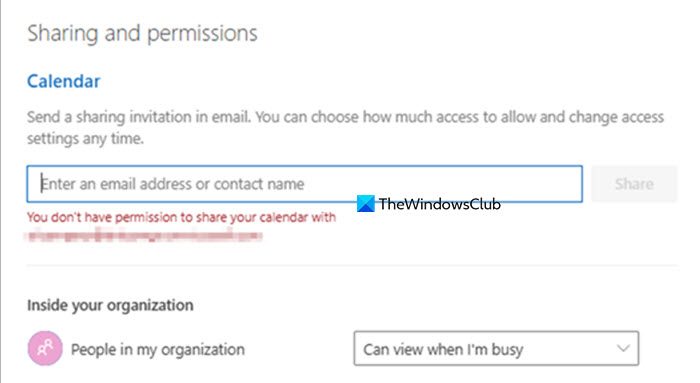
You don’t have permission to share your calendar with User or Group in Microsoft 365
This error on Windows 11 typically arises from one of two main issues: organization-wide settings controlled by your IT department or specific problems with the Outlook desktop application. The most common cause is a global Microsoft 365 policy that restricts calendar sharing with external users or limits internal sharing permissions. Additionally, the Outlook for Windows application itself may contribute to the problem, especially if you’re using the newer “Click-to-Run” version from Microsoft 365, which might experience temporary glitches, or if there’s a conflict with your local Windows 11 user profile or mailbox cache.
If you don’t have permission to share your calendar with a user or group in Microsoft 365, follow the solutions mentioned below.
- Enable External Calendar Sharing (For External Contacts)
- Remove Duplicate Calendar Entries
- Move the Calendar to another Group
- Verify Group Membership and User Status
- Check and Modify Policies
Let us talk about them in detail.
1] Enable External Calendar Sharing (For External Contacts)
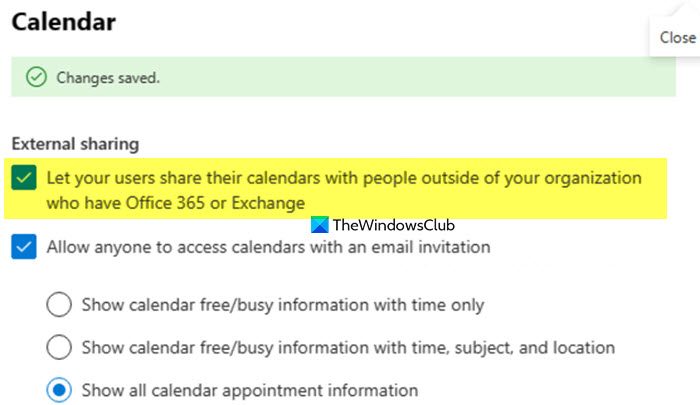
The error is often caused by a tenant-level security policy that acts as a master switch. When external calendar sharing is disabled in the admin center, it overrides any individual user’s attempt to share, regardless of the permissions they set. Enabling this feature removes that global barrier, allowing the system to process your specific sharing request.
- Go to the Microsoft 365 admin center.
- Navigate to Settings > Org settings.
- Select the Services tab.
- Click on Calendar.
- Under Calendar External Sharing, ensure the option Let your users share their calendar with people outside of your organization… is checked.
- Select the appropriate level of detail (e.g., availability only) and click Save.
- If the option was already enabled, try disabling it, saving, and then re-enabling it.
Finally, check if the issue is resolved.
2] Remove Duplicate Calendar Entries
The duplicate entry, often appearing in People’s Calendars, is usually a read-only copy of your own calendar that was incorrectly added. When you try to share, the system gets confused and attempts to share this non-ownable copy instead of the original calendar you control. Removing the duplicate eliminates this conflict, ensuring you are sharing the correct, primary calendar from your My Calendars list.
Open Outlook on the web (OWA) and switch to the calendar view. Check if the calendar you want to share appears in both the My Calendars and People’s Calendars sections. If you see a duplicate calendar listed under People’s Calendars, right-click on it and select Remove. Then, try sharing the calendar again.
3] Move the Calendar to another Group
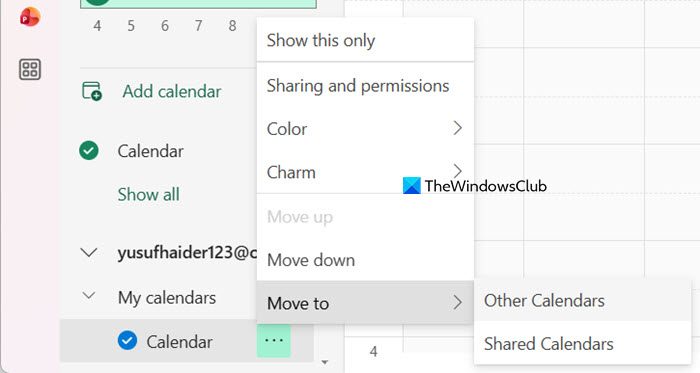
By moving Calendar to another group, you perform a soft reset, clearing any temporary corruption in the calendar’s permissions registration. This simple refresh often resolves the underlying glitch that was preventing the share command from being processed correctly.
Right-click on the Calendar, and select Move > Other Calendars.
4] Verify Group Membership and User Status
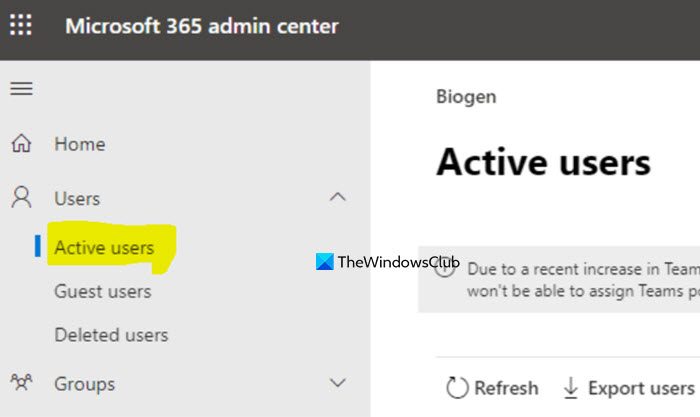
Microsoft 365 validates permissions for every member of a distribution or Microsoft 365 group when you attempt to share. If the system encounters a single blocked, disabled, or invalid member account, the entire sharing operation fails as a security measure. Removing the inactive user eliminates this validation error, allowing the share to proceed successfully for all active members.
- You should go to the Microsoft 365 admin center > Users > Active users.
- Verify that all members of the target group are listed here and their status is Active, not Blocked or Disabled.
- If any inactive users are found, remove them from the group temporarily and attempt the share again.
Finally, check if the issue is resolved.
5] Check and Modify Sharing Policies
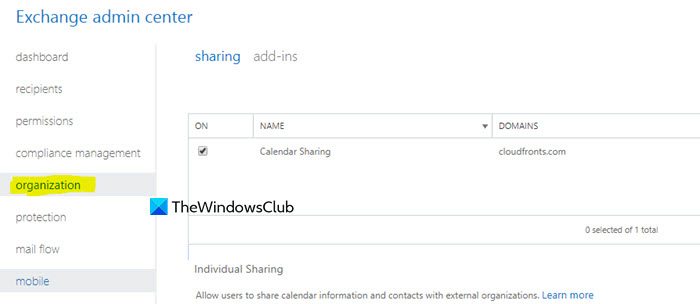
Exchange Online sharing policies act as a strict rulebook that overrides your individual sharing attempts. If your assigned policy only allows sharing Free/busy information, but you try to grant Full Details or Editor access, the system will block the request. Modifying the policy to allow a greater level of detail removes this predefined restriction, aligning the rules with the permission you are trying to grant.
Follow the steps mentioned below.
- Connect to Exchange Online PowerShell.
- Identify the sharing policy assigned to the user – Get-Mailbox [email protected] | fl *sharing*.
- In the Exchange admin center, go to Organization > Sharing.
- Edit the policy identified in step 2. Under the sharing rule, ensure the calendar sharing level is set to a sufficient detail level (e.g., “Calendar with free/busy and subject”) and save the changes.
Finally, check if the issue is resolved.
That’s it!
Read: Cannot add calendar to Outlook
Why can’t I share my Outlook calendar with someone outside my company?
This is almost always due to an organizational security setting. Your Microsoft 365 administrator must enable external calendar sharing for the entire organization in the Admin Center > Settings > Calendar. Until this global switch is turned on, individual users will receive this permission error when trying to share with external contacts.
Read: Display your working hours to your colleagues in Outlook
How do I fix the Calendar sharing error if I see my own calendar listed twice in Outlook?
This common glitch causes a permissions conflict. To fix it, open Outlook on the web (OWA), find your calendar listed under both My Calendars and People’s Calendars, right-click the duplicate in the People’s Calendars section, and select Remove. This resolves the conflict and allows you to share the correct calendar.
