
When opening Microsoft 365 or M365 Copilot on Android and you see an error that says “No network connection,” here is how to troubleshoot it. This article covers the common reasons, so you can go through them and fix the issue in moments.
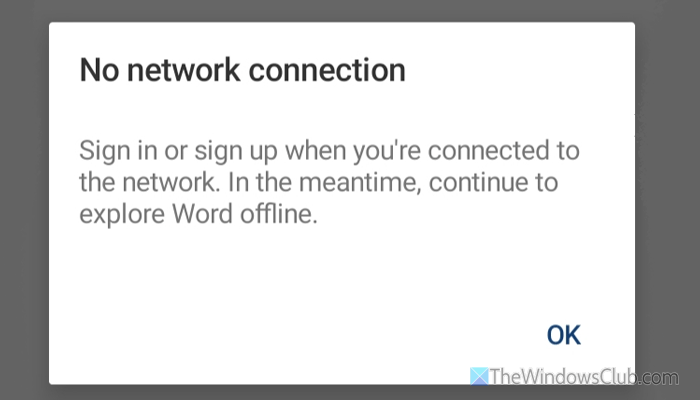
Why is Microsoft 365 showing No network connection on Android?
If Microsoft 365 is showing No network connection on Android, one of these could be the reason:
- There are some server-related issues on the Microsoft end.
- Your internet connection is not working uninterruptedly.
- Your VPN and proxy have some issues.
- You have opted for a mobile or Wi-Fi only data connection.
- You haven’t updated the app for a long time.
Microsoft 365 No network connection error on Android
To fix the Microsoft 365 No network connection error on Android, follow these instructions:
- Verify if there are no issues on Microsoft end
- Use the account on another device to check
- Turn ON and OFF airplane mode
- Change internet connection
- Disable Private DNS and VPN temporarily
- Check app data settings
- Reset M365 Copilot app
- Update or Uninstall and reinstall the app
Let’s check out these solutions in detail.
1] Verify if there are no issues on Microsoft end
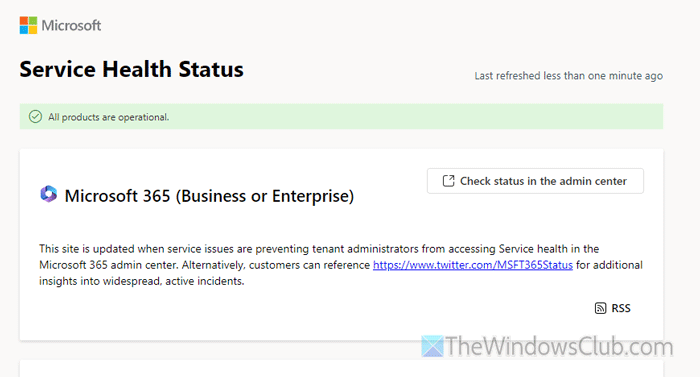
It is the very first thing you should check. If there is an issue on the Microsoft end, you can’t do anything to fix it. Instead of wasting time on all the subsequent solutions, it is recommended to check the status of Microsoft 365 first.
All you need to do is open status.cloud.microsoft.com. If the “All products are operational” message appears, you can try other solutions. Otherwise, wait a while before trying again.
2] Use the account on another device to check
At times, you might have some problems with your account. To verify that, you can use the same account on another device. If it doesn’t work, you must try other solutions. However, if you can’t log in to your account on the second device either, you must check your account first. If it is a School or Work account, ask your administrator for permission to log in
Read: Use Microsoft 365 Sign-in Troubleshooter to fix sign in problems
3] Turn ON and OFF airplane mode
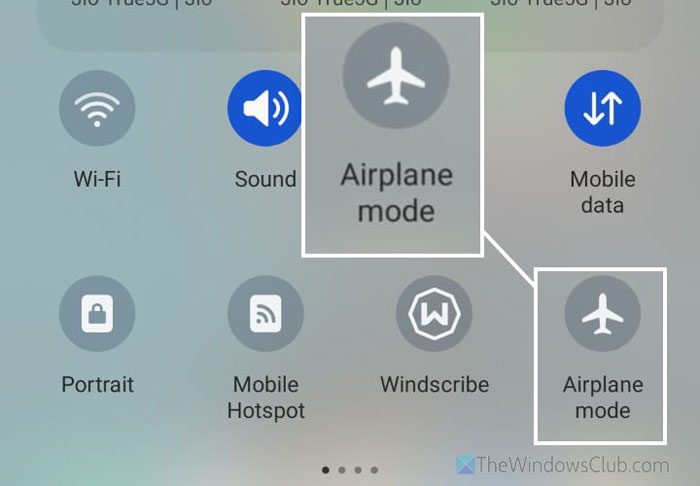
It is a basic network troubleshooting guide that you already know. You might have already used it a thousand times when you find some issues like slow internet or no network on your mobile. It is suggested to use the same technique.
4] Change internet connection
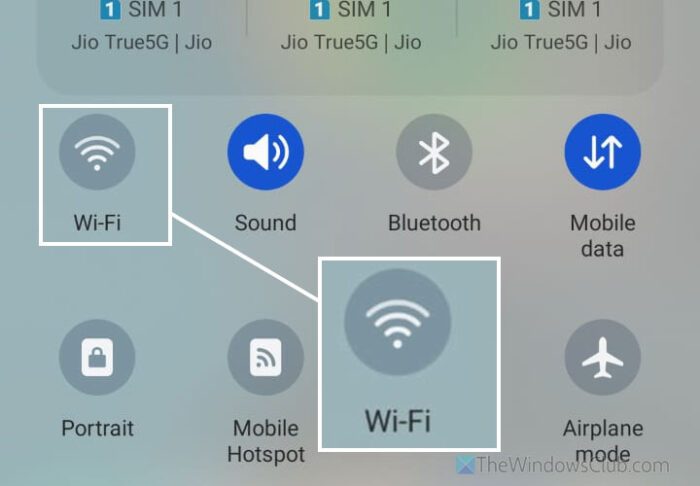
As this problem mainly arises when there are some issues with your internet connection, it is suggested to change the internet connection or source. For instance, if you use cellular data, try using Wi-Fi and vice versa. However, if no Wi-Fi is available, you can ask your family member or friend to provide a mobile hotspot.
Read: How to set Internet Priority for Programs on Windows 11
5] Disable Private DNS and VPN temporarily
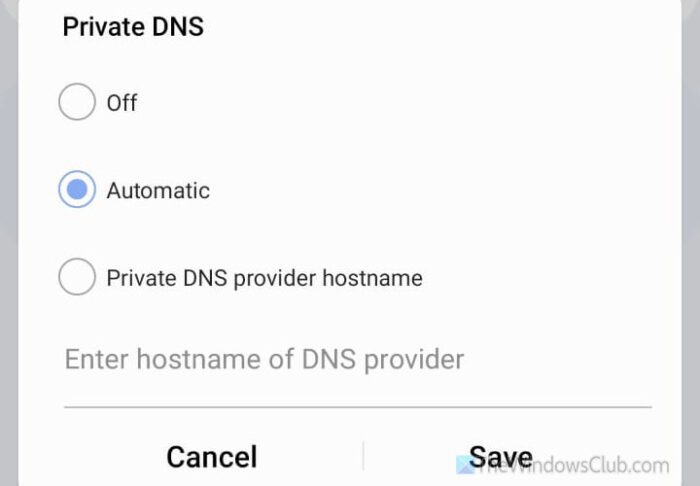
If you use Private DNS or a VPN, disable it temporarily and check whether it resolves the issue. At times, your cellular data can be interrupted when the VPN or Private DNS experiences issues.
In case you don’t know how to disable Private DNS, here are the steps:
- Open Settings and go to Connections.
- Tap on the More connection settings.
- Select Private DNS.
- Choose the Automatic option.
- Tap on the Save button.
However, if you cannot find the aforementioned options, simply open the Settings app and search for Private DNS. Then tap on the respective search result to open the option.
Read: Cannot change Static IP address & DNS server on Windows 11
6] Check app data settings
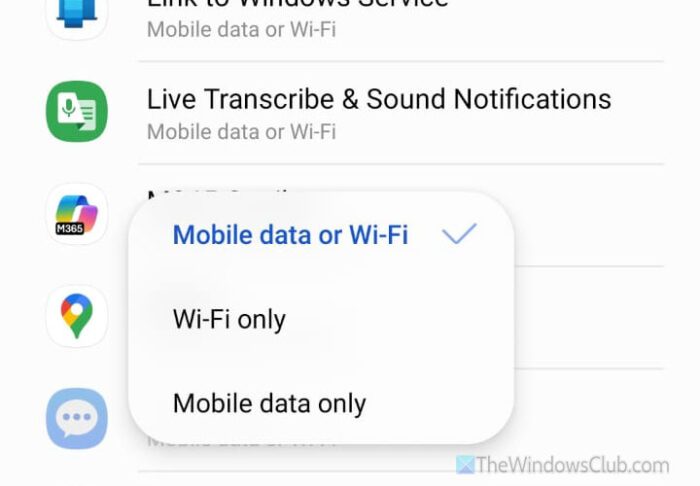
On most Android devices, it is possible to specify the internet source for a particular app. It means that if you want to allow M365 Copilot to use only Wi-Fi and not the cellular data, you can do that. If you have enabled such a setting for this particular application, you won’t be able to log in to your account.
To verify that, open the Settings and go to Connections > Data usage. Tap on the Allowed networks for apps option.
Next, find M365 Copilot and tap on it. Then, select the Mobile data or Wi-Fi option if it is not selected already.
Read: How to block an application from accessing the internet in Windows 11
7] Reset M365 Copilot app
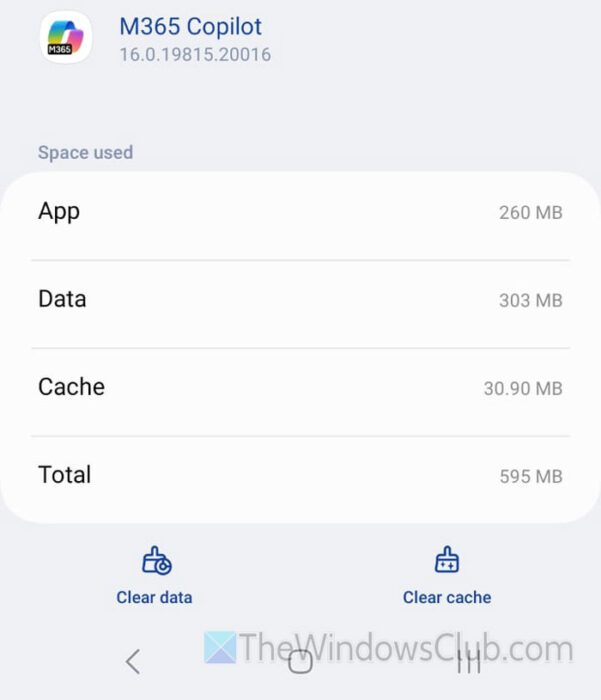
At times, this problem may occur due to internal issues. If that happens, you might encounter various problems like this one. In such situations, it is better to reset the M365 Copilot app. In other words, it is suggested to clear the cache and data of this particular application.
For that, open Settings and go to Apps. Select M365 Copilot and tap on the Force stop button. Next, go to the Storage section and tap on the Clear data and Clear cache buttons, respectively.
Read: Reset or Repair Microsoft Store apps via Windows Settings
8] Update or Uninstall and reinstall the app
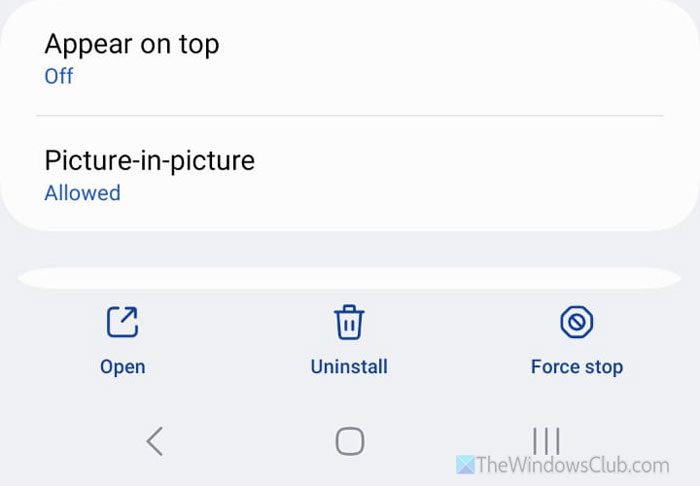
If you haven’t updated the M365 Copilot app, there is a chance of getting such an error while opening it on your Android mobile. That is why it is suggested to update it via the Google Play Store.
However, if the updating process doesn’t work, it is suggested to uninstall and reinstall it. You can use the Settings app to get the job done, and it is highly recommended to download the M365 Copilot app only from the Google Play Store.
Read: List of all Microsoft Apps available for Android
How to fix no network connection on Android?
To fix the “no network connection” error on Android, first turn airplane mode on and off. However, if it doesn’t do anything, disable VPN temporarily, try switching to another network, etc. If different generations of mobile networks are available, try switching to one of them as well.
Does Microsoft Office 365 work on an Android phone?
Yes, Microsoft 365 or M365 Copilot works on an Android phone without any problem. If you have a valid subscription, you can certainly install and use this application to access and create files.
