
If you receive a Office is Busy error message, when you try to run any Office program on your Windows 11/10 PC, then maybe one of these suggestions will help you. I recently received this message, and here is a screenshot of it.
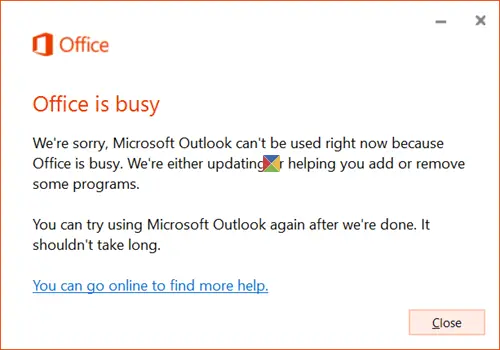
Office program cannot be used right now because Office is busy
The full text of the message reads something like this:
Office is busy. Office program cannot be used right now because Office is busy. We’re either updating, helping you add or remove some programs or repair or uninstall Office. You can try using the Office program again after we’re done. It shouldn’t take long.
1] Well, if you receive this message, the obvious thing to do is wait for a while and let Microsoft Office do its job. Once the job is completed, restart your computer and see.
2] If it does not help and you still see this message, open your Task Manager and ensure that all your Office programs, like Word, Outlook, Teams, etc., are not running and terminate them if you see any Office processes running. Now wait for a while, and once the Office completes its work, restart and see.
3] If even this does not help, create a system restore point and then open Control Panel > Programs > Programs and Features. Here, click the Microsoft Office and then select Change.
Now choose Quick Repair to Repair Office, and see if this helps. If this does not help, select Online Repair and see it that helps.
4] See if repairing Office Click-To-Run helps.
5] The last thing you can try now if you still keep seeing the error message is to reinstall Office.
If you have Microsoft 365 installed, go to My Software website to reinstall Microsoft 365.
If you have Microsoft Office 2024/21 installed, sign in to your My Office Account and follow the steps to reinstall Office.
Let us know if anything helped or if you have any other ideas.
Why won’t my Office Programs open?
There is no particular reason why any Office Programs won’t open, but if it’s happening to you, it’s best to repair the Office installation. You must go to the Program listing and choose the Quick Repair > Repair option to repair it. The process will fix any corrupt Microsoft Office files and ensure the programs launch without a problem.
How do I unlock Microsoft Office files?
If a document is password-protected, there is no guarantee you will be able to open it without the password. However, you can try simple passwords to unlock them, or use professional software to brute-force them open.
