
If you are getting Authentication couldn’t be completed error while signing into your Microsoft 365 account, here is what you can do to fix this issue. Whether you get this error on Windows or macOS, you can use the same solutions to troubleshoot it.
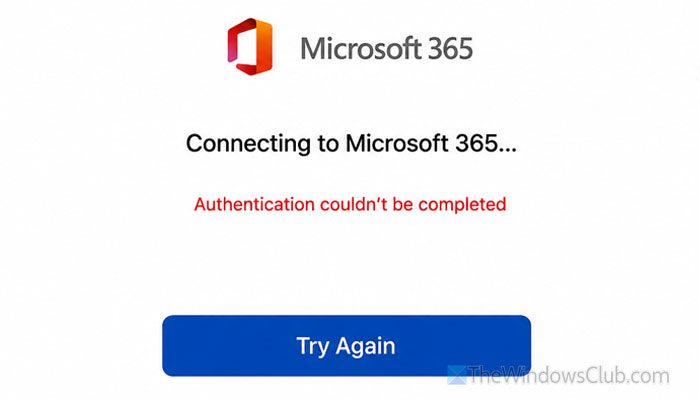
Why does Show Authentication couldn’t be completed error in Microsoft 365 mean?
If you are seeing the Authentication couldn’t be completed error, these could be the reasons:
- There are some issues with your Microsoft 365 subscription.
- There are problems on Microsoft’s side.
- You have entered the wrong username and password.
- Your subscription has expired.
- Microsoft Authenticator is blocking you from signing into your account.
- You have installed Office 2024/2021 alongside Microsoft 365.
Microsoft 365 Authentication couldn’t be completed
If Microsoft 365 shows Authentication couldn’t be completed error, follow these solutions:
- Check the current status of Microsoft 365
- Ensure the login credentials
- Verify your subscription
- Remove your account from other devices
- Delete old password from Credential Manager
- Check your internet connection
- Ask admin if it is School or Work account
- Uninstall another build of Microsoft Office
- Disable two-factor authentication temporarily
- Repair Microsoft 365
To learn more about these solutions, continue reading.
1] Check current status of Microsoft 365
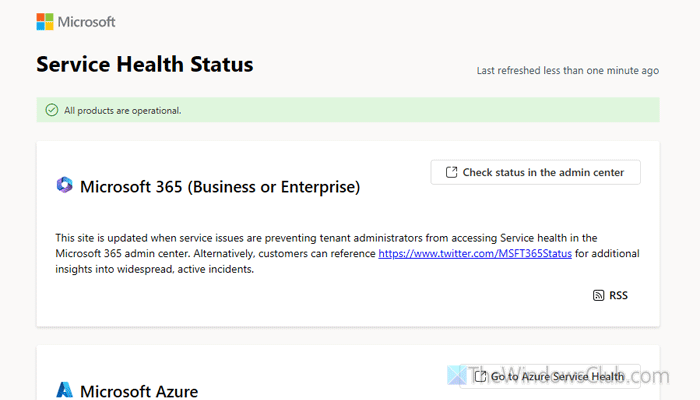
Checking the current Microsoft 365 service status should be your first priority, since you cannot do anything on your side if the activation server is down.
Go to status.cloud.microsoft and check if you can see the All products are operational message on your screen or not. If not, wait a few minutes, then try signing in again.
2] Ensure the login credentials
Before hitting Enter, check that you entered the correct credentials. If you recently changed your password, make sure you enter the new one. Also, check that Caps Lock is off, all keys on your keyboard work, etc.
Read: Best free online Keyboard Checker and Tester tool
3] Verify your subscription
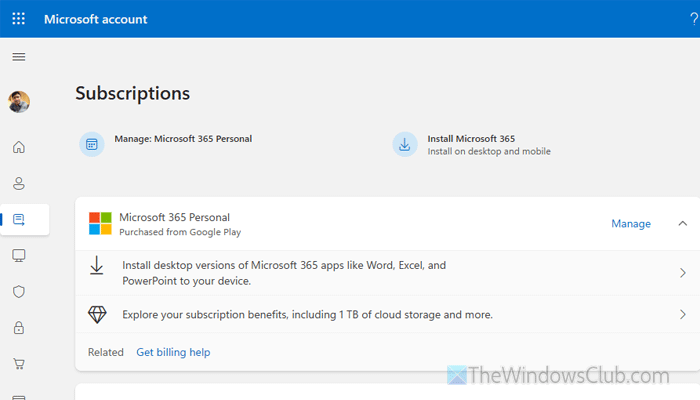
If you do not have a valid subscription, you cannot log into your account via Word, Excel, Outlook, PowerPoint, or any other application. That is why we suggest verifying your subscription status. If it has expired, you must renew it. To check the subscription status of Microsoft 365, go to account.microsoft.com and sign in to the account that you used to purchase the subscription.
Next, if you see Microsoft 365 in the Subscription list, your subscription is valid. Also, check the renewal date and update it accordingly.
You can go to Order history to check whether your subscription has been renewed for this month or not.
Read: How to check License Type and Activation Status of Microsoft Office
4] Remove your account from other devices
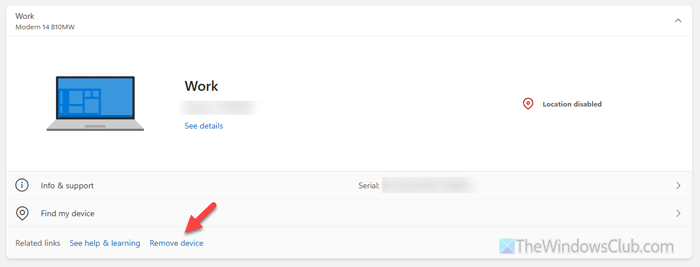
Every Microsoft 365 subscription has limitations on how many devices you can install it on. For example, with the Microsoft 365 Personal plan, you can install Microsoft 365 on up to 5 devices at once.
If your package has these limitations, you may need to remove Microsoft 365 from one device to make space for a new one. Go to the Devices tab after logging into your account page to find all the devices that you have installed it on. From there, click the Remove device button.
5] Delete old password from Credential Manager
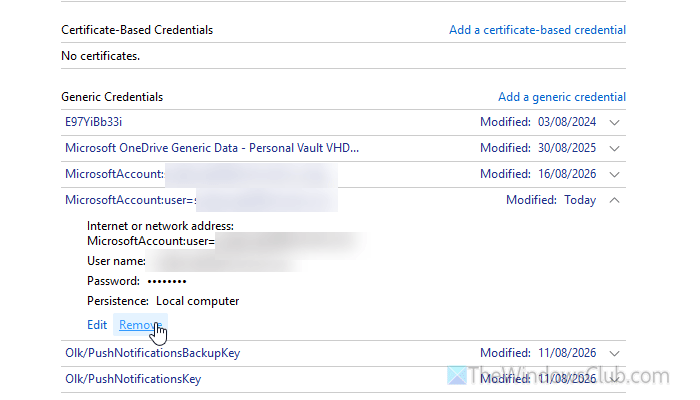
If you saved your password in Credential Manager, your PC may use that password instead of the new one.
To delete the old password, search for Credential Manager and click the relevant result. Then, go to the Windows Credentials section and find the password with the Microsoft 365/Office 365/Microsoft Office tag. Then delete that credential by clicking Remove.
Read: How to clear all Credentials from Credential Manager in Windows 11
6] Check your internet connection
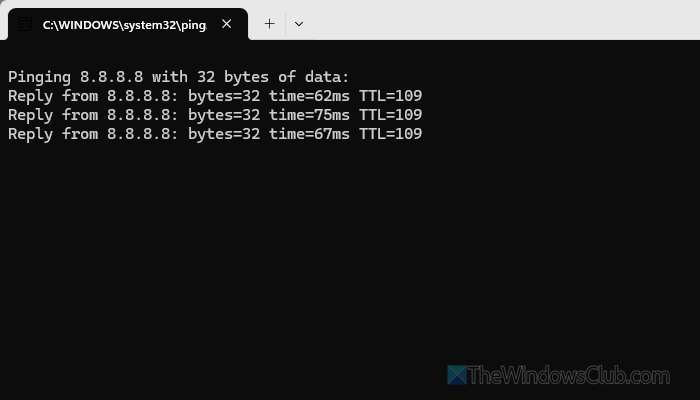
Use the Ping tool to check for internet connection problems. To do that, press Win+R, type ping 8.8.8.8 -t and press Enter. If it shows a positive result, your internet connection is fine. Otherwise, change the internet connection and try again.
Read: Destination host unreachable Ping in Windows 11
7] Ask admin if it is School or Work account
If you have a School or Work account, your admin may have blocked your account. If so, you must ask your administrator for permission.
8] Uninstall another build of Microsoft Office
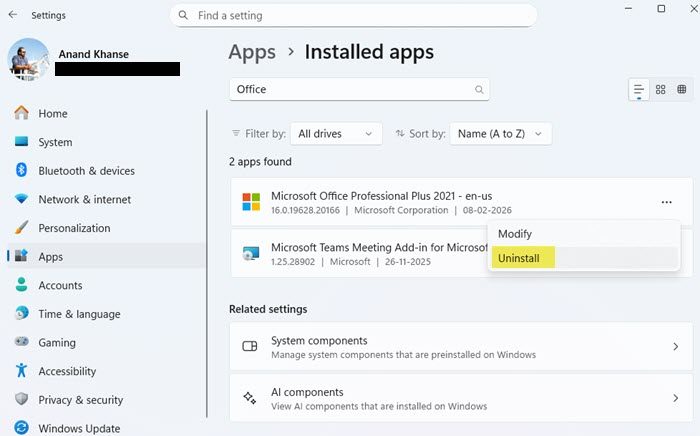
If you have Office 2024/2021 alongside Microsoft 365, we recommend uninstalling Office or any other Office version except Microsoft 365.
Open the Windows Settings panel and go to Apps > Installed apps. Then find Office, click the three-dot icon, and select Uninstall.
You can also use the Microsoft Office Uninstaller Tool to remove Office from your PC.
9] Disable two-factor authentication temporarily
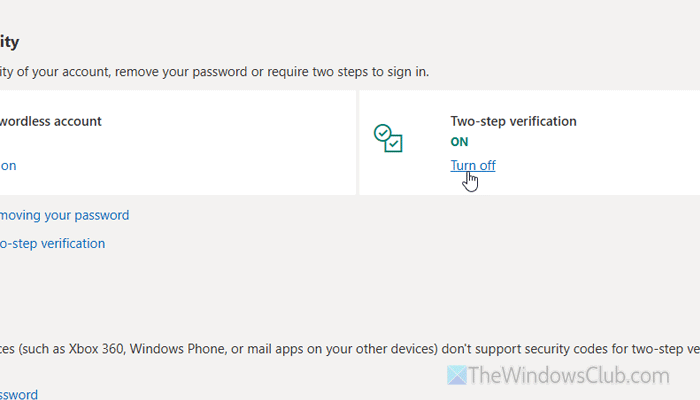
Sometimes, Microsoft 365 fails to fetch the two-factor authentication status and displays various error messages. That is why it is suggested to disable two-factor authentication temporarily, log into your account, and re-enable two-factor authentication.
To disable two-factor authentication, visit this page: account.live.com and sign into your account. Go to Two-step verification and click Turn off.
Click the Yes button.
10] Repair Microsoft 365
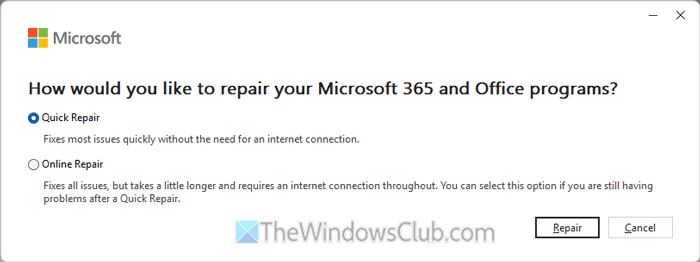
To repair Microsoft 365, press Win+I, and go to Apps > Installed apps. Find Microsoft 365, click on the three-dotted button, and select Modify.
Choose the Quick Repair option, and click the Repair button. If it doesn’t work, choose the Online Repair option.
Read: Microsoft 365 Couldn’t update license, Error 29 or 44
What can I do to fix the authentication Error in Outlook 365?
To fix the authentication error in Outlook 365, first close the app using Task Manager. Then, remove old credentials from the Windows Credential Manager. Finally, enter the new credentials.
How do I fix account authentication failure?
To fix Microsoft 365 account authentication failures, first check the status of the Microsoft 365 service. If it is up and running, find duplicate credentials in the Credential Manager and remove them. Then check your internet connection, close the app, etc.
Read: Sorry, we can’t get to your account right now error in Microsoft 365 apps.
