
In this post, we will show you how to fix Microsoft 365 error, “Couldn’t update license”, on a Windows 11/10 PC. The “Couldn’t update license” error is a commonly reported issue linked with multiple error codes, most commonly code 29 and code 44. When either of these error codes occurs, Microsoft 365 fails to refresh or validate the subscription license on the device. As a result, Office apps cannot confirm that the user is entitled to use the subscription.
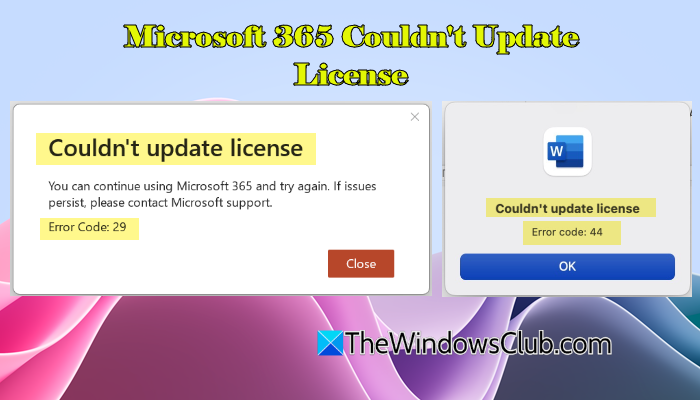
The complete error message reads:
Couldn’t update license
You can continue using Microsoft 365 and try again. If issues persist, please contact Microsoft support.
Error Code: 29
Or,
Couldn’t update license
Error Code: 44
If you’re stuck with one of these error codes, this post will help you fix the issue.
What causes Microsoft 365 “Couldn’t Update License” error
Error code 29 is caused by problems with local licensing data or the sign-in state. This can happen due to a corrupted or outdated Microsoft 365 license cache, Office being signed out automatically in the background, or switching between multiple Microsoft accounts on the same device. In such cases, Office cannot validate the stored license token, even though the subscription remains active.
Error code 44 is usually caused by an account-license mismatch. This occurs when Office is signed in with a Microsoft account that does not own the subscription, or when a Microsoft 365 license has been removed, reassigned, or changed by an administrator. In this situation, Office can communicate with Microsoft servers but cannot associate the signed-in account with a valid license.
Fix Microsoft 365 Couldn’t update license, Error 29 or 44
To fix Microsoft 365 error, “Couldn’t update license”, on a Windows 11/10 PC, use these solutions:
- Sign out and sign in with the correct Microsoft account
- Clear Microsoft 365 license cache
- Repair Microsoft 365
- Check date and time settings
- Update Windows and Microsoft 365
- Reset Microsoft 365 activation state
Let us see this in detail.
1] Sign out and sign in with the correct Microsoft account
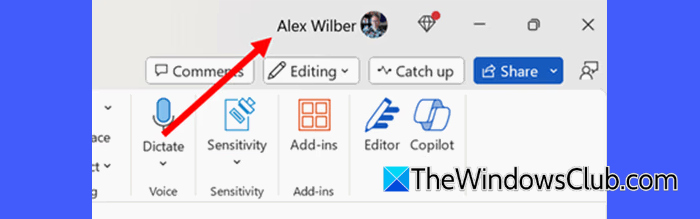
The error often occurs when Office is signed in with the wrong account. Signing out removes cached credentials and forces Office to re-validate the license when you sign back in.
Open any Microsoft 365 app. Click File in the top-left corner. Select Account from the left pane.
Under User Information, click Sign out. Close all Microsoft 365 apps completely. Reopen any Office app and click Sign in.
Sign in using the Microsoft account associated with your Microsoft 365 subscription.
- For home users: Sign in with the Microsoft account that has an active Microsoft 365 Personal or Family subscription.
- For business users: Sign in with the work or school account assigned a Microsoft 365 Business or Enterprise license (Basic, Standard, Premium, E3, E5, F1, or F3).
After signing in, restart the app and check if the error message no longer appears.
2] Clear Microsoft 365 license cache
Microsoft 365 stores local licensing and activation data in a cache on your PC. If this data becomes corrupted or outdated, Office may fail to refresh the subscription license and show the “Couldn’t update license” error. Clearing the license cache forces Microsoft 365 to recreate this data.
Close all Microsoft 365 apps. Press Win + R, type %localappdata%, and press Enter.
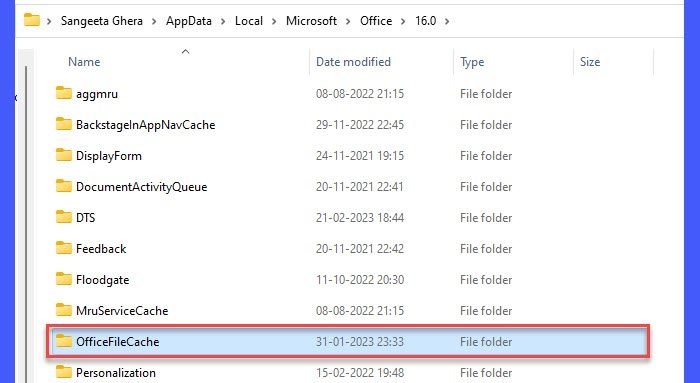
In the File Explorer window, navigate to Microsoft > Office > 16.0. On older systems, you may see 14.0 or 15.0 instead.
Open the OfficeFileCache folder. Select all files inside the folder and delete them (do not delete the folder).
Restart your PC. Open any Microsoft 365 app and sign in if prompted.
3] Repair Microsoft 365
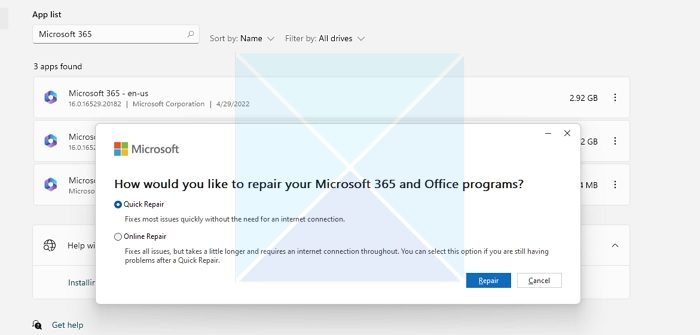
A damaged Office installation can prevent Microsoft 365 from refreshing or validating the license. Running a repair fixes corrupted program files and resets Office components that handle sign-in and licensing.
Press Win + I to open the Settings app. Go to Apps > Installed apps. Locate Microsoft 365 in the list.
Click the three-dot menu next to it and select Modify. Choose Quick Repair and click Repair.
If the issue persists, repeat the steps and select Online Repair instead. Restart your PC after the repair completes.
4] Check date and time settings
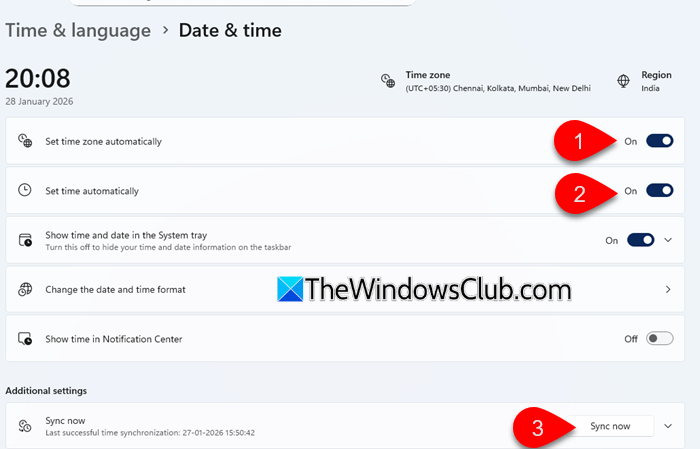
Microsoft 365 relies on correct system date and time to validate security certificates and subscription licenses. If your PC’s clock is incorrect, Office may fail to refresh the license and display the “Couldn’t update license” error.
Open Settings on your PC. Go to Time & language > Date & time.
Turn on Set time automatically. Turn on Set time zone automatically.
Click Sync now under Additional settings, then restart your PC.
5] Update Windows and Microsoft 365
Microsoft regularly releases fixes for activation, sign-in, and licensing issues through Windows and Office updates. Installing the latest updates can help resolve license validation for Microsoft 365.
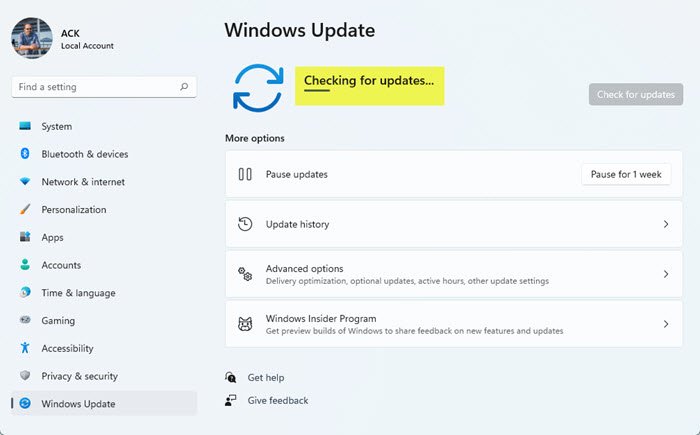
To update Windows, go to Settings > Windows Update. Click Check for updates and install all available updates.
To update Microsoft 365, open any Microsoft 365 app. Click File > Account. Under Product Information, click Update Options.
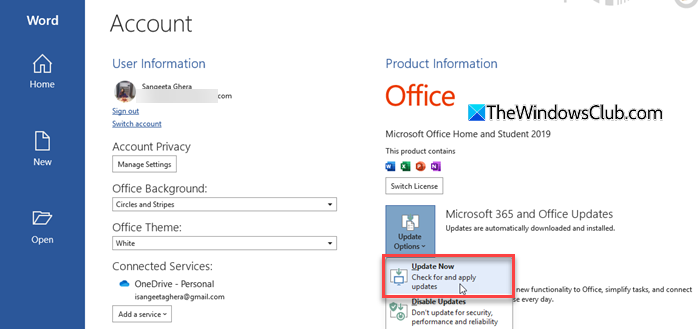
Select Update Now, then allow Office to install the updates. Restart your PC after the update completes.
After updating, open a Microsoft 365 app and check whether the license error is resolved.
6] Reset Microsoft 365 activation state
If none of the above solutions work, you can reset the Microsoft 365 activation state. This removes existing activation data and cached account information, allowing Microsoft 365 to activate again.
You can do this in two ways:
- Method 1: Run the Microsoft 365 Activation troubleshooter. This is the easier and safer option and is suitable for most users.
- Method 2: Reset activation state using scripts. This method is intended for advanced users or IT administrators and involves running Microsoft-provided scripts that completely remove existing licenses and cached account data.
Method 1: Run the Microsoft 365 Activation troubleshooter (Get Help)
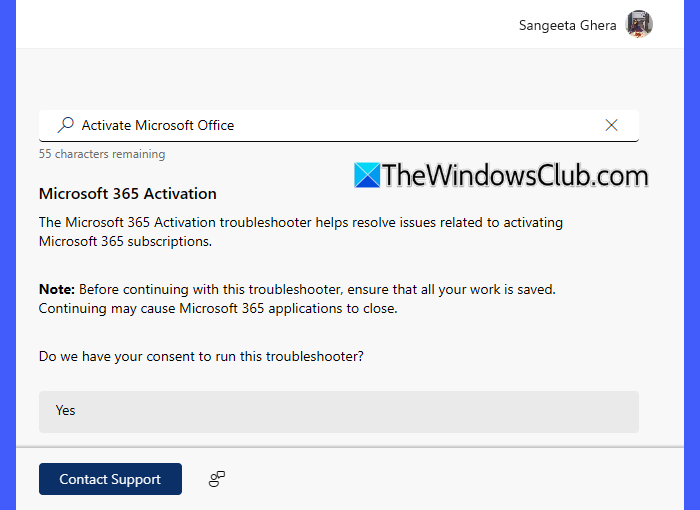
Press Win + S and search for Get Help. Open the Get Help app.
Type Activate Microsoft Office in the search box. Microsoft 365 Activation troubleshooter will appear. Select Yes to run the troubleshooter.
Follow the on-screen instructions to complete the reset.
After the process finishes, restart your PC, open any Microsoft 365 app, and check if the license error is resolved.
Method 2: Reset activation state using Microsoft scripts (Advanced)
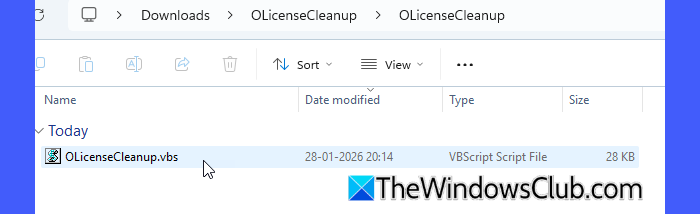
If the troubleshooter does not resolve the issue, Microsoft provides official scripts that fully remove previous licenses, cached Office account information, and work/school sign-in data.
Scripts:
- OLicenseCleanup.vbs: Removes existing Office licenses and cached account data
- signoutofwamaccounts.ps1: Clears Work or School (WAM) accounts linked to Office
- WPJCleanUp.cmd: Removes Workplace Joined accounts (only required if the device is Workplace joined)
Note: The steps listed below apply to Microsoft 365 Apps for enterprise on Windows. Microsoft Project and Visio activation is also reset by this process. You will be signed out of all Office apps and must sign in again.
Follow these steps to automate the cleanup process:
- Close all Microsoft 365 apps.
- Download OLicenseCleanup.zip from Microsoft’s official documentation here.
- Extract the ZIP file and run OLicenseCleanup.vbs as administrator.
- Download signoutofwamaccounts.zip and place the script in the same folder as OLicenseCleanup.vbs.
- Run the script with elevated permissions to clear WAM account data.
- If your device is workplace joined, download WPJCleanUp.zip and run WPJCleanUp.cmd.
- Restart your PC.
- Open a Microsoft 365 app and sign in again to activate.
I hope this helps.
Read: Microsoft 365 Login Error TAG 4usqa.
Why is my Microsoft 365 license not updating?
Your Microsoft 365 license may not update if Office is signed in with the wrong account, the local license cache is corrupted, or incorrect date and time settings. If you have subscribed to Copilot Pro, sign in to the Microsoft 365 app using the account that has the Copilot Pro subscription.
How do I update the license of Microsoft 365?
Microsoft 365 automatically refreshes the license in the background when you’re signed in with the correct account and connected to the internet. If the automatic refresh fails, sign out and sign back in to a Microsoft 365 app to force the license update.
Read Next: Couldn’t verify your Office 365 subscription.
