
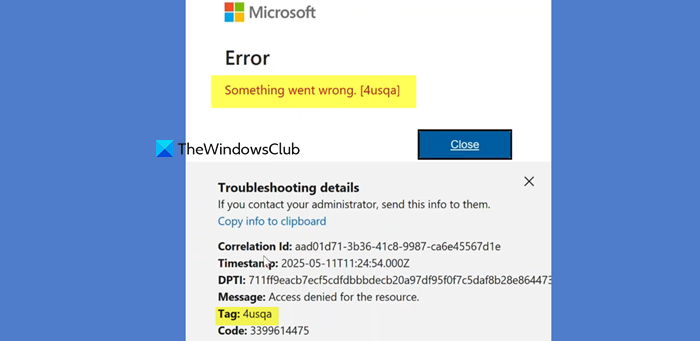
It can be frustrating to be cut off from accessing essential apps like Outlook, Teams, or Word by the Microsoft 365 login error tag 4usqa. In this article, we are going to break down what causes this error and provide a step-by-step guide to help regain access to the account and services.
Microsoft 365 Login Error TAG: 4usqa [Fix]
If you are encountering a login error Something went wrong [4usqa] in Microsoft 365, execute the solutions below.
- Clear cache and cookies
- Use InCognito or Private Mode
- Reset Office 365 Authentication state
- Check Account licensing and status
- Enable the Microsoft Information Protection (MIP) API in Entra ID
Let’s get started with the troubleshooting guide.
1] Clear cache and cookies
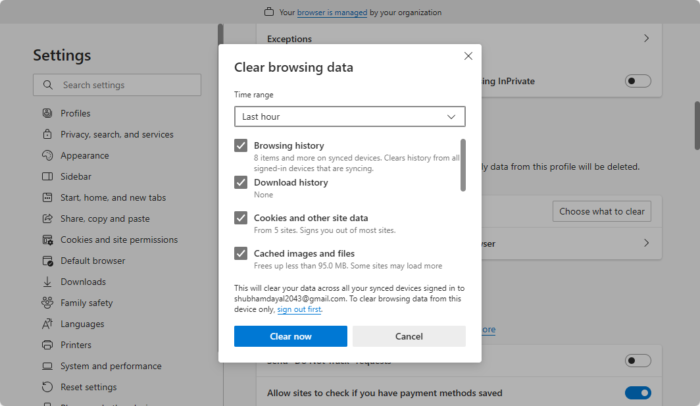
The login process relies on a clean session with Microsoft servers. Stored cache and cookies can become corrupted or outdated. We will clear this data to force the browser to create a new connection to Office 365.
Follow the steps mentioned below to do the same.
- Click on three horizontal/vertical dots according to the respective browser, scroll down, and select Settings.
- Go to the Privacy, search and services tab for Edge, Privacy and security tab for Chrome, and click the Choose what to clear button in the Clear browsing data now option.
- Set the Time Range to All Time, and check all the required boxes.
- Alternatively, users can simply press the Ctrl + Shift + Delete keys to launch the Delete Browsing Data menu. Check the boxes, and then select the Clear now button.
Close the browser completely, reopen it, and then try to log in. If this doesn’t resolve the issue, proceed to the next solution.
2] Use InCognitor or Private Mode
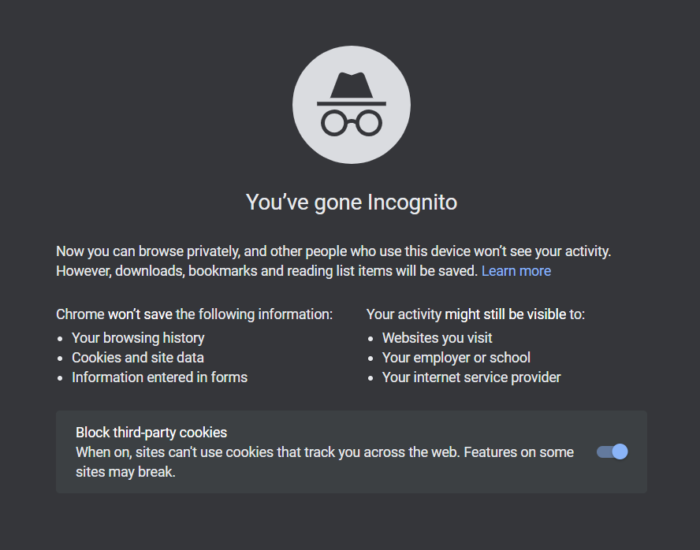
Browser extensions and certain types of cached data can run scripts or modify pages in the background, which interferes with the Office 365 sign-in page’s functionality. It is recommended to open a private browsing window to isolate the problem. If we can log in successfully, the issue can be due to the main browser profiles, data, or an extension.
Open a new InPrivate or Incognito window, and navigate directly to portal.office.com. Now, try logging in with the credentials. If you are successfully logged in but not in a regular window, the issue is with the browser profile. The next step is to disable extensions one by one in the regular browser or reset its settings. Slide to the next solution if this doesn’t resolve the issue.
3] Reset Office 365 Authentication state
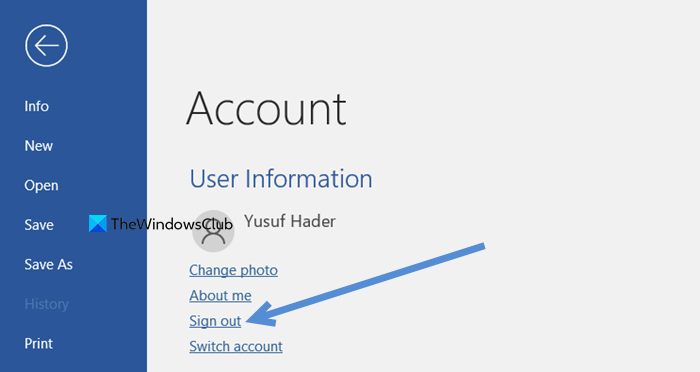
Windows and Office apps store the previous sign-in credentials and tokens locally. These stored credentials can become corrupted, preventing a fresh authentication from completing successfully. In such a situation, resetting Office 364 authentication state provides a clean slate to start the sign-in process from scratch. Follow the steps given below to do the same.
- Open the browser, go to portal.office.com, and sign out if you are signed in.
- Launch any desktop Office app, navigate to File, and then select Account. Click the Sign Out option present under the account picture/ name, and do this for all listed accounts.
- In the account page, look for Reset Settings or Sign out and reset options, click it, and confirm the process.
Once done, reboot the device, and attempt to sign in again.
4] Check Account licensing and status
The 4usqa error can be due to a deeper account problem, such as an expired, removed, or incorrectly assigned license or an administrative hold on the account. To address the problem at its source, verifying the account’s active status and license assignment with the IT administrator is the way to go. If a license was missing, assigning one restores the access rights. If the account was locked, they can unlock it, so contact the organisation’s IT help desk or Microsoft 365 administrator. Request them to verify in the Microsoft 365 admin centre that the user account is Active and has a valid Office 365 license assigned.
5] Enable the Microsoft Information Protection (MIP) API in Entra ID
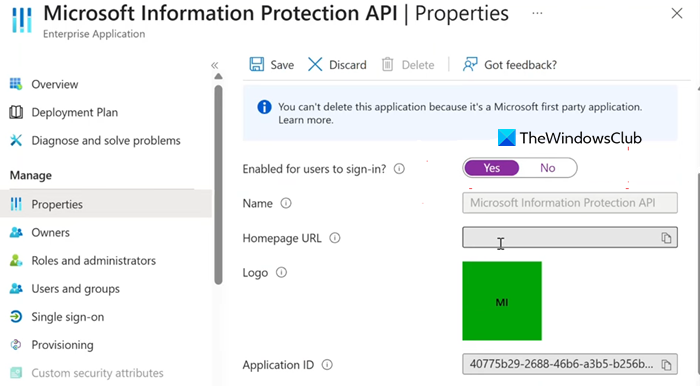
The Microsoft Information Protection API is a backend service in Entra ID that provides authentication for sensitivity labels and encryption policies. If this specific service application is disabled for user sign-in, the Office 365 authentication chain breaks and triggers the 2usqa error. It is necessary to locate and enable this exact service, so contact your Global administrator or Application administrator within the Organisation’s Microsoft Entra portal, and request that they follow the steps mentioned below to enable it.
- Sign in to the Microsoft Entra Admin centre, navigate to Applications, and select Enterprise Applications.
- Find and select the application: Microsoft Information Protection API (Application ID: 40775b29-2688-46b6-a3b5-b256bd044df9f).
- Click on Manage, navigate to Properties, set Yes for Enabled for users to sign in?, and select Save to apply the changes.
Once saved, relaunch Outlook or restart the Office app, and hopefully, the issue will be resolved.
Read: Fix Outlook Error Code 3399811147, Error Tag 7ita9
How to check failed login attempts in Office 365?
To check failed login attempts in Office 365, one needs to access the Microsoft Entra Admin Centre or the Microsoft 365 Defender portal as an administrator. Then, they can navigate to the sign-in logs or audit logs section, where they can filter for failure status to view detailed reports on unsuccessful authentication events.
Read: Outlook error tag 58tm1, Error code 2147942403
How to clear Outlook cache in Office 365?
The first step to clear the Outlook cache in Office 365 is to close the Outlook app completely. Then, open the Run dialogue box by clicking Win + R, and run the following command: %localappdata%\Microsoft\Outlook. In the window, locate and delete the .ost file, and then restart Outlook to rebuild the cache.
Also Read: Teams group not visible in Outlook.
