
A shared mailbox in Outlook is a centralized email inbox that multiple team members can access. It’s ideal for groups handling common addresses, like [email protected] or [email protected], ensuring seamless email management and consistent communication. In this post, we are going to learn how to add a shared mailbox in Outlook.
How to add Shared Mailbox in Outlook
A shared mailbox streamlines team efficiency by allowing multiple members to monitor and respond from a single, common email identity, ensuring no inquiry goes unanswered. This not only maintains a uniform point of contact for customers or internal departments, promoting consistent and professional correspondence, but also significantly enhances teamwork by providing everyone with full visibility into relevant email conversations, keeping the entire group aligned and informed.
Add a Shared Mailbox in the Classic Outlook App
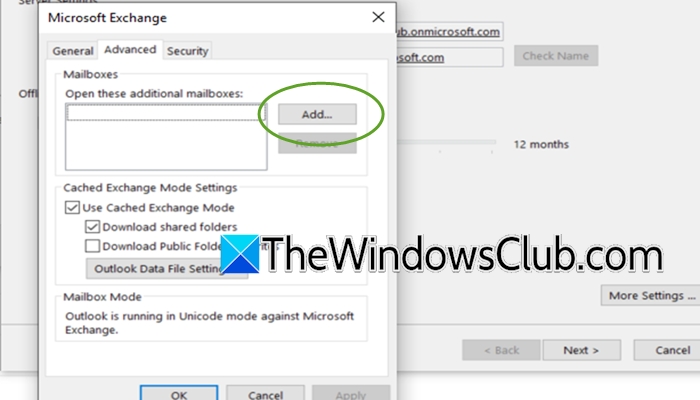
To add a shared mailbox using the traditional desktop version of Outlook, you will navigate through a series of settings menus. This method is reliable and gives you direct control over the configuration within the application itself.
Follow the steps below to do the same.
- Launch Outlook on your desktop and go to File > Account Settings.
- Choose your email account, select Change, and then click on More Settings.
- Switch to the Advanced tab and use the Add option to include the shared mailbox email address.
- Confirm your changes, restart Outlook, and the mailbox will appear in your folder list.
That’s how you can easily add a shared mailbox in the Classic Outlook app.
Add a Shared Mailbox in the New Outlook
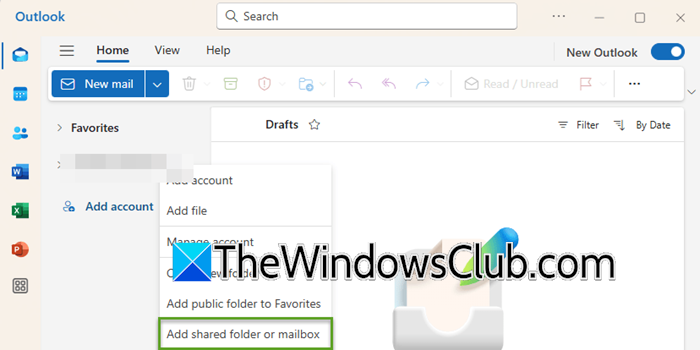
New Outlook is a redesigned version of Outlook that offers a modern, often automated experience. It aims to be simple and reduce manual steps to make using it easier for everyone. If your organization uses the new Outlook app, your admin needs to grant you permission first. Once your administrator grants permissions, restart the application to automatically display the mailbox.
If it doesn’t show, right-click your account name in the sidebar, select Add shared folder or mailbox, and enter the shared email address.
Access a Shared Mailbox via Outlook on the Web
You can access a shared mailbox directly through your browser using Outlook on the web. This is the ideal method for quick access from any device without needing the desktop application.
Begin by logging into your Office 365 account at outlook.office.com. Once signed in, click your profile icon in the top-right corner and select Open another mailbox. Type the name or email address of the shared mailbox, select it, and it will open in a new, fully functional browser tab for complete access.
That’s it!
Read: How to apply Shared Mailbox Retention Policy in Office 365
How do I add a shared mailbox in Outlook?
To add a shared mailbox in Outlook, you must first be granted permissions by your administrator. Once access is provisioned, the process differs slightly between platforms. In the Outlook desktop application, the mailbox will typically appear in your folder list automatically after a restart. If it does not, you can add it manually via the Account Settings. For Outlook on the web, you sign in, click your profile icon, and use the Open another mailbox feature to access it in a new browser tab.
Read: Outlook stuck on Updating this folder in Shared mailbox
How is a shared mailbox added in Outlook desktop version?
To add a shared mailbox in the Outlook desktop version, you need the correct permissions. In newer versions, it typically appears automatically in your navigation pane after restarting the app. If not, right-click your account name in the folder pane and select Add shared folder. In classic Outlook, go to File > Account Settings > Advanced to add it manually.
Also Read: Cannot add second Contact address to Office 365 Shared mailbox.
