
If you are unable to upload PST files to OneDrive, you are not alone. The upload may get stuck, fail with a sync error, or remain on the Preparing to upload screen without making any progress. This usually happens because Outlook is still using the PST file, the OneDrive sync client is stuck, or Windows is affected by a known issue. In this guide, we will see what you can do if you are unable to upload PST files to OneDrive.

Why am I unable to upload files to OneDrive?
Users may be unable to upload files to OneDrive for several reasons. Common causes include an unstable Internet connection, insufficient OneDrive storage, or unsupported file names or path lengths. It can also be due to missing upload permissions or a file that’s currently open in another app. In some cases, the OneDrive sync client may also become stuck or encounter temporary sync errors. If you are specifically unable to upload a PST file to OneDrive, continue reading further to learn about it in detail.
Unable to upload PST files to OneDrive
If you are unable to upload PST files to OneDrive and the upload is stuck on the Preparing to upload screen, execute the solutions mentioned below.
- Pause and resume OneDrive sync
- Move the PST outside the OneDrive folder
- Upload the PST through the OneDrive web
- Reset the OneDrive desktop app
- Create a ZIP archive before uploading
Let’s get started with the troubleshooting guide.
1] Pause and resume OneDrive sync
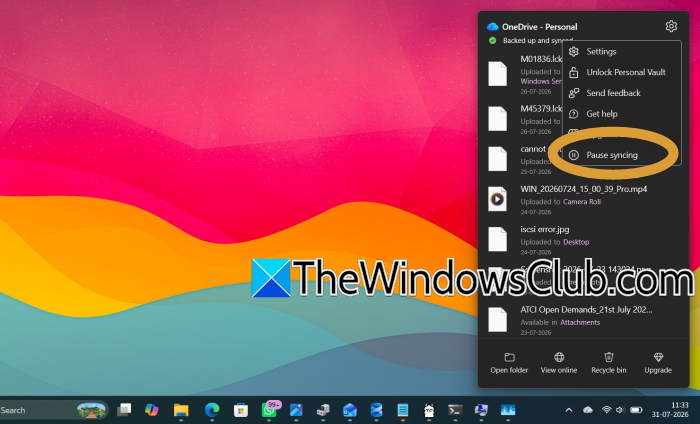
If you experience OneDrive getting stuck while processing or uploading a PST file, pause and resume sync to refresh the sync session. This forces OneDrive to reconnect to Microsoft’s server and restart any stalled upload tasks. Follow the steps given below to do the same.
- Click the OneDrive cloud icon in the Windows taskbar, and select the Help and Settings icon.
- Click the Pause syncing option and choose 2 hours, and then wait for 10 to 15 seconds.
- Click the OneDrive icon again, select the Help and Settings option, and click the Resume syncing button.
Wait a few moments and then check whether the PST file starts uploading normally. Continue with the next solution if the upload is still stuck.
2] Move the PST outside the OneDrive folder

Outlook keeps an active PST file open while it is running. Since OneDrive cannot reliably upload files that are constantly being modified or locked by another application, the upload may remain stuck or repeatedly fail. Moving the PST outside the OneDrive folder prevents Outlook and OneDrive from accessing the same file simultaneously. You can follow the steps mentioned below to do the same.
- First, close Outlook properly, then open Task Manager.
- Ensure that no OUTLOOK.EXE processes are running, and if there are, select them and click End task.
- Open File Explorer and navigate to the PST file and copy or move the PST file to a local folder outside OneDrive.
- Once done, open Outlook, go to File, click on the Account Settings drop-down menu, and select Account Settings.
- Open the Data Files tab, click Add and select the moved PST file. Users can also remove the old OneDrive-based PST entry after confirming Outlook is using the new one.
Verify the condition and move to the next solution accordingly.
3] Upload the PST through the OneDrive web
Users can upload the PST through OneDrive in case the desktop is unable to upload it. Since the file is transferred directly through the web browser, this bypasses sync client issues.
- Close Outlook completely.
- Sign in to the OneDrive account, open the destination folder where the PST file will be uploaded, and click Upload.
- Select Files, browse to the PST file, select it, and click Open.
Wait for the upload to complete before reopening Outlook or restarting the OneDrive desktop app. If the web upload also fails, proceed to the next solution.
4] Reset the OneDrive desktop app
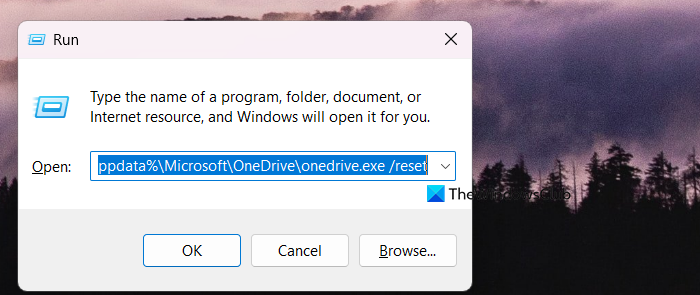
Corrupted sync settings or a stuck sync database can also be reasons OneDrive stops uploading files correctly. To fix this issue, we will be resetting the OneDrive app to rebuild its sync configuration. This clears many upload issues without deleting the files.
- Click Win + R to open the Run dialog box, type the following command, and press Enter:
%localappdata%\Microsoft\OneDrive\OneDrive.exe /reset
- Wait for a few minutes for OneDrive to reset, and then open it manually if it doesn’t restart automatically.
- Sign in again if prompted and then allow OneDrive to complete its initial sync.
Try uploading the PST file, and if this doesn’t work, go to the next solution.
Read: Location of Outlook PST file; How to create Outlook PST file
5] Create a ZIP archive before uploading
A PST file changes every time Outlook adds new data to it. This makes it difficult for OneDrive to sync reliably. Creating a ZIP archive produces a static copy that OneDrive can upload without worrying about the file being modified.
- Locate the PST file in File Explorer and right-click the file.
- Click Send to open, select Compressed folder, and wait for Windows to create the ZIP file.
- Upload the ZIP file to the OneDrive folder or through the OneDrive website.
Verify that the upload finishes successfully before deleting any local backups. Continue with the next solution if the archived file also fails to upload.
Hopefully, with the help of these solutions, your issue will be resolved.
Read: Remove Outlook .pst data file from OneDrive in Windows
How do I upload PST files to OneDrive?
To upload a PST file, first close Outlook so that the file is no longer in use. Now, either copy and paste the file into the OneDrive sync folder or sign in to the OneDrive website. Then click Upload > File and select the PST file.
