
Some users have reported that when they attempt to upload files from their hard drive to their OneDrive account, the upload process doesn’t progress at all. It remains stuck on Preparing to upload for hours. Even with the limited number of items and small file size, the sync process issue persists. It can happen if zero-byte files are blocking the sync process, invalid file types or names, there’s a network problem, OneDrive is outdated, etc. So, if the OneDrive sync process is stuck on Preparing to upload on your Windows 11/10 PC, the working solutions covered in this post will be helpful.
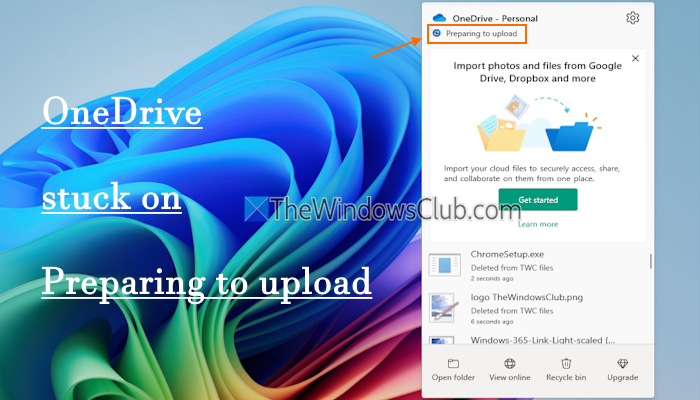
Before using these fixes, check if your internet connection is stable and working fine. Also, make sure that OneDrive is UpToDate, and there’s sufficient storage space in OneDrive and your PC. You should also check if the file(s) are opened or in use by some application or process, as this may cause sync issues. If the problem persists, use the fixes covered below.
Fix OneDrive stuck on Preparing to upload
If the OneDrive is stuck on Preparing to upload on your Windows 11/10 PC, use the following solutions:
- Pause and resume OneDrive sync
- Check file restrictions and limitations in OneDrive
- Remove zero-byte files (empty files) from the sync process
- Unlink and then relink OneDrive
- Reset OneDrive
- Contact Microsoft Support.
Let’s check these fixes.
1] Pause and resume OneDrive sync
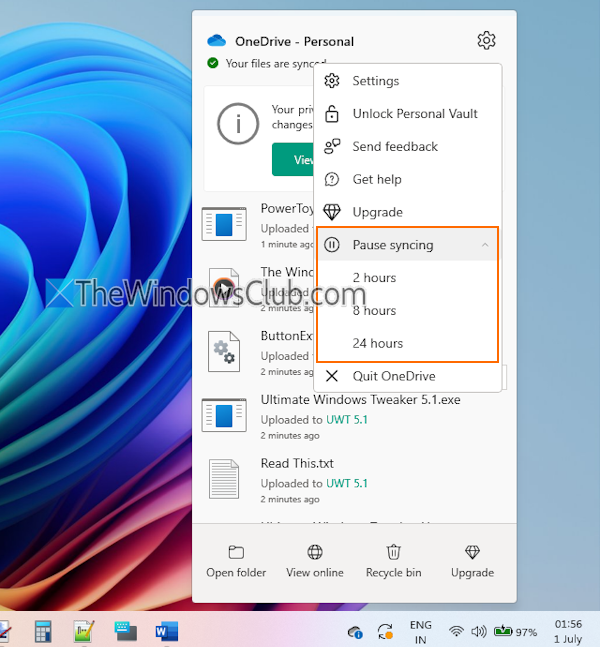
Sometimes, a simple fix works like a charm to resolve bigger problems. The same is the case here. This fix can be helpful when OneDrive is stuck on displaying Processing changes, Preparing to Upload for a long time, etc.
So, pause and resume OneDrive sync (OneDrive icon > Help & Settings > Pause syncing) after a few minutes and see if this helps.
2] Check file restrictions and limitations in OneDrive
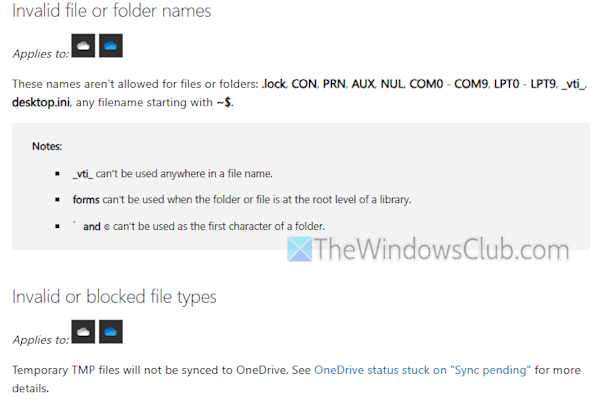
This is one of the helpful solutions to fix OneDrive sync issues and problems, including the Preparing to upload problem in OneDrive. Some restrictions and limitations in OneDrive apply to file types, files/folders, and file names when syncing. If those restrictions and limitations are not taken into consideration, it may prevent files and folders from syncing and cause such type of issues.
For example, suppose there are invalid characters (like \ : > < |) in file name paths, invalid file or folder names (like ~$, .lock, AUX, COM0-COM9, desktop.ini, and more), blocked file types, invalid file types, junction points or symbolic links, files infected with virus, etc.. In that case, the sync process won’t progress or complete. So, carefully check the files or folders you want to upload and remove any items that are causing the issue. You can check the public documentation to see restrictions and limitations in OneDrive when syncing at support.microsoft.com.
If OneDrive is stuck on Processing to upload for a long time, or the status shows Processing 0KB of xMB, it could happen because there are so many files to upload. Try to upload files in batches. Additionally, it is also recommended to sync not more than 300,000 files in total at a time across your cloud storage.
Related: Fix OneDrive stuck on Processing Changes
3] Remove zero-byte files (empty files) from the sync process
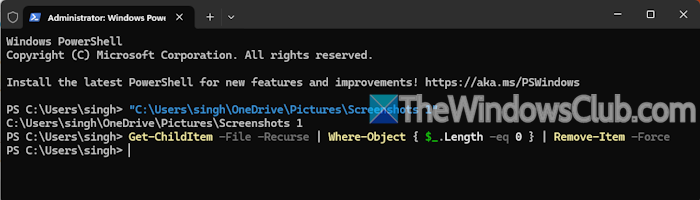
It is one of the best solutions as it has helped some users to fix this problem. One of the users facing the same problem found that there were zero-byte (0B) files interrupting the sync process, because of which OneDrive stuck on Preparing to upload. Removing such items resumed the syncing process immediately. So, you need to remove zero-byte files or empty files from the sync process.
Here’s what you need to do:
- Open an elevated PowerShell window
- Open the directory or folder with the sync issue by adding the path in the PowerShell window
- Execute the following command:
Get-ChildItem -File -Recurse | Where-Object { $_.Length -eq 0 } | Remove-Item -Force
You may need to execute this command recursively.
4] Unlink and then relink OneDrive
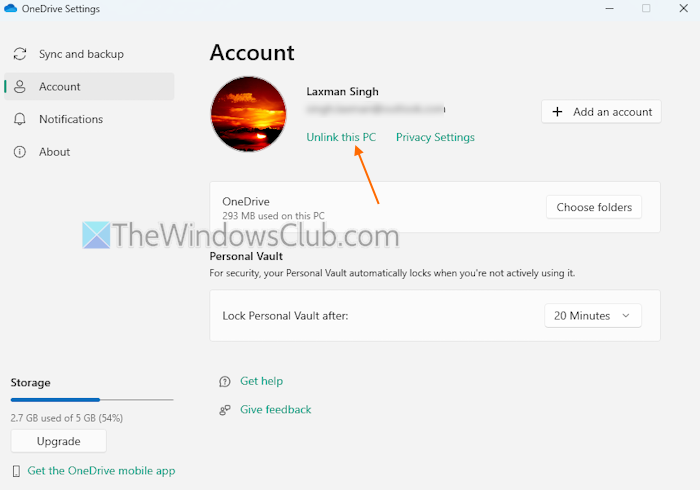
Unlinking OneDrive from your Windows 11/10 PC and then relinking is helpful in fixing some sync issues, and this can also work to fix this problem. Your OneDrive data remains as it is in this process. Here are the steps to unlink OneDrive:
- Click on the OneDrive icon in the system tray
- Select the Settings icon (Help & Settings)
- Click on the Settings option to open the OneDrive Settings window
- Access the Account section
- Click on the Unlink this PC option
- A confirmation box will open
- Press the Unlink account button
- Click on the OneDrive icon in the taskbar
- Press the Sign in button to set up and connect OneDrive to your PC.
This solution is also helpful if you want to move OneDrive to a new location.
TIP: You can also unlink, exclude, or remove a folder from OneDrive
5] Reset OneDrive

If there’s no progress and your OneDrive is still stuck on showing the Preparing to upload message, you should reset OneDrive. This option removes all the data or files and resets the OneDrive settings. Open the Run Command box (Win+R) and use any of the following commands to reset OneDrive on your Windows 11/10 PC:
C:\Program Files\Microsoft OneDrive\onedrive.exe /reset
C:\Program Files (x86)\Microsoft OneDrive\onedrive.exe /reset
When executed successfully, it will reset the state of OneDrive and start the full sync automatically.
6] Contact Microsoft Support
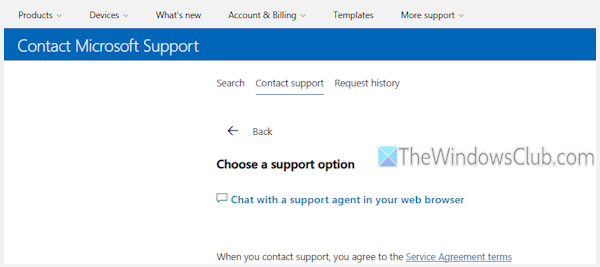
If nothing works for you, then you should contact Microsoft Support. You can describe your problem to get some help (without signing in) or sign in with your Microsoft account to chat with a support agent to get some assistance.
Now read: Can’t copy-paste files and folders in OneDrive
Why is my OneDrive not letting me upload?
You may receive an Upload blocked error while uploading your work or file to your OneDrive account from a Microsoft Office app (like Word). This can happen if you are signed in to a Microsoft Office app with an account that doesn’t have permissions. To fix this issue, you need to add OneDrive as a service. For this, access the Account page of the Microsoft app (say Word) using the File menu. In the Connected Services section, select Add a service > Storage > OneDrive. Complete the sign-in process to add your account.
Why is OneDrive always preparing to download?
This could happen if there are PST files in the download process. You can exclude PST files or remove them from OneDrive and then complete the download process without interruption. In other cases, OneDrive may be stuck on showing Preparing to download if you are downloading a large number of files in one go. In this case, you may wait or download files in batches. If you still encounter the problem, try updating OneDrive or resetting it to its default settings.
Read next: How to fix OneDrive error codes on Windows PC.
