
When accessing a file or folder in OneDrive, if you receive error code 0x80070194, this post will help you solve it. The error occurs when you try to access the file in OneDrive. The full error message goes as— Error 0x80070194, The cloud file provider exited unexpectedly.
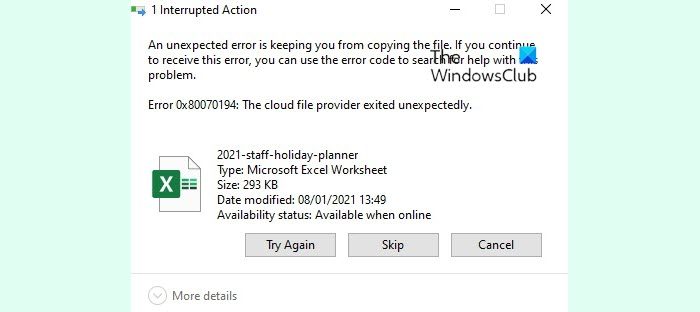
OneDrive Error 0x80070194, The cloud file provider exited unexpectedly
OneDrive, as cloud storage, offers the Files on Demand feature, which allows you to download files when you want to. Follow these methods to resolve the problem:
- Pause and Resume Syncing
- Reset OneDrive
- Reinstall OneDrive
Make sure you have no problem with the credentials of your account.
1] Pause and Resume Syncing
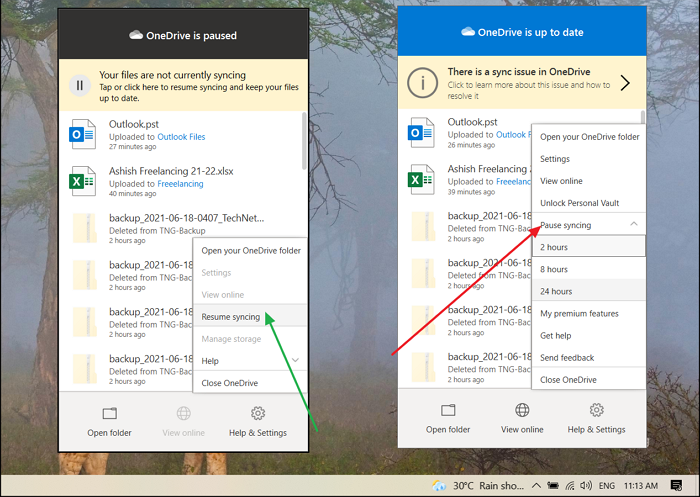
A simple way is to pause OneDrive sync, then resume it.
- Right-click on the OneDrive icon in the taskbar.
- In the menu that appears, select Pause syncing, and then choose to pause it for 2 hours.
- Wait for few minutes, then repeat the steps and choose to resume sync.
Try downloading a file that isn’t on the computer; it shouldn’t show the same error.
2] Reset OneDrive
Resetting helps in many ways, including this.
- Use Win + R to open the Run prompt
- Type the following, and then press the Enter key
%localappdata%\Microsoft\OneDrive\onedrive.exe /reset
- Once done, locate OneDrive in the Start menu, and relaunch it.
Download and file, and Error Code 0x80070194 should not appear again.
3] Reinstall OneDrive
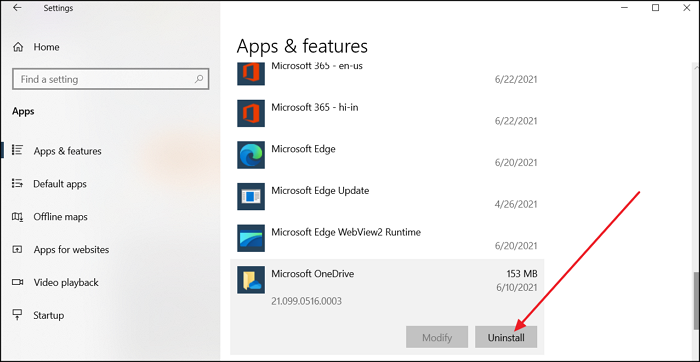
If nothing else works, it’s time to reinstall OneDrive.
- Go to Windows Settings > Apps > Installed apps
- Locate OneDrive from the list, and click on Uninstall
- Go to Microsoft Store, and Install it.
- Once installed, launch, sign-in, and choose what you need to sync
- Make sure not to sync everything so you can use Files on Demand to test the error.
I hope the post was easy to follow and that you were able to remove Error Code 0x80070194 in OneDrive.
Useful reads:
