
If OneDrive is deleting files automatically in Windows 11, this article can help. Whether you use the OneDrive desktop app or the web version, you can go through these solutions to troubleshoot this problem.
Why is OneDrive deleting files automatically in Windows 11?
If OneDrive is deleting files automatically in Windows 11, one of these could be the reason:
- There might be some problems with OneDrive synchronization.
- Another user may have deleted files from another computer with access to your account.
- Storage Sense is creating this mess.
- Security software you installed recently may have flagged your files.
- There are some issues with Files On-Demand.
- You might have transferred files from a OneDrive folder to another drive by mistake.
OneDrive deleting files automatically in Windows 11
If OneDrive is deleting files automatically in Windows 11, follow these solutions:
- Check OneDrive synchronization settings
- Ensure that you haven’t deleted files from another computer
- Check Storage Sense settings
- Check security software settings
- Disable Files On-Demand
- Reset OneDrive and re-sign in
- Use only one OneDrive account at a time
- Check Shared folder settings
- Check with your administrator
To learn more about these solutions, keep reading.
1] Check OneDrive synchronization settings
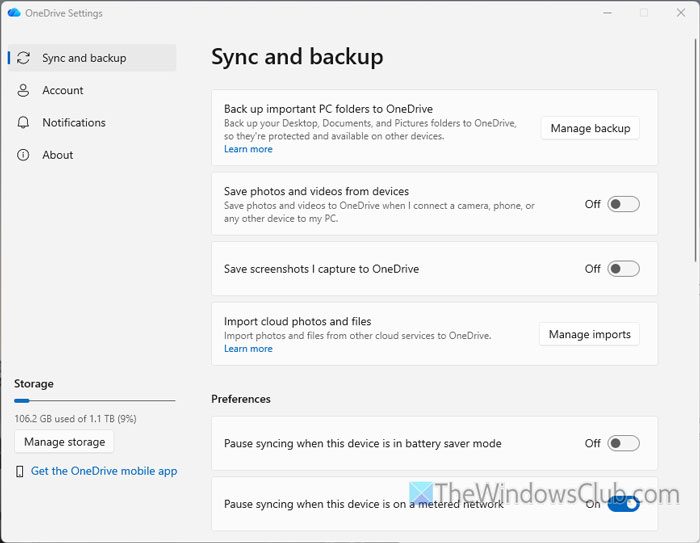
It is the very first thing you must check, as OneDrive might be used on another computer to delete or replace files. If synchronization problems arise, OneDrive can’t handle both situations. As a result, you will find disruptions in your files.
Also, you must check these synchronization settings:
- Limit download and upload rate
- Excluded file extensions
- Pause syncing when this device is in battery saver mode
- Pause syncing when this device is on a metered network
Read: OneDrive not syncing in Windows 11
2] Ensure that you haven’t deleted files from another computer
If you use OneDrive on multiple computers, check whether you deleted any files on the second computer. If yes, you can find those files in the Recycle Bin.
If you don’t know the recovery process, open the Recycle Bin on the OneDrive web version, find the file, and click the Restore button.
Read: Disable Deleted files are removed everywhere message in OneDrive
3] Check Storage Sense settings
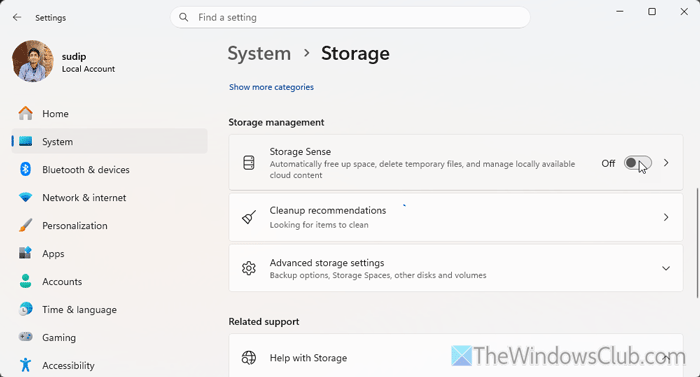
Storage Sense may delete cloud-based content from your computer automatically. Also, it doesn’t remove any file from OneDrive; there could be a special situation. For example, let’s assume that you have started uploading a file from your local computer to OneDrive. Meanwhile, if Storage Sense removes the file from your computer, OneDrive won’t be able to finish the upload. As a result, the partially uploaded file will be gone from your OneDrive account.
That is why we suggest temporarily disabling Storage Sense and checking whether it resolves the issue. To do that, open Windows Settings and go to System > Storage. Toggle the Storage Sense button to turn it OFF.
4] Check security software settings
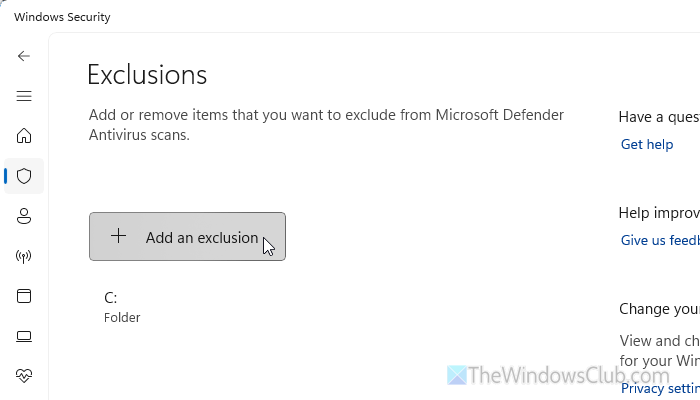
If your security software finds anything suspicious, it may flag and delete the file from your computer. Whether it is on OneDrive or local storage, you won’t find the file anywhere once it is removed. That is why it is suggested to check your security software settings. If you use Windows Security, you can make an exclusion.
5] Disable Files On-Demand
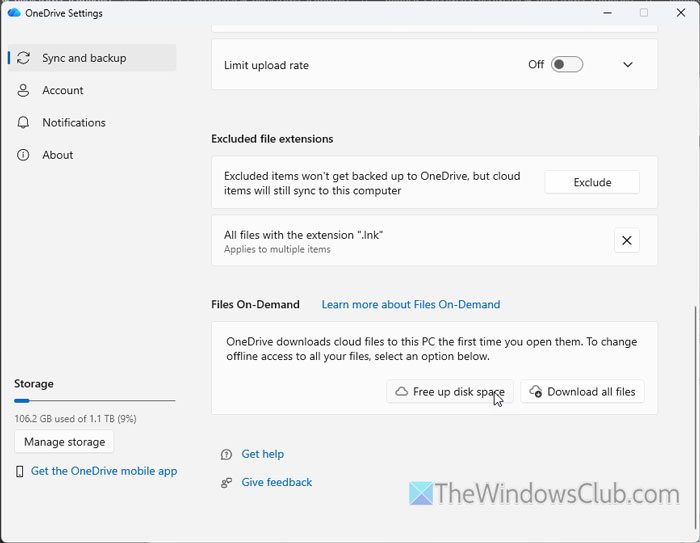
If you use Files On-Demand or the Free up disk space option, there is a chance of getting this problem. For your information, this option is included in the OneDrive Settings panel. You will have to go to Sync and backup > Advanced settings > Files On-Demand.
6] Reset OneDrive and re-sign in
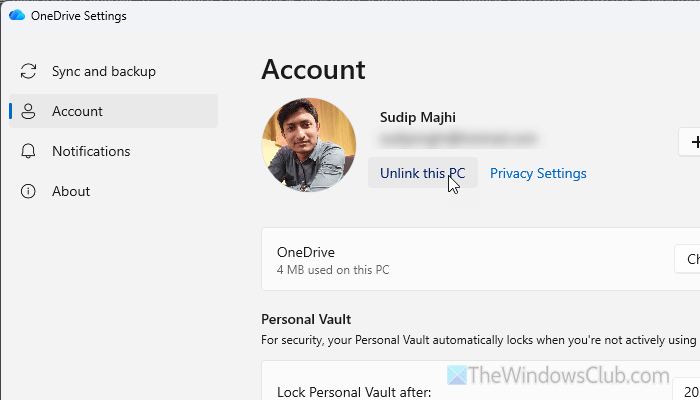
To sign out of your OneDrive account, open the OneDrive settings panel and go to Account. Click on the Unlink this PC option. Then, find the Sign in option, enter your account credentials to log in.
Sometimes your account may have issues. You can fix it by following the steps above.
Read: OneDrive isn’t connected; Signing in stuck
7] Use only one OneDrive account at a time
OneDrive allows you to use more than one account in a single app installation. However, the same feature could cause the above-mentioned error. That is why we suggest using only one account at a time on a single computer.
If you have used two accounts, you can sign out of one account by following the same methods as mentioned above.
Read: How to find out which Microsoft Account you’re using with OneDrive
8] Check Shared folder settings
If youare having this issue with Shared folder content, someone may have already removed the file you are trying to find.
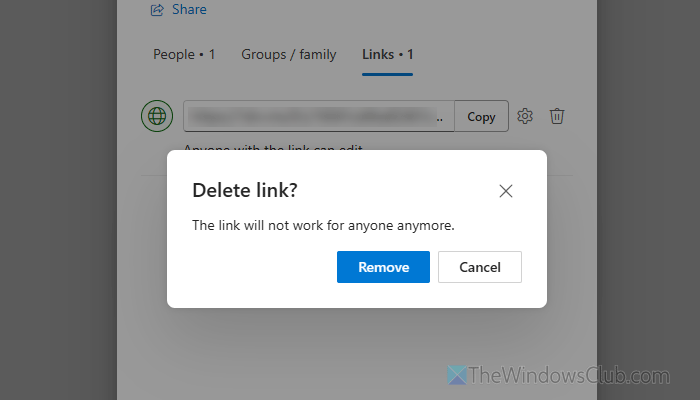
To stop sharing a folder with anyone, open the Shared folder and click on the Details option. Choose the Manage access option and go to the Links tab.
Click on the trash can icon and click the Remove button. Once done, youwill see a message like this: A sharing link hasn’t been created for this folder yet.
Then check whether it fixed the issue. If yes, you can selectively allow people to access your folder by inviting them.
Read: OneDrive shared folders not showing in File Explorer
9] Check with your administrator
If you use a School or Work account, it’s best to check with your administrator. Sometimes, your account manager may block certain actions or manage your account data from their end. If he/she has deleted a folder or file from your account, you won’t be able to find it further.
Read: Microsoft Office keeps asking to sign in
How to locate OneDrive Recycle Bin?
You can directly log into the official OneDrive website and head to the left-hand section. Alternatively, you can click on the OneDrive icon in the system tray, click the settings gear icon > Recycle Bin.
How can I recover files from the OneDrive Recycle Bin?
To recover files from the OneDrive Recycle Bin, go to the Recycle Bin first. Then, select the file you want to restore and click on the Restore button. It will be moved to the same location as before.
Read: How to recover deleted OneDrive files in Windows.
