
The OneDrive Files On-Demand feature in Windows allows you to access your cloud files in Explorer without downloading them to your device. You can turn on or off Files On-Demand on Windows 11/10 using Settings, Group Policy Editor or Registry Editor.
Turn on OneDrive Files On-Demand
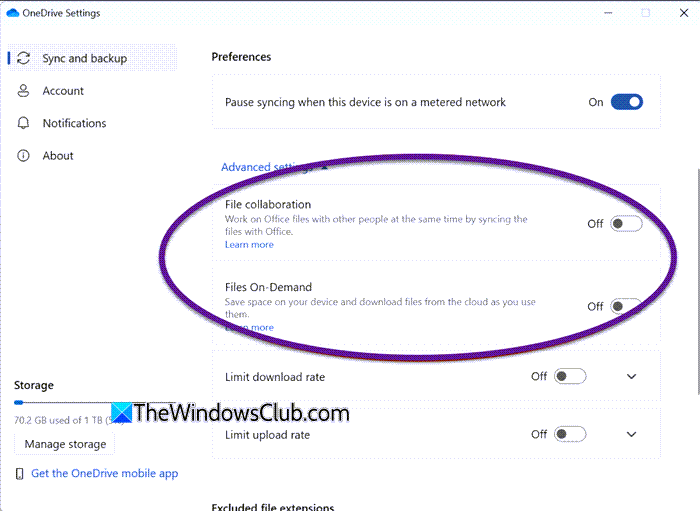
To turn on OneDrive Files On-Demand, you’ll have to open OneDrive Settings. Next, under Sync and backup, expand Advanced settings, and there you can toggle on or off the Files on Demand setting.
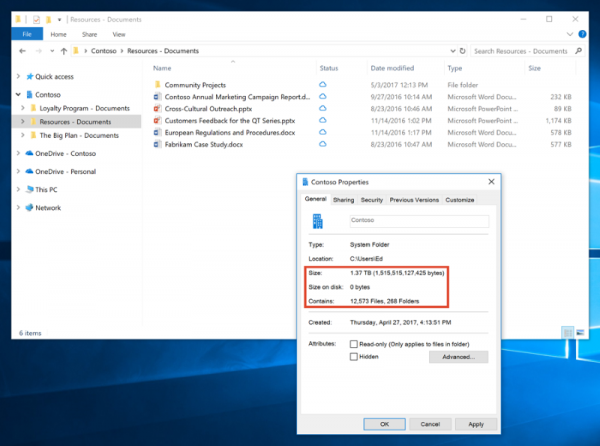
Basically, the folders and files are visible but are of no use since they are not on the computer.
To download these files and folders to your PC, double-click on the file, and it will automatically download itself to your local system.
UPDATE: Microsoft has changed how the OneDrive Files On-Demand works in Windows 11 and Windows 10. Files On-Demand is enabled by default for all users and you will no longer see the toggle to enable or disable Files On Demand.
How to turn on OneDrive Files On-Demand using Group Policy
To turn on OneDrive Files On-Demand using Group Policy, follow these steps:
- Press Win+R to open the Run prompt.
- Type gpedit.msc and hit the Enter button.
- Go to OneDrive in Computer Configuration.
- Double-click on the Use OneDrive Files On-Demand setting.
- Choose the Enabled option.
- Click the OK button.
To learn more about these steps, continue reading.
First, you need to open the Local Group Policy Editor. For that, press Win+R to display the Run prompt, type gpedit.msc, and press the Enter button.
Then, navigate to the following path:
Computer Configuration > Administrative Templates > OneDrive
Here you can find a setting called Use OneDrive Files On-Demand on the right side. You need to double-click on it and choose the Enabled option.
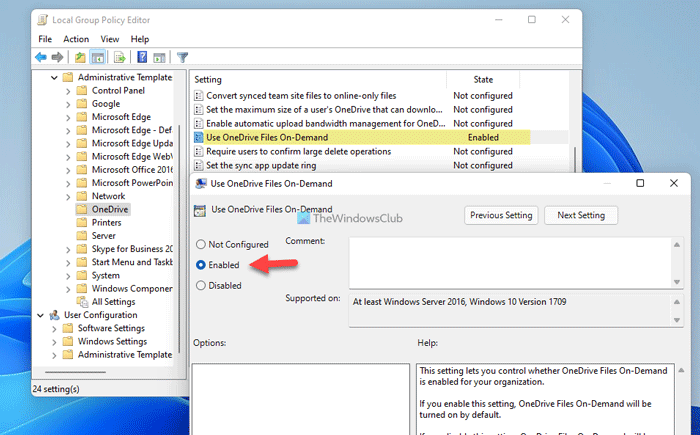
Then, click the OK button to save the change.
How to activate OneDrive Files On-Demand using Registry
To activate OneDrive Files On-Demand using Registry, follow these steps:
- Press Win+R > type regedit > hit the Enter button.
- Click the Yes button.
- Navigate to Microsoft in HKLM.
- Right-click on Microsoft > New > Keyand name it as OneDrive.
- Right-click on OneDrive > New > DWORD (32-bit) Value.
- Set the name as FilesOnDemandEnabled.
- Double-click on it to set the Value data as 1.
- Click the OK button and restart your computer.
Let’s check out these steps in detail.
First, you need to open the Registry Editor on your computer. For that, press Win+R > type regedit > press the Enter button and click on the Yes option.
Next, follow the following path:
HKEY_LOCAL_MACHINE\SOFTWARE\Policies\Microsoft
Right-click on Microsoft > New > Key and name it as OneDrive. Next, right-click on OneDrive > New > DWORD (32-bit) Value and set the name as FilesOnDemandEnabled.
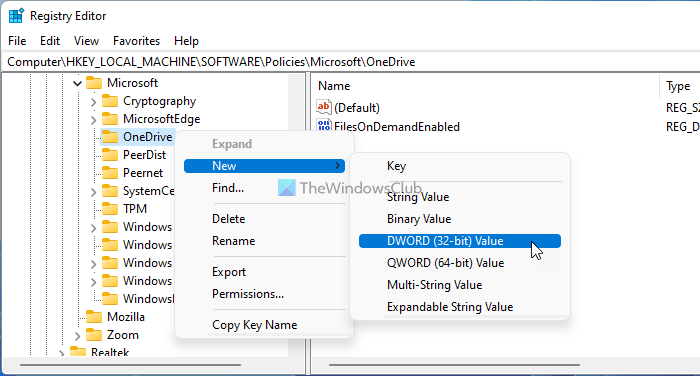
Double-click on it and set the Value data as 1.
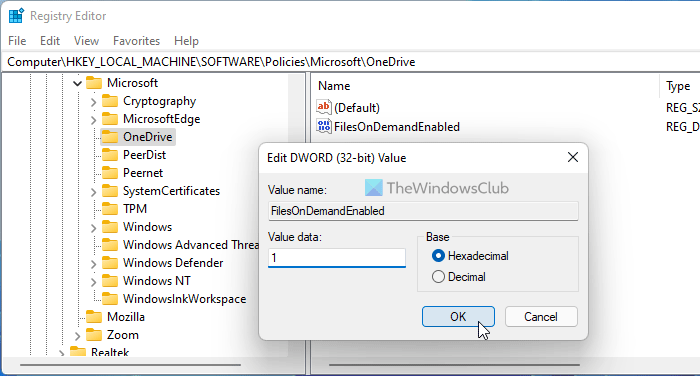
Click the OK button and restart your computer.
Read: How to use OneDrive Files On-Demand.
OneDrive Icons you need to know about
There are three overlay icons that you need to know about.
- A file with the cloud icon indicates the file is not available on the local computer. To get it on the computer, double-click the file, and that’s it.
- The next icon is a green check mark, which means, the file is stored on the computer and can be accessed even without an Internet connection.
- The final icon is a white check mark, which indicates the file is saved locally and is set to “always keep on this device.”
Additionally, these files can also be accessed without an internet connection.
You can also turn on Files On-Demand on Windows 11/10 using the Local Group Policy Editor and Registry Editor. To use the GPEDIT method, you need to add OneDrive sync settings in Local Group Policy Editor first.
Read: OneDrive Cloud with yellow Exclamation Mark icon
How do I enable OneDrive on-demand?
Previously, you had three options to enable OneDrive Files On-Demand. You could use OneDrive’s Settings panel, Local Group Policy Editor, and Registry Editor. However, Microsoft has now changed how OneDrive Files On-Demand works, and it is now enabled by default for all users. As a result, you will no longer see the toggle to enable or disable Files On-Demand.
How does Files On-Demand work in OneDrive?
If you enable OneDrive Files On-Demand, you will not have to download all the files on your computer to use them. You can obtain the necessary files when needed. Once you select the file to use, it will be automatically downloaded to your computer.
