
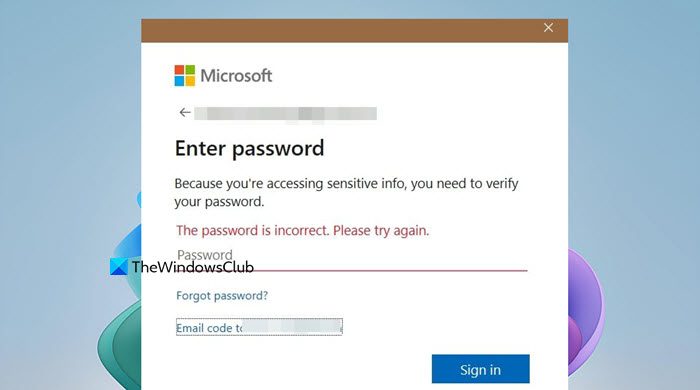
Being locked out of your Microsoft account after resetting your password is a common and frustrating problem. It occurs when you successfully create a new password, but when trying to log in to your Microsoft account, you encounter error messages, such as the one stating The password is incorrect. Please try again. In this post, we will address the scenario where users can’t sign into their Microsoft account after a password reset.
Can’t sign into Microsoft account after Password Reset
When Microsoft’s security systems detect something unusual, such as multiple attempts to sign in, whether by you or someone else, they act like a watchful guard. To protect your account, they may temporarily block the standard password sign-in method. This means your account gets into a locked state, and even your brand-new, correct password won’t work for a while. This is an automatic safety step, and even their support team can’t manually lift this block until the system clears it on its own.
If you can’t sign in to your Microsoft account after a password reset, follow the solutions mentioned below.
- Wait for 24-48 hours
- Use an Alternate Sign-in Method
- Submit the Account Recovery Form
- Use a trusted device
Let us talk about them in detail.
1] Wait for 24-48 hours
Microsoft’s automated security system imposes a temporary lockout period; waiting allows this automated block to expire on its own. The crucial step is to completely stop all sign-in attempts, as trying again too soon will reset the lockout timer and extend the wait.
2] Use an Alternate Sign-in Method
With this method, we will bypass the blocked password channel entirely. When you use a verification code sent to your recovery email or phone, you are proving your identity through a pre-approved, secure method that the system still trusts, even if password sign-in is temporarily suspended. To do so, follow the steps below.
- On the sign-in screen, click on Sign in options or Use another verification method.
- Choose to receive a one-time security code via your recovery email address or phone number.
- Enter the code you received to log in.
If you can log in, check your security settings. Hopefully, after 24-48 hours, your password will start working.
3] Submit the Account Recovery Form
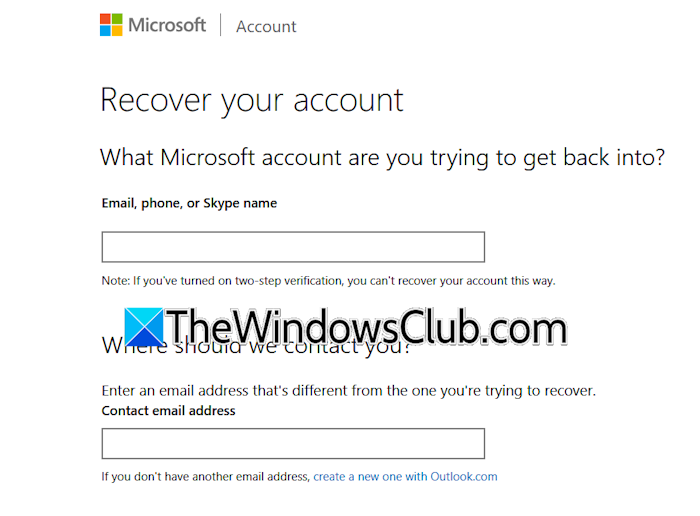
To recover your account, fill out the account recovery form from account.live.com. This will trigger a manual review process where you need to prove that the account belongs to you. Provide accurate information, like old passwords and billing details, to show you are the rightful owner of the account when automatic recovery options don’t work.
4] Use a trusted device
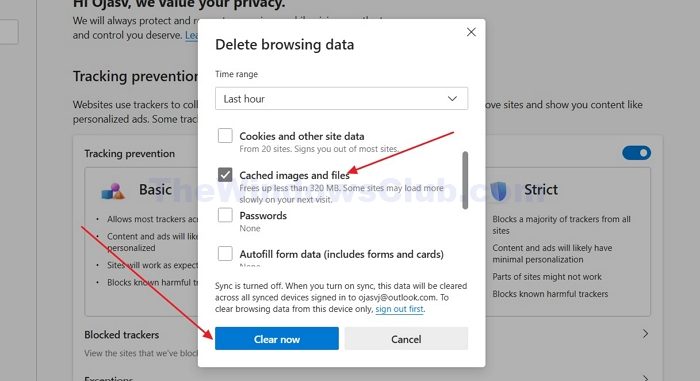
Microsoft’s security system recognizes your trusted device and usual location as safe. Signing in from a familiar computer and network reduces the system’s suspicion, allowing the new password to be accepted rather than blocked as unusual activity.
You need to use a personal computer or phone you’ve successfully signed in on before, preferably on your home network.
Additionally, clear your browser’s cache and cookies (Chrome and Edge) to remove any old, conflicting login data.
Try signing in again using your new password on this trusted device.
Hopefully, with these solutions, you will be able to resolve the issue.
Read: Cannot log into Windows 11 after Update
Why isn’t my Microsoft account accepting my password?
Your Microsoft account may not accept your password because it is temporarily locked by automated security systems after multiple incorrect sign-in attempts or suspicious activity detected by Microsoft. To resolve this, you must stop all sign-in attempts completely for 24 to 48 hours to allow the system lock to expire on its own, as trying again sooner will restart the timer and prolong the issue.
Why is it saying my password is wrong when it’s right?
The system may say your password is wrong even when it’s correct if you are trying to sign in during a temporary security lockout, which blocks all password attempts, or if you are entering it on a new, unrecognized device that is triggering higher security checks. To fix this, either wait out the lockout period without further attempts, or try signing in from a trusted device and browser, ensuring you clear your cache first.
Also Read: Can’t sign into Microsoft account in Windows 11.
