
I am using Windows 11 and must say that it is more integrated with Microsoft’s services than ever. Although logging in with a Microsoft Account is not mandatory in Windows, doing so provides users with various features and the awesomeness of Windows.
You can always use a local account to sign in to your Windows 11/10 computer system – as you did in Windows 7 and the earlier versions of Windows. But if you sign in with your Microsoft account, you can enjoy the impressive features of Windows 11/10.
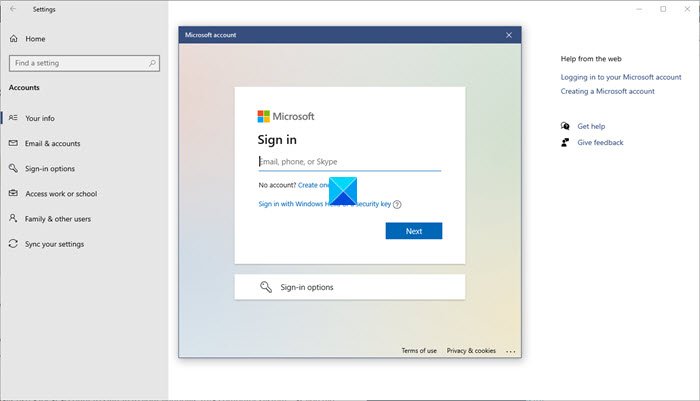
While it is very simple to create a Microsoft account, you can also link it with your existing Outlook account, Hotmail account, or MSN email ID. What I mean here is that if you are already registered with Outlook, Live or a Hotmail Account, that is your Microsoft Account, and you can use it for all Microsoft services, like Xbox.
A “Microsoft account” was previously known as Microsoft Passport, Windows Live ID, and Microsoft Wallet. It is, however, more than just a new name to Microsoft’s online account system.
Benefits of using Microsoft Account to sign in to Windows 11
I use my Hotmail ID to sign in to my Windows PC and thoroughly enjoy its magnificence. When I use my Microsoft account to sign in to my Windows PC, it’s my key to mobile entertainment, free online storage, and access to thousands of apps in the Microsoft Store. I can also connect my devices and accounts seamlessly.
Among the numerous wonderful features of Windows 11, I would like to highlight the ones I can use only when I sign in with my Microsoft account.
1] My settings move with me
I can sign in to five different Windows PCs with my Microsoft account and access my Windows Start and settings from any of them. I can access my browsing history, favorites, photos, and apps in the Microsoft Store on any of those 5 PCs. Furthermore, I can change my settings, such as language, using my Microsoft account. You can also sync Windows PC settings when you are signed in with your Microsoft account.
2] Apps from the Microsoft Store
If you aren’t aware, you can download and install an app from the Microsoft Store only if you are logged in to your Microsoft Account. Needless to say, the Microsoft Store has numerous useful and productive apps, and adding them makes Windows more fun to use. With my Microsoft account, I can get apps from the thousands available in the Store and can install them on up to 5 PCs running Windows RT or Windows 11/10. Microsoft keeps on adding more apps daily, and the best part is that most of them are free.
3] GBs of free OneDrive storage
Currently, I get 5 GB of free cloud storage with OneDrive through my Microsoft account. Isn’t it wonderful? I can store many of my photos, videos, and documents in 5 GB OneDrive storage. There is also a free OneDrive app in the Store that lets me manage my OneDrive files right from my PC. Furthermore, there are OneDrive apps that let you manage your files on Android or iPhone.
You know what! You can store your photos and videos taken from your phone directly in the OneDrive via the OneDrive mobile apps.
4] All my contacts in one place
With my Microsoft account, I can access my X, Outlook, Facebook and LinkedIn accounts in one place. How? I can link them all and access all my friends’ tweets, status updates, and contact info in one place. I can also link my accounts to the Photos app and see all the photos on my Facebook timeline and those stored in my OneDrive account in one place. I can also see the photos my friends have shared.
5] Millions of Streaming Songs
I am a great music fan, and my Microsoft account has plenty more for me. Yes! When signed in with my Microsoft account in the Music app in the Store, I can enjoy millions of streaming songs, including the latest hits and my favorites.
6] Xbox Gaming
If you ever want to have the best online gaming experience, sign in to Xbox with your Microsoft Account. With your Microsoft account, you can see the gaming of your friends and their achievements. You can also invite your friends to play games and download many new games across every genre.
Related: Oops, something went wrong – Microsoft Account login error.
Microsoft account vs. Local account
If you have a single computer, then the sync features may not be of any use to you. If you don’t plan to use the Xbox, Music, or other services, signing in with a Microsoft account may not appeal to you. In that case, you might as well sign in with a local account.
One cause for worry could be if, for some reason, you were to lose access to your Outlook or Hotmail account. But if you were to forget your Microsoft account password or find that the account had been hacked or that you have been locked out, Microsoft will use your security information to verify your identity and help you get back into your account. So make sure that you add this information.
To do so, visit the Microsoft account webpage, sign in, and under Password and security info, click Edit security info. Here add an Alternate email address, phone number, add PCs that you recognize and trust and answer a security question.
These were my favorite Microsoft services, which I can use only if I sign in to my Windows PC with my Microsoft Account. Let me know if I missed any.
And yes, if you feel, you can always switch back to Local Account from Microsoft Account in Windows 11/10.
How do I create a Microsoft Account in Windows 11?
Here’s how to create a Windows 11 Microsoft Account for others:
- Go to Windows Settings.
- Then go to Account > Other users.
- Click on the Add Account button.
- Click on the ‘I don’t have this person’s sign-in information‘ link.
- Click on the ‘Get a new email address‘ link.
- Type a valid email and click on the Next button.
- Choose a password and click on the Next button.
- Enter the required data in the following screens and finish setting up the account.
Local Account vs Microsoft Account; Which one should I use?
A Microsoft account enables you to sync all your data, passwords, network profiles, and settings related to the Windows App Store. If you forget your password, you can easily reset it on the Microsoft website. This detailed read on Local Account vs Microsoft Account offers more on the subject.
