
In this tutorial, we will show you how to use Phone Connection in Copilot with an Android phone on a Windows 11 PC. Phone Connection (formerly known as Phone Plugin) is a native feature in the Copilot desktop app. It helps to connect to your Android phone and perform common phone actions like checking new messages, sending messages to your contacts, locating places, setting a timer or an alarm, cancelling an alarm (supported in some selected Samsung devices), etc., directly from the Copilot interface. So, you don’t have to reach for your Android phone to perform such common tasks. You can use natural language commands (like Set a timer, Any new messages today, Send a message to order pizza, etc.) that make it easier to use.
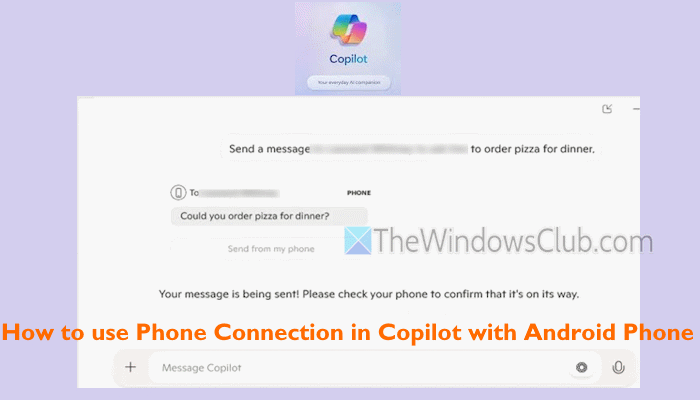
While we already have the Phone Link app in Windows 11 that does the job pretty well, this Copilot feature makes it more personalized by integrating data from your phone. This Phone Connection feature is rolling out gradually, so you may have to wait to get this feature.
What are the requirements to use Phone Connection in Copilot app?
Here are the following requirements to use Phone Connection in Copilot:
- You must install the Phone Link app on your Windows 11 PC and the Link to Windows app on your Android device, if you haven’t already. Once done, you must connect your PC and phone using the Phone Link app and its Android app with the same Microsoft account
- You must be connected to the same Microsoft account in the Copilot app that you used to connect to the Phone Link app and the Link to Windows app.
- Make sure you are using the latest versions of Windows OS, Android OS, the Link to Windows Android app, and the Copilot desktop app. Samsung users should ensure that they are using the latest version of the Clock app and the Link to Windows Service app.
- You can use Phone Connection only on a PC and not in the Copilot mobile app
- The feature is only supported on Android devices and not on iPhones
- Only the most recently linked Android phone is visible in Copilot settings. Thus, you can connect and use one Android device at a time with the same Microsoft account.
How to use Phone Connection in Copilot with Android Phone
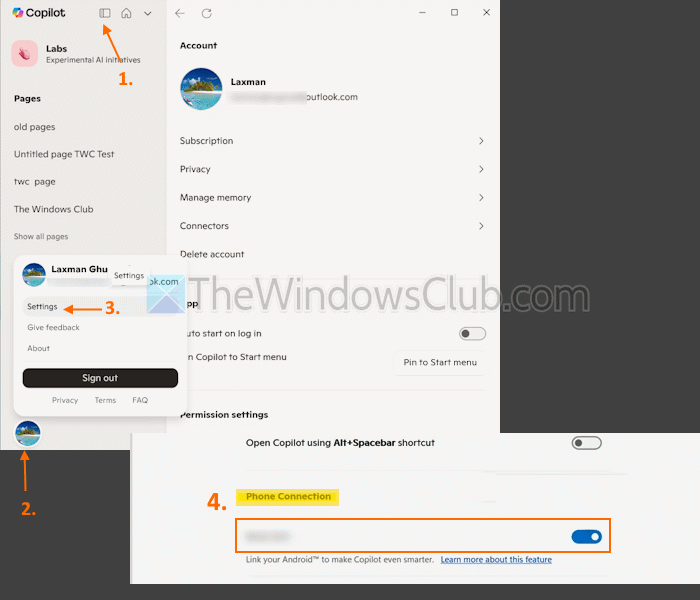
Once you have successfully connected your PC and Android device using the Phone Link app and Link to Windows app, you can use Phone Connection in Copilot with your Android Phone by enabling or turning on this feature in Copilot settings. Here are the steps:
- Open the Copilot app on your Windows 11 PC
- Sign in with your Microsoft account if you haven’t already. Remember, you must use the same Microsoft account for the Copilot app, Phone Link app, and Link to Windows app. Otherwise, it won’t work
- Click on the Open sidebar button available on the top-left corner of the Copilot app interface
- Click on the Profile icon (Account) present in the bottom-left corner
- Select the Settings option
- Under Settings, look for the Phone Connection option. This will show the Android device name that is connected most recently. Use the toggle to turn on the Phone connection option.
Alternatively, you can also open copilot.microsoft.com and sign in with your Microsoft account. After that, select Settings, and use the toggle to turn on the Phone Connection option.
Related: How to set up and use Calls in Phone Link app on Windows PC
Once the feature is turned on, you can ask Copilot to send a message to a contact (the exact contact name is required), locate a place, set alarms, or set a timer for a specific duration by asking naturally. For example, you can prompt Copilot to set a 5-minute timer for medication or yoga. For some tasks, say locating a place, it will send a notification to your Android phone to complete the request.
I tried with a few prompts, but it didn’t work as expected. It needs improvements to work smoothly. You can give it a try and see how it works.
That’s all.
Also read: How to share files between Mobile and PC using Phone Link in Windows PC
Does Copilot work on Android phones?
Yes, Copilot works on Android devices. There’s a dedicated app for Copilot on Android and iPhone devices to search for and create images, get answers, chat, draft emails, and more. You can also use the Microsoft 365 Copilot app for Android, which works independently of Microsoft 365 apps, to create or edit spreadsheets and Word documents, and to create a PDF from photos.
Can Copilot control my phone?
Yes, you can control your Android phone from your PC using the Phone Connection feature. Once your devices (PC and mobile) are connected, you can control features such as setting alarms and sending messages using simple prompts in the Copilot interface.
Read next: How to Manage or Delete Copilot Memory in Windows PC.
