
This tutorial shows how to delete Copilot memory on a Windows PC and how to manage Copilot Memory in Microsoft 365.
Copilot Memory in Copilot is a native feature that allows it to remember key facts, such as your preferences, recurring topics, and working style. You can tell Copilot, “You are working on project X”, or “Remember to access TheWindowsclub”, and it will log that into its memory. Copilot can also apply saved preferences in future interactions, wherever applicable, and personalize responses. Though the feature is good, you can control what Copilot will and won’t remember. That means you can delete all the saved Copilot memory or specific memories.
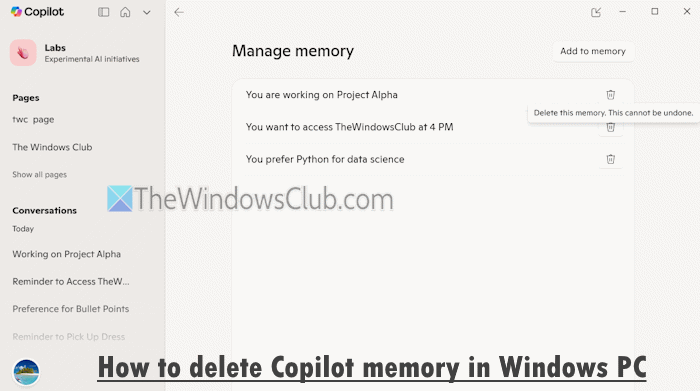
You must be signed in to Copilot with your Microsoft account to access, manage, or delete Copilot memory. Once you delete the Copilot memory, it can’t be undone. Also, deleting the Copilot memory won’t delete your conversation, and Copilot can start rebuilding memory in the next conversation.
How to delete Copilot memory in Windows 11
You can delete Copilot memory in Windows 11 using three different ways:
- Delete all or specific Copilot memory from the Copilot desktop app
- Remove all or specific Copilot memory using the Microsoft Copilot website
- Delete all or a specific Copilot memory using Microsoft Edge.
Let’s check these options.
1] Delete all or specific Copilot memory from the Copilot desktop app
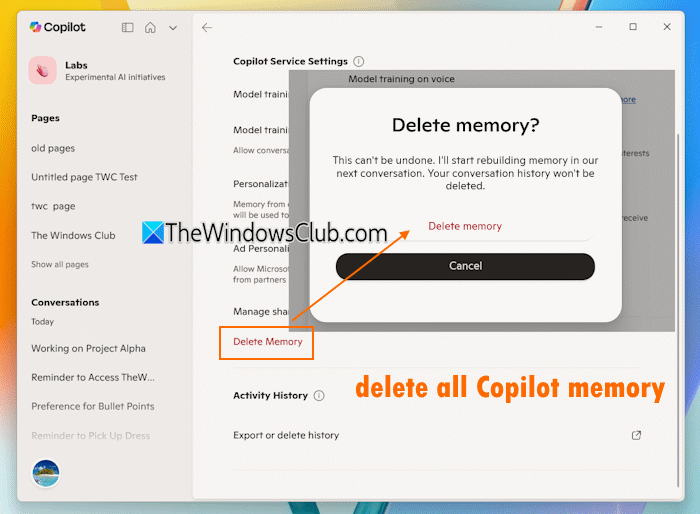
You can delete all or a specific Copilot memory from the Copilot desktop app using these steps:
- Open the Copilot app in Windows 11 using its taskbar icon or from the Start menu
- Sign in with your Microsoft account if you haven’t already
- Click on the Profile icon in the bottom left corner
- Select the Settings option
- To delete the entire memory in Copilot, select the Privacy option (in the Settings page or Account page)
- Click on the Delete Memory option
- In the confirmation pop-up, press the Delete memory button
- If you want to delete a specific memory, go to the Manage memory section in the Account page of the Copilot app. Here, you will see a list of saved memories or preferences
- For each saved memory, there’s a Delete icon. Click on it
- Now, the Delete icon will turn into a Delete button. Press that button, and that particular memory will be removed permanently.
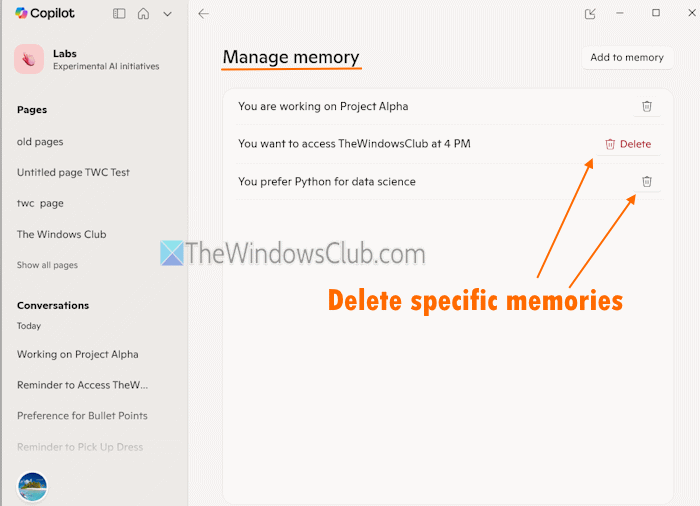
This way, you can delete specific memories from Copilot.
Related: Enable or Disable Personalized Ads in Copilot app on Windows PC
2] Remove all or specific Copilot memory using the Microsoft Copilot website
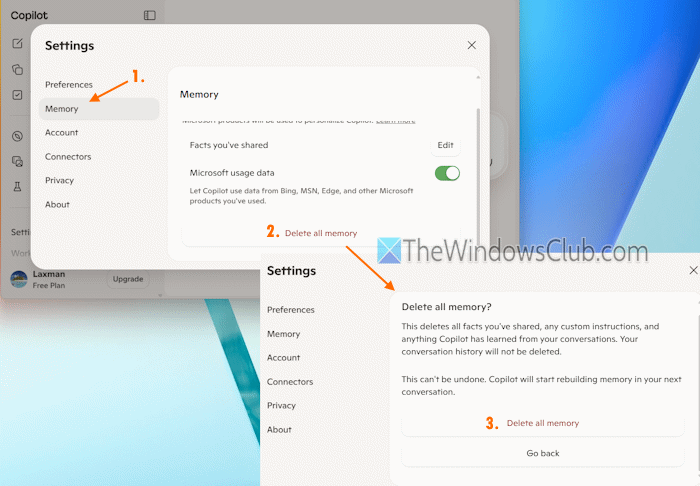
Here are the steps to remove all or specific Copilot memory using the Microsoft Copilot website:
- Open copilot.microsoft.com and sign in with your Microsoft account
- Click on the Profile icon (available at the bottom-left corner)
- Select Settings
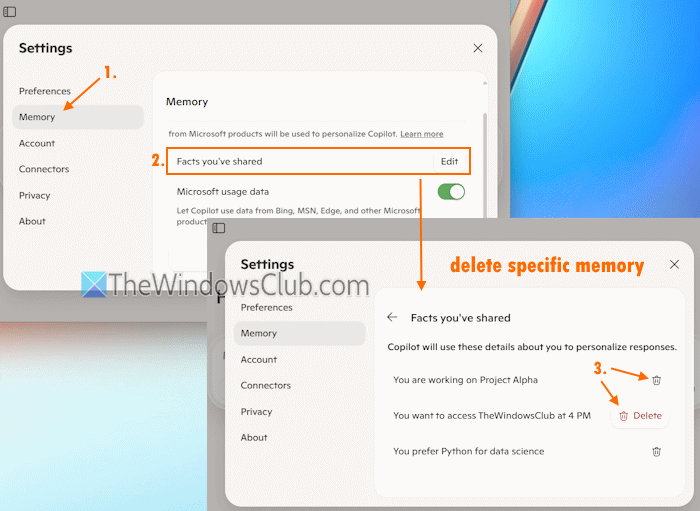
- In the Settings box, access the Memory category
- Press the Delete all memory button
- Again, press the Delete all memory button for confirmation
- If you want to remove specific memories, go to the Memory category
- Press the Edit button available for the Facts you’ve shared option. You will see all the saved details or memory
- Click on the Delete icon for a specific memory that you want to remove
- Confirm the action by pressing the Delete button.
Also read: Run Copilot Troubleshooters to fix License and Connectivity issues in Windows PC
3] Delete all or a specific Copilot memory using Microsoft Edge
You can also use Copilot in Microsoft Edge, and the option to manage and delete Copilot memory is also present there. To delete all or a specific Copilot memory using Microsoft Edge, follow these steps:
- Open the Edge browser
- Click on the Chat button (with Copilot icon) available on the top-right corner of Microsoft Edge
- Click on the More options (…) in the Chat sidebar
- Select the Settings option
- In the Settings pop-up, click on the Privacy option
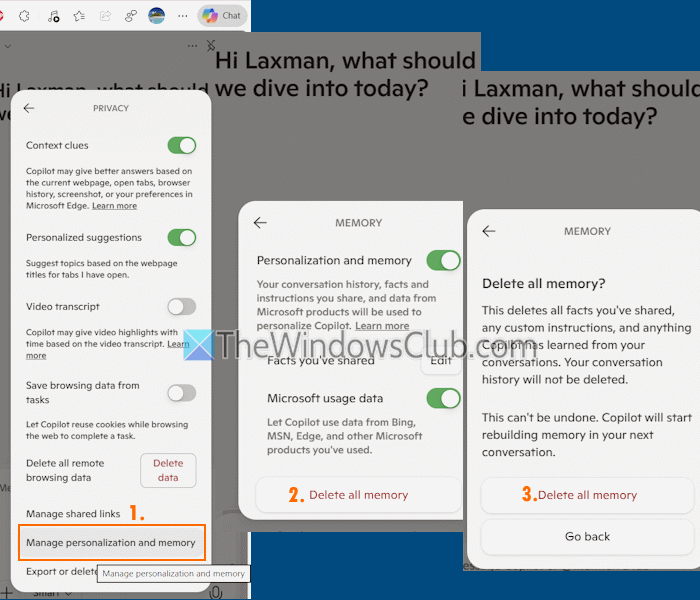
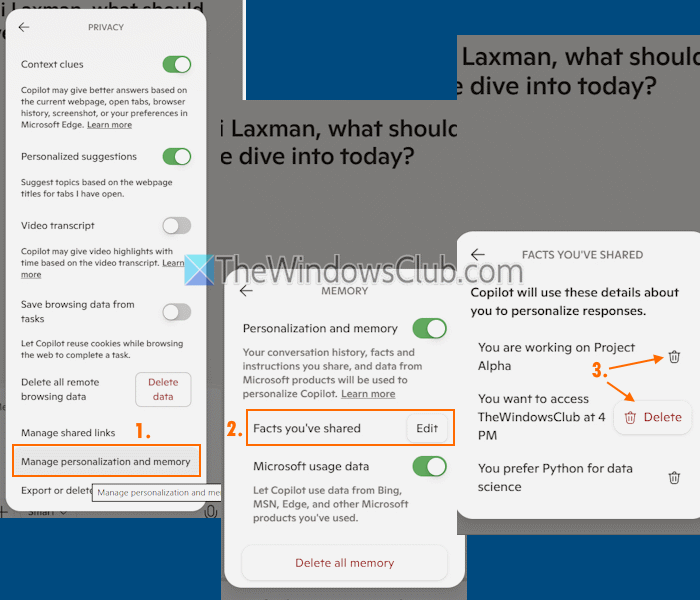
- Click on the Manage personalization and memory option
- Press the Delete all memory button
- Again, click on the Delete all memory button to confirm it
- For removing a specific memory, go to the Manage personalization and memory option (step 6)
- Click the Edit button available for the Facts you’ve shared option
- You will see the saved memories along with a Delete icon for each memory. Press the Delete icon for the memory you want to erase
- Confirm it by pressing the Delete button.
That’s all.
How to Manage Copilot Memory in Microsoft 365 Copilot
Microsoft 365 Copilot saves memory by default. To manage these settings, visit Microsoft here and sign in with your Microsoft 365 work or school account.
Now in the Copilot Chat compose box, you can tell Copilot to remember your preferences. For instance, you could say – Remember that I prefer Word to save my documents.
Copilot will remember this preference and save it to Copilot Memory in Saved memories, and show a Memory updated notification.
To delete or manage information from Copilot Memory, visit the Copilot Chat link again and select Copilot chats and more.
Next, from the menu, select Settings > Personalization.
Locate Saved memories and then select Manage saved memories.
To turn off Copilot Memory, move the Saved memories toggle to the Off position.
To delete memories, you have to use the Delete or Delete all memories button in the next step.
That’s it.
Now read: How to clear Copilot AI search history
Can I delete Copilot from my computer?
Yes, you can remove or uninstall Copilot from your Windows 11 computer. Open the Settings app (Win+I), access the Apps category, and open the Installed apps page. Click on the More options icon (…) available for Copilot and select the Uninstall option. Again, press the Uninstall button to confirm and remove Copilot from your PC.
How to clear Copilot history in Windows 11?
If you want to clear Copilot activity history for the Copilot app, log in to your Microsoft account. In the dashboard, go to Privacy > Copilot > Your Copilot activity history. Expand the Copilot apps section, and click on Delete all activity history. You can also clear your Microsoft 365 Copilot activity history from the same page.
Read next: How to turn Microsoft Copilot into your personal tutor.
