
If you prioritize privacy, personalized ads can be problematic as they rely on your personal data to train algorithms that create a tailored advertising experience for you. In this article, we will see how you can enable or disable Personalized Ads in the Copilot app.
Enable or Disable Personalized Ads in Copilot app on Windows 11
To enable or disable Personalized ads in the Copilot app on Windows 11, you need to follow either of the methods mentioned below.
- Turn on or off personalized ads using the Copilot app
- Turn on or off personalized ads from the Microsoft account
Let us talk about them in detail.
1] Turn on or off personalized ads using the Copilot app
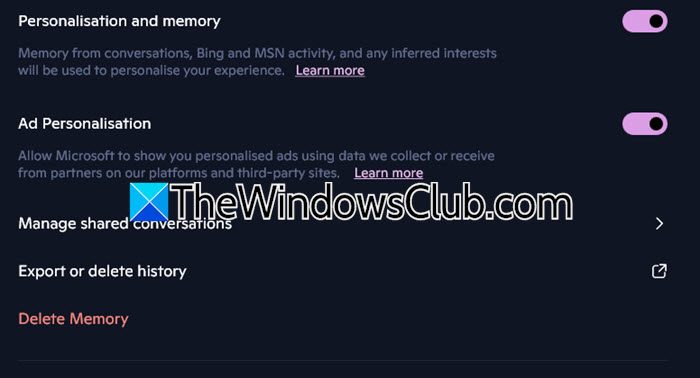
If you have the Copilot app, you can easily configure ad settings by following the steps mentioned below.
- Launch the Copilot app from the Taskbar or by searching for it from the Start Search Menu.
- Sign in to your Microsoft account in Copilot if needed.
- Now, look for your Profile name at the bottom left corner of the window, click on it, and then select Settings.
- You then have to go to the Privacy tab.
- Look for Ad personalization and then turn on or off the toggle to disable or enable it.
- If you want Copilot not to remember anything, you can even click on Delete Memory.
Once done, open Copilot, and you will notice that there are no personalized ads.
Read: How to block Ads in Windows 11
2] Turn on or off personalized ads from the Microsoft account
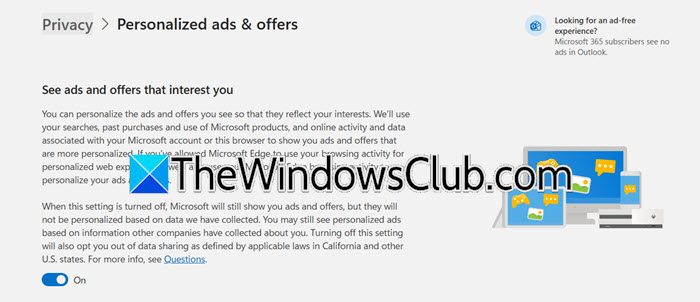
Instead of changing settings on your Windows computer, this method sends your preferences to Microsoft’s servers. When you turn off personalized ads, you are telling Microsoft not to use your data, like your search history, location, or app usage, to decide which ads to show you. You will still see ads in free services like Copilot, but these ads will be general, based on what is currently on the page, or random, rather than targeted to your profile.
- First of all, sign in to your privacy Dashboard from account.microsoft.com/privacy and sign in with the same Microsoft account you use for the Copilot app on Windows 11.
- From Manage ads and promotional communications, select Personalized ad settings.
- Now, turn off the toggle of See ads and offers that interest you.
Hopefully, this will do the job for you.
Read: Disable Copilot Model Training for your Microsoft Account
How to block Copilot ads?
To block personalized ads in Copilot, change your Microsoft account settings instead of local Windows settings. Visit account.microsoft.com/privacy and sign in. Go to the Ad settings section and find the toggle for See ads that interest you. Turn this off. This change tells Microsoft not to use your data for personalized ads across Copilot, Bing, and other Microsoft services. Since this setting is cloud-based, it will stay in place even after Windows updates.
Read: How to remove Copilot from Taskbar in Windows 11
How to disable Copilot features in Windows 11?
You can disable Copilot in Windows 11 through several methods, depending on your needs. The quickest way is to open Settings > Personalization > Taskbar and toggle off Copilot (preview) to remove it from your taskbar. For a complete disable, Windows 11 Pro users can use Local Group Policy Editor (gpedit.msc) to navigate to User Configuration > Administrative Templates > Windows Components > Windows Copilot and enable Turn off Windows Copilot. Windows 11 Home users can achieve the same through Registry Editor by creating a TurnOffWindowsCopilot DWORD value set to 1 under HKEY_CURRENT_USER\Software\Policies\Microsoft\Windows\WindowsCopilot.
Also Read: Disable Copilot in Word, Excel, PowerPoint, Outlook.
