
In this tutorial, we will show you how to create and manage Reminders in Copilot on a Windows 11 PC. You can set recurring reminders or one-time reminders, and each reminder is sent as a push notification to your mobile device when the time arrives. If you are a Microsoft 365 subscriber, you can set up to 20 reminders, and with the free Copilot version, you can create up to 5 reminders. You will also be able to see all the reminders and delete them at any time. A one-time reminder is also deleted automatically by Copilot when it expires.
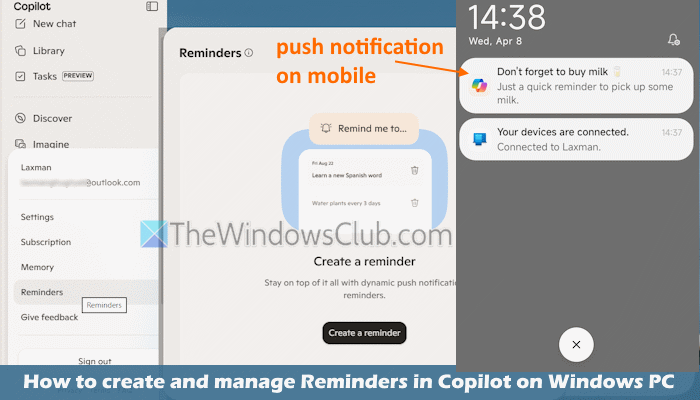
In the image above, you can see that a one-time reminder is sent and a push notification is received on an Android phone.
Can you set reminders with Copilot?
Yes, we can set reminders with Copilot. Microsoft is gradually rolling out a new Reminders feature for Copilot to set reminders as well as manage them. The Reminders feature in Copilot is available on the Copilot desktop app, Copilot in Microsoft Edge, Microsoft Copilot web app (copilot.microsoft.com), Android, and iOS apps. If you don’t see this feature yet, you should wait and update the Copilot app.
You should also have a look at some important points:
- You can create reminders using any supported platform (where the Copilot chatbot is available), but the push notifications are sent to your mobile device only
- You cannot edit a reminder (as of now)
- You must be signed in with the same Microsoft account in the Copilot app on your PC and mobile device to receive the push notifications
- You must enable notification permissions on your Android or iOS device for the Copilot app to receive reminder notifications.
How to create Reminders in Copilot in Windows 11?
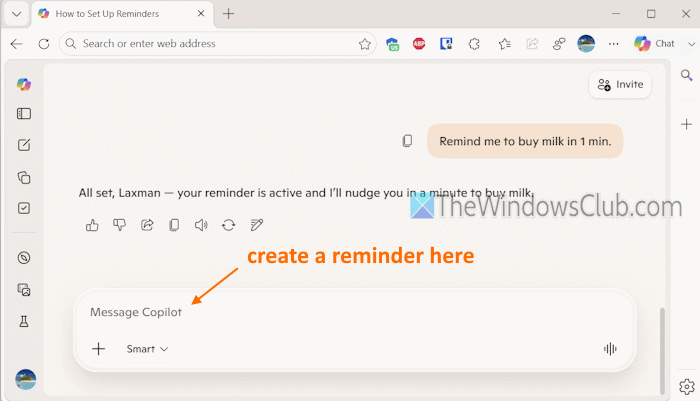
Here are the steps to create reminders in Copilot in Windows 11:
- Open the Copilot app, Copilot in Microsoft app, or Copilot web app on your Windows 11 PC and sign in with your Microsoft account
- Install the Copilot app on Android or iPhone (if not already) and sign in with the same Microsoft account
- On its mobile app, tap on the three horizontal lines > Profile icon > Account > Permissions. Under the Permissions section, turn on the Notifications option
- In the Copilot app’s chat box in Windows 11, create your reminder and press Enter to set it. Focus on the What part and When part, and you can create reminders to remember about a meeting, appointment, sending an email, or nudge yourself about something. For example, you can tell Copilot to remind me to buy milk in 2 minutes, check TheWindowsClub every day at 8:00 AM, send me a test message or a reminder after 5 minutes, or anything else
- In case Copilot is not clear about anything, it may ask to clarify the message and then set it.
Related: Best Free Appointment Reminder Software for Windows PC
How to manage Reminders in Copilot on Windows 11?
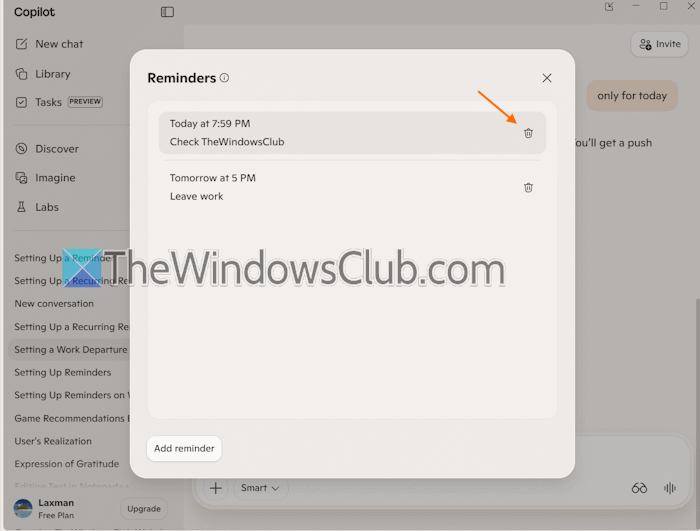
You can manage Reminders (view and delete) in Copilot on Windows 11 using the following steps:
- Open the Copilot app in Windows 11
- Click the Profile icon in the bottom left corner
- Click on the Reminders option
- You will see a list of all the set reminders. For each reminder, there’s a Delete icon. Click on it
- After that, click on the Delete button to confirm and remove the reminder from the list.
You can also use these steps in the Copilot mobile app, Copilot web app, or Copilot in Microsoft Edge to view and delete Copilot Reminders.
That’s all.
Also read: How to set Reminder in Zoho Mail
How to create a reminder on Windows 11?
There are many ways to create a reminder on Windows 11. For example, you can use the Microsoft To Do app, Teams, OneNote, or Outlook to set a reminder time using the alert option or reminder option. You can also use Notepad to set up recurring pop-up reminders, third-party tools, or the Copilot Reminders feature to create a reminder on a Windows 11 PC.
Read next: How to use Apple Reminders on a Windows PC.
