
Reminders are highly useful for boosting productivity, as they ensure that none of your tasks are forgotten. Zoho Mail has a separate reminders section that helps you manage your workflow. This article shows how to set a reminder in Zoho Mail.
How to set a Reminder in Zoho Mail
To set a reminder in Zoho Mail, follow these steps:
- Log in to Zoho Mail.
- Locate the clock icon on the right pane. Once you find it, click on it.
- Type your reminder in the Add reminder box.
- Set the required date and time. When you are done, click Add.
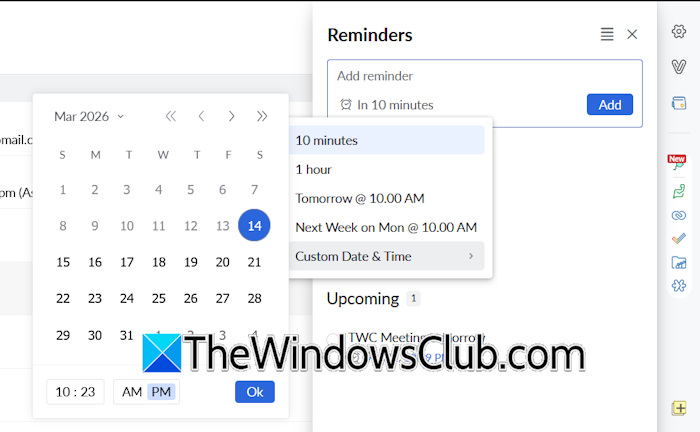
The reminder will be created and added to the Reminders list. The default time to set a reminder is 10 minutes. This means if you do not set a specific time, the reminder will be set for 10 minutes later on the same day.
To set a specific date and time for the reminder, click the “In 10 minutes” link inside the Add reminder box and select the required option. If the preferred date and time are not available in the list of options, click Custom and then set the required date and time.
Editing a reminder in Zoho Mail
If you want to change the date, time, or title of your reminder, you can do so by editing the reminder. To edit a reminder, follow these steps:
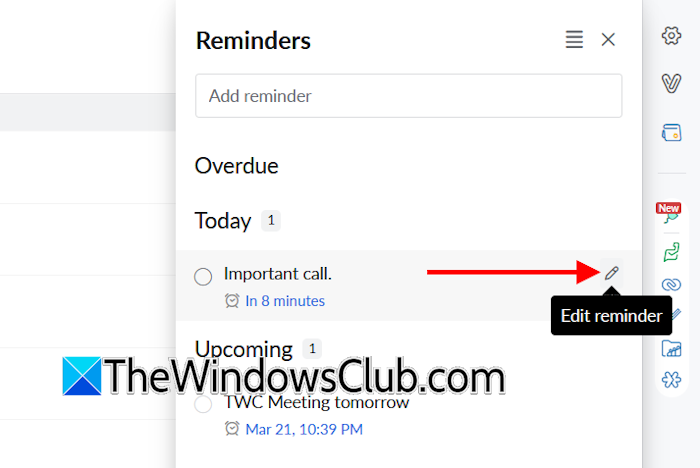
- Click the Reminder icon.
- You will see the list of all reminders.
- Hover your mouse over the reminder you want to edit.
- Click the Pencil icon to change the title. If you want to change its date and time, click on the date or time link just below it.
Reminder notifications in Zoho Mail
When a reminder reaches its alert time, it will send you a notification. You can view that notification in the Notifications section by clicking on the Bell icon. Alternatively, you can also press the Alt + N keys to open the Notifications window. Once you open the Notifications window, you will see all the past reminders there.
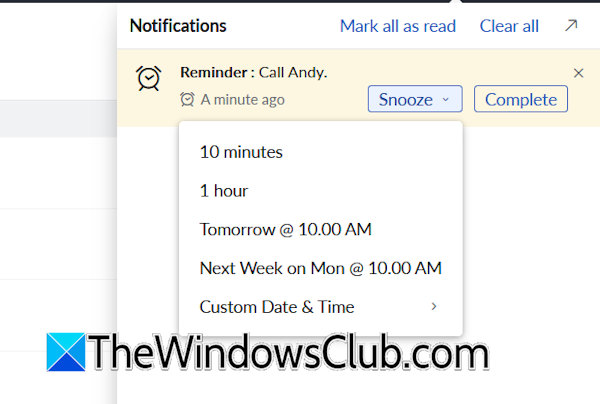
Additionally, Zoho Mail also shows an option to snooze a reminder. Click Snooze and select the required time. If you do not need to snooze that reminder, you can mark it as Complete.
How to view reminders in Zoho Mail
Zoho Mail shows reminders in the following three categories:
- Overdue reminders
- Snoozed reminders
- Completed reminders
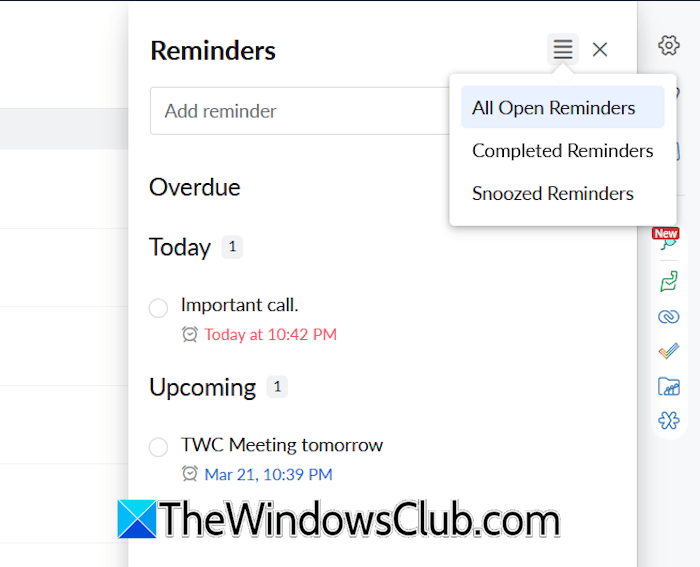
Click the clock icon to view all the reminders. Now, you can apply filters to view reminders in any of the above-mentioned categories by clicking on the Burger menu.
Define the Preset Values for Reminders in Zoho Mail
When you set a reminder, Zoho Mail shows predefined options to quickly select the required date and time. These pre-defined options are called Presets. Presets are available for snoozing and setting reminders. If you want to make changes to existing presets or define new ones, you can do so in Zoho Mail settings.
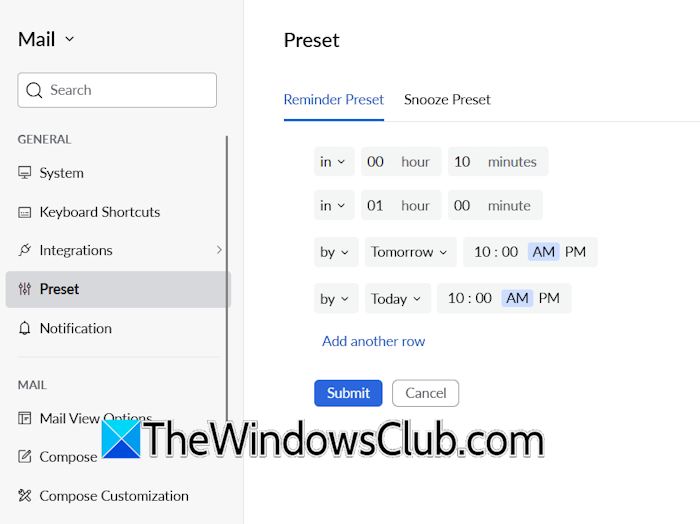
To make changes to or define new presets, follow these steps:
- Click the gear-shaped icon on the right pane to open Zoho Mail settings.
- Select Preset under the General section.
- Now, you can change the default Reminder and Snooze Presets, or add your custom presets.
- Once you are done, click Submit to save changes.
How to set up a reminder for your emails in Zoho Mail?
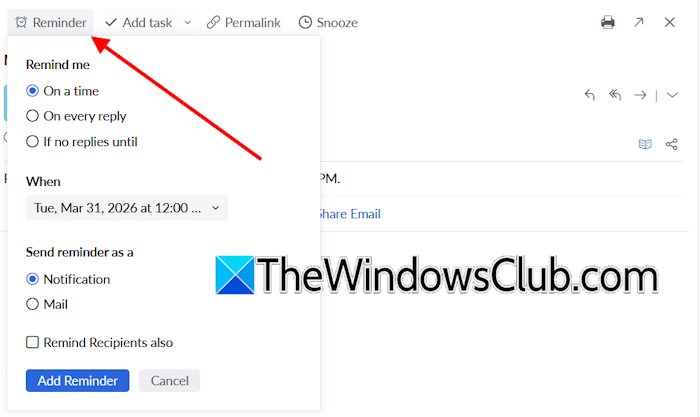
Sometimes we think we’ll reply to an email later—but then we forget, as it slips our mind. Missing timely responses can gradually weaken client relationships and even impact your professional image. The Reminder feature of Zoho Mail is useful in such cases. You can set personalized reminders for each email, ensuring you never lose your clients due to a missed follow-up.
To set a reminder for your emails, follow these steps:
- Open an email in Zoho Mail.
- You will see the Reminder option. Click on it.
- Now, select the required option. You can set a reminder for a specific time, on every reply, or if no reply is received until a specific date.
- Select a specific date and time for your reminder.
- Now, select if you want to get the reminder via a notification or email. The notification method is highly effective, as the email can easily be missed if you deal with lots of emails daily.
- If you want to remind recipients also, select the required checkbox.
- When you are done, click Add Reminder.
That’s it. I hope this helps.
How do I send a reminder email message?
You can send a reminder email by scheduling it for the required time. The steps to schedule an email may vary by email client. For example, if you use Gmail and Outlook, you have to click the down arrow icon next to the Send button to schedule an email. Draft your reminder message and schedule the email for a particular time.
How do I set up email alerts?
You can set up email alerts by enabling desktop notifications. The steps to enable desktop notifications may vary for different email clients. If you use the New Outlook app, navigate to View > View Settings > General > Notifications. Now, turn on the Email notifications.
Read next: How to add Footer in Zoho Mail.
