
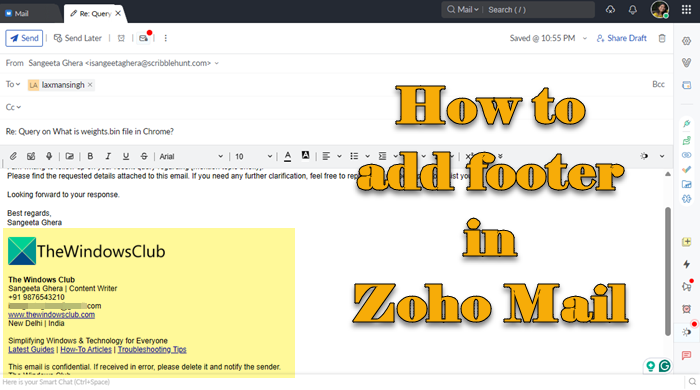
Many people confuse an email footer with an email signature. While both appear at the end of an email, they are not the same. An email signature is personal and typically includes your name and designation, whereas an email footer represents your organization and includes official company details. If you’re new to Zoho Mail and unsure how this works, don’t worry. In this guide, we will explain how to add a footer in Zoho Mail.
Why every business needs an email footer
A professional email footer plays an important role in business communication. It makes your emails look more trustworthy, offers space to promote your services through links and offers, and helps your business stay legally compliant. In simple words, it acts as a digital identity for your business, helping you leave a lasting impression on recipients.
How to add Footer in Zoho Mail
To add an email footer in Zoho Mail on a Windows PC, follow these steps:
- Open signature settings in Zoho Mail
- Create your email footer template
- Add images or logo to the footer
- Customize the footer with links and call-to-action buttons
- Add legal and compliance information
Let us see the steps in detail.
1] Open signature settings in Zoho Mail
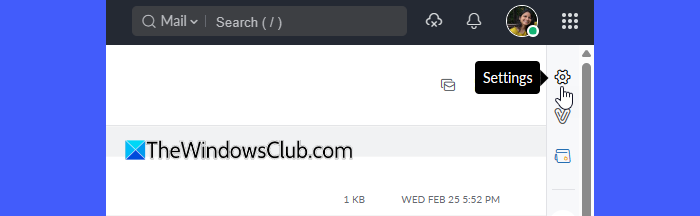
Sign in to your Zoho Mail account and click the Settings (gear icon) located in the top-right corner of the screen.
The Mail settings window will appear. Scroll down the left panel and select Signature. This section lets you design the footer that appears at the bottom of your emails. If you have previously created any signatures, they will be listed in the left panel. To create a new footer, click the plus (+) icon to open the signature editor.
2] Create your email footer template
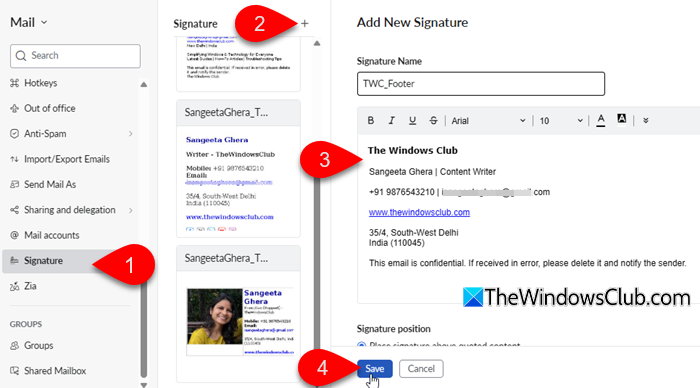
You can now design the content of your footer. Type the details you want to include in the footer. You can use formatting tools to adjust font style, size, alignment, and colors.
A simple, professional footer typically includes your company name and contact details. Here’s an email footer template that works well for small businesses and solopreneurs:
[Company Name]
[Your Name] | [Position]
Phone: [Number] | Email: [Address]
Website: [URL]
[Office Address]
[Legal Disclaimer]
3] Add images or logo to the footer
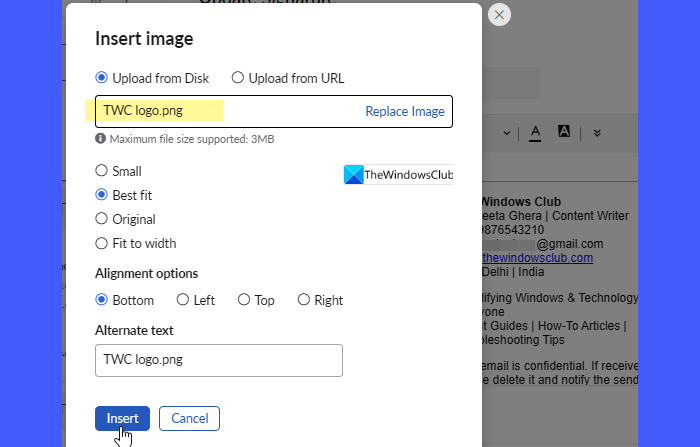
You can make your footer more professional by adding your company logo.
To do this, click More options in the editor toolbar (double-down arrow) and select Insert Image. Upload an image from your device or paste an image link. For best results, keep logo images under 100KB and no more than 150px wide.
4] Customize the footer with links and call-to-action buttons
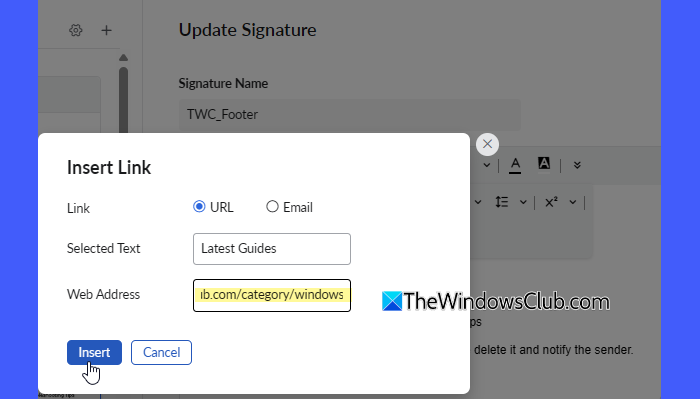
You can also add useful links to make your footer more informative and interactive. For example, you can include links to your company website, booking page, customer support portal, social media profiles, or latest blog posts. You may also add short CTA messages like inviting users to schedule a consultation, explore services, or subscribe to updates.
These additions help turn a simple footer into a useful branding and marketing tool.
5] Add legal and compliance information
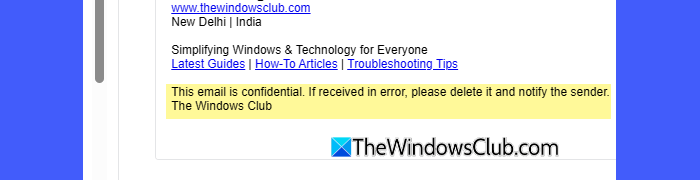
Before you finish creating your email footer, ensure you include the required legal and compliance details. These are important because many countries require businesses to include official information in their emails.
If your emails are promotional, you should also include an unsubscribe link so recipients can stop receiving future messages.
Below are sample formats used in different regions:
India (IT Act Compliance)
[Company Name] Private Limited | CIN: XXXXXXXXXXXXX
Registered Office: [Address]
This is an automated email. For assistance, contact [email/phone].
European Union (GDPR Compliance)
[Company Name] Ltd | Registration No: XXXXXXXX
Registered Office: [Address] | VAT: XXXXXXXX
This email is confidential and intended only for the recipient.
If received in error, please delete it and inform us.
United States (CAN-SPAM Compliance)
[Company Name] | [Physical Address]
You are receiving this email because you subscribed to our updates.
Unsubscribe | Update Preferences
Australia (Spam Act Compliance)
[Company Name] Pty Ltd | ABN: XX XXX XXX XXX
[Business Address] | [Contact Details]
Unsubscribe from future emails
After completing the design, click Save.
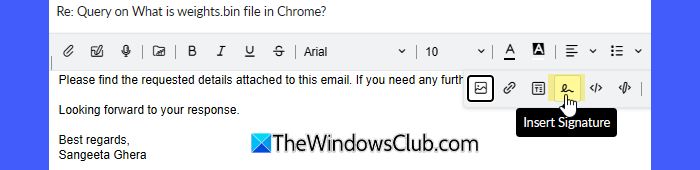
Your email footer will now appear automatically whenever you compose a new email. If it doesn’t, click the Insert Signature option in the compose window and select it manually.
Email footer size & layout guidelines
Zoho Mail recommends the following email footer size guidelines for best results:
| Element | Recommended Size | Why It Matters |
|---|---|---|
| Width | Up to 600–650 pixels | Ensures proper display across email clients |
| Height | Around 150–250 pixels | Keeps the footer compact and readable |
| Image Size | Under 100 KB | Helps emails load faster |
Key elements of a professional email footer
A well-designed email footer should contain important business information. Here are the essential and optional elements you should include in a professional email footer:
Essential elements (must-haves):
- Company name and logo
- Contact information (phone number, email address, office location)
- Official website link
- Legal disclaimer or confidentiality notice (if required)
Optional elements:
- Social media profile links
- Call-to-action buttons (Contact Us, Book a Demo, Visit Website)
- Awards, certifications, and recognitions
- Unsubscribe link (for promotional or marketing emails)
That’s all! I hope you find this useful.
Read: How to import leads into Zoho CRM.
How to customize Zoho email?
You can customize your Zoho Mail account by opening Settings and adjusting options like themes, inbox layout, reading pane, and notification preferences. Zoho Mail also lets you configure signatures, footers, auto-replies, and mailbox display settings to match your workflow.
How do I change the display name on my Zoho email?
To change your display name in Zoho Mail, go to Settings > Send Mail As. Edit the name shown in the Display name field and save the changes. The updated name will appear in the emails you send.
Read Next: How to set up Zoho Mail with domain.
