
Zoho CRM is a cloud-based Customer Relationship Management (CRM) software that enables businesses to manage their sales, marketing, and customer support activities effectively. One of the key features of Zoho CRM is the ability to manage leads. In this post, we will guide you through the process of importing leads into Zoho CRM using a CSV file.
How to import leads into Zoho CRM?
To bring lead data into Zoho CRM, you can either import files directly into the Leads module or migrate data from other CRM systems using the Data Migration wizard. Both methods often use CSV files, allowing you to map fields, maintain data accuracy, and prevent duplicates, while keeping your leads organized in one place.
Import leads into Zoho CRM using a CSV
To import leads into Zoho CRM on a Windows 11/10 PC, you may use the Leads module. However, before importing the data, ensure you meet the following prerequisites.
Prerequisites before importing leads into Zoho CRM
- You must have permission to import data into Zoho CRM.
- The first row of your CSV should contain column headers (field names), not actual data.
- The data should not include any text enclosed within <script> and </script> tags.
- Every required (mandatory) field in Zoho CRM must have a value in the CSV file.
- If you want to link the imported leads to existing records (like Accounts), include the lookup field name (e.g., Account Name) and its corresponding value or record ID in the CSV.
- Ensure all values for drop-down fields in your CSV already exist in Zoho CRM. If not, add them first or update the CSV to match existing values.
- If there are any date fields in the CSV, make sure that they are formatted with a 4-digit year (mm/dd/yyyy hh:mm). Dates not formatted in this manner will not be imported.
- For Boolean or checkbox fields, use True/1 for selected and False/0 for not selected.
- Do not leave more than 10 blank rows in your file. Data after that point may be ignored during import.
- The maximum supported CSV file size varies by edition. For the Free edition, it’s 5 MB.
Now, let us have a detailed look at the import process.
Import leads directly from a CSV into Zoho CRM
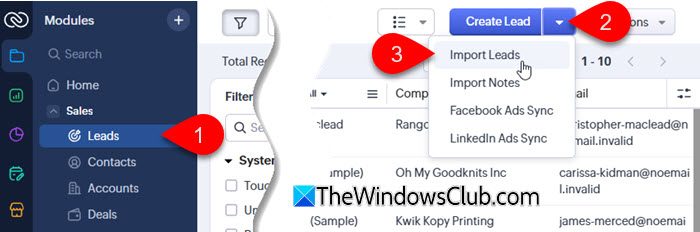
Log in to your Zoho CRM account and go to the Leads module. Click the down arrow next to Create Lead and select Import Leads.
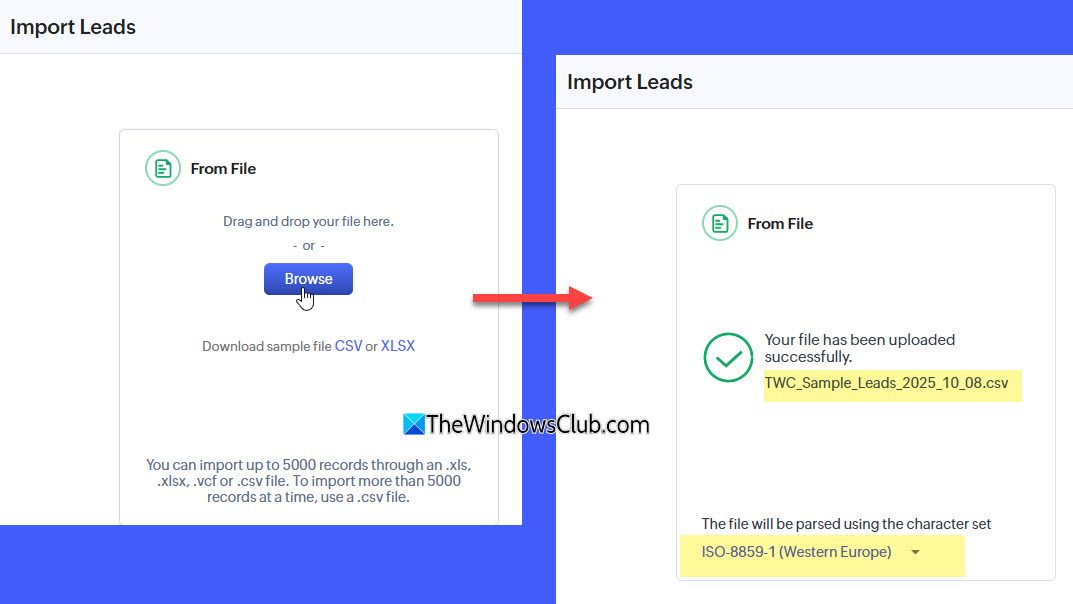
Click Browse to select your CSV file from your system. You can also drag and drop it into the From File section. Zoho CRM will automatically detect the character encoding. If needed, change it from the dropdown, then click Next.
Next, identify how to import the records from the CSV:
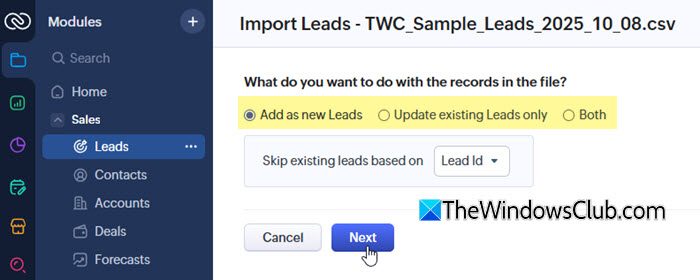
- Add as new Leads: Imports all records from the CSV to Zoho CRM. To avoid data duplication, use the ‘Skip existing leads based on…‘ option.
- Update existing Leads only: Updates only existing records that match the CSV. When you select this option, you may need to break up your import into multiple files, each with 5,000 records or fewer. You may also skip updating empty values in the records.
- Both: Add new records and update existing ones. If you choose this option, Zoho will update existing records if they already exist or add them as new entries if they don’t. You may also choose to skip updating empty values from your import file to the records in Zoho CRM.
Next, map the columns from your CSV file to the corresponding fields in Zoho CRM. Review the Mapped and Unmapped columns to ensure all necessary data is covered. If some fields are not available, use the Create New Fields option to add them.
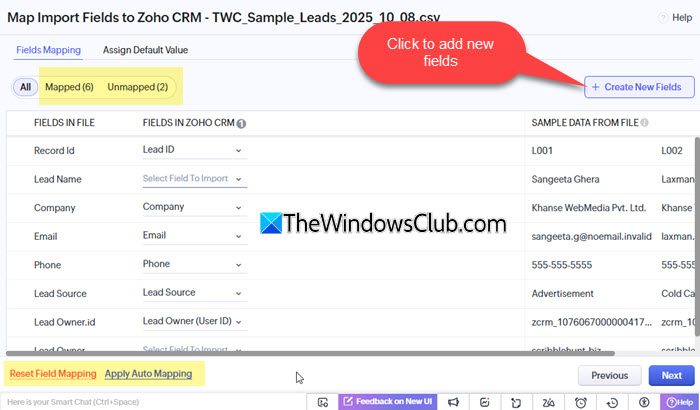
You can also choose to Reset Field Mapping to start over or Apply Auto Mapping to let Zoho CRM automatically match the fields.
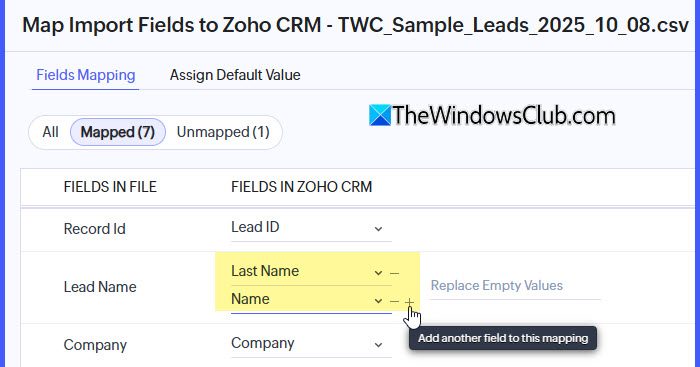
When you hover over the cells next to the mapped fields, you’ll see the Plus option. This option lets you map multiple CRM fields to a single field from your import file. It is useful when the same information applies to more than one field. For example, if the Billing Address and Shipping Address are the same, you can map both to one address column from your file.
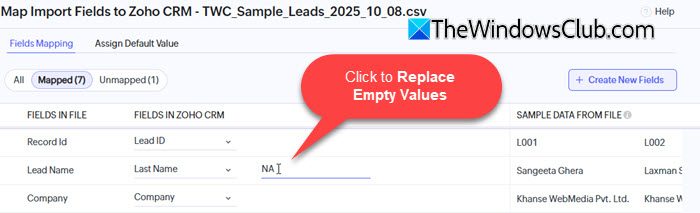
Another option that appears when you hover the cells next to the mapped fields is the Replace Empty Values option. This option helps ensure that no mandatory fields are left blank during data import. For example, if a record doesn’t have a Last Name (which is required), Zoho will use the value you provide in Replace Empty Values instead of skipping that record.
Next, go to the Assign Default Value tab. Under this tab, you may set default field values for all records you’re importing. For example, you may assign a specific Lead Owner and Tag to all imported leads. This ensures that every record has consistent ownership and tagging, even if those details are not included in the import file.
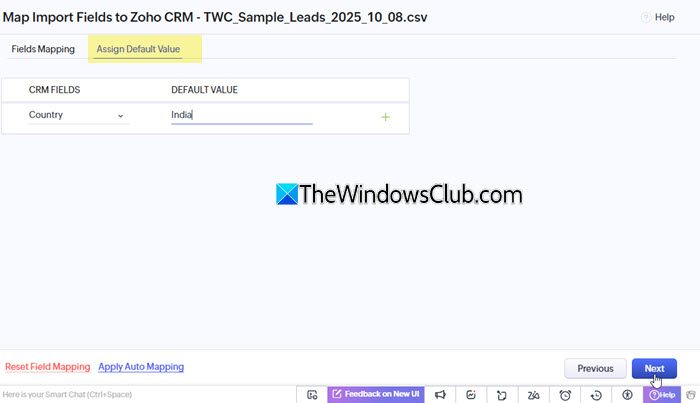
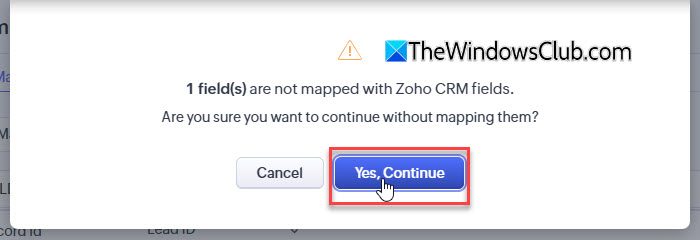
Click Next to continue. A prompt will appear if you leave some fields unmapped. Click Yes, Continue to proceed.
Under the Assignment Rules section, you’ll see a “Assign owner based on assignment rules” checkbox. When importing records, you need to specify who will own each record. Zoho CRM provides three ways to do this:
- Users: You can manually select a specific user from the drop-down list. Every imported record will be assigned to this user.
- Assignment Rule: If you’ve created an assignment rule, you can select it here. Assignment rules automatically assign records to users based on conditions like State, ZIP code, product interest, or any other field in the record.
- Field Mapping: If your import file has a column containing the user’s email login or identifier, you can map that column to the Owner field in Zoho CRM. Zoho will then assign each record to the user specified in that column.
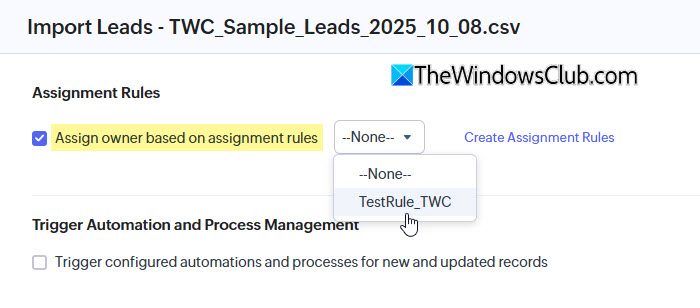
If you haven’t mapped the record owner in your import file, select the “Assign owner based on assignment rules” checkbox and choose the desired assignment rule from the dropdown.
The “Trigger configured automations and processes for new and updated records” option controls whether workflows, blueprint actions, and other automation rules run on records that are being imported or updated via import.
- If you check this option, all configured automations and processes (except date-based workflows) will execute for the imported records. Date-based workflows will run automatically based on their date conditions, regardless of this setting.
- If you leave it unchecked, the automations won’t run during the import.
The Assign follow-up tasks option lets you automatically assign follow-up tasks to imported records in Zoho CRM. You can either select an existing task from the dropdown or create a new one by clicking Create Workflow Task.
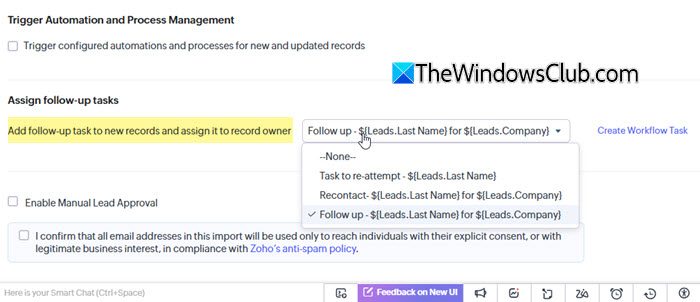
The Enable Manual Lead Approval option ensures that only verified leads are distributed to your team. When checked, imported leads must be reviewed and approved by an admin before they are assigned to any user.
Finally, confirm that all email addresses will be used only with the recipient’s consent or legitimate business interest, per Zoho’s anti-spam policy. Once confirmed, click Finish to initiate the import.
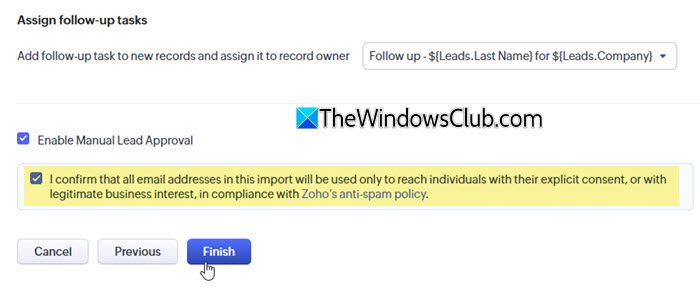
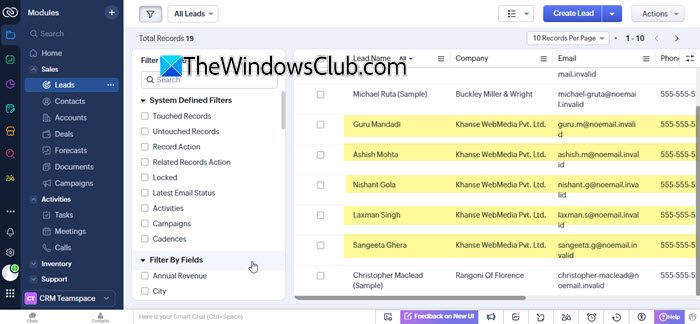
After the import is complete, Zoho will create the records in your CRM.
I hope this helps.
Read: How to set up Territories, Roles, and Data Sharing rules in Zoho CRM.
How do I import a CSV file into Zoho CRM?
To import a CSV file into Zoho CRM, go to the module where you want to add records (like Leads or Contacts) and click Import. Choose your CSV file and map its columns to the corresponding CRM fields. You can set default values, handle empty fields, and apply assignment rules if needed. Finally, click Finish to complete the import.
Read Next: Best Free CRM Software for Windows.
