
Zoho Mail has evolved into one of the leading email services for individuals and businesses. With its steadily growing user base, more and more people are now planning to move from services like Gmail, Outlook, or traditional hosting email to Zoho Mail. However, when it comes to actually migrating emails, many users feel unsure about where to start.
If you are also planning to switch but feel confused about the process, this guide is for you. Here, we will show you how to migrate emails from Gmail, Outlook/Microsoft 365, and other IMAP-based accounts to Zoho Mail on a PC.
How to migrate emails to Zoho Mail
To migrate emails to Zoho Mail, you first need to create an account with Zoho Mail. Once you have set up your Zoho Mail account and ensured that prerequisites such as domain verification, IMAP access, and user account setup are complete, you can begin migrating your emails.
1] Migrate emails from Gmail, Outlook, and other providers to Zoho Mail
You can migrate emails to Zoho Mail from various email services, including Gmail, Outlook, and other IMAP-based providers. The process is largely similar, with minor differences in server settings and authentication.
In this guide, we have explained the steps for Gmail in detail, as it is the most common migration scenario. For other email services, you can follow a similar approach using IMAP.
1. Enable IMAP in your Gmail account
Before starting, you need to allow Gmail to sync emails using IMAP. Open your Gmail account. Click the gear icon. Select See all settings.

Go to the Forwarding and POP/IMAP tab. Under IMAP access, select Enable IMAP. Click Save Changes.

Note: In newer Gmail accounts, IMAP access is enabled by default, and you may not see an option to enable it. In such cases, you can proceed directly with the migration setup.
2. Generate an App Password for Gmail
If your Gmail account has 2-step verification enabled (which most accounts do), you must use an app password instead of your regular password.
Click the profile icon in the top-right corner. Select Manage your Google Account.
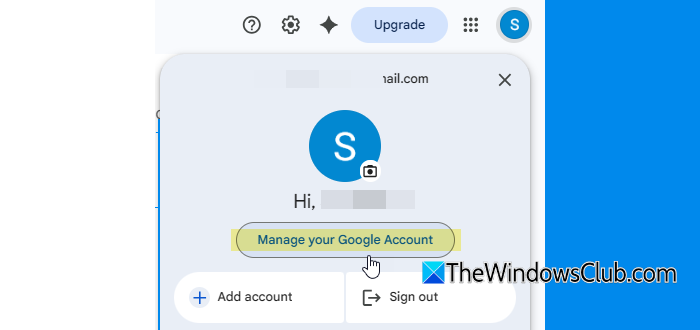
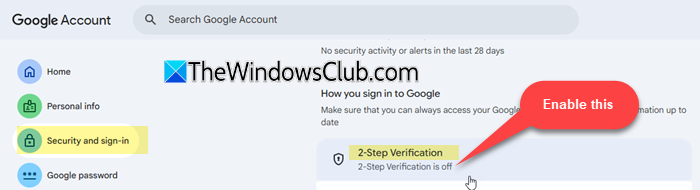
Go to Security and sign-in. Enable 2-Step Verification (if not already enabled).
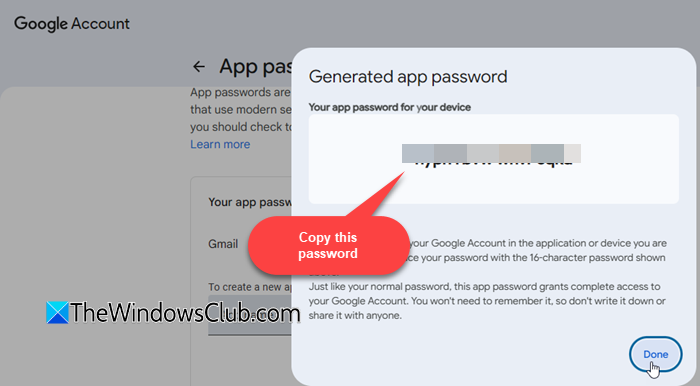
Click the search bar at the top, type ‘app passwords’, and select it. Type ‘Gmail’ under App name. Click Create. Then copy the app password.
3. Log in to Zoho Mail Admin Console
Sign in to your Zoho Mail account. Click on My Profile > Admin Console.
4. Configure Gmail Migration Settings
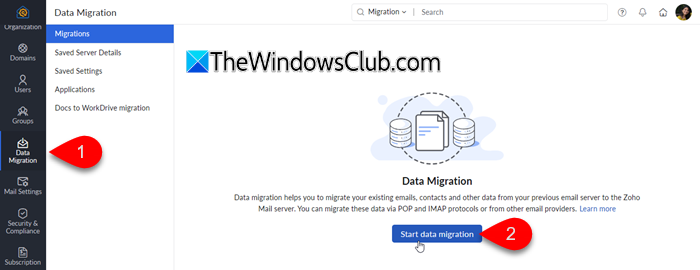
Select Data Migration on the left menu. Click Start data migration.
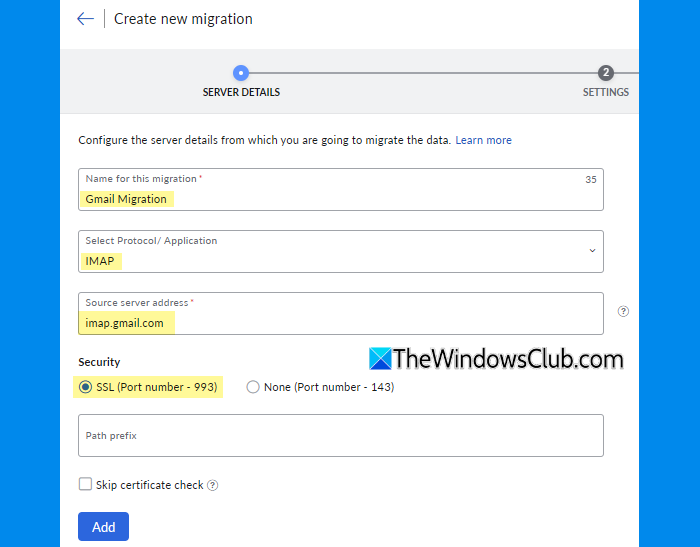
Enter a name for the server configuration. Select IMAP as the protocol. Then enter the following details:
- Source server address: imap.gmail.com
- Security: SSL
- Path prefix: empty
Click Add.
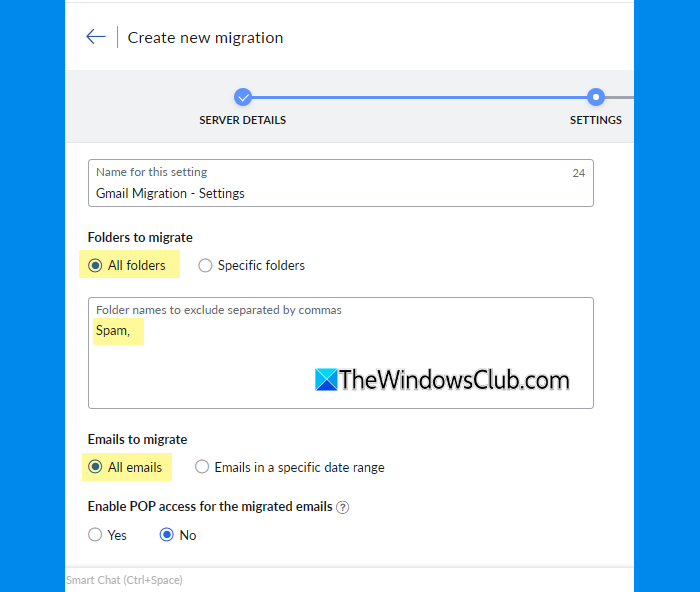
Next, you will be asked to configure migration settings. In most cases, the default settings work well for Gmail migration. You can review them and click Add to continue.
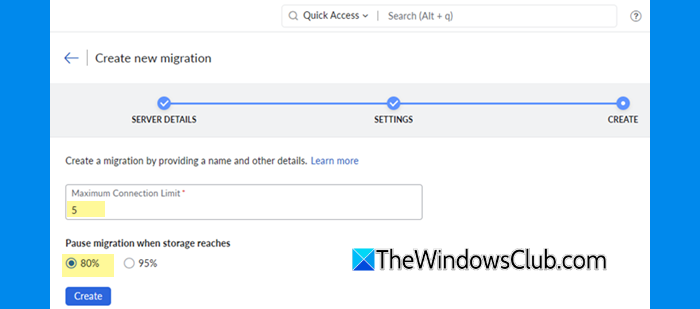
On the next screen, you can configure how the migration process will run. By default, Zoho Mail sets the Maximum Connection Limit to 5, meaning up to 5 mailboxes can be migrated simultaneously. This helps speed up the process without overloading the server.
You will also see an option to pause the migration when storage reaches 80% or 95%. This prevents your mailbox from running out of space during migration.
In most cases, you can proceed with the default settings and click Create.
5. Add Users and Start Migration
Next, you will be taken to the migration dashboard. The status will show as Yet to start, until you add user accounts.
Go to the Users tab. Click Add (or Import if you want to add multiple users using a CSV file).
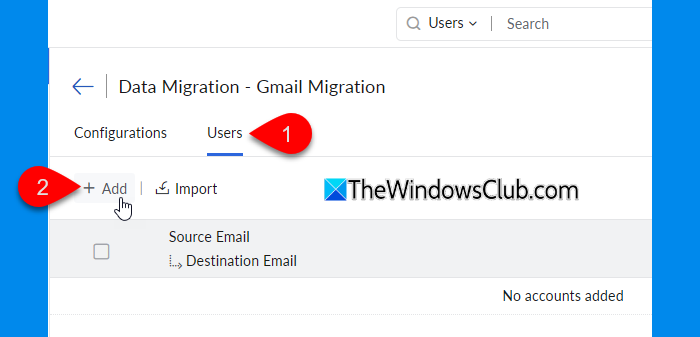
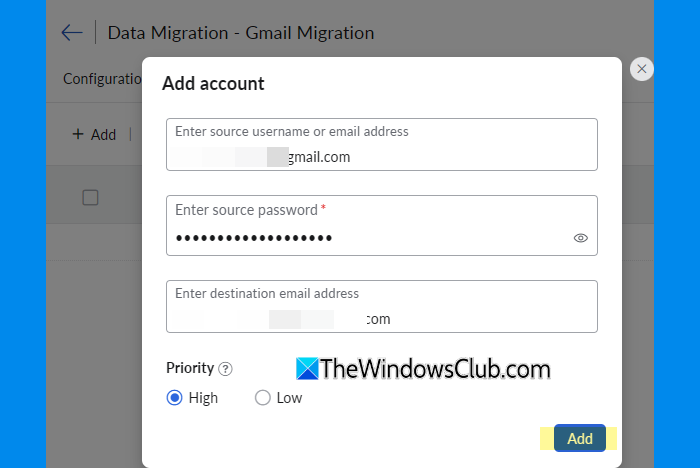
Enter the following details:
- Source email: Your Gmail address
- Source password: Your Gmail App Password (the one generated in step 2)
- Destination Email: Your Zoho Mail address
Click Add.
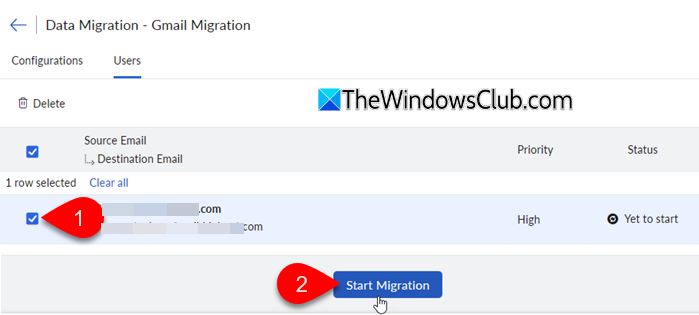
Next, select the account. Click Start Migration, then confirm the action. Zoho will begin transferring emails from your Gmail account to Zoho Mail.
You can track the migration progress status on the same page.
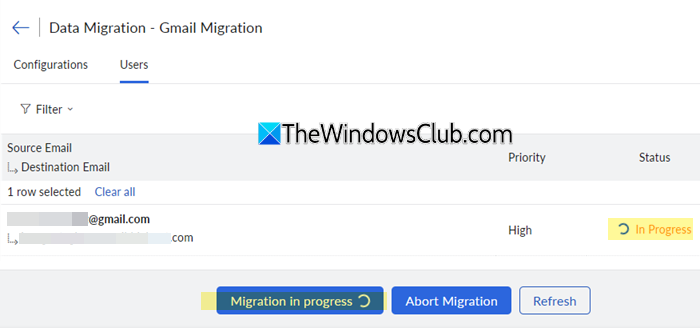
If you click on a specific user/email, you will see detailed information about their migration.
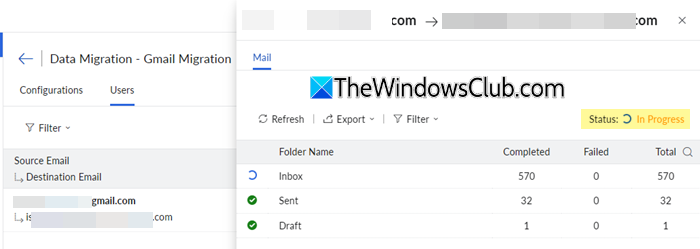
Once the migration is complete, open your Zoho Mail inbox and verify that all emails, folders, and attachments have been transferred correctly. You can then start using Zoho Mail as your primary email service.
To migrate emails from Outlook, Yahoo Mail, or other email services, you can follow the IMAP Migration method, as explained above.
Select IMAP during migration setup. Enter your provider’s IMAP server details. Add users and start the migration.
For Outlook accounts, you can use:
- Server: outlook.office365.com
- Port: 993 (SSL)
2] Migrate Microsoft 365, Google Workspace, or Amazon WorkMail
Zoho Mail also provides a One-Click Migration option for professional email services such as Microsoft 365, Google Workspace, and Amazon WorkMail.
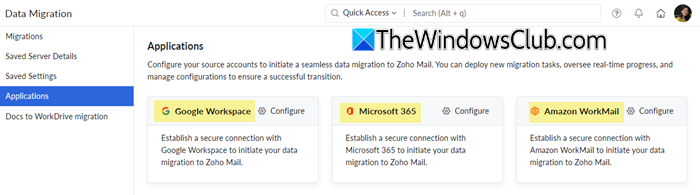
This method allows users to migrate emails directly using service-specific integration, without manually configuring IMAP settings. However, it requires administrative access and proper configuration of permissions in the source service before starting the migration. It is designed for organizations and supports bulk migration of multiple user accounts along with mailbox data.
3] Migrate from Exchange Server or PST/EML files
If your previous email system was an on-premises Exchange Server or emails are stored in PST or EML files, you can use Zoho Mail’s Exchange Migration Wizard or import options to migrate emails to user mailboxes.
I hope you find this useful.
Read: How to set up Filters in Zoho Mail.
How do I transfer all Mail from Gmail to Zoho Mail?
To transfer all emails from your Google account to Zoho Mail, you may use Zoho’s IMAP migration. This is a server-to-server process that transfers emails directly from your Gmail account to the corresponding Zoho Mail account, while preserving email status and folder structure. If IMAP is not supported, then you can migrate your emails via POP migration.
Is Zoho Mail better than Gmail?
It depends on your use case. If you are a casual user, Gmail is usually sufficient and offers better ease of use along with seamless integration with Google services. However, for organizations and business users, Zoho Mail offers greater control, privacy-focused features, and improved administrative capabilities.
Read Next: Zoho Mail not receiving emails.
