
If your Zoho Mail account is not receiving emails, read this post to learn how to fix the issue. Millions of businesses use Zoho Mail every day without delivery problems. However, a few users have reported that their mailboxes have suddenly stopped receiving emails. The issue affects only incoming emails, while outgoing emails continue to work normally.
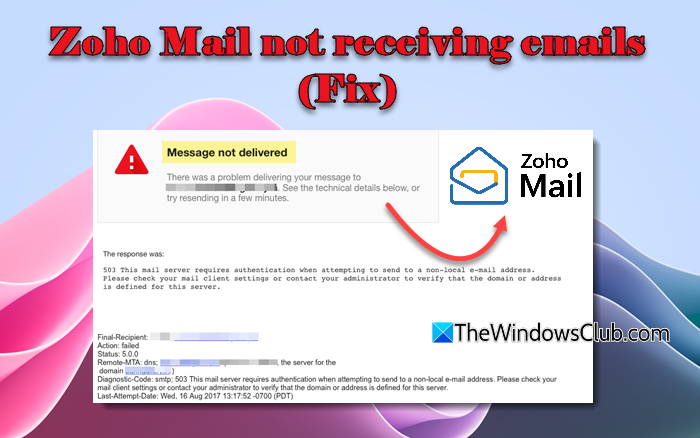
According to the users, the issue often occurs with specific senders or domains rather than the entire inbox. If you are one such affected user, continue reading. In this post, we explain the possible causes of the issue and show you how to fix it effectively.
Why am I not receiving emails on Zoho?
If you are not receiving emails in Zoho Mail, your domain’s MX records may not be correctly pointing to Zoho’s mail servers, or your previous email host may still be handling incoming mail. In some cases, the emails may be landing in the Spam folder or another filtered folder. There is also a possibility that your mailbox storage is full or that emails from certain senders are being blocked due to spam or security policies.
Before you begin troubleshooting, make sure to check the Notifications folder in Zoho Mail, especially if you are new to the platform. Many users overlook this folder because it is placed near the bottom of the left pane and is easy to miss. Important system alerts, admin messages, and certain automated emails may appear there instead of the main inbox.
Zoho Mail not receiving emails
If Zoho Mail if it is not receiving emails on your Windows PC, use these solutions:
- Verify MX records for your domain
- Disable local email delivery on your previous host
- Check the Spam folder, filters, and add the sender to the Trusted list
- Check your mailbox storage quota
- Check the Delivery logs in Reports
Let us see this in detail.
1] Verify MX records for your domain
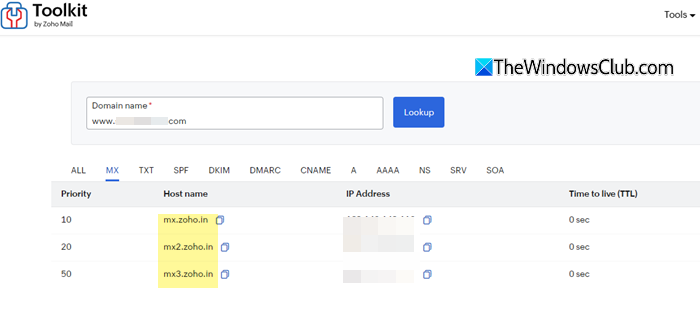
If you are not receiving emails in Zoho Mail, one of the first things you should check is your MX records. These are the DNS settings that tell the internet which mail server should receive emails for your domain. If these records are incorrect or still point to your previous email provider, incoming emails will not reach Zoho Mail.
Open your Zoho Mail Admin Console. Go to Domains. Select your domain name.
Check whether the required MX records for Zoho are listed and verified.
You can also use Zoho’s MX Lookup tool (link here) or any DNS lookup tool to see where your MX records point.
If the records do not point to Zoho, log in to your domain registrar or DNS provider (such as GoDaddy, Namecheap, etc.). Update the MX records so that they point to Zoho’s mail servers and remove any old MX records from previous email providers.
After updating, wait for up to 4 hours (based on the TTL value assigned to it) for the changes to propagate.
Once the records are configured and propagated, you should be able to receive emails.
2] Disable local email delivery on your previous host
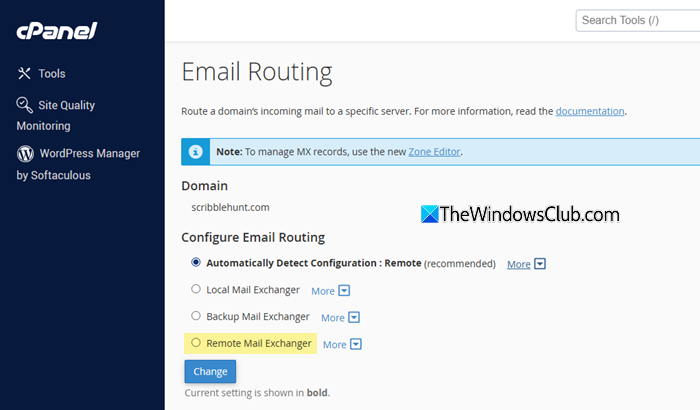
If you’ve recently switched to Zoho Mail from another email provider, your previous hosting server may still be configured to handle emails locally. When this happens, emails generated from the same domain (such as website contact form submissions) may be delivered internally on the old server instead of being sent to Zoho Mail.
To fix this, log in to the control panel of your previous email hosting provider. Locate the Email Routing option. If it is set to Local Mail Exchanger, change it to Remote Mail Exchanger.
Save the changes and ensure that your MX records already point to Zoho Mail servers.
3] Check the Spam folder, filters, and add the sender to the Trusted list
Sometimes emails are delivered successfully but are automatically moved to another folder by spam filters or mail rules. This can make it appear as if you are not receiving emails.
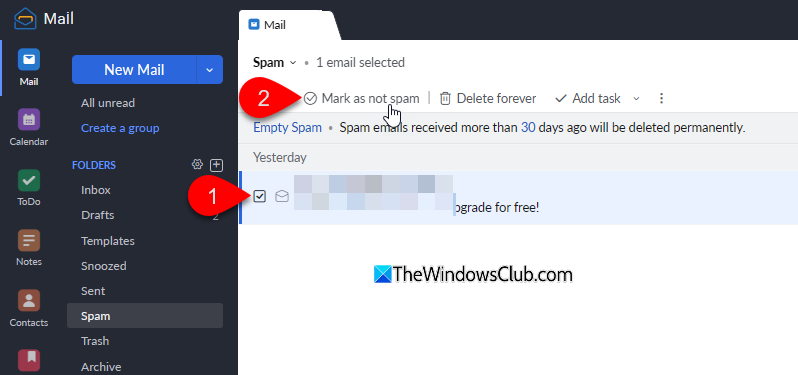
Open Zoho Mail and click Spam in the left sidebar of your account. Look for the missing email in the list of messages. If you find it, open the email and click Not Spam. This will move the message to your Inbox and help Zoho recognize similar emails as legitimate in the future.
Next, click the Settings icon in Zoho Mail. Select Filters in the left pane. Review any active filters that may move emails to other folders. Edit or disable any filter that may be affecting incoming emails.
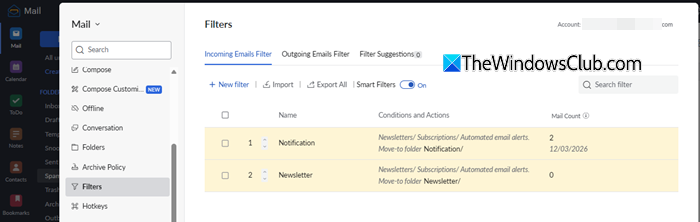
If emails from a specific sender are being blocked or marked as spam, you can add that address to Zoho Mail’s Trusted list.
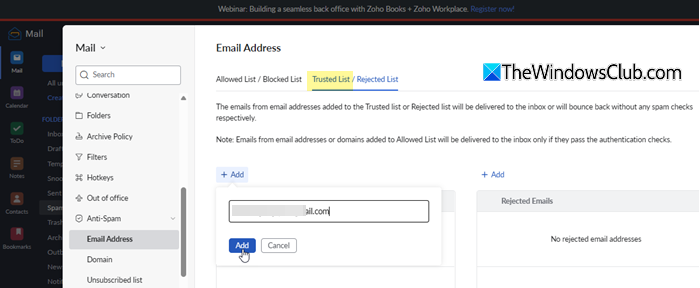
Open Zoho Mail. Go to Settings > Anti-Spam. Switch to the Trusted List / Rejected List tab. Click Add above Trusted Emails. Enter the sender’s email address and save the changes.
4] Check your mailbox storage quota
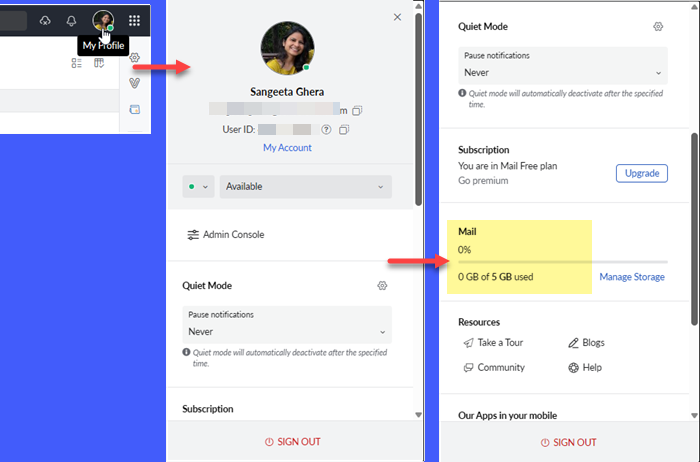
If your Zoho Mail inbox has reached its storage limit, new incoming emails may not be delivered until space is freed
To check if your mailbox is full, click your profile icon in the top-right corner. Scroll down and locate the Mail section. Check how much storage space is currently being used.
If your mailbox is full, delete unnecessary emails and clear the Spam and Trash folders to free up space. If you frequently run out of storage, you can also upgrade your Zoho Mail plan to get more mailbox storage.
5] Check the Delivery logs in Reports
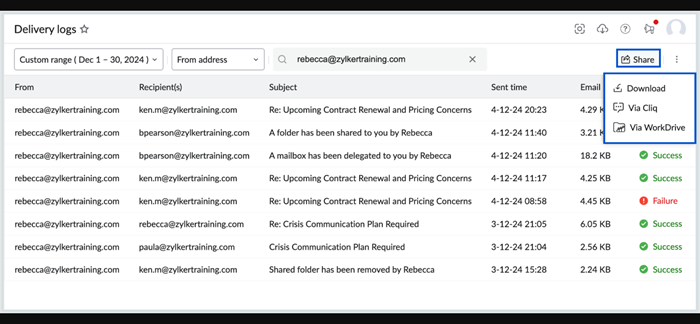
If you are still not receiving certain emails, checking the delivery logs can help determine whether the message reached Zoho Mail.
Log in to your Zoho Mail Admin Console and select Reports on the left pane. The Admin Reports page will open in a new tab. Select Logs on the left pane, then choose Mail logs > Delivery logs.
Check whether the sender’s email appears in the logs and review its delivery status.
If the email does not appear in the logs, contact the sender and ask them to provide the SMTP relay logs for the message they attempted to send.
Share these logs with Zoho Mail support so they can trace the email delivery path and identify the issue.
I hope this helps!
Read: Top free email service providers for Windows.
Why isn’t my Zoho Mail working?
If your Zoho Mail is not working properly, it could be due to incorrect email configuration or delivery issues. For example, your domain’s MX records may not be pointing to Zoho’s mail servers, or emails might be getting filtered into Spam or other folders. For login issues, verify your credentials or reset your password.
Read Next: How to add an email signature in Zoho Mail.
