
Email signatures are commonly used in business emails. When designed properly, they can make your emails look more professional and trustworthy. If you use Zoho Mail for work or business communication, adding a signature can save time and ensure that every email you send includes your contact details. In this post, we will guide you step by step on how to add an email signature in Zoho Mail on a PC.
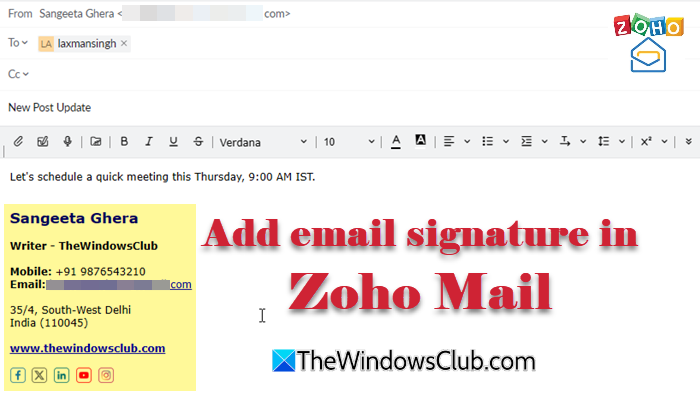
An email signature is a small block of content that appears at the end of an email. It usually contains important details about the sender, such as their name, job title, company name, and phone number. In simple terms, it includes the key information a recipient may need to know about the sender and how to contact them.
How to add Email Signature in Zoho Mail
Zoho Mail allows you to create and manage multiple email signatures for your account. In the following sections, we will show you how to create and add an email signature in Zoho Mail, set default signatures for emails and replies, and associate a contact card with it.
Create and add an email signature
To add an email signature in Zoho Mail on a Windows 11/10 PC, follow these steps:
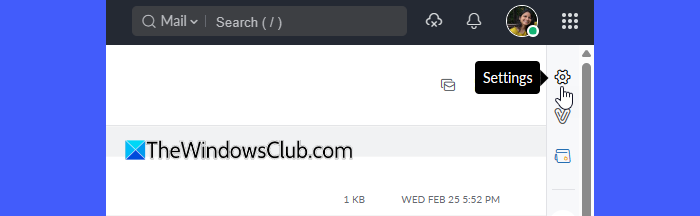
Open Zoho Mail in your browser and sign in to your account. Click the Settings (gear icon) in the top-right corner.
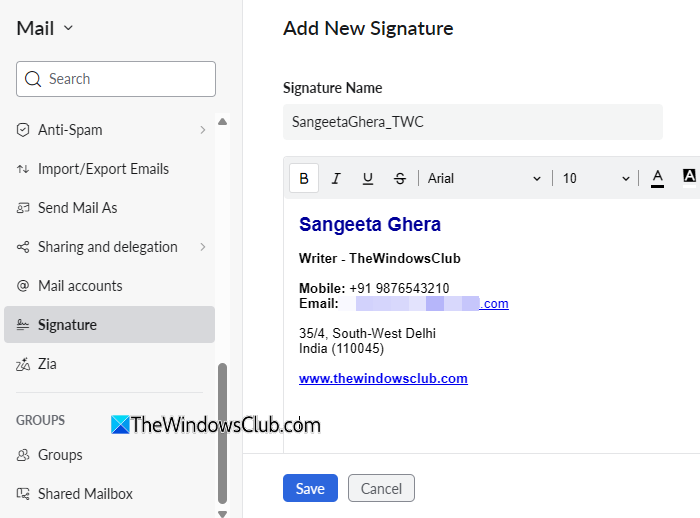
Make sure you’ve selected the Mail settings. Scroll down the left pane and select Signatures.
A signature editor will appear in the right pane. Enter a name for the signature.
In the editor window, type the information you want to include in your signature and format it using the options on top.
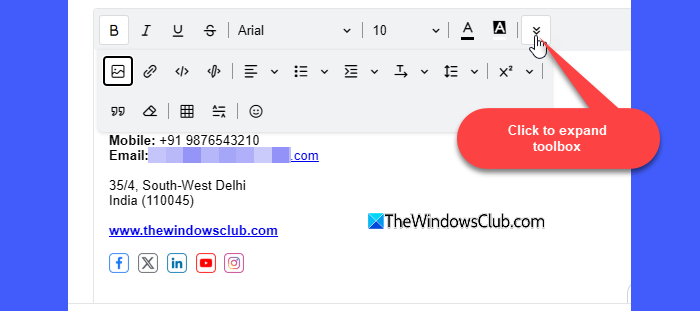
You can insert images (like logos) into your signature, paste copied images, and also hyperlink them if needed.
Configure signature settings
While creating the signature, you can also configure the following options:
1] Signature position
This option specifies where to place your signature in outgoing emails. Choose Place signature above quoted content to display it just below your reply message. Choose Place signature below quoted content to display it at the very bottom of the email conversation.
2] Associated From addresses for new emails
This option lets you link a signature to a specific email address. When you compose a new email and select that address in the From field, Zoho Mail automatically inserts the associated signature into the message (this differs from the default signature, which is used for all emails when no specific signature is associated with an email address).
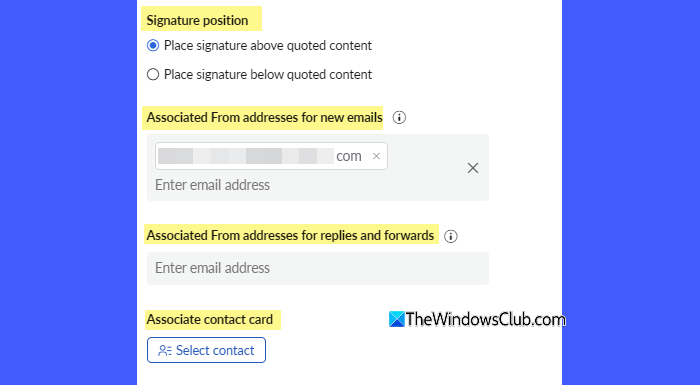
3] Associated From addresses for replies and forwards
This option allows you to assign a signature to a specific email address for replies and forwarded emails. When you reply to or forward an email using that address in the From field, Zoho Mail automatically adds the linked signature to the message. You must enable the Signature for replies option to auto-include signatures for email replies.
4] Associate contact card
This option lets you attach your contact card (vCard) to an email signature. When a contact card is linked to a signature, it is automatically added as an attachment to emails sent using that signature. This makes it easy for recipients to save your contact information.
Once everything is done, click Save to create the signature.
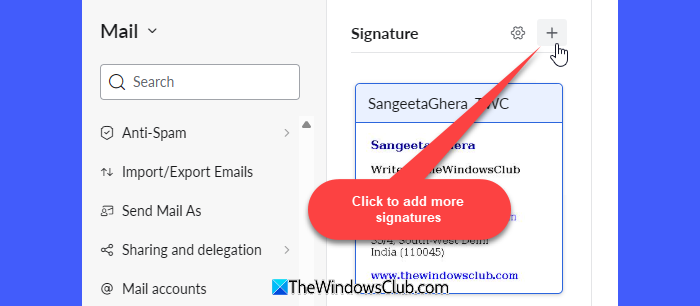
To add more signatures to your Zoho Mail account, go to Settings > Signature, click the + icon, then repeat the above steps with different titles.
Edit or delete a signature
To edit an existing signature or remove the ones you no longer use, follow these steps:
Go to your Mailbox and select Settings > Signatures. You will see the list of signatures created for your account.
Click the signature you want to modify. Edit the content in the signature editor. Click Update to apply the changes.
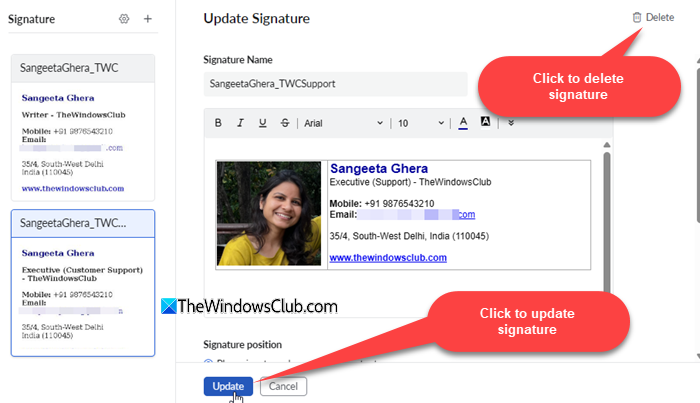
To remove a signature, click the Delete option next to it (or in the top-right corner of the signature editor) and confirm the action.
Note:
- If your organization’s administrator has configured a signature for your account, you will not be able to associate a new signature with the email address linked to that admin-assigned signature. The admin-assigned signature is marked with a lock icon and cannot be edited.
- You can choose to manually change the signature while composing an email using either the Signature icon or the Insert Signature option. The selected signature will replace the default signature for that particular email.
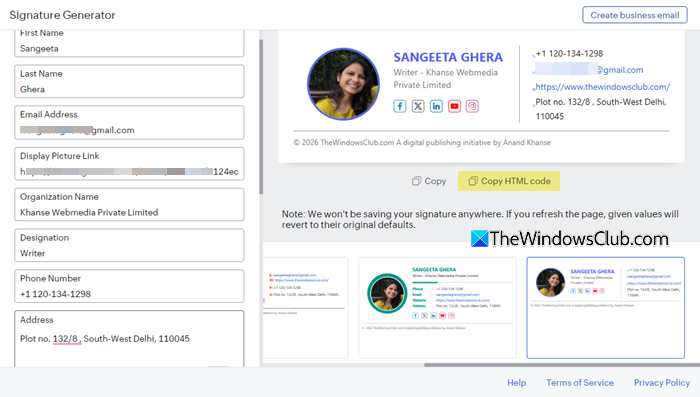
- Zoho also offers a free Email Signature Generator in Zoho Toolkit (link here) that lets you create professional signatures using ready-made templates and copy them into Zoho Mail.
That’s all! I hope you find this useful.
Read: How to set up Zoho Mail with domain.
Does Zoho have eSignature services?
Yes, Zoho offers an electronic signature service called Zoho Sign. It is a cloud-based tool that lets you digitally sign documents, send documents for signatures, and manage signed files online. In addition, within Zoho Mail, you can create and manage email signatures that automatically appear at the end of your emails.
How do I add a mail signature to my email?
Most email clients allow you to create and add an email signature through their settings menu, though the exact steps may vary depending on the service you use. In Zoho Mail, you can add a signature by navigating to Settings > Signatures, creating a new signature, and saving it. Once added, the signature will automatically appear in your outgoing emails.
Read Next: How to create and add Email Signature in Outlook.
