
Zoho Meeting is a secure online meeting platform that helps you connect, collaborate, and work remotely. You can host audio/video calls, share your screen, use a whiteboard, record meeting sessions, and more with Zoho Meeting. In this article, we will see how to download and use Zoho Meeting.
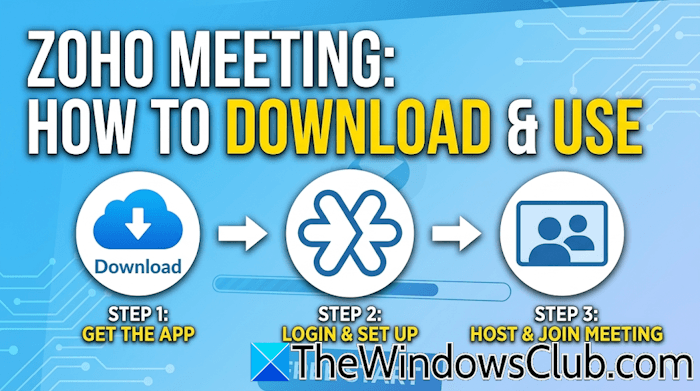
How to download and use Zoho Meeting
Zoho Meeting is available as a web and a desktop app. If you do not want to install it on your PC, you can use its web version. To download and use the Zoho Meeting desktop app, visit its official website. After downloading the desktop app, run the installer file to install it on your system. The installation process is simple and easy.
After installing the app, launch it. Now, sign in with your email account, and you are ready to use the Zoho Meeting desktop app. The desktop app and the web version have the same user interface. Therefore, it won’t create any confusion whether you use the desktop app or the web app.
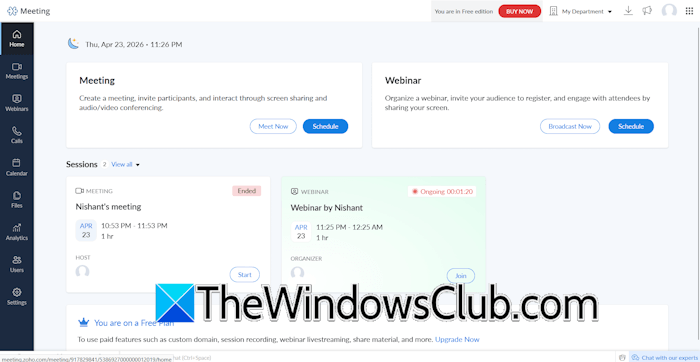
After signing into Zoho Meeting, you will land on the Home tab, which is your Dashboard. Here, you can organize or schedule a meeting and a webinar. Ongoing webinar and meeting sessions are also displayed on the platform’s Home page. Additionally, it also displays recent meeting or webinar sessions.
It has the following useful features:
- Meetings
- Webinars
- Calls
- Calendars
- Files
- Analytics
- User Management
We will talk about these features one by one. Let’s start.
1] Meetings
This section shows all your upcoming and past meetings. You can view all your scheduled and past meetings by clicking the respective tabs.
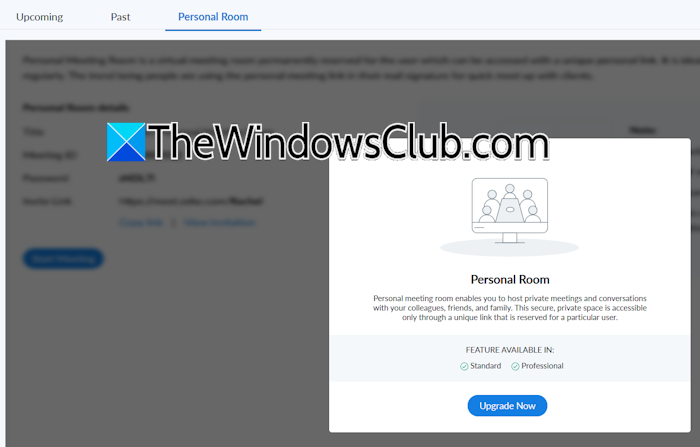
Personal Meeting Room is an additional feature of Meetings. It allows you to host private meetings and conversations with your colleagues, friends, and family members. This secure, private space is accessible only via a unique link reserved for a particular user. The Personal Room feature is not available in the Free plan. If you want to use this feature, you need to upgrade your plan.
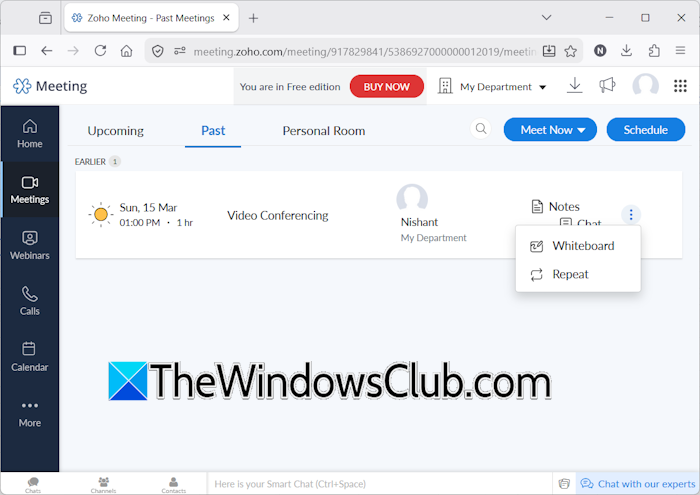
Zoho Meeting also keeps all your notes and chats from past meetings. You can view them later. For this, go to the Past tab of the Meetings category and click on the Notes or Chat link. To view the Whiteboard from a past meeting, click the three dots and select Whiteboard. If you want to repeat the same meeting session, click the three dots and select Repeat.
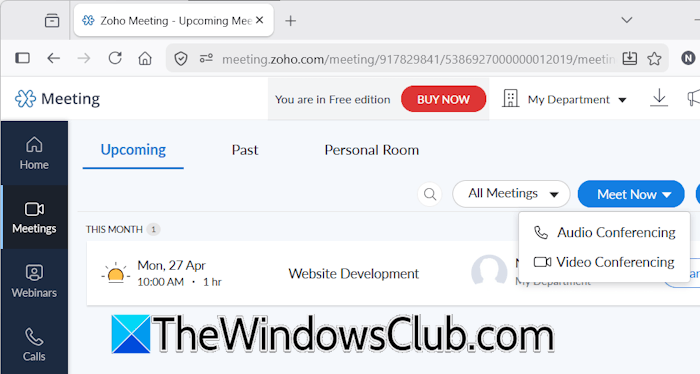
It allows you to conduct the following two types of meetings:
- Audio conferencing
- Video conferencing
To view a meeting’s details and settings, click on it. After that, you will see all the meeting details, including the number of participants, host, and invitation details, analytics, etc.
2] Webinars
The Webinars section shows all your upcoming and past webinars. You can broadcast a webinar or schedule it for later.
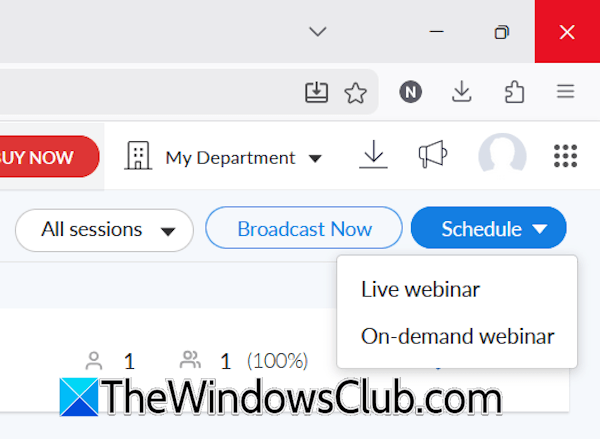
With Zoho Meeting, you can schedule two types of webinars:
- Live webinar
- On-demand webinar
When you schedule a webinar, users must register. Those who do not register cannot join the webinar. You can change a webinar’s settings while scheduling it.
On-screen features
While conducting a meeting or a webinar, Zoho Meeting offers the following features:
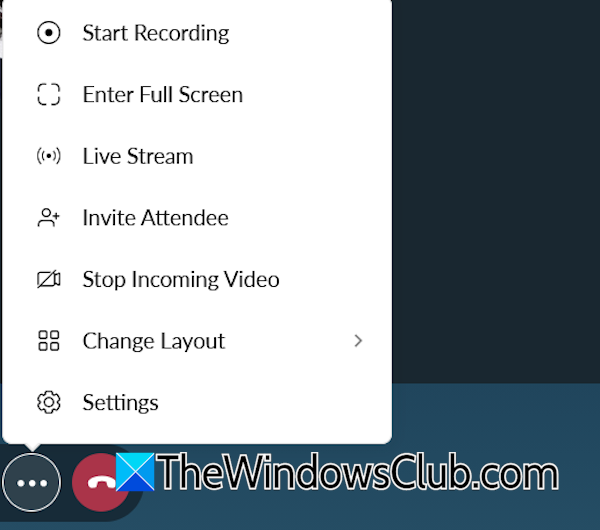
- You can create meeting notes, lock the meeting, record the meeting session, create polls, and invite more participants.
- You can send emoticons to express reactions.
- The Chat feature is also available to chat with participants during a webinar or meeting session.
- You can use a Whiteboard during a meeting or webinar session.
- An option to share screen and files is also available.
3] Calls And Calendar
Zoho Calls is a cloud-based phone calling system available only for Pro users. It is a unified calling system for customer-facing teams. After importing your contacts, Zoho Calls allows you to:
- Make local and international business calls
- Configure incoming and outgoing calls
- Engage and follow up with seamless messages
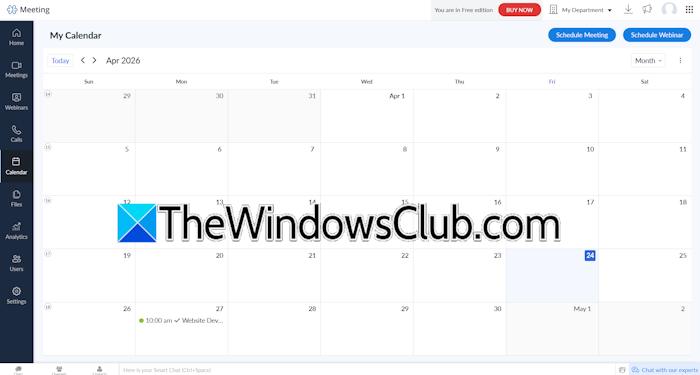
The Calendar shows all your scheduled meetings and webinars. The default view of the Calendar is set to a week. You can change it to a day, month, year, agenda, etc.
4] Files
The Files section displays your recorded meeting and webinar sessions. You can also view the files shared in a particular meeting or webinar session. This feature is only available for Pro account users.
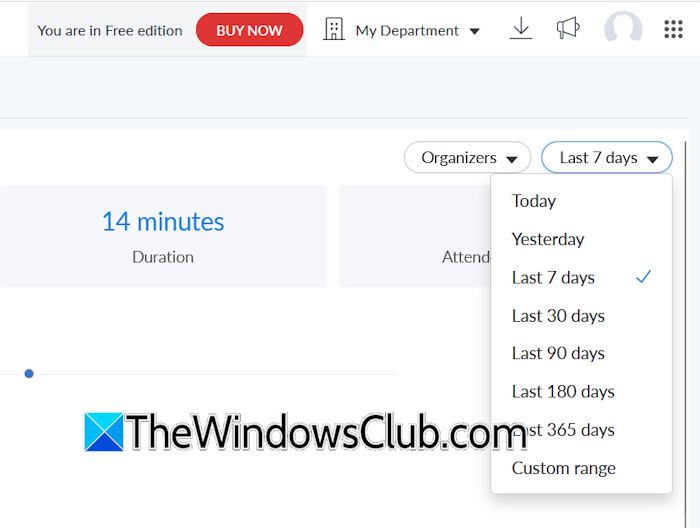
Zoho Meeting Analytics allows you to track your meeting and webinar history. You can view session count, session duration, and session history. Additionally, you can sort analytics data based on specific parameters, including organizers and time. A custom option is also available to sort analytics by a specific date range.
5] User management
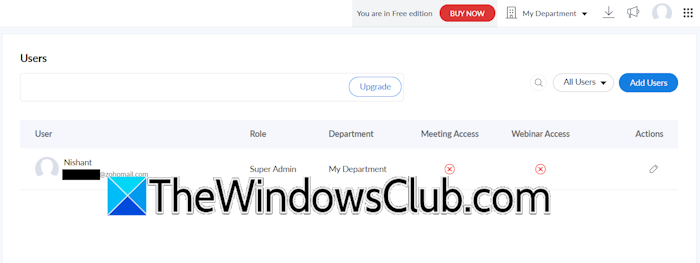
Click the Users tab to access the User Management settings. Here you can add or remove users, edit their roles and departments, and manage their app access.
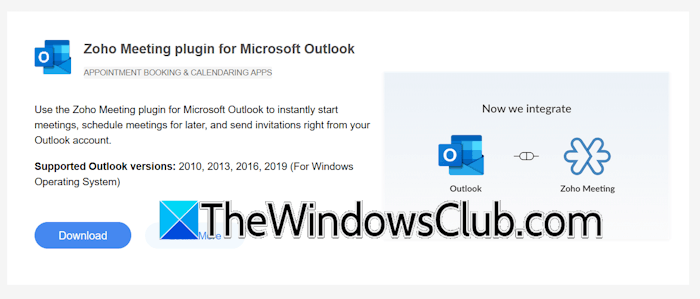
Zoho Meeting is available for different platforms, including Windows, iOS, and Android. In addition, it is available as a Chrome/Edge and Firefox extension and a Microsoft Outlook Plugin.
That’s it. I hope this helps.
Read: How to set up Zoho Mail with domain.
Zoho Meeting vs Google Meet vs Microsoft Teams: Which one is better?
Zoho Meeting, Google Meet, and Microsoft Teams offer both free and paid plans. However, Microsoft Teams and Google Meet also offer premium enterprise editions, specially designed for corporate environments. If we compare free versions of all these platforms, Microsoft Teams offers more features than Google Meet and Zoho Meeting.
Microsoft Teams allows you to send files during the meeting, while this option is paid in Zoho Meeting. Talking about Google Meet, I did not find such an option. In Microsoft Teams, you can also build communities and add members to them. This option is not available in Google Meet and Zoho Meeting. Google Meet offers live captions, which are not available in Microsoft Teams and Zoho Meeting.
The free version of Zoho Meeting allows you to conduct webinars and provides Webinar Analytics, which is not available on the other two platforms. Zoho Meeting also has Call Integration, but it is available only for paid users. Zoho Meeting is also available as a browser extension. Moreover, the pricing plans of Google Meet and Microsoft Teams are higher than those of Zoho Meeting.
Can I use Zoho Meeting for free?
Yes, you can use Zoho Meeting for free. The free version of Zoho Meeting comes with some limitations. You cannot view meeting analytics or share files during meetings. However, the webinar analytics are available in the free plan.
Read next: Best Google Workspace alternatives with better prices & features.
