
Filters are highly useful in an email client because they automatically organize your inbox and other folders, helping reduce clutter and keep important email messages easy to find. This article shows you how to set up filters in Zoho Mail.
How to set up Filters in Zoho Mail
Zoho Mail offers many useful features. It allows you to create filters for both incoming and outgoing emails. Additionally, some advanced filter options are also available in Zoho Mail. Follow these steps to set up filters in Zoho Mail:
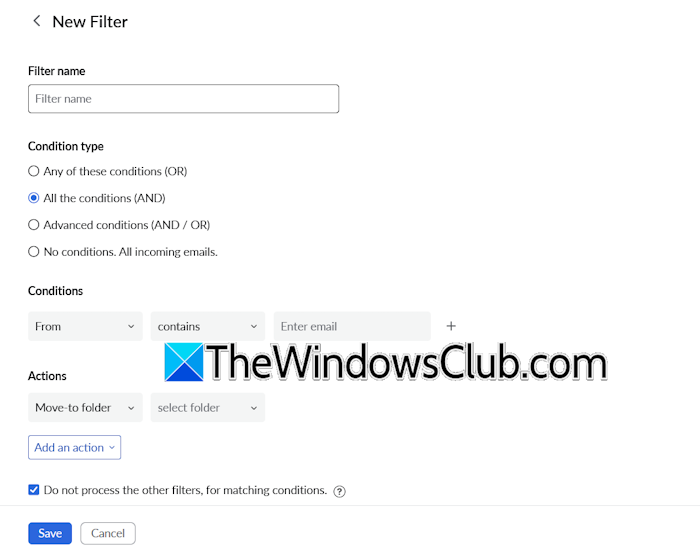
- Log in to Zoho Mail.
- Click on the gear-shaped icon on the right pane to open Settings.
- Select Filters from the left side.
- Select the Incoming Emails Filter if you want to set up a filter for your incoming emails. Otherwise, select the Outgoing Emails Filter. It also shows you filter suggestions.
- Click New Filter.
- Type a filter name and select the required condition type, condition, and actions.
- When you are done, click Save.
Condition types
Zoho Mail has 4 types of conditions for setting up a filter.:
- Any of these conditions (OR)
- All the conditions (AND)
- Advanced conditions (AND/OR)
- No conditions. All incoming or outgoing emails
To set up a filter correctly, it is important to understand how to use all these conditions. Let’s start.
1] Any of these conditions (OR)
This condition activates the filter if any one of the defined conditions is true. For example, if you want to send all shopping emails from two different senders, say Amazon and Ebay to a particular folder, you need to use the OR condition.
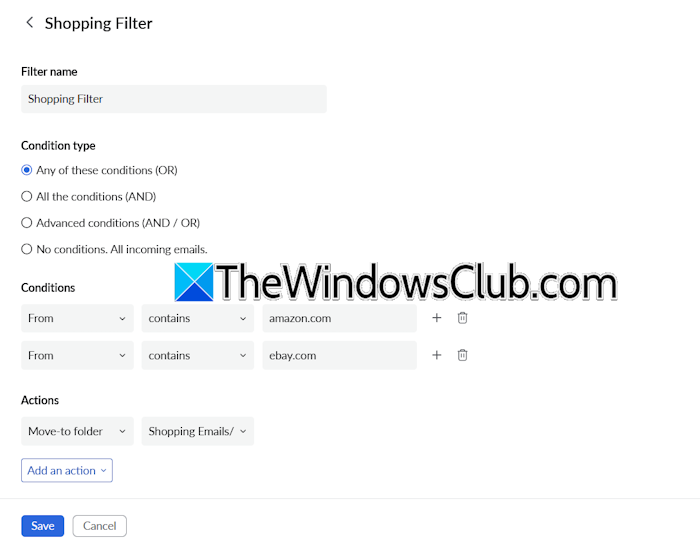
The steps to set up a filter are as follows:
- Enter a title, say Shopping Emails.
- Select Any of these conditions (OR) as the condition type.
- In the Conditions section, select From > contains. Type the website name, amazon.com.
- Click the Plus icon and type another website name, ebay.com.
- Select Move to folder in the Actions drop-down and then select the required folder.
- Click Save when done.
2] All the conditions (AND)
The AND condition activates the filter only if all the defined conditions are true. For example, if you want to move only the Job Alert emails from LinkedIn to a specific folder, you can do so by applying the AND condition.
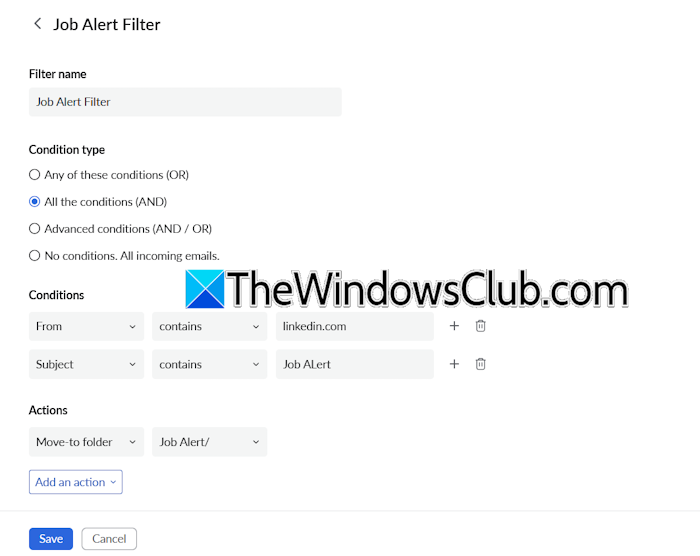
Follow these steps:
- Click New Filter and type its name.
- Select the All the conditions (AND) condition.
- Define the first condition, From > contains, and type the website URL, linkedin.com
- Define the next condition, Subject > contains, and type Job Alert.
- Select the required folder to move the emails with the Job Alert subject.
- Click Save when done.
3] Advanced conditions (AND/OR)
You can use this condition to combine multiple complex situations. For example, there are two different senders, say [email protected] and [email protected]. You want all the emails from these two senders with the Marketing subject to be moved to the Marketing folder.
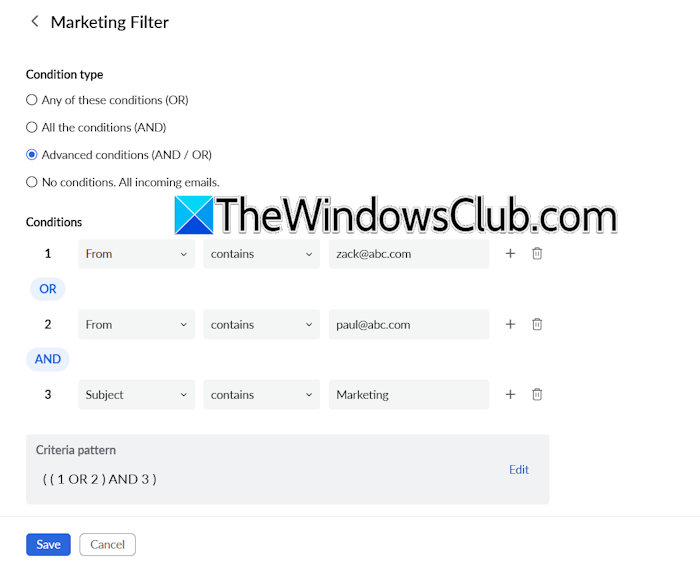
Here, you need to define a formula that tells Zoho Mail when to activate this filter. In our example, the formula should be (([email protected] OR [email protected]) AND Marketing).
The steps to create this filter are as follows:
- Click New Filter and type its name.
- Select Advanced conditions (AND/OR).
- Define conditions.
- Now, edit the criteria pattern.
When you are done, click Save.
4] No conditions. All incoming or outgoing emails
This filter applies the defined action to all incoming or outgoing emails, regardless of whether the conditions are met.
Applying the filters to all existing emails
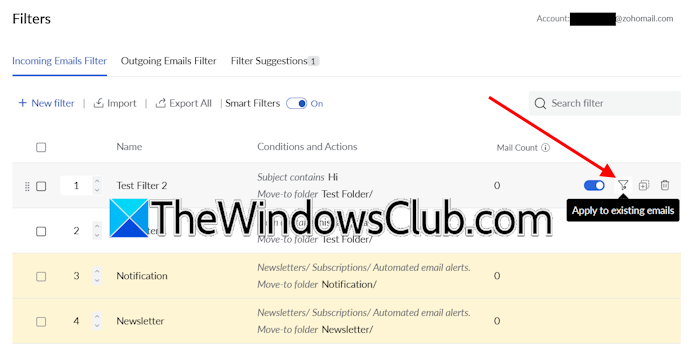
Zoho Mail also has a feature that allows you to apply the filter to all existing emails. This feature helps remove clutter from the Inbox after a filter is created. The steps to do this are as follows:
- Open Zoho Mail settings.
- Select Filters from the left side.
- Select the required tab for your filter.
- Hover your mouse over a filter and click the “Apply to existing emails” icon.
Exporting and importing a filter
You can delete filters in Zoho Mail. However, this action is irreversible, which means you cannot recover a deleted filter. If you delete a filter by mistake, it may cause inconvenience. Hence, to avoid this situation, you can export and back up your filters.
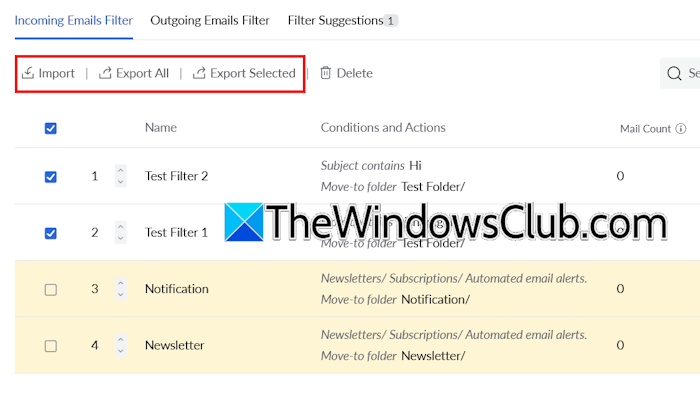
Follow these steps to export your filters:
- Open Zoho Mail.
- Navigate to the Filters category.
- Select the filters you want to export and click Export Selected. If you want to export all the filters, click Export All.
- Save the exported file.
Now, to import the filters, click Import and select the exported file.
That’s it. I hope this helps.
Read next: How to set up Zoho Mail with a domain.
