
If you want to set up recurring popup reminders on Windows 11 and Windows 10 without using any third-party software, here is how you can do that. You can display reminders at a predefined time using Command Prompt and Task Scheduler. We will also show you how to set reminders using apps like Microsoft To Do, Calendar, Outlook, Alarm & Clock, and Copilot.
Let’s assume that you want to show a message at a specific time so that you can remind yourself of something essential. There are multiple ways to do that. For example, you can use the Microsoft To Do app. However, if you do not want to use third-party programs and want to rely on in-built utilities, you can make use of Task Scheduler and Command Prompt.
How to set up Recurring Popup Reminders on Windows 11 without using any software
To set up recurring popup reminders on Windows 11/10 without using any software, follow these steps:
- Open Notepad on your computer.
- Enter the reminder text.
- Save the file with .cmd file extension.
- Open Task Scheduler on your computer.
- Click the Create Task option on the right side.
- Enter the task name and choose Windows 10 from the menu.
- Switch to the Triggers tab and click the New button.
- Choose Daily/Weekly/Monthlyand set the timing.
- Click the OK button.
- Go to the Actions tab and click the New button.
- Click the Browse button and select the CMD file.
- Click the OK button twice.
Let’s check out these steps in detail.
To get started, you need to open Notepad and enter the reminder text in the following format:
TITLE Reminder Title

ECHO This is the actual reminder

TIMEOUT 60
Then, click the File option and choose the Save as option.
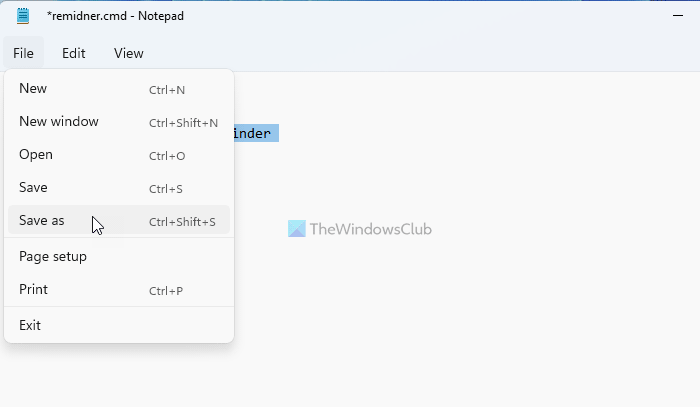
Next, you need to save the file in the .cmd format. For that, enter a name with .cmd file extension, choose All files from the Save as type drop-down menu, select a location where you want to save the file, and click the Save button.
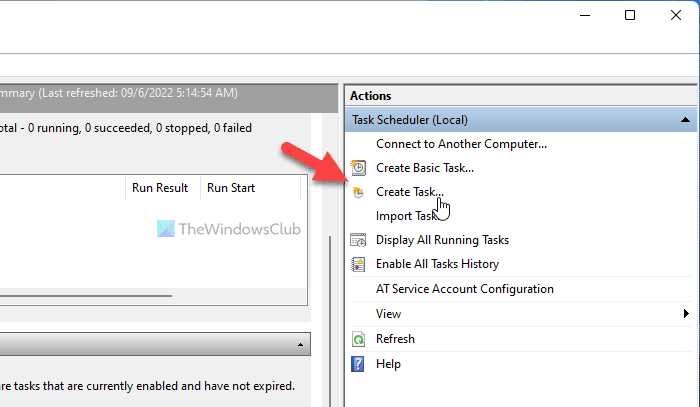
Then, open the Task Scheduler on your computer and click the Create Task option visible on the right-hand side.
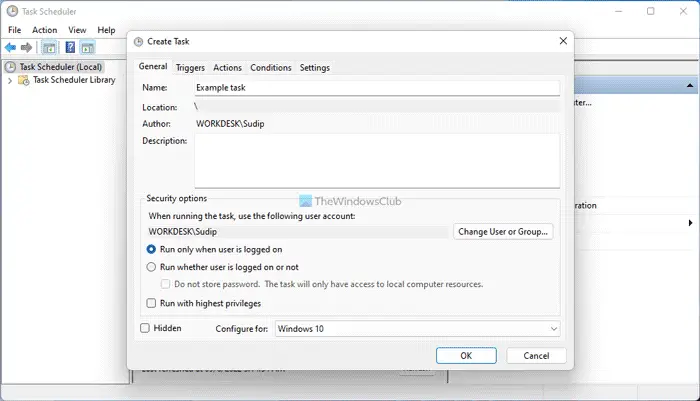
Enter a name and description for your task and choose Windows 10 from the Configure for menu.
Following that, switch to the Triggers tab and click the New button.
From here, choose the timing of your reminder. Let’s assume that you want to display the reminder every day. In that case, select the Daily option and choose the time as per your requirements.
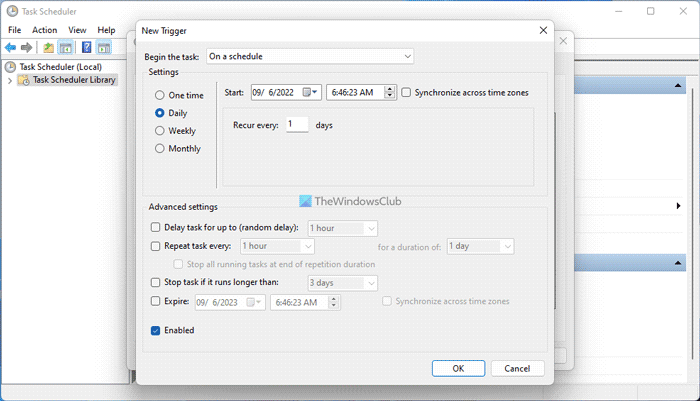
Click the OK button and switch to the Actions tab. Click the New button, select Start a program from the Action menu, and click the Browse button.
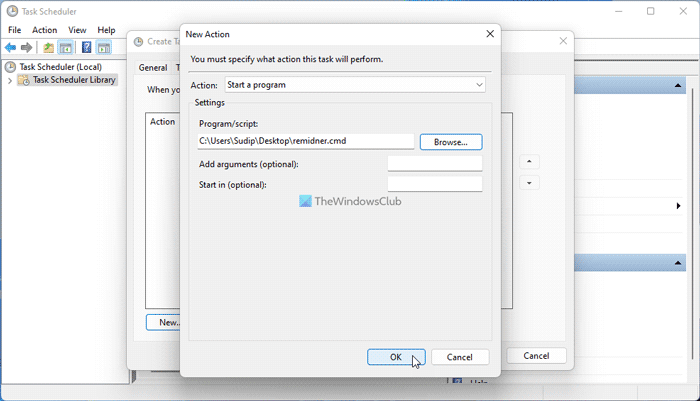
Choose the .cmd file you created earlier. Once done, click the OK button twice to save the change.
Now, you need to wait for the predefined time to get the reminder on your screen.
Set Recurring Reminders using Copilot
- Open Copilot
- Type your reminder. For example: “Call office at 11 AM.”
- Choose timing. Copilot will confirm the time/date and ask if you want it recurring.
- Just add “every day,” “every Monday,” or “weekly” to your request.
- You’ll receive a push notification on your PC and phone if linked with your Microsoft account.
You can always view, edit, or delete reminders by asking Copilot: “Show my reminders.”
Set Recurring Reminders using Microsoft To Do
- Open Microsoft To Do
- Click Add a task and type your reminder.
- Select the task
- Choose Remind me
- Set date/time.
- Choose Repeat for daily, weekly, monthly, or custom.
- Save.
Set Recurring Reminders using Calendar app
- Open the Calendar app.
- Click New Event and enter your reminder details.
- Set the time and date.
- Under Repeat, choose how often viz. Daily, weekly, monthly, yearly, or custom.
- Add a reminder notification.
- Save, and that’s it.
Set Recurring Reminders using Alarm & Clock app
- Open the Alarm & Clock app
- Set an alarm
- Toggle Repeat
- Select days of the week.
This is useful for simple recurring alerts like daily wake‑up calls.
Set Recurring Reminders using Outlook
- Open Outlook
- Go to the Calendar view.
- Click New Event and enter the title, date, and time.
- In the event window, locate Reminder dropdown.
- Choose when you want the alert- e.g., 5 minutes, 1 hour, etc.
- Select Recurrence and choose daily, weekly, monthly, or custom repeat patterns.
- Save the event.
Outlook will notify you at the chosen time.
Read: Free Appointment Reminder Software
How do I set a recurring reminder in Windows 11?
To set a recurring reminder in Windows 11 or Windows 10, you can take the help of the Command Prompt, Notepad, and Task Scheduler. The best thing is that you do not need to rely on third-party programs. Instead, you can use these built-in utilities to set the recurring reminder on your computer.
Read: How to schedule a Batch File to run automatically in Windows
Does Windows have a reminder feature?
Windows 11 has built‑in reminder features. You can set reminders using apps like Microsoft To Do, Calendar, Outlook, Alarm & Clock, and even Copilot, which now supports push‑notification reminders.
Read: How to create and schedule a Task with Create Basic Task Wizard.
