
People who use their Windows 11/10 computer for professional work must understand the important role Task Scheduler can play. Deploying your efforts in work may require you to perform certain tasks daily, and you can create and automate these tasks with the help of the Task Scheduler. Today, I’ll guide you through the steps to delay a scheduled task in Windows 11/10.
This title may have caught you off guard, but there’s a good chance some of you were looking for it. There is one drawback to using Task Scheduler to schedule tasks on Startup. This isn’t addressed very often, but having many tasks set to run at startup can delay or slow your PC’s startup time. If you are experiencing similar issues, then you always have the choice of eliminating some of the tasks, but that really defeats the purpose of having a service perform your tasks for you.
Read: How to Import or Export Tasks from Task Scheduler.
To improve startup time while keeping all your tasks intact, disable a few startup items in Task Manager and use Task Scheduler to schedule those tasks with a slight delay after Startup. This will help your PC start up faster while still making sure all the tasks you want happen. This is just one case. A change in your work schedule could mean moving a few tasks up or down to maximize efficiency, or you may just be putting something off. Anyway, let’s begin with the tutorial.
How to delay a Scheduled Task in Windows 11
You can delay a scheduled task in Windows 11 using the Task Scheduler in these steps:
- Open Task Scheduler
- Create a task
- Set a new trigger
- Go to Advanced Settings
- Select Delay task
- Close Task Scheduler.
The option to delay a task isn’t available upfront and can only be accessed via the normal Task creation wizard. Here’s what you have to do for that:
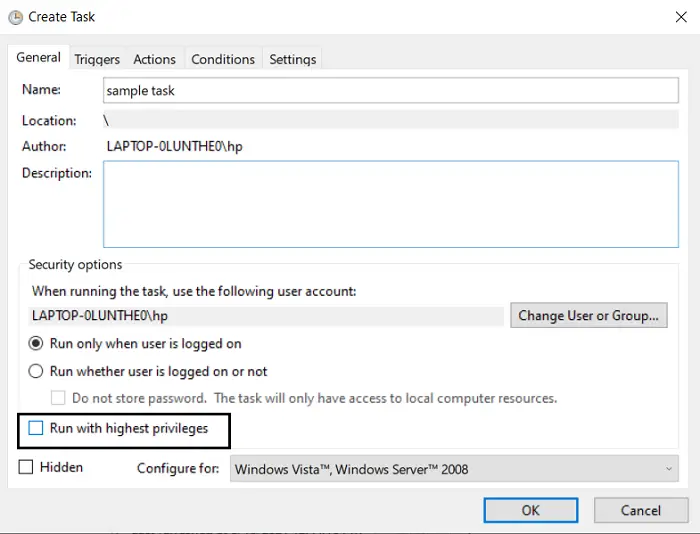
Search for and open Task Scheduler on your PC (search for it in the taskbar search pane), then under the Actions heading to your right, click ‘Create task’. This will open the Create Task wizard. Next to the ‘Name:’ blank space, name the task that you want to initiate with a delay. You can also describe the task here. Press Ok so you can get on with setting the trigger for this task.
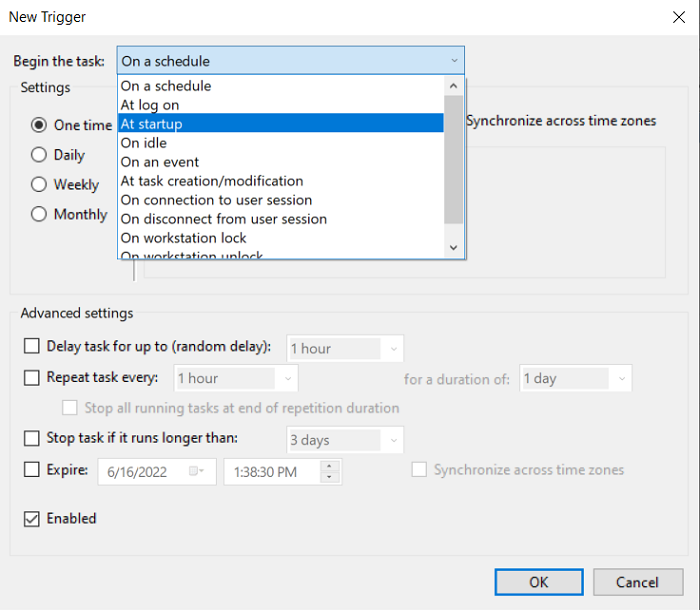
The trigger tells your PC when you want the task to start. Click on the Triggers heading, and at the bottom, you’ll find a ‘New’ button. This lets you set a new trigger. Open the drop-down and from the list of options, select ‘At Startup’.
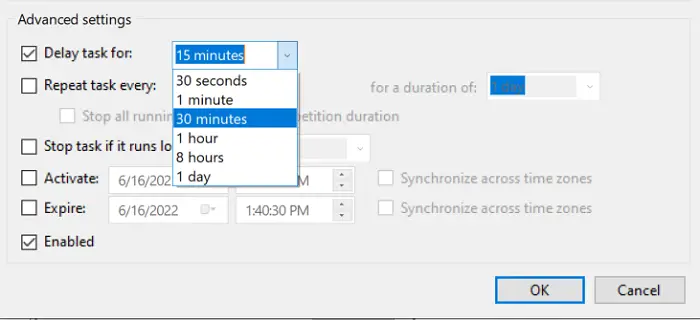
Once you have set up a new trigger, you can adjust the advanced settings for this task, including a delay.
Check the ‘delay task for:’ box and from the drop-down, choose the most suitable delay for you. As you can see, it can range from 30 seconds to a day. Click ‘OK’ when you’re done.
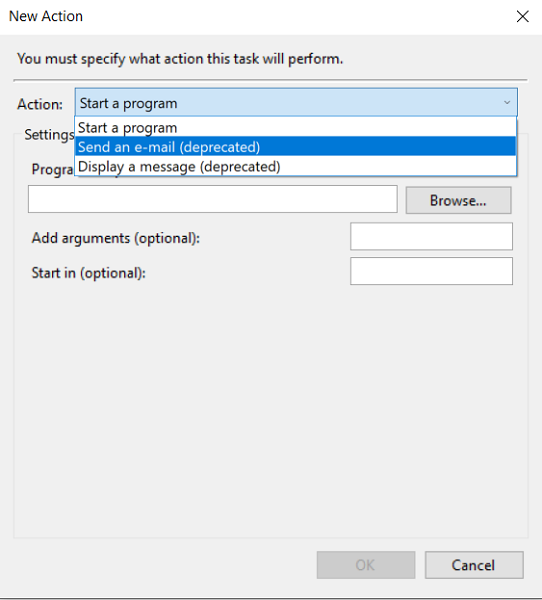
Now, click on the ‘Actions’ tab and press ‘New’ again. Here, you can set the action you want this task to perform; the three options are starting a program, sending an e-mail, or broadcasting a message. Using these options, you can play a song, send an email (deprecated now), Run Enhanced Disk Cleanup Too, schedule a Batch File, wake up PC from Sleep, update Windows Defender, make Windows speak out, etc.
Browse for the program that you want to execute (add any additional arguments, if necessary) and click on Ok to proceed.
You have some additional settings on offer here too, like initiating the task only if your computer is idle for some preset time, or starting the task only if your computer is running on AC power.
Once you’ve configured the task to your desired specifications, press ‘Ok’ to save it. Both the Conditions and Settings tabs are optional and you can move on without changing or enabling anything there.
Now that you have created your task, it’s best to verify that it runs properly. You can do that by opening the main Task Scheduler window, right-clicking the task you just created, and clicking Run. From then on, every time you turn on your PC, this task will run with a delay.
Read: How to delay startup programs in Windows using Freeware or Task Scheduler
I hope this makes the process easier for you and that you can now manage your scheduled tasks in whatever way works best for you.
Related: How to rename scheduled task in Windows Task Scheduler.
