
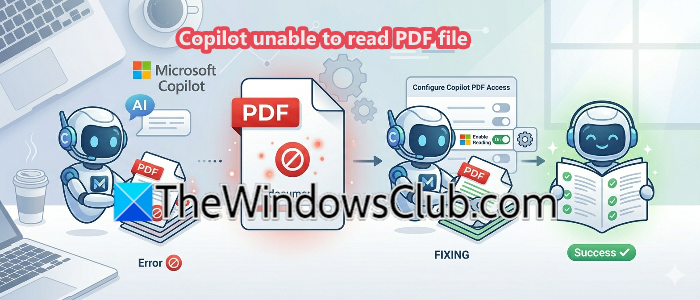
Is Microsoft Copilot refusing to open or read your PDF files on Windows 11? This issue can be due to various reasons, which we will discuss, and we will see what you can do if Copilot is unable to read a PDF file.
Fix Copilot unable to read PDF file
On Windows 11, the Copilot app isn’t a fully standalone PDF reader. Under the hood, it depends on the Microsoft Edge WebView2 runtime and its built-in PDF engine to extract text from your documents. When that runtime is outdated, corrupt, or when the system’s default PDF handler can’t serve the file to Copilot, the read attempt fails silently. Protected, scanned-image-only, oversized, or corrupted PDFs also stop Copilot in its tracks because the text simply isn’t accessible.
If Copilot is unable to read a PDF file, follow the solutions mentioned below.
- Check the PDF file for protection and readability
- Update Microsoft Edge and the Copilot app
- Reset the Copilot app
- Use the Copilot web version as a quick bypass
- Update the underlying PDF engine (WebView2 Runtime)
Let us discuss them in detail.
1] Check the PDF file for protection and readability
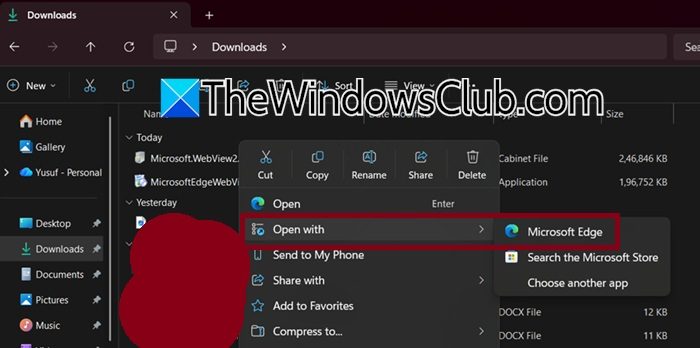
Copilot cannot open encrypted, restricted, or severely corrupted PDFs. A valid, unprotected, text‑based file lets Edge extract the content without obstacles. Follow the steps mentioned below.
- Open the PDF directly in Microsoft Edge by right-clicking the file and selecting Open with > Microsoft Edge.
- Look for any password prompt or warning about restrictions. Remove encryption or export an unrestricted copy if needed.
- Confirm the PDF contains selectable text, not just scanned images. Try copying a sentence; if nothing highlights, the document needs OCR before Copilot can read it.
Now, go ahead and try uploading a PDF to Copilot.
2] Update Microsoft Edge and the Copilot app
The latest Edge version includes fixes for PDF parsing bugs and tighter Copilot integration. An outdated app may fail to hand off the file correctly. To update Microsoft Edge and the Copilot app, open Edge and click the three‑dot menu, then go to Settings > About Microsoft Edge, where the browser automatically checks for and installs any available updates. Next, launch the Microsoft Store, navigate to your Library, and install any pending updates for Microsoft Copilot. Finally, restart your PC to complete the update process.
3] Reset the Copilot app
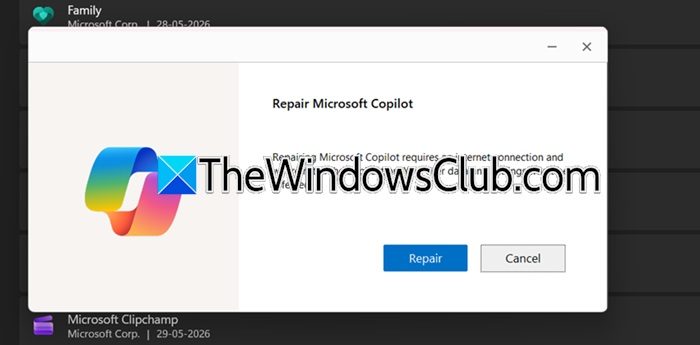
Copilot’s local cache and settings can become corrupted after updates or long use, interfering with how it handles file attachments. A reset clears that state without affecting your account. Follow the steps mentioned below.
- Hit Win + I to open Settings.
- Go to Apps > Installed apps.
- Look for Copilot.
- Click on the three dots and click on Advanced options.
- Now, go to the Reset button, confirm, then restart Copilot and test the PDF.
Hopefully, it would start working.
4] Use the Copilot web version as a quick bypass
The web client at copilot.microsoft.com processes PDFs directly through your browser’s own PDF engine, completely bypassing the local app’s dependencies and system settings.
Open your browser and go to copilot.microsoft.com. Sign in, then click the attachment icon in the chat input to upload the PDF. If Copilot can read it here but not in the app, the issue is likely with your local setup.
5] Update the underlying PDF engine (WebView2 Runtime)
Copilot relies on the Microsoft Edge WebView2 Runtime to render and parse PDFs. An outdated runtime carries bugs that directly break Copilot’s file‑reading ability.
- In Settings > Apps > Installed apps, search for Microsoft Edge WebView2 Runtime.
- Click the three‑dot menu, select Modify, then choose Repair to fix any corruption.
- To update, open Windows Terminal and run: winget upgrade Microsoft.EdgeWebView2.
- Restart your PC.
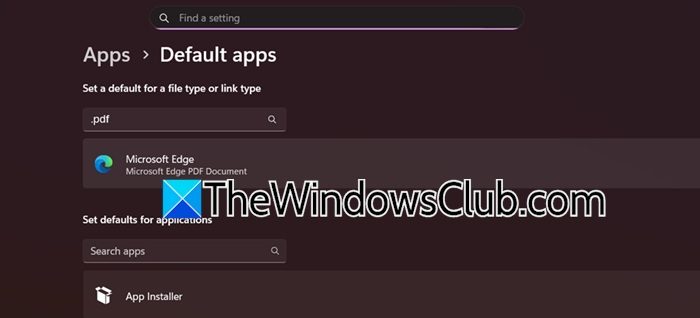
If the PDF still won’t open, temporarily set Microsoft Edge as the default PDF viewer (Settings > Apps > Default apps > .pdf) to ensure Copilot’s engine isn’t being blocked by a third‑party handler; you can revert this afterward.
Hopefully, with the help of these solutions, your issue will be resolved.
How to open a PDF file in Copilot?
To open a PDF in Copilot on Windows 11, simply drag the file from File Explorer and drop it directly into the Copilot chat input field; alternatively, you can click the paperclip (attachment) icon in the chat box, browse to your PDF, and select it. If you’re using the web version, visit copilot.microsoft.com, sign in, and use the attachment icon there. Once attached, you can ask Copilot to summarize, explain, or extract information from the document.
Read: How to save Chat History in Copilot
Is Copilot compatible with PDF?
Yes, Copilot is fully compatible with PDF files, but it works best with text‑based, unprotected documents. Because Copilot relies on an underlying PDF engine (the WebView2 runtime on Windows), it can read selectable text from standard PDFs effortlessly. However, it cannot read password‑encrypted files, documents that are purely scanned images without an OCR layer, or heavily corrupted PDFs. If you see a reading failure, converting the PDF to a searchable format first usually resolves the issue.
Read: Unable to Export as PDF from Copilot.
