
Microsoft has officially launched Copilot Cowork for commercial customers, making the feature generally available worldwide. As one of Microsoft’s usage-based AI experiences, Cowork uses Copilot Credits instead of a fixed licensing model. To help organizations control AI spending as they learn what Cowork costs for their teams’ day-to-day work, Microsoft has introduced Cost Management and new spending controls for IT administrators. In this guide, we’ll show you how to configure governance policies and permissions for Copilot Cowork on a Windows 11/10 PC.
How to set up Administrative Governance for Copilot Cowork
To set up administrative governance for Copilot Cowork, follow these steps:
- Sign in to the Microsoft 365 admin center
- Configure the default spending policy
- Create additional spending policies
- Monitor usage and spending
Let us see this in detail.
1] Sign in to the Microsoft 365 admin center
Open your web browser and go to admin.microsoft.com. Sign in with one of the following administrator roles:
- Global administrator
- Billing administrator
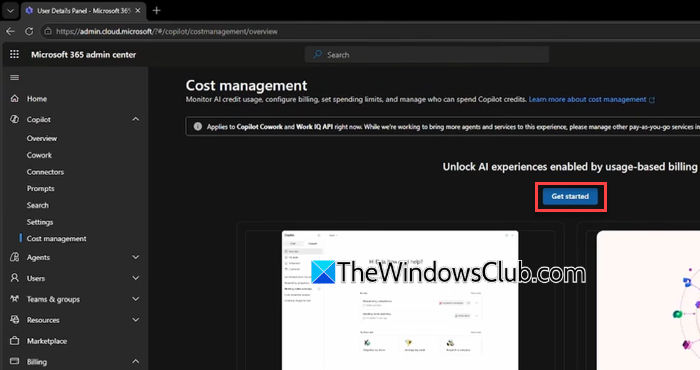
Once you’re in the admin center, expand Copilot in the left navigation pane, then select Cost management.
If you’re configuring usage-based billing for the first time, click Get started.
Read: How to master AI Triage in Copilot Cowork: Prompts that work
2] Configure default spending policy
The first step is to activate the default spending policy for your organization. This policy determines how Copilot Credits are consumed by default and applies to all users unless another spending policy is assigned.
In the Activate the default spending policy for your organization pane on the right side, configure the following settings:
A] Select a billing method
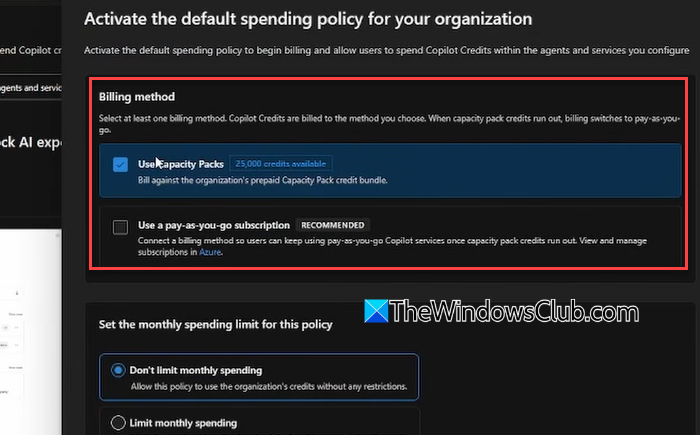
Under Billing method, choose how your organization will be billed for Copilot Credit usage. Depending on your tenant configuration, you may use:
- Copilot Credit Pre-Purchase Plan (P3)
- Capacity Packs (if available)
- Pay-as-you-go billing through an Azure subscription
The selected billing method becomes the default for future spending policies unless you override it.
B] Configure monthly spending limits
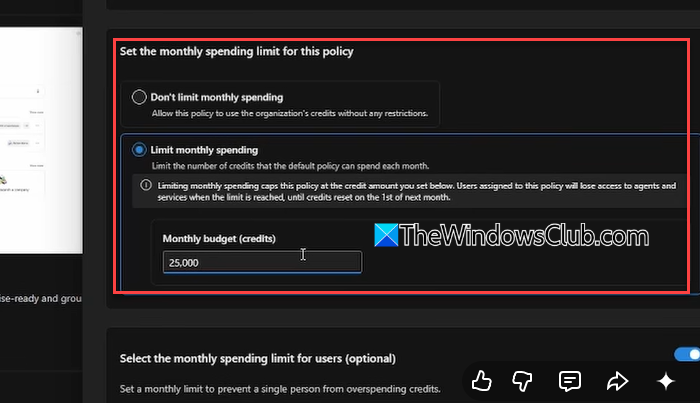
Under Set the monthly spending limit for this policy, choose one of the following options:
- Don’t limit monthly spending: Allows the policy to consume Copilot Credits without a monthly spending cap. Credits are billed using the selected billing method until they’re exhausted or, if applicable, continue on a pay-as-you-go basis.
- Limit monthly spending: Lets you specify the maximum number of Copilot Credits that this policy can consume each month. Once the limit is reached, users assigned to the policy lose access to usage-based AI experiences until the monthly credits reset or an administrator increases the limit.
Next, review the Select the monthly spending limit for users (optional) section.
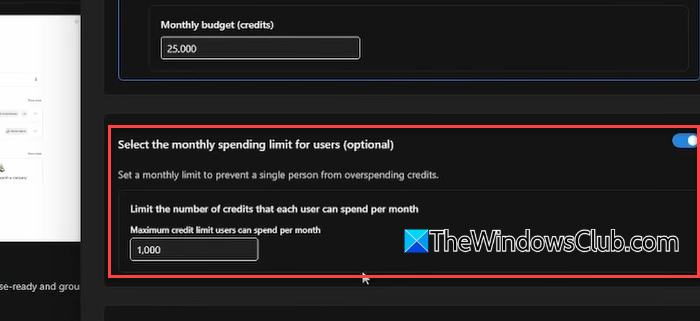
Enable this option if you want to prevent a single user from consuming all the credits allocated to the policy. Then specify the maximum number of Copilot Credits each user can use per month.
C] Configure alerts
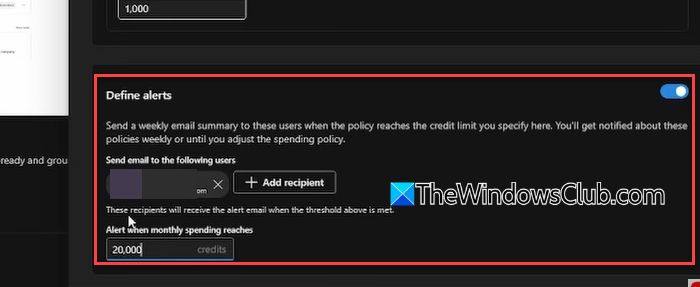
You can also enable email alerts so designated administrators receive notifications when the policy approaches the configured spending threshold.
D] Activate the policy
If the default settings meet your organization’s requirements, click Activate to create the default spending policy.

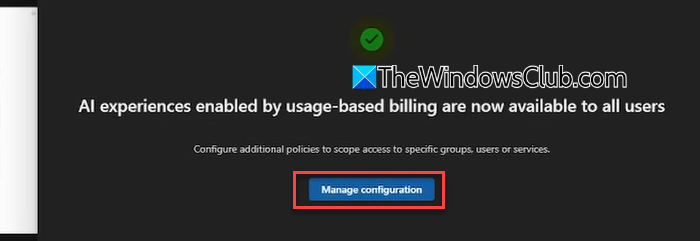
Once the policy is activated, you’ll see a confirmation message. Click Manage configuration to return to the Cost management dashboard, where you can review the policy, create additional spending policies, or modify existing ones.
Note: If you need more control over how the policy is applied, click Customize setup configuration instead. This opens a configuration page where you can review and edit your default setup configuration before activating the policy.
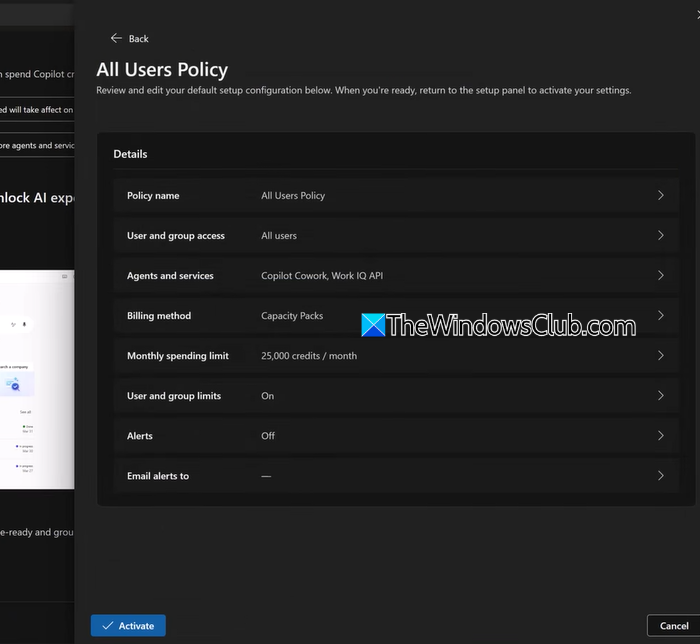
3] Create additional spending policies
If you want different departments or user groups to have their own spending limits, billing methods, or access to AI experiences, you can create additional spending policies.
Click + Add spending policy on the Configuration tab.
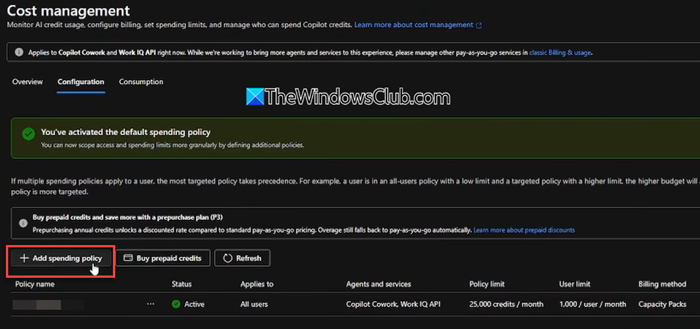
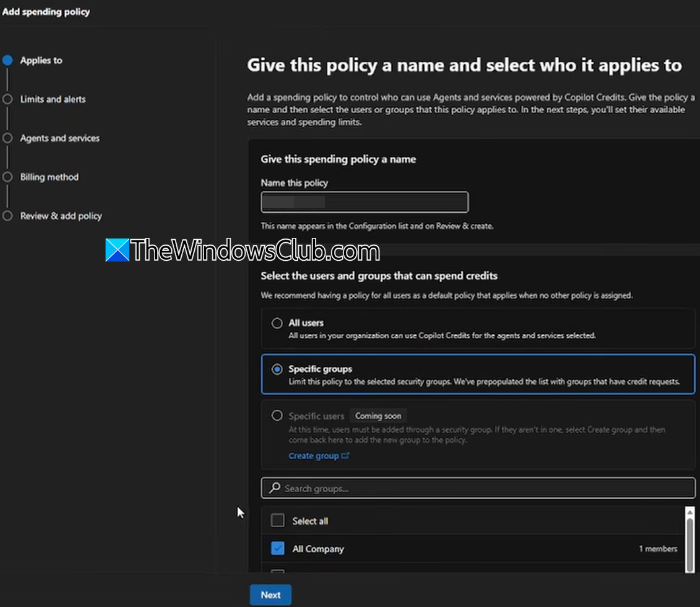
The Add spending policy wizard appears on screen. Specify:
- A policy name.
- Who the policy should apply to (all users or specific groups). Individual users can’t currently be selected directly. To assign a policy to specific users, add them to a Microsoft Entra security group first.
- Monthly spending limits.
- Optional per-user spending limits.
- Alert thresholds.
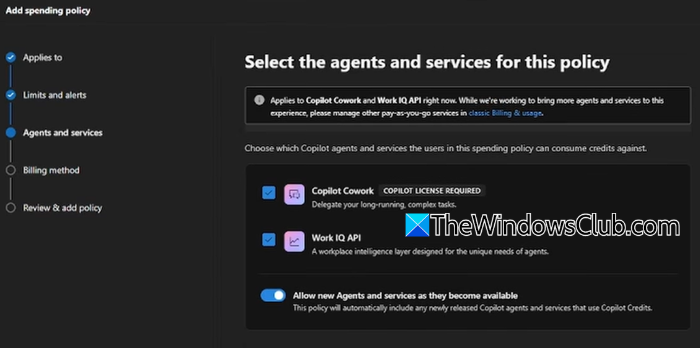
- Which usage-based AI experiences the policy should govern. By default, Copilot Cowork and Work IQ API are selected. If you want the policy to automatically include newly released AI experiences that support Copilot Credits, leave Allow new Agents and services as they become available turned on. Otherwise, turn it off and manually select only the services you want to include.
- Billing method. If you’re signed in as a Global Administrator or Billing Administrator, you can select Change to choose a different Azure subscription or billing configuration for this policy.
Review the settings and click Create spending policy if everything looks correct. The policy now shows up in the Configuration list and starts applying to scoped users immediately.
4] Monitor usage and spending
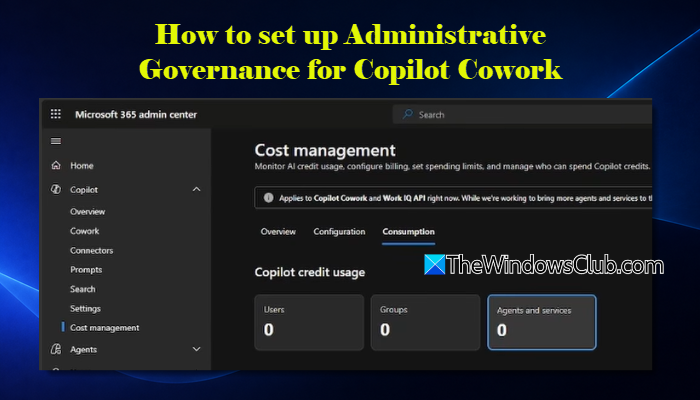
This Cost management dashboard provides a centralized view of spending patterns, helping administrators identify where credits are used, who consumes them, and how usage trends evolve. It includes two reporting tabs: Overview and Consumption.
A] The Overview tab
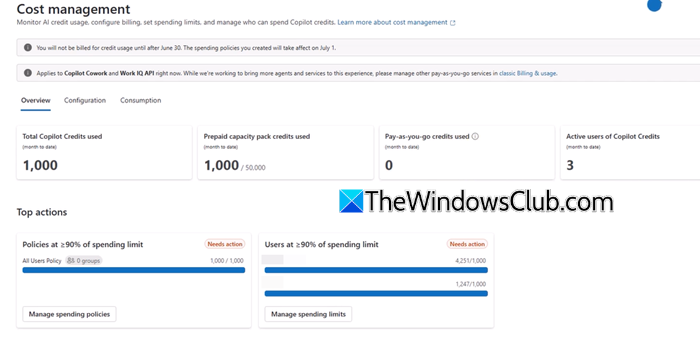
This tab provides a high-level summary of Copilot Credit usage across your organization. The dashboard refreshes approximately every four hours. Here, you can review:
- Total Copilot Credits used to understand overall AI consumption.
- Prepaid capacity pack usage (if applicable).
- Pay-as-you-go credit usage, including Copilot Credit Pre-Purchase Plan (P3) consumption.
- Active users consuming Copilot Credits.
The Top actions section highlights spending policies or users that are approaching their configured credit limits. From here, you can:
- View credit requests submitted by users requesting access to Copilot services or higher spending limits.
- Manage spending policies to adjust credit limits or update policies for affected users or groups.
B] The Consumption tab
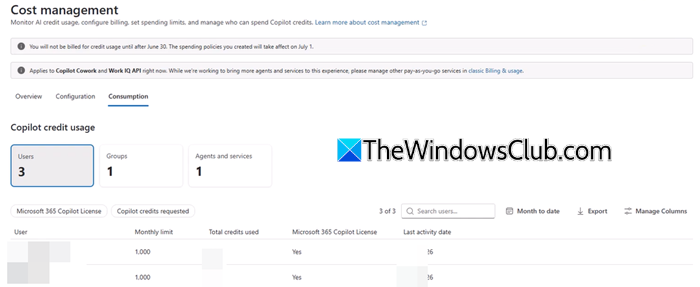
Select the Consumption tab to analyze how Copilot Credits are being used. This dashboard refreshes approximately every two hours and provides detailed usage reports for users, groups, and supported AI experiences. Use the available views to monitor:
- Users: Review each user’s credit limit, credit usage, last activity, and session count. Selecting a user displays additional information, including assigned spending policies, daily credit consumption, and usage by service.
- Groups: Review spending by Microsoft Entra security groups, including the assigned spending policy and monthly credit limit.
- Agents and services: Monitor credit consumption for supported AI experiences, including Copilot Cowork and Work IQ API, to identify which services consume the most Copilot Credits.
The dashboard also includes consumption trend charts showing prepaid credit usage, pay-as-you-go usage, and cumulative credit consumption over time. These insights help you identify high-usage users or departments, monitor adoption trends, and decide whether spending policies or credit allocations need to be adjusted.
That’s all! I hope you find this useful.
Read: How to optimize Workflow with Scheduled Copilot Cowork Tasks.
How much is Copilot Cowork credit?
Copilot Cowork uses a usage-based billing model based on Copilot Credits rather than a fixed per-user price. The total cost depends on how many Copilot Credits your organization consumes while using Cowork.
Is Copilot Cowork free?
Copilot Cowork is not a free service. Although it’s available to eligible Microsoft 365 Copilot customers, it consumes Copilot Credits under Microsoft’s usage-based billing model. Organizations must configure usage-based billing and are charged based on actual credit consumption.
Read Next: How to use Plugins in Copilot Cowork.
